No. Windows 10 needs drivers for your keyboard, mouse, screen, storage and network, so removing them all can leave the PC unusable. If one device is acting up, uninstall just that device’s driver in Device Manager and restart. If the whole PC has problems, Reset this PC reinstalls Windows and its drivers for you.
Applies to: Windows 10. Microsoft ended Windows 10 support on October 14, 2025, so a PC without Extended Security Updates no longer receives security fixes; that program runs until October 12, 2027.
Before you change any driver
- Create a restore point in Windows 10 so you can undo the change.
- Know which device has the problem. Checking drivers in Windows 10 helps you spot it.
Uninstall one driver
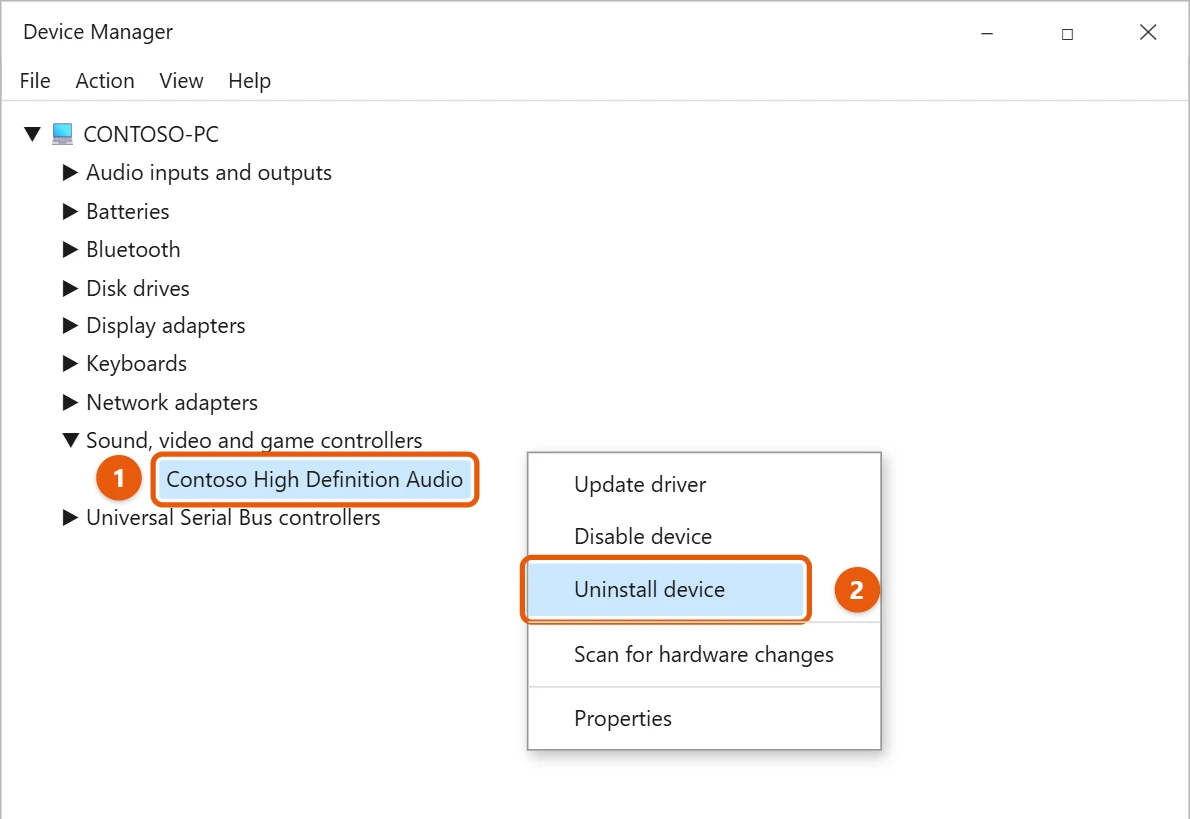
- Right-click Start and select Device Manager.
- Open the category for the device, such as Sound, video and game controllers.
- Right-click the device and select Uninstall device.
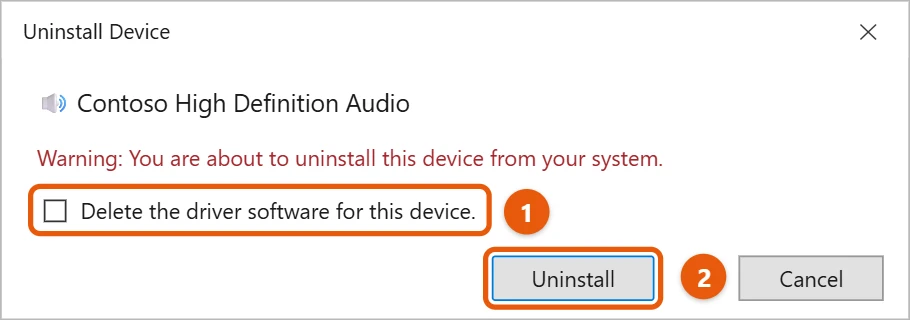
- If you see Delete the driver software for this device, check it only if you want Windows to get a fresh driver. Then select Uninstall.
- Restart your PC. Windows usually reinstalls a working driver on its own.
If a new driver caused the problem
- In Device Manager, right-click the device and select Properties.
- On the Driver tab, select Roll Back Driver if it’s available.
To move forward instead of back, update all drivers on Windows 10.
Drivers to leave alone
Some drivers are risky to remove, because Windows needs them just to start or let you use the PC:
- Storage controllers and Disk drives: removing these can stop Windows from starting.
- System devices: these run core parts of the PC, such as power and chipset features.
- The only keyboard or mouse: on a laptop without a spare, you may not be able to click Restart afterward.
Uninstalling a display adapter is safer. The screen switches to a basic driver with lower resolution until Windows or the maker installs the right one.
Clean up a graphics driver
If a graphics driver keeps causing trouble, use the maker’s clean install option rather than uninstalling everything. NVIDIA’s installer has Perform a clean installation under Custom install, and AMD’s installer offers a Factory Reset option. Both remove the old driver before adding the new one.
Remove leftover driver packages
Uninstalling a device can leave its driver package in Windows’ driver store, which is why the same driver sometimes comes straight back. To clear one out, open Command Prompt as administrator:
- Type
pnputil /enum-driversand press Enter. Find the driver by its provider and class, and note its Published Name, such as oem12.inf. - Type
pnputil /delete-driver oem12.inf /uninstall, using your own published name, and press Enter.
Printer drivers stay behind even after you remove the printer. Press Windows logo key + R, type printui /s /t2, select the driver on the Drivers tab, and choose Remove > Remove driver and driver package.
Stop Windows from reinstalling a bad driver
Press Windows logo key + R, type sysdm.cpl, and press Enter. On the Hardware tab, select Device Installation Settings, choose No, and select Save Changes. Turn it back to Yes later, so you keep getting driver fixes.
If the whole PC has problems
Use Reset this PC. It reinstalls Windows and a full set of drivers, and you can choose to keep your files. The full process is in resetting Windows 10 to factory settings.
Frequently asked questions
Will uninstalling a driver delete my files?
No. It only removes the software that runs that device.
My device disappeared after I uninstalled it. What now?
In Device Manager, select Action > Scan for hardware changes. Windows finds the device and installs a driver again.
Roll Back Driver is grayed out. What can I do?
Windows doesn’t have an older driver saved for that device. Download an earlier version from the device maker’s website, uninstall the current driver, and install the older one.
Should I use a driver updater app?
No. Many of these apps install the wrong drivers or bundle extra software. Windows Update and your PC or device maker’s website are the safest places to get drivers.
What do the error codes in Device Manager mean?
Open the device’s Properties to see the code under Device status. Code 28 means no driver is installed, so install one. Code 10 means the device can’t start, which a driver update or reinstall often fixes. Code 43 means Windows stopped the device because it reported a problem, which can point to faulty hardware.
Do I need to remove the old driver before installing a new one?
Usually not. A new driver from Windows Update or the maker replaces the old one. Only uninstall first if the maker’s instructions tell you to. Graphics drivers are the most common exception.
Updating, rolling back and reinstalling are all explained in Update drivers through Device Manager in Windows.
For a graphics card, you can also roll back NVIDIA drivers on Windows 10. After a crash, reading dump files in Windows 10 can help you look into it.

Matt Jacobs has been working as an IT consultant for small businesses since receiving his Master’s degree in 2003. While he still does some consulting work, his primary focus now is on creating technology support content for SupportYourTech.com.
His work can be found on many websites and focuses on topics such as Microsoft Office, Apple devices, Android devices, Photoshop, and more.