To update audio drivers in Windows 10, first run Windows Update. If that doesn’t bring a new driver, right-click Start, open Device Manager, and expand Sound, video and game controllers. Then right-click your audio device, select Update driver, and choose Search automatically for drivers.
Applies to: Windows 10. Windows 10 reached end of support on October 14, 2025, and only PCs enrolled in Extended Security Updates still get security fixes, through October 12, 2027.
A newer audio driver can fix no sound, crackling, distorted audio, and microphone or headset problems. If updating doesn’t help, reinstalling the driver often does.
Update with Windows Update
- Select Start > Settings > Update & Security > Windows Update.
- Select Check for updates and install what it finds.
- If you see View optional updates, select it, open Driver updates, and check any audio driver listed. Then select Download and install.
- Restart your PC.
Update in Device Manager
- Right-click Start and select Device Manager.
- Expand Sound, video and game controllers.
- Right-click your audio device, such as a High Definition Audio device, and select Update driver.
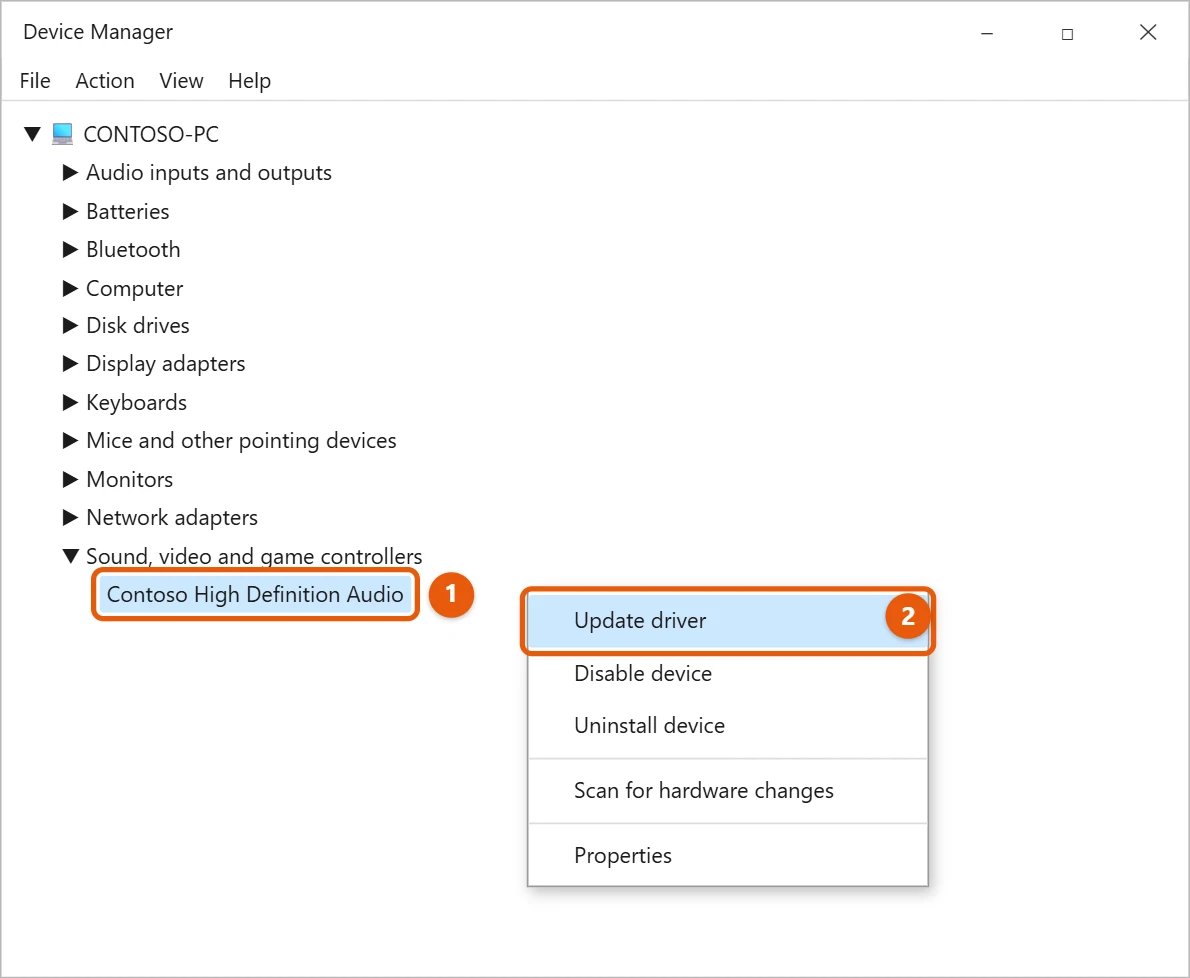
- Select Search automatically for drivers, then follow the prompts.
- Restart your PC when it’s done.
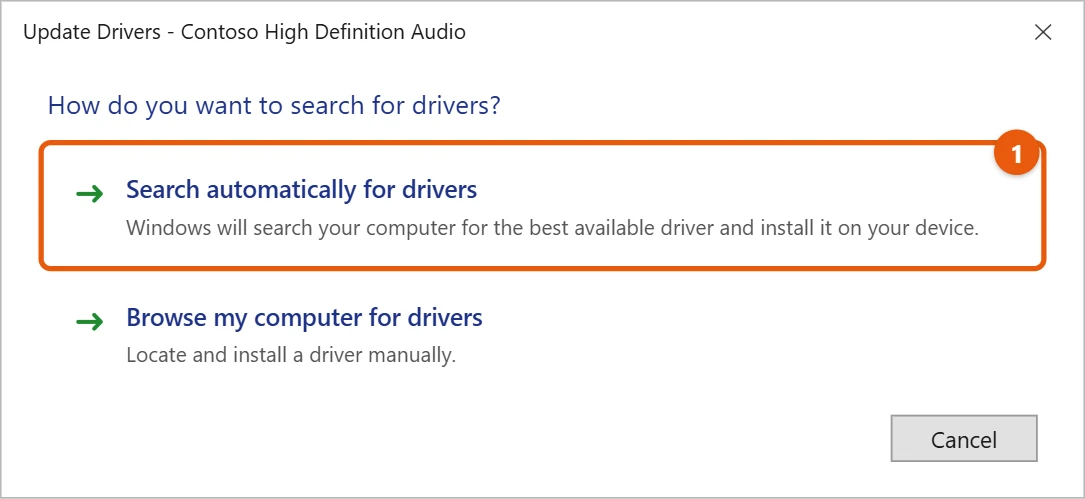
If Windows reports that the best driver is already installed, a newer one may still be on your PC maker’s website.
Reinstall the audio driver
Reinstalling clears out a damaged or half-installed driver.
- In Device Manager, expand Sound, video and game controllers.
- Right-click the audio device and select Uninstall device, then confirm.
- Restart your PC. Windows reinstalls the audio driver automatically.
If no audio device shows up at all, select Action > Scan for hardware changes in Device Manager.
Get the driver from your PC maker
Some PCs need the audio driver from the PC or sound card maker, especially after a big Windows update. If you have Realtek sound on Windows 11, follow the steps for installing the Realtek audio driver on Windows 11.
- Go to your PC maker’s support website and search for your model.
- Download the latest audio driver for Windows 10.
- Install it by following the maker’s instructions, then restart.
Only download drivers from the maker’s official site, not from driver download sites.
Undo a bad driver update
If sound broke right after a driver update, roll it back. In Device Manager, right-click the audio device, select Properties, open the Driver tab, and select Roll Back Driver. If the button is greyed out, there’s no older driver saved.
Try the built-in Windows audio driver
If the maker’s driver keeps causing trouble, switch to Microsoft’s generic driver. In Device Manager, right-click the audio device, select Update driver > Browse my computer for drivers > Let me pick from a list of available drivers on my computer, choose High Definition Audio Device, and select Next. Extra features from the maker’s app may stop working, but basic sound usually returns.
Check the audio services
Press Windows + R, type services.msc and press Enter. Make sure Windows Audio and Windows Audio Endpoint Builder are both Running with Startup type Automatic. Right-click either one and select Restart if sound stopped suddenly.
Troubleshooting
- “No audio output device is installed.” In Device Manager, select Action > Scan for hardware changes. On many laptops, the sound driver also needs Intel Smart Sound Technology or chipset drivers from the PC maker.
- The Realtek or maker’s audio app disappeared. It’s tied to the maker’s driver. Reinstall the audio driver from the PC maker’s support page, which usually brings the app back.
- Sound works in headphones but not speakers, or the reverse. Select the right output device from the speaker icon on the taskbar.
Frequently asked questions
How do I know which audio driver I have?
In Device Manager, right-click the audio device, select Properties, and open the Driver tab. It shows the driver’s maker, date, and version.
The driver is updated but there’s still no sound. What now?
The problem may not be the driver. Work through the fixes for no sound in Windows 10, and make sure the right speakers are chosen as the default audio device in Windows 10.
Do I need a driver updater program?
No. Windows Update, Device Manager, and your PC maker’s site cover what you need.
Setting up new speakers after the update? The steps to connect external speakers to a Windows 10 laptop cover that, and whether to uninstall all drivers in Windows 10 is worth reading before a bigger cleanup. Microsoft’s version of these steps is Update audio drivers in Windows.

Matt Jacobs has been working as an IT consultant for small businesses since receiving his Master’s degree in 2003. While he still does some consulting work, his primary focus now is on creating technology support content for SupportYourTech.com.
His work can be found on many websites and focuses on topics such as Microsoft Office, Apple devices, Android devices, Photoshop, and more.