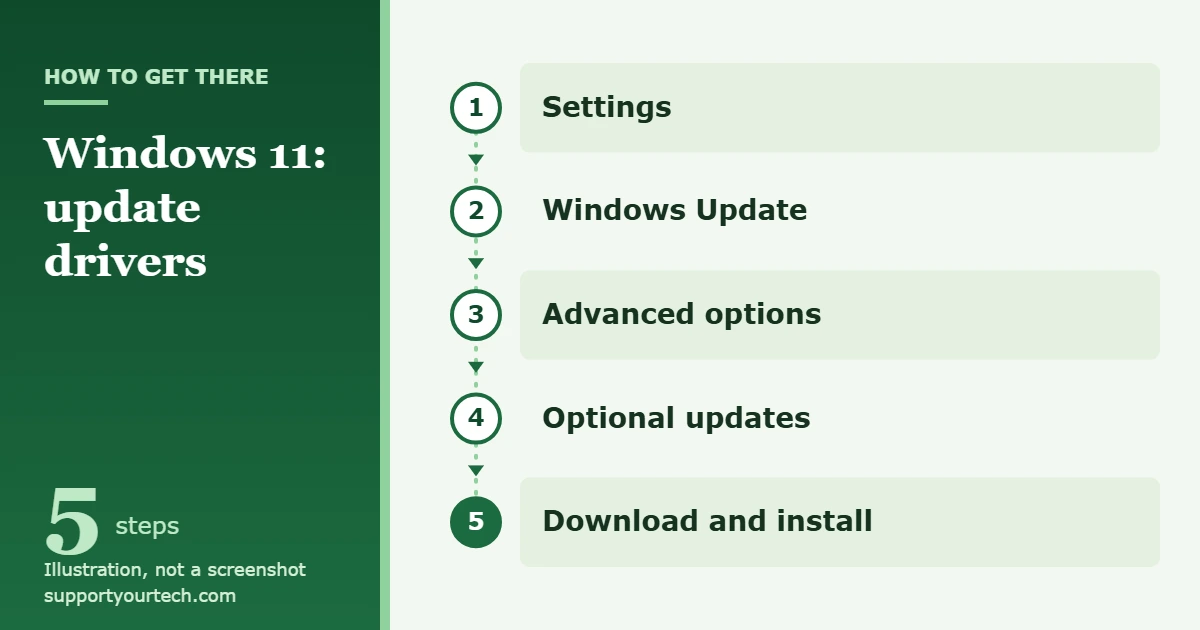
To update drivers in Windows 11, open Settings > Windows Update > Advanced options > Optional updates, select the drivers you want, and choose Download and install. For a single device, right-click Start, open Device Manager, right-click the device and select Update driver.
Applies to: Windows 11 (the Device Manager steps are the same in Windows 10). Checked against Microsoft Support on October 7, 2026.
What a driver is and when to update it
A driver is a small piece of software that lets Windows talk to a piece of hardware, such as a mouse, keyboard, printer, scanner, external drive or video card. Without the right driver, the device may not work at all, or may work with features missing.
Windows 11 installs recommended drivers automatically through Windows Update, so most people never need to update one by hand. It is worth doing manually in three situations: a device has stopped working properly, the manufacturer has released a fix for a problem you actually have, or you have added new hardware that Windows did not set up by itself. A newer driver does not guarantee better performance, so there is no need to chase every release for a device that is working well.
Before you start
- Use an administrator account. Microsoft states that you must be signed in with administrator permissions to roll back a driver, and installing one normally needs the same rights.
- Save your work. Some driver updates need a restart, and the screen, sound or network connection can cut out briefly while a driver is replaced.
- Know which device you are fixing. If you plan to download a driver yourself, note the exact make and model of the PC or the part, and which version and architecture of Windows you have, so that you pick the matching file.
- Stay on official sources. Get drivers from Windows Update or from the hardware maker’s own support site. Microsoft advises against downloading drivers from unofficial websites.
Update drivers through Windows Update
This is the route Microsoft recommends first. Recommended drivers arrive with your normal updates, while optional drivers wait on a separate page until you pick them.
- Select Start, then open Settings. The Settings window opens with a list of categories.
- Select Windows Update. Run a check for updates here first and install anything that is waiting, because recommended drivers are delivered this way.
- Select Advanced options. A page of extra update settings opens.
- Check that Receive updates for other Microsoft products is turned on. Microsoft lists this as part of the procedure for finding optional drivers.
- Under Additional options, select Optional updates. Any optional drivers that Windows has found for your hardware are listed here.
- Tick the driver for the device you want to update, then select Download and install. Windows downloads the driver and installs it.
- Restart the PC when the installation finishes, even if you are not asked to, so that the new driver is loaded.
If the Optional updates page lists no drivers, Windows Update has nothing newer to offer for your hardware at the moment. That does not prove that no newer driver exists anywhere, only that none has been published through Windows Update for your device.
Update one device’s driver in Device Manager
Device Manager is the Windows tool that lists every piece of hardware in the PC. Use it when a single device is misbehaving and you want Windows to look for a driver for that device alone.
- Right-click the Start button and select Device Manager. A window opens with hardware grouped into categories.
- Select the arrow next to the category that contains your device to expand it. A printer, for example, sits under a printer category and a video card under a display category.
- Right-click the device and select Update driver. A window asks how you want to search.
- Choose the automatic search. Microsoft’s instructions name this option Search automatically for updated driver software; the wording on your screen may be slightly shorter. Windows searches and, if it finds a newer driver, installs it.
- If Windows reports that it found nothing newer, you can select Search for updated drivers on Windows Update in the same window to jump to the Settings route described above.
- Select Close when the window reports that it has finished.
Install a driver downloaded from the manufacturer
When Windows Update cannot find a driver, Microsoft’s advice is to check the hardware manufacturer’s website for the latest driver that is compatible with your version of Windows. Many downloads come with their own installer: you open the file and follow the instructions on screen. Others arrive as a folder of files, often inside a compressed (zip) file, with no installer. Device Manager can load those directly.
- Download the driver for your exact model from the manufacturer’s support site. If it arrives compressed, extract it first and note the folder where the files are.
- Right-click Start and select Device Manager.
- Expand the category for your device, right-click the device and select Update driver.
- Select Browse my computer for drivers.
- Select the Browse… button, go to the folder that holds the downloaded driver and select OK.
- Check that the path shown is correct, then select Next. Windows installs the driver if the files in that folder are newer than the ones already installed.
- Select Close, then restart the PC.
Graphics cards are the main exception to this pattern, because their makers supply their own update apps and release drivers far more often. That process is covered separately in how to update GPU drivers in Windows 11.
Confirm the update worked, or undo it
After the restart, test the thing that was wrong in the first place: print a page, play a sound, connect the device again. To see what is installed, open Device Manager, right-click the device, select Properties and open the Driver tab, which shows the details of the driver currently in use. The site also has a guide on how to check if drivers are up to date on Windows 11.
If the new driver made things worse, Windows can return to the previous one:
- Right-click Start and select Device Manager.
- Expand the category, right-click the device and select Properties.
- Select the Driver tab.
- Select Roll Back Driver.
- Choose a reason when asked, then select Yes to confirm.
- Restart the PC if you are prompted.
Reinstall a driver that is not working
If updating changes nothing, removing the device and letting Windows set it up again can clear a damaged installation. Microsoft notes that some devices, printers in particular, may have to be reinstalled by hand afterward (see how to add a printer in Windows 11), so have the manufacturer’s software ready before you begin.
- Save your work and close all apps.
- Right-click Start, select Device Manager and expand the device’s category.
- Right-click the device and select Uninstall device, then confirm with the Uninstall button.
- Right-click Start and select Shut down or sign out > Restart.
- After the restart, Windows attempts to reinstall the driver. If it does not, use one of the update methods above.
Troubleshooting
The Optional updates page shows no drivers
Windows Update has no optional driver for your hardware right now. Confirm that Receive updates for other Microsoft products is on, run the update check again, and if nothing appears, look on the manufacturer’s support site.
Windows says the best driver is already installed
The automatic search in Device Manager only compares against what Windows can find by itself. A newer driver may still be available from the manufacturer, which you can install with the downloaded-driver steps above.
Roll Back Driver cannot be selected
Rolling back only works when Windows still holds the previous driver for that device, and it requires an administrator account. If the button is unavailable, sign in as an administrator (or get permission from the PC’s administrator) and try again, or install the older driver from the manufacturer’s site instead.
Settings are missing or locked on a work or school PC
Organizations often manage updates and drivers centrally, so some options may be hidden or need a password you do not have. Ask your IT support team to install the driver rather than trying to work around the restriction.
The device still does not work after the update
Roll the driver back if the problem started with the update, or try the reinstall steps. Windows 11 also has built-in troubleshooters for audio, Bluetooth, printers and other devices that can check the settings for you. If the device fails in the same way on another computer, the hardware itself is the more likely cause.
Frequently asked questions
Does Windows 11 update drivers automatically?
Yes, for recommended drivers. Microsoft states that Windows installs them automatically through Windows Update. Optional drivers are not installed automatically, which is why they have to be picked on the Optional updates page.
Do I need a driver updater program?
No. Windows Update, Device Manager and the hardware maker’s own support site cover every legitimate source of drivers, and Microsoft’s guidance is to avoid drivers from unofficial websites.
How often should I update drivers?
There is no schedule to follow. Install the drivers that arrive with normal Windows updates and look for anything further only when a device has a problem or the manufacturer describes a fix you need.
Is it safe to install optional driver updates?
They come from Windows Update, so the source is trustworthy. Because they are optional, a sensible approach is to install one only for a device that is having trouble, and to use Roll Back Driver if the result is worse.
Are the steps different for a specific device?
The Device Manager steps are the same for any hardware; only the category you expand changes. For a worked example, see how to update the Bluetooth driver on Windows 11.
Microsoft documents these procedures in Automatically get recommended and updated hardware drivers and Update drivers through Device Manager in Windows. Once your drivers are current, run a normal check in Windows Update so the rest of the system is up to date as well.
Related: How to reset USB ports on Windows 11.
Related: how to fix corrupted drivers in Windows 11.

Matt Jacobs has been working as an IT consultant for small businesses since receiving his Master’s degree in 2003. While he still does some consulting work, his primary focus now is on creating technology support content for SupportYourTech.com.
His work can be found on many websites and focuses on topics such as Microsoft Office, Apple devices, Android devices, Photoshop, and more.