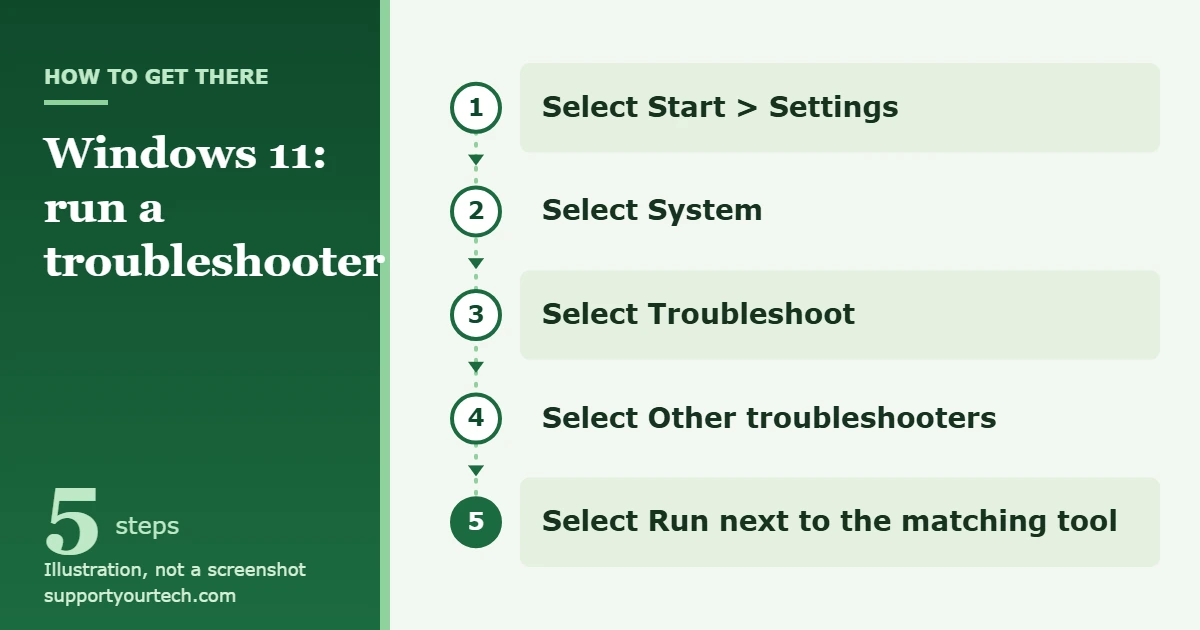
To run a troubleshooter in Windows 11, select Start > Settings > System > Troubleshoot > Other troubleshooters, then select Run next to the tool that matches your problem. Many of these tools now open in the Get Help app, which you can also open directly from Start.
Applies to: Windows 11. Checked against Microsoft Support on October 7, 2026.
What a troubleshooter is, and what changed
A troubleshooter is a built-in Windows tool that checks one area of the computer, such as sound, printing or Windows Update, and tries to correct common faults automatically. Microsoft describes the older ones as tools that diagnose and correct common problems when you launch them.
Those older tools ran on a component called the Microsoft Support Diagnostic Tool, or MSDT. Microsoft deprecated MSDT in January 2023 and has been retiring the troubleshooters built on it. Its published plan had three stages: start redirecting some troubleshooters to Get Help in 2023, finish the redirection and remove the rest in 2024, and remove MSDT itself in 2025. Microsoft says the change applies to newer releases of Windows 11, and that Windows 11 version 22H2 and older, and Windows 10, are not affected.
In practice this means two things. The list on your Other troubleshooters page may be shorter than older instructions suggest, and selecting Run may open a Get Help window instead of the old wizard. Both are expected.
Before you start
- Save your work. A troubleshooter may ask you to restart the computer when it finishes.
- Write down the exact symptom, for example “no sound from the headphones” or “update stops with an error code.” You need it to pick the right tool and to test the result afterward.
- Sign in to Windows with a Microsoft account. Microsoft says Get Help is available to people signed in with a personal Microsoft account or a work or school account.
- Connect the device that has the problem. A printer or Bluetooth headset should be switched on and nearby.
Run a troubleshooter from Settings
- Select Start, then select Settings. The Settings window opens.
- Select System.
- On the System page, select Troubleshoot.
- Select Other troubleshooters. You see a list of the tools available on your version of Windows 11. Windows Update appears under Most frequent.
- Find the entry that matches your problem, such as Audio, Windows Update or Program Compatibility Troubleshooter, and select Run next to it.
- Follow the instructions on the screen. If the tool opens in Get Help and asks for consent to run diagnostics, select Yes, then wait a few moments for the scan to finish.
- Restart the computer if you are asked to, then repeat the action that was failing to see whether it now works.
Run a troubleshooter from the Get Help app
Use this route when the tool you want is not listed in Settings, or when you would rather describe the problem in words. Microsoft’s current list of Windows troubleshooters is written for this method.
- Select Start.
- Type get help into the search box.
- Select Get Help from the list of results. The app opens with a search bar.
- In the Search bar, enter the name of the tool, for example audio troubleshooter or windows update troubleshooter.
- If you are asked to consent to proceed with diagnostics, select Yes.
- Allow a few moments for the scan to complete, then follow the prompts until the issue is resolved. Get Help shows what it found and suggests possible remedies.
Which troubleshooters are available now
Microsoft lists ten troubleshooters that moved to Get Help and fourteen older ones that are being removed. If older instructions tell you to run one from the second column, it may no longer be on your computer.
| Available through Get Help | Listed by Microsoft for removal |
|---|---|
| Audio | Connection to a Workplace using DirectAccess |
| Background Intelligent Transfer Service (BITS) | Devices and Printers |
| Bluetooth | Hardware and Devices |
| Camera | HomeGroup |
| Network and Internet | Incoming Connections |
| Printer | Internet Explorer Performance and Internet Explorer Safety |
| Program Compatibility | Keyboard |
| Video Playback | Power |
| Windows Media Player | Search and Indexing, Speech, System Maintenance |
| Windows Update | Shared Folders, Windows Store Apps |
To choose, match the tool to the symptom, not to the device brand. No sound points to Audio, a wireless headset that will not connect points to Bluetooth, a document that will not print points to Printer, and an older program that will not start or displays incorrectly points to Program Compatibility.
Example: the Windows Update troubleshooter
Microsoft publishes a specific sequence for update problems, and it shows how a troubleshooter fits into a larger fix.
- Select Start > Settings > System > Troubleshoot > Other troubleshooters.
- Under Most frequent, select Run next to Windows Update.
- Restart your device when the troubleshooter finishes.
- Select Start > Settings > Windows Update > Check for updates, and install anything that is offered.
If the problem continues, Microsoft suggests running the troubleshooter again to check for additional errors. Our guide on how to update Windows 11 covers the Windows Update page in more detail.
How to tell whether it worked
A troubleshooter can end in three ways: it finds and fixes something, it finds something and tells you what to do yourself, or it finds nothing. Do not rely on the closing message alone. Repeat the exact action you wrote down before you started, such as playing a sound through the same headphones or printing the same document.
A result that reports no problem only means the tool’s own checks passed. It does not prove that the rest of the computer is healthy, and it does not rule out a hardware fault. You can run the same troubleshooter again at any time.
If a troubleshooter is missing or will not run
The troubleshooter I want is not in the list
It was probably one of the retired tools in the table above. Open Get Help and search for the problem instead. Do not download a “troubleshooter” from an unofficial website to replace it.
Run opens Get Help instead of the old window
This is the redirection Microsoft describes, not an error. Continue in Get Help and select Yes if you are asked for consent.
Get Help will not open or asks you to sign in
Get Help is available to people signed in with a personal Microsoft account or a work or school account. Sign in with one of those accounts and try again.
An old msdt command does nothing
Older guides start troubleshooters with commands that begin with msdt.exe. MSDT is deprecated and scheduled for removal, so these commands are no longer a dependable method on current Windows 11. Use Settings or Get Help.
You are on a work or school computer
Your organization manages what you can run. If a tool is blocked or asks for permissions you do not have, contact your administrator instead of looking for a workaround.
The troubleshooter ran but the problem is still there
Move on to the fix for that specific area. For update failures, Microsoft’s Troubleshoot problems updating Windows article goes further: check your internet connection and free disk space, disconnect external hardware, and repair system files from Command Prompt opened with Run as administrator using DISM.exe /Online /Cleanup-image /Restorehealth and sfc /scannow. For a printer, check it under Start > Settings > Bluetooth & devices > Printers & scanners. For wider problems, see our guide on how to check for and fix corrupted files in Windows 11.
Frequently asked questions
Where is the troubleshooter in Windows 11?
Select Start > Settings > System > Troubleshoot > Other troubleshooters. You can also select Start, type get help, open Get Help, and search for the troubleshooter by name.
Why does my computer show fewer troubleshooters than a guide says?
Microsoft has been retiring the older MSDT-based tools. It lists ten that moved to Get Help and fourteen, including Keyboard, Power, and Hardware and Devices, that are being removed.
Is the hardware and devices troubleshooter still available?
Microsoft includes Hardware and Devices in its list of troubleshooters being removed. Use the tool for the specific device type, such as Audio, Bluetooth, Camera or Printer, or search Get Help for the problem.
Is it safe to run a troubleshooter?
Yes, when it is the one built into Windows or Get Help. These are Microsoft tools, and they ask for your consent before running diagnostics in Get Help.
Should I run every troubleshooter as routine maintenance?
No. Each one checks a single area, so run the one that matches a problem you are actually having. Running the others will not make a healthy computer faster.
Does Windows 10 use the same steps?
No. The Settings layout is different in Windows 10, and Microsoft says Windows 10 is not affected by the troubleshooter retirement. This article covers Windows 11 only.
Can a troubleshooter fix a broken part?
No. It can correct settings and software faults in the area it checks. If a device fails the same way after the troubleshooter and the related fixes, the hardware may need service. To test the parts themselves, run hardware diagnostics in Windows 11.
Microsoft keeps its current list in Windows troubleshooters and explains the change in its MSDT troubleshooter retirement notice. If the matching tool did not solve your problem, write down what it reported and start with the fix for that specific feature.
Related: get help in Windows 11.

Matt Jacobs has been working as an IT consultant for small businesses since receiving his Master’s degree in 2003. While he still does some consulting work, his primary focus now is on creating technology support content for SupportYourTech.com.
His work can be found on many websites and focuses on topics such as Microsoft Office, Apple devices, Android devices, Photoshop, and more.