To fix Windows Search when it’s not working in Windows 10, first restart your PC. Then go to Settings > Search > Searching Windows and select Indexer troubleshooter. If search still doesn’t find your files, rebuild the search index in Advanced Search Indexer Settings.
Applies to: Windows 10. Checked against Microsoft Support on September 27, 2026. Microsoft’s indexing page is written for Windows 11, so the Windows 10 labels follow the interface.
Try the fixes in order and test the search box after each one.
1. Restart your PC
Restarting fixes many search problems, especially after an update. Select Start > Power > Restart, not Shut down.
2. Restart Windows Explorer
- Press Ctrl + Shift + Esc to open Task Manager. Select More details if you see a small window.
- On the Processes tab, find Windows Explorer.
- Select it and select Restart.
The taskbar disappears for a moment and comes back. See how to open Task Manager in Windows 10.
3. Run the Indexer troubleshooter
- Select Start > Settings > Search > Searching Windows.
- Under More Search Indexer Settings, select Indexer troubleshooter.
- Check the problems you see, such as Files don’t appear in search results, and select Next.

4. Check what’s indexed
On the same page, under Find My Files:
- Classic searches your libraries (Documents, Pictures, Music) and desktop.
- Enhanced searches your whole PC. It uses more battery and processing power.
If your files are somewhere else, choose Enhanced, or add the folder with Customize search locations.
5. Rebuild the search index
- On the Searching Windows page, select Advanced Search Indexer Settings.
- In Indexing Options, select Advanced. Select Yes if asked.
- Under Troubleshooting, select Rebuild, then OK.
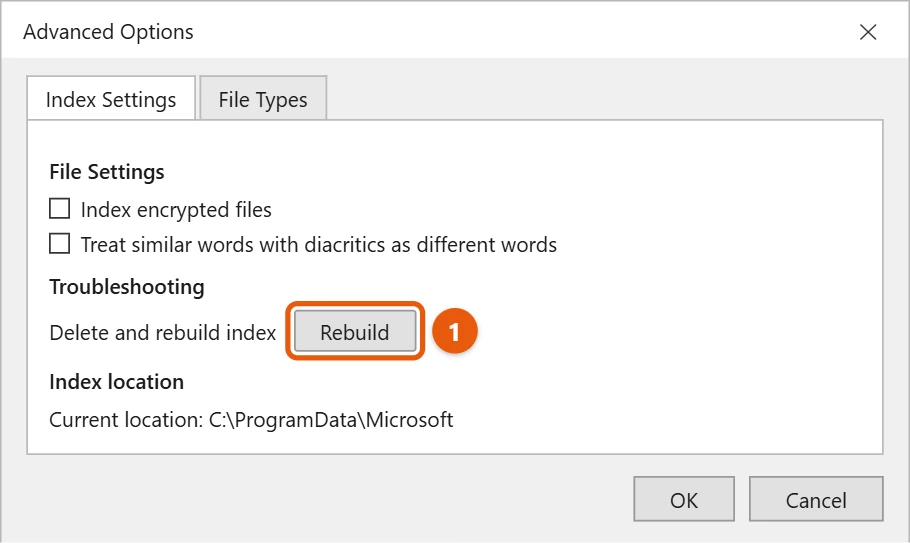
Rebuilding can take a few hours. Search may be incomplete until it finishes.
6. Update Windows
Go to Settings > Update & Security > Windows Update and select Check for updates. Install any updates and restart.
7. Check the Windows Search service
Press Windows + R, type services.msc, and press Enter. Double-click Windows Search. Set Startup type to Automatic (Delayed Start), select Start if it’s stopped, and select OK. If it’s already running, right-click it and choose Restart.
8. Search your whole PC, not just libraries
If search works but can’t find files you know exist, Windows may only be looking in your libraries and desktop. Go to Settings > Search > Searching Windows and choose Enhanced. Windows then indexes your whole PC. The first index can take a few hours, and it uses more battery while it runs.
9. Repair system files
Open Command Prompt as administrator and run these two commands, one at a time, then restart:
DISM /Online /Cleanup-Image /RestoreHealth
sfc /scannow
10. Test with another user account
Create a new local account in Settings > Accounts > Family & other users and sign in to it. If search works there, the problem is in your profile. Moving your files to the new account is often faster than repairing the old one.
Frequently asked questions
Can I search inside files?
Yes. Windows indexes the words in many file types. See how to search for files in Windows 10.
Why can’t I type in the search box?
Restart Windows Explorer (fix 2) or your PC. If it still won’t accept typing, check for updates (fix 6).
If you want to hide the Cortana button next to the search box, see how to turn off Cortana in Windows 10.
To search by file type, like spreadsheets, see how to find all Excel files in Windows 10.
To hide the search box instead, see how to hide the search bar on the Windows 10 taskbar.
Microsoft’s guide is Search indexing in Windows. More help is on our Windows Help & Guides page.
Why does search only show web results?
Windows sends searches to Bing when it can’t find a local match. If your files never appear, the index is probably incomplete. Rebuild it as shown in step 5 and check that the folders you need are included.
How long does rebuilding the index take?
Anywhere from a few minutes to several hours, depending on how many files you have. You can keep using the PC while it runs, but search results stay incomplete until it finishes.

Matt Jacobs has been working as an IT consultant for small businesses since receiving his Master’s degree in 2003. While he still does some consulting work, his primary focus now is on creating technology support content for SupportYourTech.com.
His work can be found on many websites and focuses on topics such as Microsoft Office, Apple devices, Android devices, Photoshop, and more.