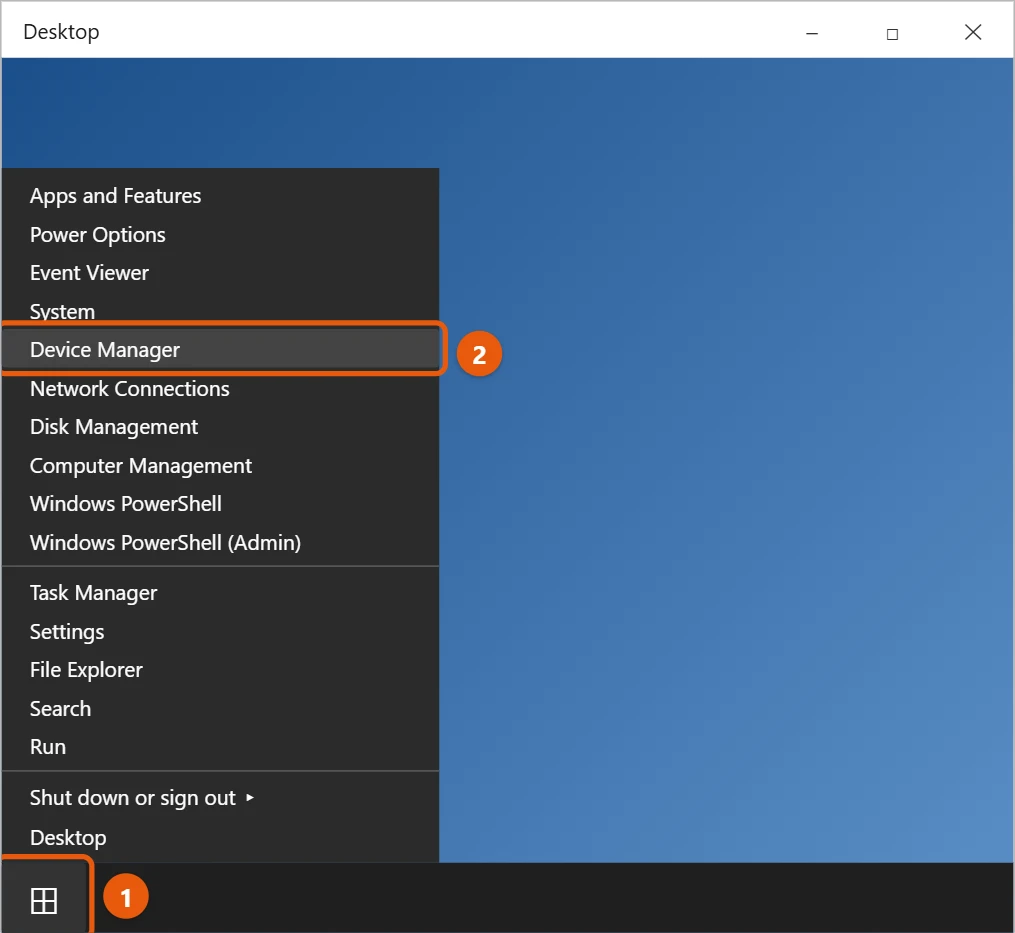
To open Device Manager in Windows 10, right-click the Start button (or press Windows + X) and select Device Manager. You can also select Start, type device manager, and open it from the results.
Applies to: Windows 10. Microsoft ended Windows 10 support on October 14, 2025, so a PC without Extended Security Updates no longer receives security fixes; that program runs until October 12, 2027.
Device Manager lists the hardware in your PC, such as your display adapter, sound card, keyboard, and USB devices. You use it to update drivers, turn devices on or off, and spot problems.
- Right-click Start, or press Windows + X.
- Select Device Manager.
Other ways to open it
- Search: select Start, type device manager, and select Device Manager.
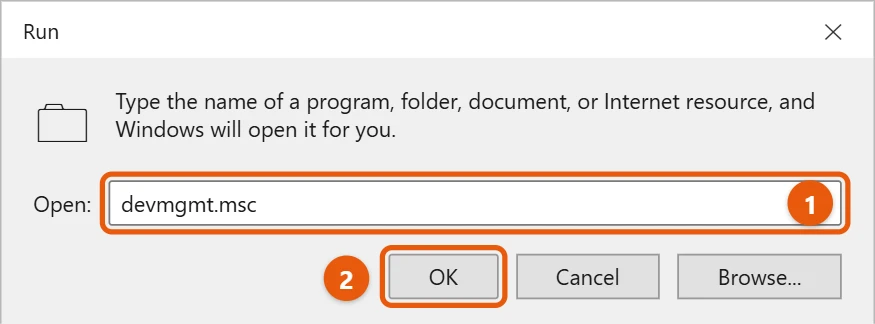
- Run box: press Windows + R, type devmgmt.msc, and select OK.
- Control Panel: go to Hardware and Sound > Device Manager.
- Computer Management: right-click Start, select Computer Management, then Device Manager on the left.
- Command Prompt, PowerShell, or Task Manager: type
devmgmt.mscand press Enter. In Task Manager, select Run new task first. This also works when the Start menu won’t open.
What you can do in Device Manager
- Select the arrow next to a category to see its devices.
- Right-click a device to Update driver, Disable device, Uninstall device, or open Properties.
- A yellow warning sign means the device has a problem. Double-click it to see the error on the General tab.
- If a device is missing, select Action > Scan for hardware changes.
What common error codes mean
When you double-click a device with a warning sign, the Device status box shows a code. These are the ones you’ll see most:
| Code | What it means | What to try |
|---|---|---|
| Code 10 | The device can’t start. | Update or reinstall the driver. |
| Code 22 | The device is disabled. | Right-click it and select Enable device. |
| Code 28 | No driver is installed. | Select Update driver, or get the driver from the maker. |
| Code 43 | Windows stopped the device because it reported a problem. | Unplug and reconnect it, then reinstall the driver. On USB devices, try another port. |
| Code 45 | The device isn’t connected. | Plug it back in, or ignore it if you no longer use it. |
Undo a bad driver update
If a device stopped working after a driver update, double-click it, open the Driver tab, and select Roll Back Driver. Pick a reason and select Yes. The button is grayed out if there’s no older driver to go back to.
See devices that aren’t plugged in
Select View > Show hidden devices. Faded icons are devices that were connected before, such as old USB drives or printers. You can uninstall them to clean up the list.
Make a desktop shortcut
If you open Device Manager often, right-click the desktop, select New > Shortcut, type devmgmt.msc, select Next, name it Device Manager, and select Finish. You can also press Windows + X and then M to open it from the keyboard in two keystrokes.
If Device Manager won’t open
If nothing happens or you get an error such as “MMC could not create the snap-in,” open Command Prompt as administrator, run sfc /scannow, and restart.
Frequently asked questions
How do I update all my drivers?
Follow updating all drivers on Windows 10 for the full process.
Where are my USB devices?
They’re under Universal Serial Bus controllers and other categories. Seeing connected USB devices in Windows 10 shows where to look.
Do I need to be an administrator?
You can open Device Manager on any account, but you need administrator rights to change drivers or settings.
Is it safe to uninstall a device?
Usually. Uninstalling removes the driver, and Windows reinstalls it the next time you restart or select Scan for hardware changes. Don’t uninstall your only keyboard, mouse, or display adapter unless you know how to get them back, or you may need to restart using the power button.
Does Device Manager look different in Windows 11?
No. It’s the same tool with the same menus, and every method above works the same way in Windows 11.
Related: checking drivers in Windows 10 to find devices with driver problems, and checking COM ports in Windows 10.
Microsoft also documents how to Open Device Manager and explains the codes in Error codes in Device Manager in Windows.

Matt Jacobs has been working as an IT consultant for small businesses since receiving his Master’s degree in 2003. While he still does some consulting work, his primary focus now is on creating technology support content for SupportYourTech.com.
His work can be found on many websites and focuses on topics such as Microsoft Office, Apple devices, Android devices, Photoshop, and more.