To open the Run box in Windows 11, press Windows logo key + R. If you prefer the mouse, right-click Start and select Run. Type the name of the tool you want, such as control, and select OK or press Enter.
Applies to: Windows 11 (the same shortcut works in Windows 10).
What the Run box is for
Run is a small dialog box with one text field. You type the name of a program, a Windows tool or a special folder, and Windows opens it without you having to look through Start or Settings. It is the quickest way to reach tools that are buried several screens deep, which is why so many help articles begin with “open Run.”
You do not need to install or turn on anything. Run is part of Windows 11, and any signed-in user can open it unless the PC is managed by an organization that has removed it (see the troubleshooting section below).
Open Run with the keyboard shortcut
- Hold down the Windows logo key (the key with the Windows logo, usually between Ctrl and Alt) and press R. The Run dialog box opens.
- Type what you want to open. For example, type control to open Control Panel.
- Select OK or press Enter. The Run box closes and the tool you named opens in its own window.
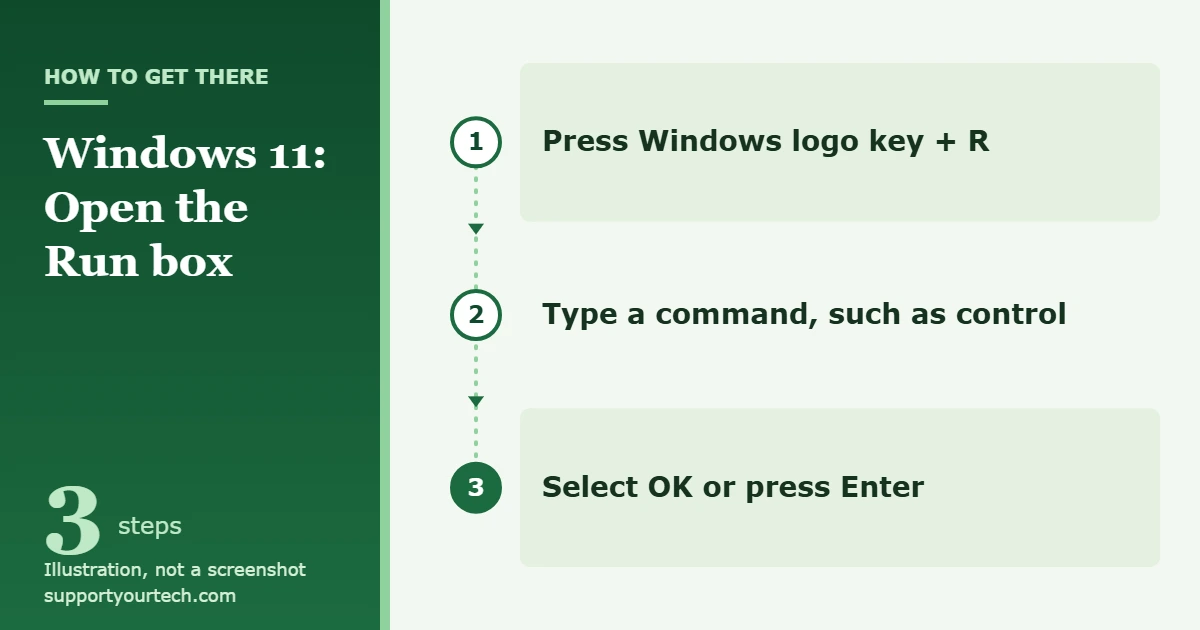
The shortcut appears as “Open the Run dialog box” in the official list of keyboard shortcuts in Windows.
Use this method if you would rather not use a shortcut, or if the Windows logo key on your keyboard is not working.
- Right-click Start on the taskbar. A menu of system tools, called the Quick Link menu, opens. You can also open it by pressing Windows logo key + X.
- Select Run. The same Run dialog box opens.
- Type your command and select OK.
Open a Run box from Task Manager
Task Manager has its own version of Run. It is mostly useful when the taskbar or Start is not responding, because Task Manager can still open when they cannot.
- Press Ctrl + Shift + Esc to open Task Manager. You can also right-click Start and select Task Manager.
- Select Run new task. Older instructions give the path as File > Run new task; if you do not see a File menu, look for Run new task near the top of the Task Manager window.
- Type the name of the program and press Enter. For example, type explorer.exe here to bring back a desktop and taskbar that have disappeared.
Useful things to type in Run
Capital letters do not matter in these examples, but spelling does. Most of them appear in the official list of system configuration tools in Windows.
| Type this | What opens |
|---|---|
| control | Control Panel |
| msinfo32 | System Information, a summary of your PC’s hardware and Windows details |
| winver | A small window showing your Windows version |
| cmd | Command Prompt |
| compmgmt.msc | Computer Management |
| eventvwr.msc | Event Viewer |
| msconfig | System Configuration |
| SystemPropertiesAdvanced | Advanced System Settings |
| regedit | Registry Editor |
| gpedit.msc | Local Group Policy Editor |
| shell:startup | Your Startup folder in File Explorer |
| shell:appsfolder | A File Explorer window listing your installed apps |
Be careful with regedit and gpedit.msc. Opening them is harmless, but changing values inside them can stop Windows or your apps from working properly. Only make changes there when you are following trusted instructions.
The first few tools in the table have other routes too: there are several ways to open Control Panel in Windows 11, open Command Prompt and check your Windows version.
How to tell it worked, and how to close Run
You will know Run is open when you see a small dialog box titled Run with a text field and an OK button. Once you select OK, the box closes by itself and the item you typed opens.
If you opened Run by mistake, press Esc to close it. Nothing is changed on your PC by opening and closing the box.
Troubleshooting
Nothing happens when you press Windows logo key + R
Try right-clicking Start and selecting Run instead. If that works, the problem is with the keyboard rather than with Windows. Some keyboards, especially gaming models, have a mode that switches off the Windows logo key; check the instructions from your keyboard’s maker for how to turn the key back on.
Run is missing on a work or school PC
Organizations can turn on a policy named “Remove Run menu from Start Menu.” When it is enabled, the Run dialog box does not open when you press Windows logo key + R (the details are in the policy documentation). If your PC belongs to an employer or school, ask your IT administrator rather than trying to work around the restriction.
Windows reports it cannot find what you typed
Check the spelling first, including the ending on names such as compmgmt.msc. If the name is right and the tool still does not open, it may not be included on your PC, so use Start search to look for it by its full name instead.
Windows asks for permission
Some tools, such as Registry Editor, can change system settings, so Windows may ask you to approve them or to enter an administrator password. That is expected. If you do not have an administrator account on the PC, you will need help from the person who does.
Frequently asked questions
What is the shortcut key for Run in Windows 11?
It is Windows logo key + R. Hold the Windows logo key and tap R once.
Is the Run box the same as Command Prompt?
No. Run opens one program, tool or folder and then closes. Command Prompt is a separate window where you can type many commands and read their results. You can open Command Prompt from Run by typing cmd.
Can I open folders from Run?
Yes. The official steps for configuring startup apps use Run to open the Startup folder: right-click Start, select Run, type shell:startup and press Enter. What to do once the folder is open is covered in changing startup programs in Windows 11.
Does the same shortcut work in Windows 10?
Yes. Windows logo key + R works in both Windows 11 and Windows 10.
Do I need to be an administrator to use Run?
No. Any user can open Run. Whether a particular tool then opens, or asks for an administrator password, depends on the tool.
Now that you can open Run, try msinfo32 to see a full summary of your PC, or winver to confirm exactly which version of Windows 11 you have.

Matt Jacobs has been working as an IT consultant for small businesses since receiving his Master’s degree in 2003. While he still does some consulting work, his primary focus now is on creating technology support content for SupportYourTech.com.
His work can be found on many websites and focuses on topics such as Microsoft Office, Apple devices, Android devices, Photoshop, and more.