When the W, A, S and D keys act like arrow keys, or the arrow keys type letters, your keyboard has almost certainly switched into an alternate mode. Windows 11 doesn’t swap these keys on its own. On most gaming and compact keyboards, press Fn + W once to switch back. If that doesn’t work, unplug and reconnect the keyboard, try the other Fn shortcuts below, and check your keyboard app for a profile that remaps the keys.
Applies to: Windows 11 with a USB or wireless keyboard, including laptop keyboards.
Why WASD and the arrow keys swap
Many gaming keyboards have a mode that makes the arrow keys and WASD trade places, so you can move with whichever hand you prefer. It’s easy to switch on by accident when you press Fn together with a letter key. Other causes include:
- A keyboard profile or macro set up in the keyboard’s companion app.
- A game or app with its own control layout.
- A different keyboard layout added in Windows by mistake.
Step 1: Press Fn + W
- Find the Fn key, usually in the bottom-left corner next to Ctrl.
- Hold Fn and press W once.
- Open Notepad and press W, A, S and D to check that they type letters again.
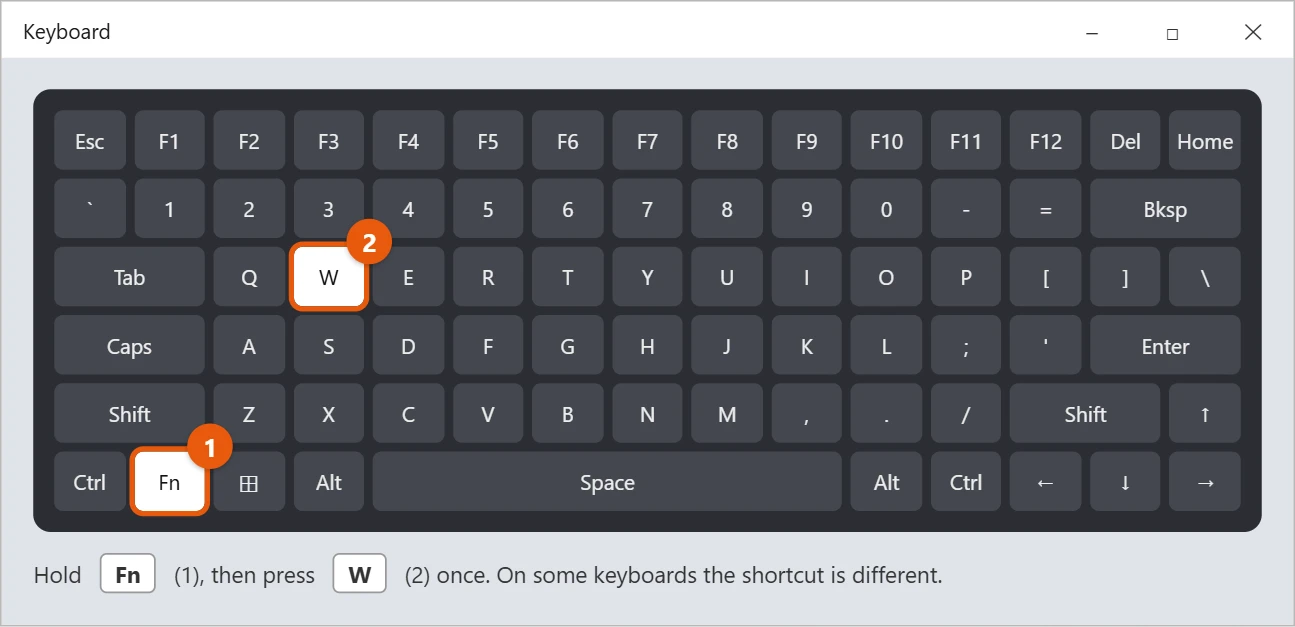
If the keys are still swapped, press Fn + W once more. The same shortcut switches the mode on and off, so an extra press can put it back the wrong way.
Step 2: Try the other common shortcuts
Keyboard makers use different combinations. Try these one at a time, and test in Notepad after each:
- Fn + Windows logo key
- Fn + Left Arrow or Fn + Right Arrow
- Fn + Esc
- Fn + A, Fn + Q or Fn + Z
Your keyboard’s manual or the maker’s support page lists the exact shortcut. It’s often printed as a small symbol on the W key or an arrow key.
Step 3: Unplug the keyboard and plug it back in
Unplugging resets many keyboards to their default mode.
- Unplug the keyboard, or turn a wireless keyboard off.
- Wait about 10 seconds.
- Plug it into a different USB port if you can, or turn it back on.
A laptop’s built-in keyboard can’t be unplugged. Restart the laptop instead.
Step 4: Check your keyboard’s app and profiles
If your keyboard came with an app, it can store profiles that remap keys.
- Select the Show hidden icons arrow (^) next to the clock, or select Start > All, and open your keyboard’s app.
- Look at the active profile or game mode.
- Switch back to the default profile, or turn off any setting that swaps WASD and the arrow keys.
- If the app saves profiles to the keyboard itself, save the default profile to it.
Some keyboards also have a profile button on the keyboard. If you pressed it, press it again to go back.
Step 5: Check the game or app
If the keys are only swapped in one game or app, the keyboard is fine. Open that program’s Settings, Controls or Key bindings and choose Reset to default.
Step 6: Check your keyboard layout in Windows
A layout you didn’t mean to add can make keys type the wrong characters.
- Select Start > Settings > Time & language > Language & region.
- Next to your language, select … > Language options.
- Under Keyboards, make sure your usual layout, such as US QWERTY, is there. Remove any layout you don’t use.
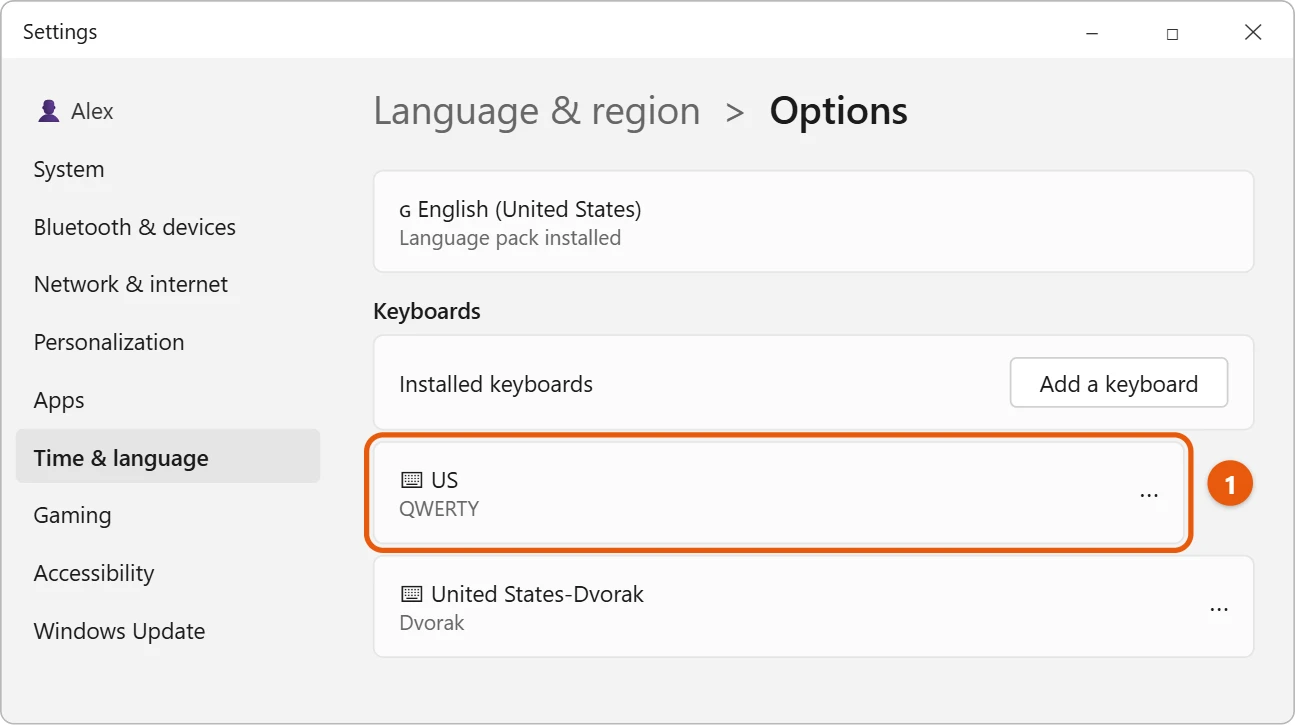
To switch between installed layouts, press Windows logo key + Spacebar. Adding and removing layouts is covered in changing the keyboard layout in Windows 11.
Check for Key Remapping Software in Windows
If the swap happens only in Windows and not in your keyboard’s own app, a remapping tool may be the cause:
- Microsoft PowerToys: open PowerToys, select Keyboard Manager, and check Remap a key for any rules that map W, A, S or D to arrow keys. Delete the rule, or turn off Keyboard Manager to test.
- AutoHotkey scripts and macro tools: right-click their icons next to the clock and exit them, then test again.
- Game overlays: some overlays and controller-mapping apps can turn keys into arrows. Close them while you test.
Find Out Which Key Windows Receives
To see whether the keyboard itself is sending arrow keys, open the On-Screen Keyboard (press Windows logo key + Ctrl + O) and press W on your physical keyboard. If the up arrow lights up on screen, the keyboard hardware or its firmware is sending arrow keys, so the fix is on the keyboard (Fn shortcuts, reconnecting or its app). If W lights up but your game still moves as if you pressed an arrow, the problem is in the game’s control settings.
If the keys are still swapped
- Test with another keyboard. If a different keyboard works, the problem is in the first keyboard’s settings or hardware.
- Use the on-screen keyboard for now. Press Windows logo key + Ctrl + O.
- Remap the keys as a last resort. Microsoft PowerToys can remap keyboard keys in Windows 11. Only do this once you’re sure it isn’t a keyboard mode, or you’ll have two changes to undo later.
Some guides suggest updating or reinstalling the keyboard driver in Device Manager. That needs administrator rights and rarely helps with this problem, because the swap happens inside the keyboard. Some also blame Filter Keys, but that feature ignores repeated keystrokes and doesn’t swap keys.
Frequently asked questions
Why did my WASD keys suddenly turn into arrow keys?
You probably pressed Fn and W (or your keyboard’s equivalent) together by accident, often while gaming.
Is this a Windows 11 problem?
No. The swap happens in the keyboard or its app. It happens the same way on any computer.
Can I stop it from happening again?
Some keyboard apps let you turn off the WASD swap shortcut or lock the Windows and Fn keys in a game mode. Check your keyboard app’s settings.
Does Fn Lock cause this?
Not usually, but it changes what the top row of keys does. If that row acts oddly, turn off Fn Lock in Windows 11.
Next steps
Keys that stick or act on their own in other ways can be a sign of Sticky Keys. Here is how to turn off Sticky Keys in Windows 11.

Matt Jacobs has been working as an IT consultant for small businesses since receiving his Master’s degree in 2003. While he still does some consulting work, his primary focus now is on creating technology support content for SupportYourTech.com.
His work can be found on many websites and focuses on topics such as Microsoft Office, Apple devices, Android devices, Photoshop, and more.