Windows 11 doesn’t have a built-in setting to remap keys. Microsoft’s free PowerToys app adds one. Install PowerToys, open Keyboard Manager, select Remap a key, choose the key you want to change and what it should send, then select OK. The change works as long as PowerToys is running.
Applies to: Windows 11. Checked against Microsoft Learn on September 29, 2026.
Install PowerToys
- Open Microsoft Store.
- Search for Microsoft PowerToys and select Get or Install.
- Open PowerToys from Start when it’s done.
Make sure the publisher is Microsoft Corporation before you install.
Remap a key
- In PowerToys, select Keyboard Manager on the left.
- Make sure Enable Keyboard Manager is on.
- Select Remap a key.
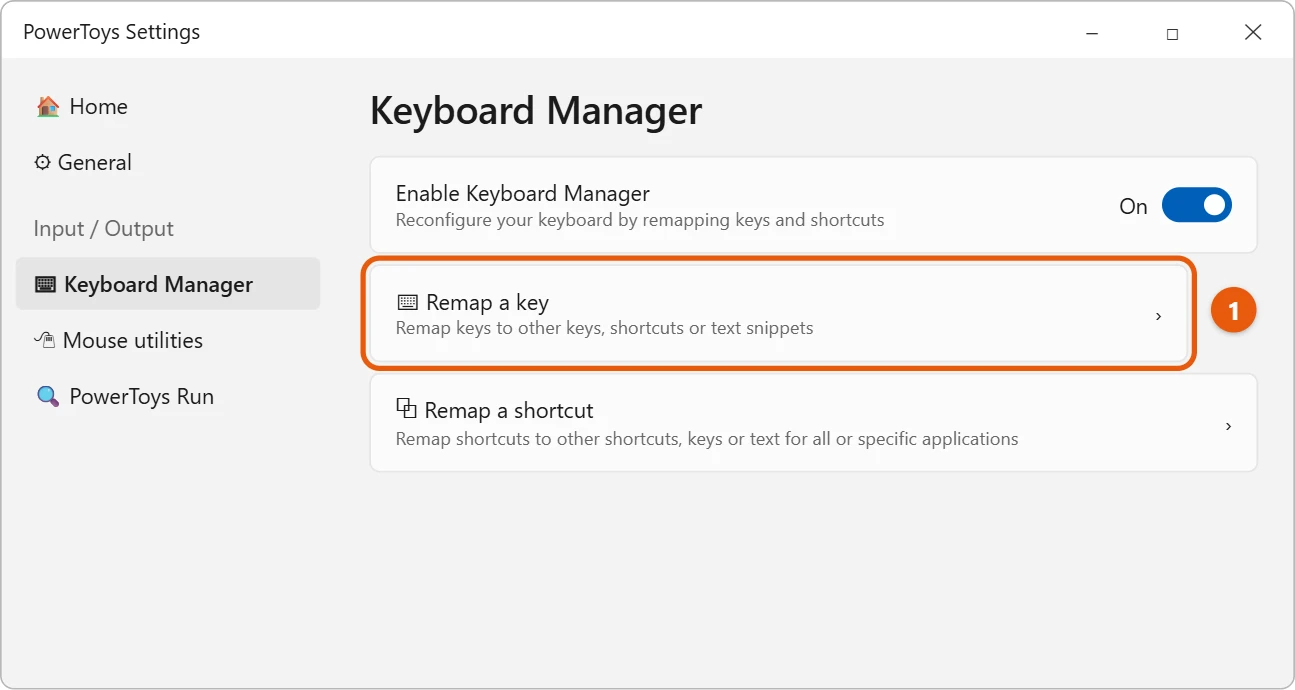
- Select Add key remapping.
- Under Select, choose the key you want to change, such as Caps Lock. You can also select the box and press the key.
- Under To send, choose the key, shortcut or text it should produce, such as Shift (Left).
- Select OK. If Windows warns that a key will have no other way to be typed, select Continue anyway only if you’re sure.

Try the key right away. The new mapping works in every app.
Swap two keys
Add two rows. For example, map A to B and B to A. Each key now types the other.
Remap a shortcut
Select Remap a shortcut instead. Choose the shortcut to change, such as Ctrl + Alt + N, and the shortcut or text it should send. You can limit it to one app by typing the app’s name in Target app.
Popular remaps
- Caps Lock to Ctrl, so you stop typing in capitals by accident and get an easy-to-reach Ctrl key.
- Insert to Disable, to stop overtype mode from turning on by mistake.
- Swap Alt and the Windows key on a Mac keyboard used with a PC.
- An unused key to Play/Pause or Volume, if your keyboard has no media keys.
Change what the Copilot key does
Newer keyboards have a Copilot key. Windows 11 lets you change it without PowerToys: select Settings > Personalization > Text input, and under Customize Copilot key on keyboard, pick Search or another app. If your PC doesn’t show this option, PowerToys can remap the key instead.
Things to know
- PowerToys must be running. If you close it, your keys go back to normal. Leave Run at startup on in PowerToys General settings.
- Some keys can’t be changed. Windows logo key + L, Ctrl + Alt + Delete and, on most keyboards, the Fn key can’t be remapped.
- To undo a remap, open Remap a key again, select the trash can next to the row, and select OK.
Troubleshooting
- The remap doesn’t work in some apps. Apps running as administrator ignore PowerToys unless it runs as administrator too. In PowerToys, open General and turn on Always run as administrator.
- A game ignores the remap. Some games read the keyboard directly. Use the game’s own key binding settings.
- The remap stopped working. Check that PowerToys is open in the notification area, and that Keyboard Manager is still turned on.
Frequently asked questions
Is PowerToys safe?
Yes. It’s made by Microsoft and is free in Microsoft Store.
Can I remap keys on Windows 10?
Yes, PowerToys works the same way there. See how to remap keys in Windows 10.
If WASD and the arrow keys have swapped on their own, see how to fix WASD swapped with arrow keys in Windows 11 before remapping anything.
Microsoft’s reference is Remap keys and shortcuts with PowerToys Keyboard Manager. More help is on our Windows Help & Guides page.
Can I remap keys without installing anything?
Only with a registry change called a Scancode Map, which is harder to get right and needs a restart. PowerToys is the safer, easier choice for most people.
Do remaps work on the sign-in screen?
No. PowerToys starts after you sign in, so the sign-in screen uses the normal layout.
Can I back up my remaps?
Yes. In PowerToys, open General and use Backup & restore to save your settings, including Keyboard Manager remaps.
Will remapping a key change it on other computers?
No. Remaps live in PowerToys on this PC only. Plug the keyboard into another computer and its keys work normally.
Can I make one key open an app?
Yes. In Remap a shortcut, choose Run program as the action and pick the app’s .exe file. Then the shortcut you chose opens that app.
How do I turn off all remaps at once?
In PowerToys, turn off Keyboard Manager. Your remaps are saved and come back when you turn it on again.

Matt Jacobs has been working as an IT consultant for small businesses since receiving his Master’s degree in 2003. While he still does some consulting work, his primary focus now is on creating technology support content for SupportYourTech.com.
His work can be found on many websites and focuses on topics such as Microsoft Office, Apple devices, Android devices, Photoshop, and more.