How to Check Windows Version in Windows 11: A Quick Guide

Need to find out which version of Windows 11 you’re running? It’s simple! First, click on the Start menu and type “About” in the search bar. Select “About your PC” from the results. A window will pop up showing detailed info about your Windows version. Now, let’s dive into the steps with a bit more detail.

How to Check Windows Version in Windows 11

Before we get into the step-by-step guide, let’s talk about what you’ll achieve. By following these steps, you’ll quickly find out the exact version and edition of Windows 11 installed on your computer.

Step 1: Open the Start Menu

Click on the Windows icon located at the bottom-left corner of your screen.

The Start menu is your gateway to all things Windows. Clicking it reveals a search bar where you can find apps, settings, and files.

Step 2: Type “About” in the Search Bar

Simply type “About” without quotes in the search field.

This action narrows down your search results, making it easier for you to find system-related settings quickly.

Step 3: Select “About Your PC”

From the search results, click on “About your PC.”

Selecting this option opens a new window where you’ll find comprehensive details about your system, including the Windows version.

Step 4: Locate Windows Specifications

In the “About” window, scroll down to find “Windows specifications.”

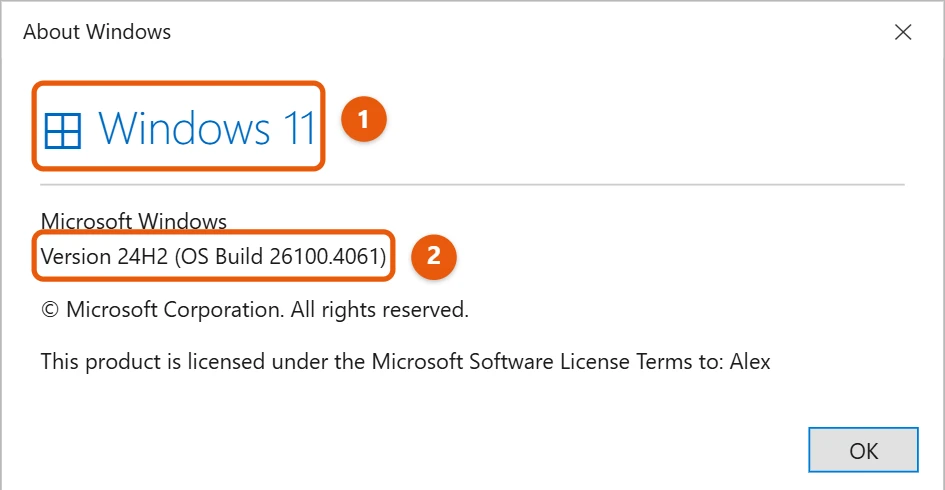
Here, you’ll see details like the edition, version, and OS build. This information helps you understand your system’s capabilities and if it’s up-to-date.

Once you’ve completed these steps, you’ll have all the info you need about your Windows 11 version. You’ll see the version number and other essential details, helping you verify if you’re on the latest update or need an upgrade.

Tips for Checking Windows Version in Windows 11

  • Keep your system updated to enjoy the latest features and security patches.
  • Knowing your Windows version helps in troubleshooting and technical support.
  • If you’re not on the latest version, consider updating for improved performance.
  • Use the same steps to check version details on other Windows 11 devices.
  • Bookmark the “About your PC” window for easy future access.

Frequently Asked Questions

How do I know if I have the latest version of Windows 11?

Check the version number in the “About” window and compare it to the latest release info on the Microsoft website.

Can I check my Windows version without using the Start menu?

Yes, you can use the shortcut Windows Key + Pause/Break to navigate directly to system properties.

Is there a quicker way to open the “About your PC” window?

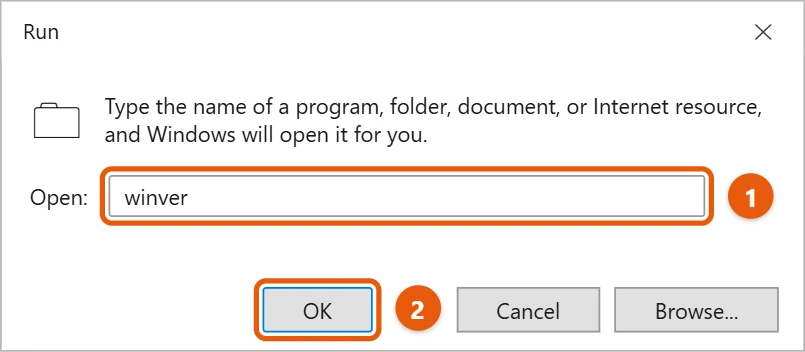
You can use the Run dialog by pressing Windows Key + R, then typing “ms-settings:about” and hitting Enter.

Why is it important to know my Windows version?

Knowing your version helps with compatibility for software, security updates, and troubleshooting.

How often should I check my Windows version?

Every few months or after major updates to ensure your system is current.

Summary

  1. Open the Start menu.
  2. Type “About” in the search bar.
  3. Select “About your PC.”
  4. Locate Windows specifications.

Conclusion

Understanding how to check your Windows version in Windows 11 is crucial for maintaining your computer’s performance and security. Being aware of the version you’re running allows you to ensure compatibility with software and take advantage of the latest features and updates. It’s a simple, quick process that delivers invaluable information at your fingertips.

So, next time you encounter an issue or want to install new software, you’ll know exactly where to check your system details. This little piece of knowledge not only empowers you but also keeps your tech-savvy game strong. If you’re curious about more tips and tricks, dive into the Windows 11 support documentation or explore online forums.

In the end, staying informed about your system’s details isn’t just about being up-to-date; it’s about making the most out of your Windows 11 experience. Embrace the power of knowledge, and happy computing!

Get Our Free Newsletter

How-to guides and tech deals

You may opt out at any time.
Read our Privacy Policy