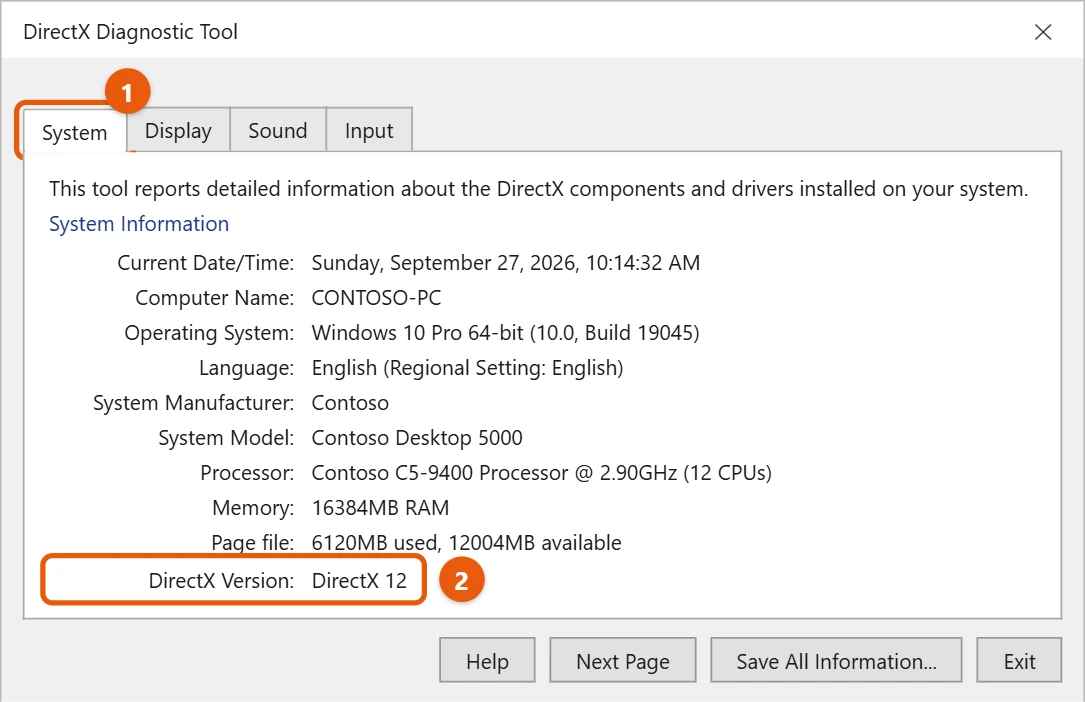
To check your DirectX version in Windows 10, type dxdiag in the search box on the taskbar and select dxdiag. In the DirectX Diagnostic Tool, look at DirectX Version on the System tab.
Applies to: Windows 10. Checked against Microsoft Support on September 27, 2026.
DirectX is part of Windows. It lets games and other apps use your graphics card and sound hardware.
Check the version
- Select the search box on the taskbar, type dxdiag, and select dxdiag. Or press Windows + R, type
dxdiag, and press Enter.

- If Windows asks whether to check that your drivers are digitally signed, Microsoft recommends selecting Yes.
- On the System tab, look at DirectX Version under System Information.
What your graphics card supports
The System tab shows the DirectX version in Windows. Your graphics card decides which features games can actually use.
- In dxdiag, select the Display tab.
- Under Drivers, look at Feature Levels. The highest number, such as 12_1, is the newest level your card supports.
See how to check your graphics card in Windows 10.
DirectX 12 Ultimate
Some newer games ask for DirectX 12 Ultimate. It adds features such as ray tracing for more realistic lighting. You need:
- Windows 10, version 2004 or later.
- A graphics card that supports it, such as an NVIDIA GeForce RTX 20 series or newer, an AMD Radeon RX 6000 series or newer, or an Intel Arc card.
- An up-to-date graphics driver.
In dxdiag, a Feature Level of 12_2 on the Display tab means your card supports DirectX 12 Ultimate.
Fix missing DirectX files in older games
Older games may show an error such as d3dx9_43.dll is missing. They need extra DirectX 9, 10 or 11 files that Windows 10 doesn’t include. Download the DirectX End-User Runtime Web Installer from Microsoft’s website and run it. It adds those older files without changing your DirectX version. Don’t download single DLL files from other websites.
Update DirectX
Microsoft says Windows 10 already has the latest version of DirectX, and Windows Update keeps it current. See how to update Windows 10.
If a game says DirectX isn’t supported, update your graphics driver. See how to update graphics drivers in Windows 10.
To send your details to a support person, select Save All Information in dxdiag and save the text file.
If dxdiag shows a problem
- The Display tab shows Microsoft Basic Display Adapter. Your graphics driver isn’t installed. Install it from Windows Update or the card maker.
- DirectDraw or Direct3D Acceleration says Not Available. Update or reinstall the graphics driver, then restart.
- dxdiag says DirectX 12, but a game won’t run. Check the Feature Levels on the Display tab. Your card may be too old for the features the game needs.
Frequently asked questions
Can I download DirectX 12 separately?
No. DirectX 12 comes with Windows 10 through Windows Update.
Where can I see the rest of my PC’s details?
See how to check your PC specs in Windows 10.
What’s the difference between the DirectX version and the feature level?
The DirectX version on the System tab is what Windows has installed, which is DirectX 12 on every up-to-date Windows 10 PC. The feature level on the Display tab is what your graphics card can do. Games care about the feature level.
Can I switch a game back to DirectX 11?
Often, yes. Many games have a DirectX 11 option in their graphics or display settings. It can help on older cards or if a game crashes in DirectX 12 mode. You can’t remove DirectX 12 from Windows.
Does DirectX affect sound too?
Yes. The Sound tab in dxdiag lists your audio devices and drivers. If a game has no sound, check there for errors.
Is DirectX the same on Windows 11?
Yes. Windows 11 also comes with DirectX 12, and you check it the same way with dxdiag. Some newer features, like Auto HDR, are only in Windows 11.
The Display tab in dxdiag also lists your video memory. For every way to find it, see how to check VRAM in Windows 11.
Microsoft’s reference is Which version of DirectX is on your PC?. More help is on our Windows Help & Guides page.

Matt Jacobs has been working as an IT consultant for small businesses since receiving his Master’s degree in 2003. While he still does some consulting work, his primary focus now is on creating technology support content for SupportYourTech.com.
His work can be found on many websites and focuses on topics such as Microsoft Office, Apple devices, Android devices, Photoshop, and more.