Pausing Windows 11 updates can be necessary if you’re trying to prevent unexpected changes or interruptions. To stop the updates, you’ll need to disable the Update service or adjust settings to pause the updates temporarily. This will help you maintain control over your computer’s updates and avoid immediate installations.
How to Stop Windows 11 Update
Stopping Windows 11 updates is about gaining more control over when and how updates are installed. Here’s how you can do it step by step:
Step 1: Open the Settings App
Open the Start menu and click on the Settings app.
You can find the Settings app by typing “Settings” in the search bar if it’s not visible immediately. This is your gateway to all the control you need over your system.
Step 2: Navigate to Update & Security
Click on “Update & Security” in the settings menu.
This section is where you’ll manage all Windows updates. It’s clear and user-friendly, providing all the update options in one place.
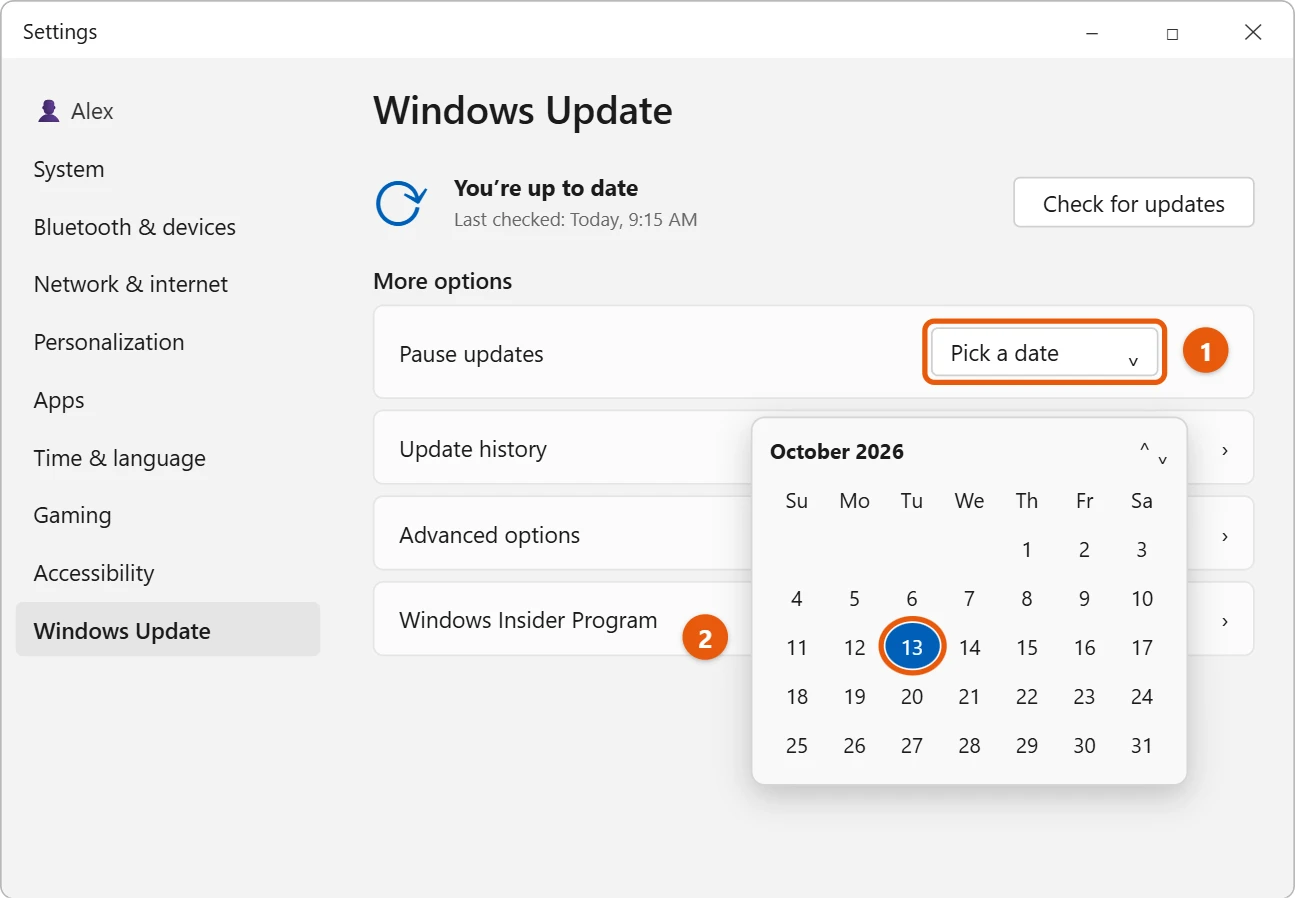
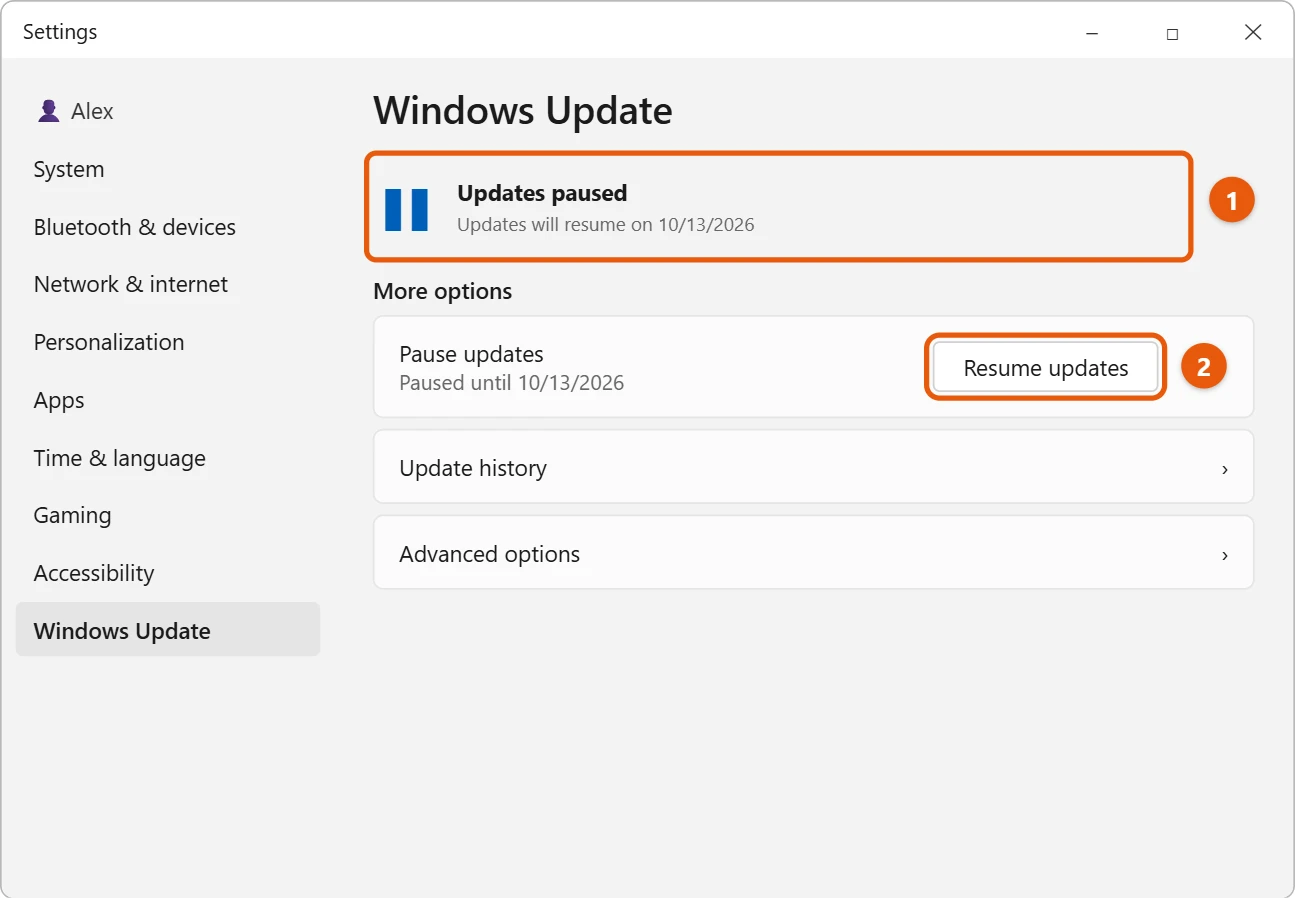
Step 3: Pause Updates
Select the option to pause updates for up to 35 days.
Pausing updates temporarily can be a lifesaver if you need to prevent interruptions. This feature is easy to access and gives you a breather from constant updates.
Step 4: Open Services
Press Windows + R, type “services.msc”, and hit Enter.
This command opens the services window where you can control various background processes, including the update service.
Step 5: Disable Windows Update Service
Locate “Windows Update” in the list, right-click, and select “Properties”. Then, set the Startup type to “Disabled”.
Disabling the Windows Update service will halt updates from being installed. Remember, you’ll need to re-enable it to get updates in the future.
After completing these steps, your system will stop installing automatic updates. You now have full control, and updates will only install when you decide.
Tips to Stop Windows 11 Update
- Back Up Your Data: Always keep a backup just in case something goes wrong during the process.
- Monitor for Security Updates: Regularly check for critical updates that may be necessary for security.
- Use Metered Connection: Set your internet connection to metered to prevent automatic updates.
- Stay Informed: Keep an eye on tech news for any important updates or issues with new updates.
- Plan Regular Checks: Make a habit of checking updates manually to ensure your system stays secure.
Frequently Asked Questions
Can pausing updates affect my computer’s security?
Yes, it can. Regular updates often include security patches, so ensure you install them when needed.
How often should I manually check for updates?
Checking once a month is generally sufficient unless there’s a specific security concern.
Is it safe to disable Windows Update services permanently?
No, it’s not recommended as it can leave your system vulnerable to security threats.
Can I schedule updates instead of stopping them?
Yes, Windows allows you to choose active hours when updates can’t interrupt your work.
What happens if I miss an important update?
You can manually install it later, but be aware of the potential risks of being unprotected in the meantime.
Summary
- Open the Settings App.
- Navigate to Update & Security.
- Pause Updates.
- Open Services.
- Disable Windows Update Service.
Conclusion
Controlling when and how Windows 11 updates happen is crucial for maintaining the smooth operation of your device without unwanted interruptions. By following these steps, you can temporarily stop Windows 11 updates and decide when to install them. This flexibility allows you to keep your system stable, especially when dealing with critical tasks or limited bandwidth.
Remember, while stopping updates can be convenient, staying up-to-date is vital for security reasons. Always make sure to check for necessary updates regularly to keep your system protected from vulnerabilities.
If you’re interested in learning more about how to manage updates efficiently, consider diving into more detailed guides and tutorials. After all, technology is like a living organism—it keeps growing and evolving. Stay ahead and keep your systems running smoothly by managing your Windows 11 update settings wisely.

Matt Jacobs has been working as an IT consultant for small businesses since receiving his Master’s degree in 2003. While he still does some consulting work, his primary focus now is on creating technology support content for SupportYourTech.com.
His work can be found on many websites and focuses on topics such as Microsoft Office, Apple devices, Android devices, Photoshop, and more.