To insert a checkbox you can click in Word, turn on the Developer tab (File > Options > Customize Ribbon > check Developer), click where you want the box, then select Developer > Check Box Content Control. Clicking the box marks it with an X, and clicking again clears it. If you only need boxes for a list you will print and tick with a pen, select the list and choose Home > the arrow next to Bullets > Define New Bullet > Symbol, and pick an empty box.
Applies to: Word for Microsoft 365 (Windows and Mac), Word 2024, Word 2021, Word 2019 and Word 2016, plus Word for the web for checklists. The steps follow Microsoft’s checklist help page.
Which kind of checkbox do you need?
Word has several ways to put a box on the page, and they behave very differently. The main question is whether people will tick the box on screen or on paper.
| Method | Can you click it in Word? | Where it works | Best for |
|---|---|---|---|
| Check Box Content Control (Developer tab) | Yes, it toggles between checked and unchecked | Word for Windows | Digital forms, sign-off sheets, task lists people fill in on a computer |
| Check Box (Developer tab on a Mac) | Yes, once the form is protected | Word for Mac | Forms built on a Mac |
| Checklist button | Yes | Word for the web | Quick to-do lists in a browser |
| Box bullets (Define New Bullet) | No, it is just a symbol | Windows and Mac | Printed checklists and handouts |
| Box symbol (Insert > Symbol) | No | Windows and Mac | One box inside a sentence or a table cell |
| Legacy check box form field | Yes, after you restrict editing to filling in forms | Word for Windows | Older .doc forms and locked forms |
If you aren’t sure, start with the Check Box Content Control. It is the method Microsoft uses in its own checklist instructions for Windows, and you can still print the document afterward.
Show the Developer tab
The clickable checkbox lives on the Developer tab, which Word hides by default. You only have to turn it on once, and it stays visible until you clear the setting or reinstall Office.
On Windows
- In Word, select File > Options. If you don’t see Options, select More first, then Options.
- In the Word Options window, select Customize Ribbon in the left pane.
- On the right, make sure Customize the Ribbon is set to Main Tabs, then check the Developer box.
- Select OK. A Developer tab now appears on the ribbon, usually between View and Help.

A quicker route on Windows: right-click any tab on the ribbon, such as Home, and choose Customize the Ribbon. It opens the same screen.
On a Mac
- In the menu bar at the top of the screen, select Word > Preferences.
- Select Ribbon & Toolbar.
- Under Customize the Ribbon, in the Main Tabs list, check Developer.
- Select Save. The Developer tab appears in the ribbon of every document.
Insert a clickable checkbox in Word for Windows
This puts a real form control in your document. Word calls it a content control: a small container that holds one piece of interactive content, in this case a box that switches between checked and unchecked.
- Open your document and type the item the box belongs to, for example Passport.
- Click at the very start of that line, before the first letter. The checkbox is inserted wherever your cursor is.
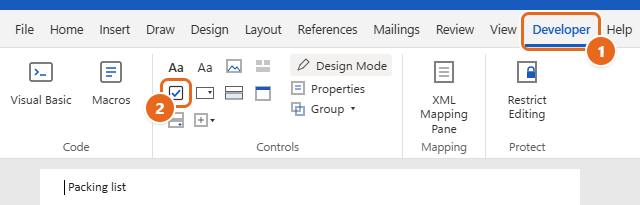
- Select the Developer tab, then select Check Box Content Control in the Controls group. It is the small icon of a box with a check mark; hover over the icons to see their names.
- An empty box (☐) appears at the cursor. Press Spacebar or Tab if you want a gap between the box and the text.
- Click the box. It changes to a box with an X (☒). Click it again to clear it.
When you click near the box you will also see a thin frame around it. That frame is the content control’s border. It shows on screen only and does not print. You can hide it entirely in the box’s properties, covered in the next section.
To add more boxes, either repeat steps 2 and 3 on each line or copy the first box and paste it. Copying is faster once you have customized a box, because every pasted copy keeps the same check mark and settings.
Change the X to a check mark and other box settings
A checked content control shows an X by default. Many people prefer a check mark (☑). You change this per box, so set up one box, then copy it.
- Click the checkbox once so the control is selected. If clicking toggles it, that’s fine; the control is still selected.
- Select Developer > Properties in the Controls group. The Content Control Properties dialog opens.
- Under Check Box Properties, select Change next to Checked symbol.
- In the Symbol box, pick a check mark. If you don’t see one, open the Font list and choose Segoe UI Symbol or Wingdings 2, then look again. In Segoe UI Symbol, you can type
2611in the Character code box to jump straight to the boxed check mark (☑). - Select OK to close the Symbol box, then OK again to close Content Control Properties.
- Click the box to test it. It should now switch between an empty box and a box with a check mark.

The same dialog has a few other useful settings, all described on Microsoft’s page about changing checked boxes from an X to a checkmark:
- Unchecked symbol: select Change next to it if you want a different empty box, such as a rounded one or a circle.
- Title: text you type here appears above the box when someone hovers over it. It’s a handy place for a short instruction like “Tick when packed.”
- Show as: choose None to hide the frame around the control. Note that the Title won’t show either when you choose None.
- Color: sets the color of the control’s frame, not of the box itself.
- Locking: Content control cannot be deleted stops people from removing the box by accident. Leave Contents cannot be edited cleared, because it can stop the box from being ticked.
Make the box bigger, smaller or a different color
The checkbox is drawn with a font character, so it follows ordinary text formatting. Select the box (drag across it, or click just to its right and press Shift + Left Arrow), then change the size in Home > Font Size or pick a color from Font Color. For a consistent look across a long form, use the Use a style to format text typed into the empty control option in Content Control Properties, then New Style to set a font size and color that every box can share.
Build a clickable checklist
Here is a complete example: a five-item packing list that someone can tick on screen.
- Type the items, one per line: Passport, Phone charger, Travel adapter, Medication, House keys. Don’t use Word’s bullet list for these lines, or you’ll end up with a bullet and a box.
- Click at the start of Passport and insert a Check Box Content Control as described above. Change its checked symbol to a check mark now if you want one.
- Press Tab once after the box to separate it from the text.
- Select the box and the tab character together (drag from the box to the start of the word) and press Ctrl + C.
- Click at the start of each of the other lines and press Ctrl + V. Each line now starts with its own working box.
- If any item runs onto a second line, the wrapped text will slide under the box. To line it up with the text above, select the whole list, open Home > the Paragraph dialog box launcher (the small arrow in the corner of the Paragraph group), set Left to
0.25", set Special to Hanging, and select OK. The settings themselves are explained in indenting in Word, including hanging indents.
Each box is independent, so ticking Passport doesn’t affect the others. Save the file as a normal Word document (.docx) so the boxes keep working the next time it’s opened.
Lock the list so only the boxes can change
If you send the checklist to other people, you may want them to tick boxes without rewording the items. Word offers two ways.
Group the list (light protection)
- Select the whole list, including the boxes.
- Select Developer > Group > Group.
The text becomes read-only while the checkboxes stay clickable. To edit the list again, select it and choose Developer > Group > Ungroup. Anyone can do this, so think of grouping as protection against accidents rather than a lock.
Restrict editing to filling in forms (stronger protection)
Before you start: once protection is on, nobody can edit ordinary text in the protected part of the document until protection is turned off. If you add a password and forget it, you can’t remove the restriction, so keep an unprotected copy.
- Select Developer > Restrict Editing. A Restrict Editing pane opens on the right.
- Under Editing restrictions, check Allow only this type of editing in the document, then choose Filling in forms from the list.
- Select Yes, Start Enforcing Protection. Type a password if you want one, or leave both boxes empty, and select OK.
To protect only part of a document, put the checklist in its own section with section breaks, then use Select sections in the Restrict Editing pane to choose which section is protected. To turn protection off later, open Restrict Editing again and select Stop Protection.
Insert a clickable checkbox in Word for Mac
Word for Mac’s Developer tab has a Check Box button, but it works differently from the Windows content control. Microsoft’s form instructions for Mac treat it as a form field: you insert it, set its options, and then protect the form so people can tick it.
- Show the Developer tab (see the Mac steps above).
- Type your list, then click at the start of the first item.
- Select Developer > Check Box. A box appears at the cursor. Press Tab or Spacebar if you want space after it.
- Optional: with the box selected, select Developer > Options. Here you can set the Default value to Not checked or Checked and set the Check box size to Auto or an exact size. Select OK.
- Select the box and any tab or space after it, press Command + C, then click at the start of each other line and press Command + V.
- Select Developer > Protect Form. Now click a box to check or clear it.
To edit the text again, select Protect Form a second time to switch protection off. If the box you insert can already be ticked without protecting the form, your version of Word treats it as a content control, and you can skip step 6.
For wrapped lines, select the list, go to Format > Paragraph, type 0.25 in the Left box under Indentation, choose Hanging under Special, and select OK.
Make a checklist in Word for the web
Word for the web has no Developer tab, and creating fillable forms isn’t available there. It does have a dedicated Checklist feature, which is often all you need for a to-do list.
- Open the document at office.com or in OneDrive and make sure you are in Editing mode.
- Click where the checklist should start.
- Select Home > Checklist in the Paragraph group, or press Ctrl + , (comma).
- Type the first item and press Enter. Each new line gets its own box, just like a bulleted list.
- To tick an item, select the box to its left, or put the cursor on the line and press Ctrl + Alt + Enter. Select it again to clear it.
To stop adding boxes, select Checklist again on the current line. You can also turn an existing bulleted list into a checklist by selecting it and choosing Checklist. Microsoft announced the feature on its Microsoft 365 Insider blog, which lists both keyboard shortcuts.
If you need checkbox content controls with custom symbols, build the document in the desktop app instead. Select Editing > Open in Desktop App if you have Word installed.
Make a printable checklist with box bullets
When the list will be printed and ticked by hand, you don’t need the Developer tab at all. Turning the bullets into empty boxes is quicker and gives you a tidy, evenly spaced list. These boxes can’t be clicked in Word.
- Type your list, one item per line, then select all of it.
- On the Home tab, select the small arrow next to the Bullets button. If a box bullet already shows under Recently Used Bullets or Bullet Library, select it and you’re done.
- Otherwise, select Define New Bullet at the bottom of the menu.
- Select Symbol.
- In the Symbol box, open the Font list and choose Segoe UI Symbol. Type
2610in the Character code box to select the empty ballot box (☐). Wingdings also has several square shapes if you prefer a different look. - Select OK. The Preview in Define New Bullet now shows boxes instead of dots.
- Select OK again. Every selected line now starts with an empty box.

Because the boxes are bullets, pressing Enter at the end of the last item adds another boxed line automatically, and Word applies a hanging indent so wrapped lines stay aligned. The box shape you picked is added to the Bullets menu, so next time it’s one click away.
On a Mac the steps are the same: Home > the arrow next to Bullets > Define New Bullet, then choose a box symbol, using a symbol font such as Wingdings if you don’t see one.
Insert a single checkbox symbol anywhere
Sometimes you just need one box in the middle of a line, such as “☐ Yes ☐ No,” or a box in each cell of a table. Insert it as a symbol.
On Windows
- Click where the box should go.
- Select Insert > Symbol > More Symbols.
- Choose Segoe UI Symbol in the Font list and type one of the codes below in Character code.
- Select Insert, then Close.
There’s also a typing shortcut in Word for Windows: type the code, such as 2610, then press Alt + X. Word converts the code into the matching character. If the box looks wrong, select it and set the font to Segoe UI Symbol.
| Symbol | Name | Segoe UI Symbol code |
|---|---|---|
| ☐ | Empty box | 2610 |
| ☑ | Box with check mark | 2611 |
| ☒ | Box with X | 2612 |
In the Wingdings font the same three shapes are character codes 168 (empty box), 254 (box with check mark) and 253 (box with X). In the Symbol dialog, make sure the from list is set to Symbol (decimal) before you type those numbers.
On a Mac
- Click where the box should go.
- Select Insert > Symbol > Advanced Symbol.
- Choose a font such as Segoe UI Symbol or Wingdings, select a box, then select Insert.
You can also use the macOS character viewer: press Control + Command + Spacebar, search for ballot box, and double-click the one you want.
Once a box is in the document, copy and paste it wherever else you need it rather than opening the dialog again.
Use a legacy check box form field
Legacy form fields are older controls kept for compatibility with forms built in earlier versions of Word, including .doc files. They only become clickable when the document is protected for filling in forms, which also makes them useful for locked forms. For a new document, the Check Box Content Control is usually the better choice.
- Click where the box should go.
- Select Developer > Legacy Tools (the toolbox icon in the Controls group), then select Check Box Form Field under Legacy Forms.
- To set it up, double-click the field. In Check Box Form Field Options, choose a Default value (Not checked or Checked) and a size (Auto or Exactly a point size), then select OK.
- Repeat for the other boxes.
- Select Developer > Restrict Editing, check Allow only this type of editing in the document, choose Filling in forms, and select Yes, Start Enforcing Protection.
- Click a box. It now shows an X when checked. The legacy field can’t use a custom check mark.
Remove a checkbox or hide the Developer tab
- Delete one clickable box: right-click it and select Remove Content Control, then delete any box character left behind. You can also select the box and press Delete. If neither works, open Developer > Properties and clear Content control cannot be deleted, or ungroup the list or stop protection first.
- Remove box bullets: select the list and select Home > Bullets to turn bullets off, or pick a regular bullet from the Bullets menu.
- Turn off a web checklist: select the lines and select Home > Checklist again.
- Undo a mistake: press Ctrl + Z on Windows or Command + Z on a Mac right away.
- Hide the Developer tab: go back to File > Options > Customize Ribbon (or Word > Preferences > Ribbon & Toolbar on a Mac) and clear Developer. Boxes already in your documents keep working.
Troubleshooting
There’s no Developer tab
It’s hidden until you turn it on. Follow the steps in Show the Developer tab. If you are in Word for the web, there is no Developer tab; use the Checklist button instead.
The box doesn’t tick when I click it
- You may have inserted a symbol or a box bullet rather than a content control. Those are just characters. Delete it and insert a Check Box Content Control.
- If Design Mode is highlighted on the Developer tab, select it to turn it off, then try the box again.
- Open Developer > Properties and make sure Contents cannot be edited is cleared.
- Legacy form fields and Mac check boxes only respond when the form is protected. Turn on Restrict Editing (Windows) or Protect Form (Mac).
- If a yellow bar shows the file is in Protected View or opened read-only, select Enable Editing.
Check Box Content Control is grayed out
Content controls need a modern .docx file. If the title bar shows Compatibility Mode, the document is in an older format. Select File > Info > Convert, save the file, and try again. The control is also unavailable while restrict-editing protection is on, so stop protection first.
The box shows an X instead of a check mark
That’s the default. Change the Checked symbol as shown in Change the X to a check mark. Remember to change each box, or copy a box you have already changed.
Wrapped text slides under the box
Put a Tab after each box and apply a hanging indent to the list, as in step 6 of Build a clickable checklist. Box bullets handle this automatically.
Checkboxes look different on someone else’s computer
The box is a font character. If the other computer doesn’t have the font you chose, Word may show a different shape. Segoe UI Symbol and Wingdings come with Windows and Office, so they are the safest choices.
The gray frame around the boxes prints
It shouldn’t. The boxes around content controls don’t print. What prints is the checkbox character itself in its current state. To hide the frame on screen too, set Show as to None in the box’s properties.
FAQ
Is a tick box the same as a checkbox?
Yes. “Tick box” is the common British term and “checkbox” or “check box” the American one. Word’s own labels use “Check Box.”
Can I check a box in Word without the Developer tab?
In Word for the web, yes, with Home > Checklist. In the desktop apps, the Developer tab is only needed to insert boxes. Once someone else has added clickable boxes to a document, you can tick them without turning on the tab yourself.
Will the checkboxes still work if I save the document as a PDF?
No. A PDF saved from Word shows each box exactly as it looked when you saved, checked or empty, but you can’t click it. For a PDF people can fill in, make a fillable PDF in Word instead.
Can I put checkboxes in a table?
Yes. Click in a cell and insert a Check Box Content Control or a box symbol the same way you would in a paragraph. Tables are a neat way to build attendance sheets or forms with a “Yes” and “No” column.
Can I make a box start out checked?
For a content control, insert it and click it once before you save; it stays checked. For a legacy form field or a Mac check box, set Default value to Checked in its options.
How do I add checkboxes in Excel?
Excel works differently. Current versions have a Checkbox button on the Insert tab that puts a box in each selected cell. The details are in adding a checkbox in Excel.
Where can I read Microsoft’s own instructions?
Microsoft covers checklists for Windows, Mac and the web on its Make a checklist in Word page and covers all form controls, including legacy fields and form protection, on Create a form in Word that users can complete or print.
Next step: build one checkbox exactly the way you want it, with the right check mark, size and title, then copy it to every line. That is the fastest way to turn any list in Word into a checklist people can tick.

Matt Jacobs has been working as an IT consultant for small businesses since receiving his Master’s degree in 2003. While he still does some consulting work, his primary focus now is on creating technology support content for SupportYourTech.com.
His work can be found on many websites and focuses on topics such as Microsoft Office, Apple devices, Android devices, Photoshop, and more.