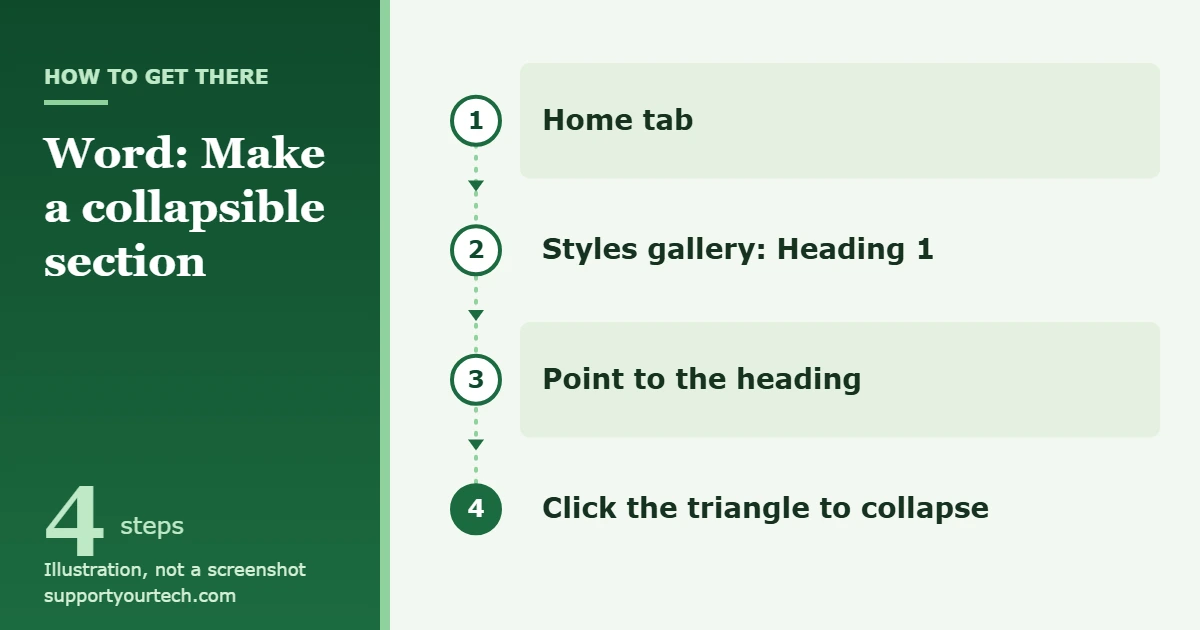
To make a collapsible section in Word, select the section’s title, go to the Home tab and choose a built-in heading style such as Heading 1 from the Styles gallery. Then move the pointer over that heading and click the small triangle that appears. Word hides the body text and subheadings under the heading; click the triangle again to show them.
Applies to: Word for Microsoft 365, Word 2024, Word 2021, Word 2019 and Word 2016 on Windows.
What makes a section collapsible
Word does not have a separate “collapsible section” object. Collapsing is based on a paragraph’s outline level, and the simple way to give a paragraph an outline level is to apply one of Word’s built-in heading styles. Once a line is a heading, Word treats everything beneath it, the body text and any lower-level subheadings, as that heading’s section.
That has two practical consequences. First, text that only looks like a heading (bold, larger font, a different color) will not collapse, because it is still ordinary body text to Word. Second, the heading levels you choose decide what folds into what. A Heading 2 under a Heading 1 is hidden when you collapse the Heading 1, so collapsing a chapter heading also tucks away all of its subsections.
A simple plan for a report might look like this:
- Heading 1 for each main part, such as “Background,” “Results” and “Recommendations.”
- Heading 2 for the topics inside a part, such as “Survey responses” under “Results.”
- Heading 3 only if a topic really needs another level.
Before you start
- Use the Word desktop app for Windows. Collapsing and expanding isn’t available in Word for the web yet (see the web section below).
- Save a copy first if the document belongs to someone else. Applying heading styles changes the look of those lines and adds them to the Navigation pane and to any automatic table of contents.
- Decide which lines are section titles. Every line you turn into a heading becomes a point where a section can be folded.
Make a section collapsible in Word for Windows
- Select the section title. Click in the line you want to use as the heading, or select the whole line. Only the title line needs a heading style, not the paragraphs under it.
- Apply a heading style. On the Home tab, pick Heading 1 in the Styles gallery. If you don’t see the style you want, expand the gallery with its More button or arrows. The line takes on the heading format. Keyboard alternative: Ctrl+Alt+1 applies Heading 1, Ctrl+Alt+2 applies Heading 2 and Ctrl+Alt+3 applies Heading 3.
- Repeat for the rest of the document. Give every main section title the same top-level style and every subsection a lower level. Consistency matters: a section can only fold content that sits below it in the heading order.
- Point to a heading. Move the mouse pointer over the heading. A small triangle appears next to it. On a touchscreen, tap inside the heading to make the triangle show.
- Click the triangle. The body text and subheadings under that heading disappear from view, and the following heading moves up to meet it. The text is still in the file; it is only hidden on screen.
- Click the triangle again to expand. The hidden content comes back exactly as it was.
Collapse or expand every section at once
Clicking triangles one by one gets slow in a long document. Word has a menu that does all headings in one go:
- Right-click any heading in the document.
- Point to Expand/Collapse.
- Choose Collapse All Headings to fold the document down to its headings, or Expand All Headings to show everything again.
Collapsing everything is a quick way to review the structure of a long file. If a heading you expected is missing from the collapsed view, it probably uses a lower heading level than its neighbors, or it isn’t a heading style at all.
Make a document open with sections collapsed
By default, Word expands all headings when you reopen a document, even if you collapsed them before saving. To have a particular heading start out collapsed:
- Click inside the heading you want to start collapsed.
- On the Home tab, click the small arrow in the corner of the Paragraph group. The Paragraph dialog box opens.
- Select Collapsed by default.
- Click OK, then save the document.
Repeat this for each heading that should start closed; headings without the setting open expanded. This only changes how the document first appears in the Word desktop app. It does not protect, hide or remove text, so anyone who opens the file can expand the section and read it.
Other ways to fold a long document
Use the Navigation pane to collapse the outline
The Navigation pane lists your headings in a panel beside the document. Open it with Ctrl+F, or go to the View tab and select Navigation Pane. On the Headings tab:
- Click a heading to jump to that part of the document.
- Click the arrow next to a heading to show or hide its subheadings in the pane.
- Drag a heading to move the whole section to a new place in the document.
- Right-click a heading to change its level or add a new heading.
Note the difference: the arrows in the pane fold the list of headings in the pane, while the triangles in the document fold the actual text. Both depend on heading styles, so a line that isn’t a heading won’t appear in the pane. The pane does more than fold headings, and using the Navigation pane in Word walks through the rest of it.
Use Outline view and keyboard shortcuts
Outline view shows the document as an indented outline and is useful for reorganizing large files. In Word for Windows, press Ctrl+Alt+O to switch to Outline view. These shortcuts work in it:
| Action in Outline view | Shortcut |
|---|---|
| Expand the text under a heading | Alt+Shift+Plus sign (+) |
| Collapse the text under a heading | Alt+Shift+Minus sign (-) |
| Expand or collapse all text or headings | Alt+Shift+A |
| Show only Heading 1 headings | Alt+Shift+1 |
| Show headings down to a chosen level | Alt+Shift+the level number |
| Move selected paragraphs up or down | Alt+Shift+Up or Down arrow |
| Promote or demote a paragraph | Alt+Shift+Left or Right arrow |
When you’re done, press Ctrl+Alt+P to return to Print Layout view, where the heading triangles work as described above.
Collapsible sections in Word for the web
The collapse and expand feature isn’t in Word for the web yet. If you open the document in the desktop app (for example with the Open in Word option), you can collapse and expand sections there, but they appear expanded again when the file is viewed in Word for the web. After collapsing in the desktop app, you can press Ctrl+S to save back to the original location.
So if your readers mostly open the file in a browser, don’t rely on collapsed sections to keep the page short. Clear headings and the Navigation pane still help them find their way. Microsoft’s page does not cover Word for Mac, so this guide sticks to Windows.
How to check it worked, and how to undo it
- Check: Right-click a heading and choose Expand/Collapse > Collapse All Headings. If the document folds down to a clean list of your section titles, the headings are set up correctly. Expand everything again afterward.
- Check the startup state: If you used Collapsed by default, save, close and reopen the file to confirm the right headings start closed.
- Undo a collapsed state: Choose Expand All Headings, or clear Collapsed by default in the Paragraph dialog box for that heading.
- Remove the triangle from a line: Change the line back to the Normal style (shortcut Ctrl+Shift+N). It stops being a heading, so it can no longer collapse. There is more on this in removing expand and collapse in Word.
Troubleshooting
No triangle appears next to the heading
The triangle only shows when the pointer is over the heading (or, on a touchscreen, when the cursor is in it), so move the mouse over the line first. If it still doesn’t appear, click in the line and look at the Styles gallery on the Home tab. If Normal or a custom style is highlighted, apply a built-in heading style instead. Manual formatting such as bold or a bigger font doesn’t give a line an outline level.
Clicking the triangle hides nothing
A heading collapses only what sits under it. If the next line is another heading at the same or a higher level, there is no body text to hide. Check that the text you want to fold is placed directly below the heading and isn’t formatted as a heading itself.
Collapsing one heading hides far more than expected
This usually means the following headings use a lower level than intended. For example, if every section title after the first is a Heading 2, collapsing the first Heading 1 hides all of them. Give equal sections the same heading level.
Headings are missing from the Navigation pane
The pane only lists text with heading styles applied, and it doesn’t show headings inside tables, text boxes, headers or footers. Move the heading into the main body text and apply a heading style.
A section won’t move when you drag it in the Navigation pane
If the document has protected regions, you may not be able to drag a section past the last protected region. Documents from work or school can be restricted this way; ask the document’s owner if you need to rearrange a protected file.
Sections are expanded every time you open the file
That is Word’s default. Use Collapsed by default on each heading that should open closed, then save the file in the desktop app. If you open the file in a browser, sections show expanded because Word for the web doesn’t support collapsing yet.
The document always opens with sections hidden
Someone has turned on Collapsed by default for those headings. Click in the heading, open the Paragraph dialog box from the Home tab and clear the option, or use Expand All Headings each time you open the file.
Frequently asked questions
Does collapsing a section delete or protect the text?
No. Collapsing only changes what you see on screen. The text stays in the document, anyone can expand it again, and it is not a way to keep information private.
Do I need a heading style, or can I just make text bold?
You need a heading style (or another style that carries an outline level). Bold or large text that uses the Normal style can’t collapse because Word doesn’t see it as a heading.
Which versions of Word support collapsible sections?
They work in Word for Microsoft 365, Word 2024, Word 2021, Word 2019 and Word 2016. Word for the web can’t collapse sections yet.
Will the document stay collapsed when I send it to someone?
Not unless you set it up. Word expands headings when a file is reopened, so turn on Collapsed by default for the headings that should start closed. If the recipient opens the file in Word for the web, they will see everything expanded.
Are collapsed sections printed?
Microsoft’s collapse documentation doesn’t cover printing. If you need a complete printout, choose Expand All Headings first and check the print preview before printing.
Is there a keyboard shortcut to collapse sections?
In Outline view on Windows, Alt+Shift+Minus sign collapses the text under a heading and Alt+Shift+Plus sign expands it. In normal editing, use the triangle or the right-click Expand/Collapse menu.
What’s the difference between collapsing in the document and in the Navigation pane?
The triangle in the document hides the real text under a heading. The arrow in the Navigation pane only hides subheadings in the pane’s list, which helps you browse a long outline without changing what’s shown on the page.
Next, collapse everything with Collapse All Headings and read your document as a list of headings; if anything looks out of place, fix its heading level. Microsoft’s pages on collapsing or expanding parts of a document, the Navigation pane and Word keyboard shortcuts go into more detail on these controls.
Once your headings are in place, you can also make other lines into headings or add a table of contents in Word.

Matt Jacobs has been working as an IT consultant for small businesses since receiving his Master’s degree in 2003. While he still does some consulting work, his primary focus now is on creating technology support content for SupportYourTech.com.
His work can be found on many websites and focuses on topics such as Microsoft Office, Apple devices, Android devices, Photoshop, and more.