To insert a footnote in Word, click right after the word or sentence you want to comment on, then select References > Insert Footnote. Word adds a small superscript number at that spot and moves your cursor to the bottom of the page, where you type the note. On Windows you can press Ctrl + Alt + F instead, and on a Mac Command + Option + F.
Applies to: Word for Microsoft 365 (Windows and Mac), Word 2024, Word 2021, Word 2019, Word 2016, Word for the web, and the Word apps for iPhone, iPad and Android. Checked against Microsoft Support on October 12, 2026.
Footnote or endnote?
Both are notes that sit outside the main text and connect to it through a matching number or symbol, called the reference mark. The only difference is where the note text ends up:
| Footnote | Endnote | |
|---|---|---|
| Where the note appears | At the bottom of the same page as its reference mark | At the end of the document (or the end of a section, if you choose that) |
| Default numbering | 1, 2, 3 | i, ii, iii |
| Best for | Sources and short asides readers check right away | Longer notes, or documents where notes would crowd the page |
| Command | References > Insert Footnote | References > Insert Endnote |
Your style guide usually decides for you. Chicago-style history papers, legal memos and many reports use footnotes. If you aren’t sure, start with footnotes. You can switch every note to endnotes later in a few clicks, as shown in Insert endnotes or convert footnotes to endnotes.
Before you start
- Make sure you can edit the file. If the document opened in a read-only or Viewing mode, the footnote commands are unavailable. In Word for the web and Word for Microsoft 365, select the mode button at the top right and choose Editing.
- Use Print Layout on a computer. Footnotes show at the bottom of each page in the normal page view. If your pages look like one continuous strip, select View > Print Layout.
- Never type the numbers yourself. A superscript number you type is just text. It won’t link to a note, and it won’t renumber when you add or remove notes. Always use Insert Footnote so Word manages the numbers.
- Decide where the mark goes. Most style guides, including Chicago, put the reference mark after the punctuation at the end of a sentence or clause. Click after the period or comma before you insert the note.
Insert a footnote in Word for Windows
These steps are the same in Word for Microsoft 365, Word 2024, 2021, 2019 and 2016.
- Place the cursor. Click immediately after the word, number or sentence the note belongs to. The reference mark will appear exactly where the cursor is blinking.
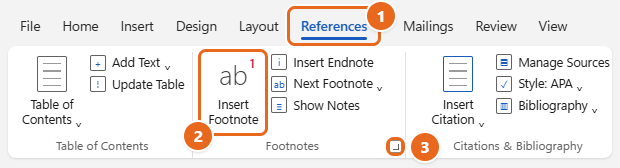
- Open the References tab. Select References on the ribbon at the top of the window.
- Select Insert Footnote. It’s the large button in the Footnotes group, near the left end of the tab.

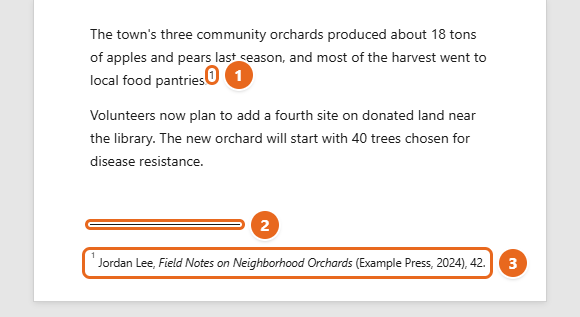
Select the References tab (1), then Insert Footnote (2). The small arrow in the corner of the Footnotes group (3) opens the Footnote and Endnote options. - Type the note. Word inserts a superscript number in your text, draws a short line near the bottom of the page and moves the cursor next to a matching number under it. Type your source or comment there.
- Go back to where you were. Double-click the number at the start of the note, and Word jumps back to the reference mark in the text. You can also just click in the body text and keep writing.

After you insert a footnote, a superscript reference mark appears in the text (1). The note itself sits below the separator line (2) at the bottom of the same page (3).
Add more notes the same way. Word numbers them in order through the document, so if you insert a new note between notes 2 and 3, it becomes number 3 and the old note 3 becomes note 4. To change a note later, click into its text at the bottom of the page and edit it like any other text.
Citing a source a second time? Insert a new footnote for each reference, even if it repeats an earlier source. Many styles let you shorten repeat citations, for example to the author’s last name, a short title and the page number.
Keyboard shortcuts for footnotes
Microsoft’s list of Word keyboard shortcuts includes these footnote commands:
| Action | Windows | Mac |
|---|---|---|
| Insert a footnote | Ctrl+Alt+F |
Command+Option+F |
| Insert an endnote | Ctrl+Alt+D |
Command+Option+E |
| Go to the next footnote | Alt+Shift+> |
Not listed |
| Go to the previous footnote | Alt+Shift+< |
Not listed |
| Open the References tab with KeyTips | Alt, then S |
Not available |
After you press Alt, then S on Windows, Word shows a letter on each References command. Press the letter shown on Insert Footnote to add a note without touching the mouse. You can see the full list in Microsoft’s keyboard shortcuts in Word.
If a shortcut does nothing, check that the cursor is in the document text and that the file is open for editing. Another app can also claim the same key combination, in which case the References tab always works.
Insert a footnote in Word for Mac
- Click where you want the reference mark to appear.
- Select References > Insert Footnote, or press Command + Option + F.
- Type the note at the bottom of the page.
- Double-click the footnote mark at the start of the note to return to your place in the document.
The Mac version has the same Footnote and Endnote box as Windows. Open it with the small arrow in the lower-right corner of the Footnotes group on the References tab. Microsoft’s Mac instructions finish custom settings with the Insert button. Because Insert can also add a new note at the cursor, check for an extra note afterward and delete it if you didn’t want one.
Insert a footnote in Word for the web
Word for the web is the free browser version you open from Microsoft 365, Outlook.com or OneDrive.
- Open the document. If it opened in Viewing mode, select Edit (or the mode button) at the top right and choose Editing.
- Click after the text that needs a note.
- Select References > Insert Footnote. Word adds the reference mark in the text and a matching footnote.
- Type the note. To find it again later, click its reference number in the body text.
While you’re editing in the browser, a note may open in a panel at the bottom of the window instead of appearing at the foot of the page. That’s normal, and the note is saved. Switch the mode button to Viewing if you want to see the notes laid out on the page the way they’ll print.
To change how notes look, open a note and select Format Footnotes (or Format Endnotes). The Format Options box lets you change the font, size and indentation of one note or all of them, then select Apply. Microsoft notes that converting footnotes to endnotes isn’t available in the browser. Use Open in Desktop App (or Open in Word) to do that in the desktop version, and the file saves back to the same place.
Insert a footnote on an iPhone, iPad or Android device
In the Word mobile apps, footnotes live on the Insert tab, not References.
- Tap where you want the note in your document.
- Open the Insert tab. On a phone, the ribbon is hidden at first: tap the icon that shows the ribbon (in the toolbar above the keyboard), then pick Insert from the list of tabs.
- Tap Footnote (or Endnote).
- Type the note text.
- Double-tap the reference number to jump between the note and its place in the text.
The mobile apps number footnotes 1, 2, 3 and endnotes i, ii, iii. To change the number format or other note settings, Microsoft’s mobile instructions recommend opening the document in Word on a Windows PC or Mac. Your changes will be there the next time you open the file on your phone or tablet.
Change footnote numbering, symbols and placement
All of the numbering and placement settings are in one dialog box in the desktop apps.
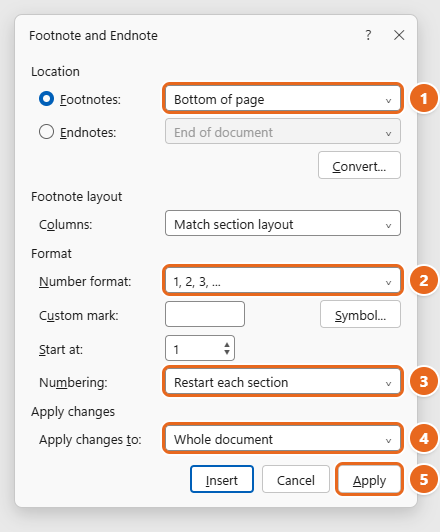
- Select References, then select the small arrow in the bottom-right corner of the Footnotes group. The Footnote and Endnote box opens.
- Under Location, make sure Footnotes is selected. Choose Bottom of page (the usual place) or Below text, which puts the notes right after the last line of text on a short page.
- Under Format, pick a Number format: numbers, lowercase or capital letters, lowercase or capital Roman numerals, or symbols such as *, † and ‡. To use one symbol of your own, type it in Custom mark or select Symbol to choose one.
- Set Start at if the first note shouldn’t be 1, for example when a chapter continues numbering from a separate file.
- Choose a Numbering option: Continuous (one run through the whole document), Restart each section or Restart each page.
- Under Apply changes to, choose Whole document or the current section.
- Select Apply. The Apply button stays grayed out until you change a setting. Avoid selecting Insert here unless you also want a new footnote at the cursor.

Choose where footnotes appear (1) and how they are numbered (2). To start at 1 in each chapter, set Numbering to Restart each section (3), choose what the change applies to (4), then select Apply (5).
Restart footnote numbers in each chapter
Restart each section only works if each chapter is its own section. A page break isn’t enough. Put the cursor at the start of each chapter, select Layout > Breaks > Next Page (under Section Breaks), and then set Numbering to Restart each section with Apply changes to set to Whole document. Section breaks also let you number pages differently in each chapter, as covered in how to number pages in Word. Footnote numbers and page numbers are separate, so changing one never changes the other.
Change the font and size of all footnotes
Word formats note text with a built-in style called Footnote Text. Changing that style updates every footnote at once, which is faster and more consistent than formatting each note by hand.
- Right-click the text of any footnote at the bottom of a page and choose Style. The Style box opens with Footnote Text selected.
- Select Modify.
- Choose the font, size and line spacing you want. Select Format > Paragraph for more spacing and indent options.
- Select OK, then Apply (or Close) in the Style box. Every footnote that uses the style changes.
The superscript numbers use a separate style named Footnote Reference, which you can modify the same way from the Styles pane on the Home tab. Endnotes have their own Endnote Text and Endnote Reference styles.
If one note refuses to change, it probably has its own direct formatting. Select that note’s text, press Ctrl + Space to clear the extra character formatting, and it follows the style again. If your instructor wants double-spaced notes, see the footnote section of how to double space in Word.
Insert endnotes or convert footnotes to endnotes
To add an endnote instead of a footnote, click in the text and select References > Insert Endnote, or press Ctrl + Alt + D (Command + Option + E on a Mac). The note goes after the last line of the document.
To switch existing notes from one type to the other in desktop Word:
- Open the Footnote and Endnote box from the arrow in the Footnotes group.
- Select Convert.
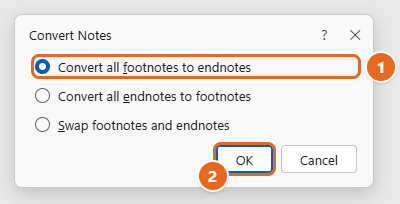
- Choose Convert all footnotes to endnotes, Convert all endnotes to footnotes or Swap footnotes and endnotes, then select OK.

In the Convert Notes box, choose Convert all footnotes to endnotes (1) or one of the other options, then select OK (2). - The change happens as soon as you select OK. Select Close (or Cancel) to leave the Footnote and Endnote box without inserting another note.
To convert just one note, right-click the note’s text and choose Convert to Endnote (or Convert to Footnote). Word renumbers everything for you. Converted notes pick up the number format of their new type, so endnotes that become footnotes switch from i, ii, iii to 1, 2, 3 unless you’ve changed the format.
Delete one footnote or all of them
Delete the reference mark, not the note. If you only erase the note text at the bottom of the page, Word leaves an empty note and the number in your text.
- In the body of the document, find the superscript reference mark for the note you want to remove.
- Select the mark. Dragging across it works, or click just after it and press Shift + Left arrow.
- Press Delete. The mark and its note disappear together, and the remaining notes renumber.
Endnotes are removed the same way. Microsoft covers both, plus the separator line, in delete a footnote, endnote, or separator.
Warning: the next steps remove every footnote in the document at once. Save a copy of the file first if you might need the notes later.
- Click at the start of the document.
- Open Find and Replace. On Windows, press Ctrl + H. On a Mac, select Edit > Find > Advanced Find and Replace and choose the Replace tab.
- In Find what, type
^ffor footnotes or^efor endnotes. - Leave Replace with empty and select Replace All.
If you change your mind right away, press Ctrl + Z (Command + Z) to undo.
Remove or change the line above footnotes
The short line between the body text and the notes is called the footnote separator. You can’t select it on the page in Print Layout, so you edit it from Draft view.
- Select View > Draft.
- Double-click any footnote reference mark in the text. A Footnotes pane opens at the bottom of the window. (References > Show Notes also opens it.)
- In the list at the top of the pane, choose Footnote Separator.
- Select the line and press Delete to remove it, or use the Home tab to change its color or style.
- Select View > Print Layout to go back to the normal page view.
The same list has Footnote Continuation Separator, the longer line Word uses when a note is too long for one page and continues on the next.
Troubleshooting
Insert Footnote is grayed out
The document isn’t open for editing. Look for a Viewing or Read-Only label at the top of the window, then switch to Editing or select Enable Editing on the yellow bar. If the file is restricted by its owner or your organization, you may need to save your own copy first. The commands can also be unavailable while the cursor is inside a note, so click back into the body text.
I can’t see my footnotes
Check the view. Notes appear at the foot of each page only in Print Layout. In Draft view they appear in a separate pane, and in Word for the web they may open in a panel while you edit. Also check the Location setting in the Footnote and Endnote box: if it says Below text, notes sit directly under the last line on a short page instead of at the very bottom.
The first footnote starts at 2 or another wrong number
Open the Footnote and Endnote box and make sure Start at is 1. If it is, an earlier reference mark is probably hiding somewhere, for example in a heading, a table or a text box. Use Alt + Shift + > or References > Next Footnote from the top of the document to step through every mark.
Numbering restarts where it shouldn’t
The document probably contains a section break, and Numbering is set to Restart each section. Change Numbering back to Continuous with Apply changes to set to Whole document, or remove the stray section break. Turn on Home > Show/Hide ¶ to see section breaks.
A footnote jumped to the next page
Word keeps a note on the same page as its reference mark when it can. A long note, or a mark near the bottom of a full page, can push text around, and a very long note may continue onto the next page under the continuation separator. Shortening the note or the line spacing in the Footnote Text style usually fixes it.
My word count includes or skips the footnotes
Select Review > Word Count and check or clear Include textboxes, footnotes and endnotes. See how to display the word count in Word for more.
FAQ
What is the shortcut for a footnote in Word?
Ctrl + Alt + F on Windows and Command + Option + F on a Mac. For an endnote, use Ctrl + Alt + D or Command + Option + E.
How do I jump between a footnote and its number?
Double-click the number at the start of the note to go back to the reference mark in the text, and double-click a reference mark to go to its note. On a phone or tablet, double-tap instead.
Can I use symbols like asterisks instead of numbers?
Yes. In the Footnote and Endnote box, set Number format to the symbol series (*, †, ‡ and so on), or type a single character in Custom mark. Select Apply to change existing notes.
Why are my endnotes numbered with Roman numerals?
That’s Word’s default for endnotes, so they don’t get confused with footnotes. Change it under Number format in the Footnote and Endnote box with Endnotes selected.
Do footnotes stay in place when I save as PDF?
Yes. Footnotes are part of the page layout, so a PDF saved from Word keeps each note at the bottom of its page. Check a few pages after you convert a long document, especially if you’ve changed fonts or margins.
Next step
Once your notes are in, scroll through the document in Print Layout to check that each note sits on the same page as its number, then make sure the number style and spacing match your assignment or style guide before you share or print the file.

Matt Jacobs has been working as an IT consultant for small businesses since receiving his Master’s degree in 2003. While he still does some consulting work, his primary focus now is on creating technology support content for SupportYourTech.com.
His work can be found on many websites and focuses on topics such as Microsoft Office, Apple devices, Android devices, Photoshop, and more.