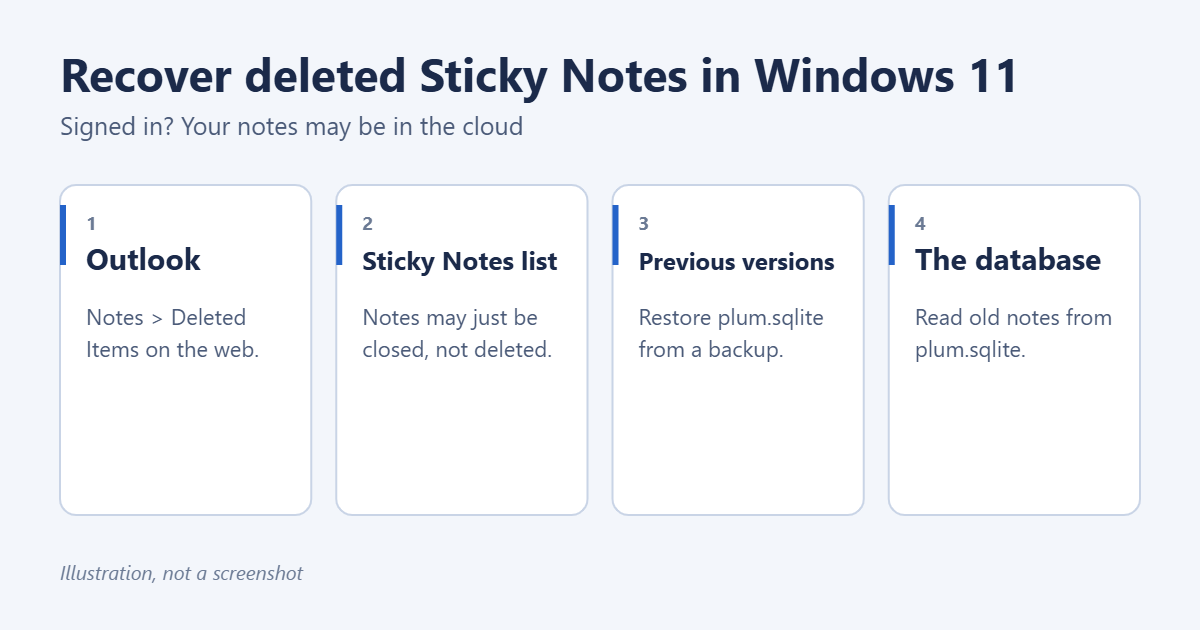
To recover deleted Sticky Notes in Windows 11, first check whether the note was only closed: open Sticky Notes and look in the notes list. If it was deleted and you were signed in to Sticky Notes with a Microsoft account, sign in at outlook.live.com (or Outlook for work), open the Deleted Items folder and look for the note there; you can move it back to Notes. Without a Microsoft account, your only options are a backup of the Sticky Notes database file, plum.sqlite, or reading deleted text from that file.
Applies to: the Sticky Notes app on Windows 11 and Windows 10, including the newer Sticky Notes experience in OneNote.
Act quickly: stop creating or editing notes until you’ve finished. New notes can overwrite the deleted data in the database file.
Check whether the note is just closed
Closing a note’s window doesn’t delete it.
- Open Sticky Notes from the Start menu, or press Windows key + Alt + S if you use the Sticky Notes experience in OneNote.
- Look through the notes list. Use the search box at the top to find words you remember.
- Double-click a note, or right-click it and choose Open note, to put it back on the desktop.
If you want notes to stay visible, you can put Sticky Notes on the desktop in Windows 11.
Recover the note from Outlook
When you’re signed in, Sticky Notes syncs your notes to your Outlook mailbox, and deleted notes go to the mailbox’s Deleted Items folder for a while.
- Sign in to outlook.live.com with the same Microsoft account you use in Sticky Notes. For a work account, use Outlook on the web for your organization.
- Open Deleted Items. Notes appear with the note’s text as the subject.
- Right-click the note and select Restore or Move > Notes.
- Open Sticky Notes on your PC and select the settings gear > Sync now, or wait a few minutes.
Outlook.com empties Deleted Items after a period of time, typically 30 days. If the folder is empty, select Recover items deleted from this folder at the top of it to see if the note can still be restored.
Restore the database from a backup
Sticky Notes keeps all notes in one file. If File History or another backup was on before you deleted the note, you can bring back an older copy.
- Close Sticky Notes completely (right-click it on the taskbar and choose Close window).
- Press Windows key + R, paste
%LocalAppData%\Packages\Microsoft.MicrosoftStickyNotes_8wekyb3d8bbwe\LocalStateand press Enter. - Copy plum.sqlite to your desktop as a safety backup.
- Right-click plum.sqlite, select Show more options > Restore previous versions, choose a version from before the deletion and select Restore.
- Open Sticky Notes and check your notes.
Restoring an older version replaces the current notes with that version’s notes, so copy any newer notes somewhere else first. A regular routine to back up and restore Sticky Notes makes this easier next time.
Read deleted text from the database
If there’s no backup, the deleted text may still be inside plum.sqlite until it’s overwritten.
- Close Sticky Notes and copy plum.sqlite from the folder above to your desktop. Always work on the copy.
- Open the copy in Notepad (right-click > Open with > Notepad).
- Press Ctrl + F and search for a word you remember from the note.
- Copy any text you find into a new note.
Much of the file will look like gibberish, but plain text from notes is often readable. A free SQLite viewer can show the notes table more clearly. If File Explorer hides the folder, here is how to open the AppData folder.
Prevent losing notes again
- Sign in to Sticky Notes with a Microsoft account (settings gear > Sign in) so notes sync to the cloud and appear on your other devices.
- Turn on delete confirmation in Sticky Notes settings so it asks before deleting a note.
- Back up the LocalState folder with File History or OneDrive.
Troubleshooting
Outlook has no Notes or Deleted Items with my notes
Sticky Notes may not have been signed in, or used a different account. Check the account under the settings gear in Sticky Notes.
Restore previous versions shows “There are no previous versions available”
No backup existed. Try reading the deleted text from the database instead.
Sticky Notes won’t open after restoring a file
Put back the copy you saved to your desktop before restoring. If it still fails, open Settings > Apps > Installed apps, select Sticky Notes > Advanced options > Repair.
For notes that need to pop up at a set time, you can also set reminders on Windows 11.

Matt Jacobs has been working as an IT consultant for small businesses since receiving his Master’s degree in 2003. While he still does some consulting work, his primary focus now is on creating technology support content for SupportYourTech.com.
His work can be found on many websites and focuses on topics such as Microsoft Office, Apple devices, Android devices, Photoshop, and more.