The easiest way to back up Sticky Notes in Windows 10 is to sign in. Open Sticky Notes, select Settings (the gear icon) in the notes list, and select Sign in. Your notes sync to your Microsoft account, and they come back when you sign in on another PC.
To keep a copy on your own drive, copy the plum.sqlite file from the Sticky Notes folder.
Applies to: Sticky Notes 3.0 and later on Windows 10. Older versions are covered below. Checked against Microsoft Support on September 25, 2026.
Back up by signing in
- Open Sticky Notes. If you only see one note, select … > Notes list.
- Select Settings in the upper-right of the notes list.
- Select Sign in and enter your Microsoft account.
- Turn on Confirm before deleting so you don’t delete a note by mistake.
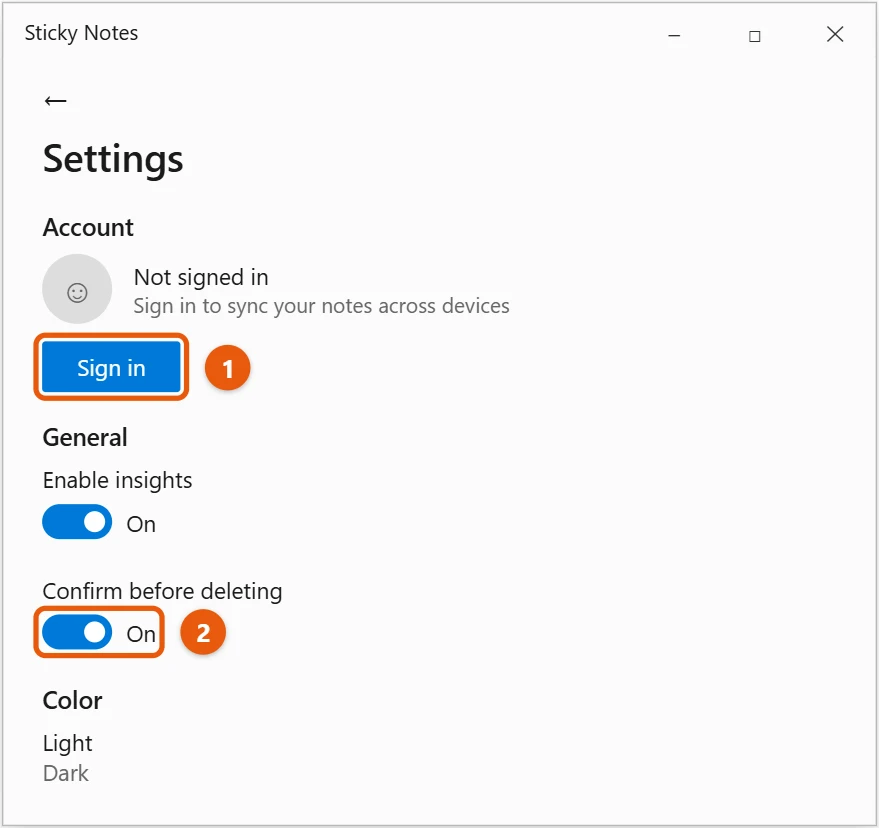
Your notes also show up at onenote.com/stickynotes, in OneNote on your phone, and in Outlook.
Back up the Sticky Notes file
- Close Sticky Notes.
- Press Windows + R, paste this path, and press Enter:
%LocalAppData%\Packages\Microsoft.MicrosoftStickyNotes_8wekyb3d8bbwe\LocalState - Copy
plum.sqliteto a USB drive, OneDrive, or another folder. If you seeplum.sqlite-walandplum.sqlite-shm, copy them too.
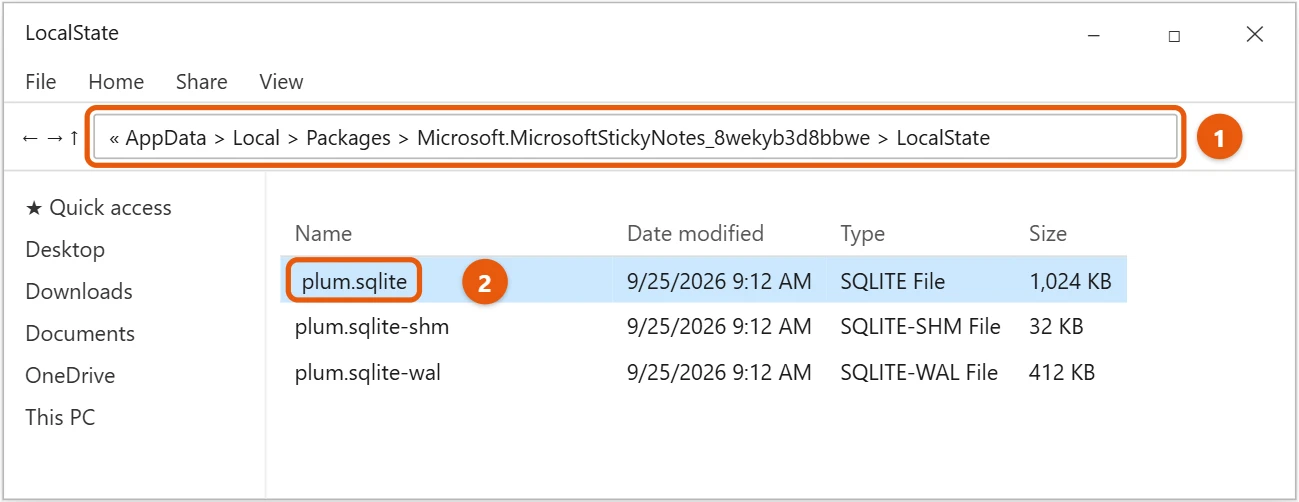
The AppData folder is hidden. Typing the path works anyway. To browse to it, see how to open the AppData folder in Windows 10.
Restore or move your notes to another PC
- On the new PC, open Sticky Notes once, then close it. This creates the folder.
- Open the same
LocalStatefolder. - Rename the existing
plum.sqlitetoplum.sqlite.old, just in case. - Paste your backed-up
plum.sqlite(and the-waland-shmfiles if you copied them). - Open Sticky Notes. Your notes are back.
If you signed in on the old PC, you can skip this. Sign in on the new PC with the same account and wait for your notes to sync.
Older Windows 10 versions
Before the Windows 10 Anniversary Update, notes were saved in StickyNotes.snt in %AppData%\Microsoft\Sticky Notes. Back up that file the same way. Newer Sticky Notes can’t read it directly.
If your notes are missing
- Only one note shows: select … > Notes list to see them all.
- Notes are missing after sign-in: make sure you’re signed in with the same Microsoft account you used before.
- Sticky Notes didn’t open at startup: select Start, type Sticky Notes, and open it.
- You deleted a note: deleting is permanent and can’t be undone. If you have a
plum.sqlitebackup from before, restoring it brings the note back, but it replaces any notes you made since.
Frequently asked questions
Can I export Sticky Notes to a text file?
There’s no export button. Copy and paste the text into Notepad or Word, or keep a plum.sqlite backup.
Do Sticky Notes back up automatically?
Only if you’re signed in. Otherwise, they live only on your PC.
Can I see my sticky notes on my phone?
Yes. Sign in, then open OneNote on your phone and tap Sticky Notes.
To back up the rest of your files too, see how to back up Windows 10.
To show hidden folders like AppData in File Explorer, see how to show hidden files in Windows 10. Microsoft’s guide is See your sticky notes on other devices and the web. More help is on our Windows Help & Guides page.
On Windows 11, see how to put sticky notes on the desktop in Windows 11.
On Windows 11, see how to set reminders with Microsoft To Do or the Clock app.
Related: How to recover deleted Sticky Notes in Windows 11.

Matt Jacobs has been working as an IT consultant for small businesses since receiving his Master’s degree in 2003. While he still does some consulting work, his primary focus now is on creating technology support content for SupportYourTech.com.
His work can be found on many websites and focuses on topics such as Microsoft Office, Apple devices, Android devices, Photoshop, and more.