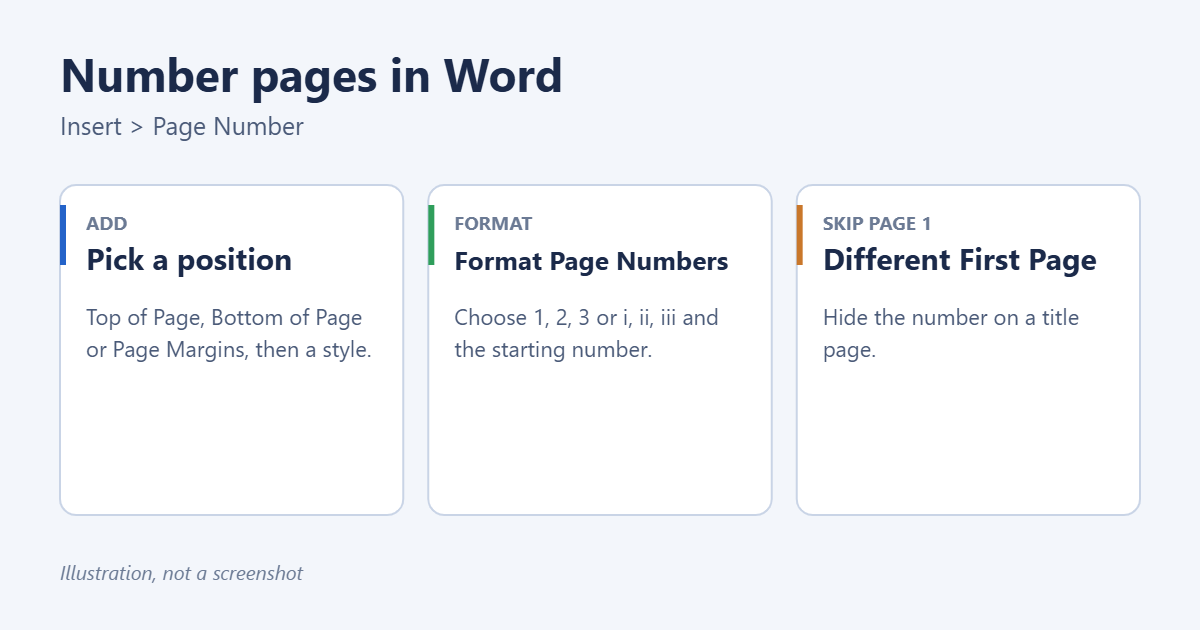
To number pages in Word, go to Insert > Page Number, choose Top of Page or Bottom of Page, and pick a style. Word adds a number to every page and updates it automatically. To change the format or starting number, go to Insert > Page Number > Format Page Numbers. To hide the number on the first page, double-click the header or footer and tick Different First Page.
Applies to: Word for Microsoft 365, Word 2024, 2021, 2019 and 2016 on Windows and Mac, and Word for the web. Last reviewed October 8, 2026.
Add page numbers
- Go to the Insert tab and select Page Number in the Header & Footer group.
- Choose a position:
- Top of Page puts the number in the header.
- Bottom of Page puts it in the footer. This is the most common choice.
- Page Margins puts it in the side margin.
- Current Position puts it where your cursor is, usually inside an existing header or footer.
- Pick a style from the gallery, for example Plain Number 2 for a centered number.
- Double-click in the body of the document, or select Close Header and Footer, to go back to editing.
Adding page numbers from the gallery replaces anything already in that header or footer. To keep existing text, click in the header or footer first and use Current Position. See how to add a page number and header in Word.
Show “Page 1 of 10”
Go to Insert > Page Number > Bottom of Page and scroll to the Page X of Y section. Choose Bold Numbers 2 for a centered version. Word fills in the total page count and keeps it up to date.
Change the number format or starting number
- Go to Insert > Page Number > Format Page Numbers.
- Choose a Number format: 1, 2, 3; i, ii, iii; a, b, c; or – 1 -, – 2 -.
- Under Page numbering, choose Start at and type a number, for example 5 if this document continues another.
- Select OK.
You can also add a chapter number, such as 2-1, if your chapter headings use Word’s numbered heading styles.
Leave the number off the first page
- Double-click the header or footer.
- On the Header & Footer tab, tick Different First Page.
Page 2 still shows 2. If you want it to show 1, set Start at to 0 in Format Page Numbers. Full steps are in how to remove the page number from the first page in Word.
Start numbering on a later page
For a report with a title page and contents, insert a section break where the numbering should begin, unlink the footer from the previous section, and restart at 1. See how to start page numbers on page 3 and how to add a section break.
Use roman numerals for the front pages
- Insert a Next Page section break between the front pages and the main text with Layout > Breaks.
- Click in the first section’s footer, open Format Page Numbers, choose i, ii, iii and select OK.
- Click in the second section’s footer, turn off Link to Previous, open Format Page Numbers, choose 1, 2, 3, set Start at to 1, and select OK.
Put numbers on the outside edge for printed booklets
For a document printed on both sides, numbers usually sit on the outer edge: right on odd pages, left on even pages.
- Double-click the footer and tick Different Odd & Even Pages on the Header & Footer tab.
- On an odd page footer, go to Insert > Page Number > Bottom of Page > Plain Number 3 (right-aligned).
- On an even page footer, choose Plain Number 1 (left-aligned).
Word now keeps two separate footers, so formatting changes need to be made in both.
Page numbers in the table of contents
A table of contents picks up page numbers automatically. After adding or moving content, click inside it and select Update Table > Update page numbers only so the numbers stay correct.
Change how the numbers look
Double-click the footer, select the number, and use the Home tab to change the font, size or color. To move it left or right, use the alignment buttons. The change applies to every page in that section.
Remove page numbers
Go to Insert > Page Number > Remove Page Numbers. If the document has several sections, repeat this in each. For stopping numbers partway through, see how to stop page numbering in Word.
Troubleshooting
Every page shows the same number
The number was typed by hand rather than inserted as a field. Delete it and insert it again from Insert > Page Number.
Numbers show as {PAGE} or {PAGE \* MERGEFORMAT}
Field codes are showing. Press Alt+F9 to switch back to the numbers.
Numbering starts over partway through
A section is set to restart. Click in that section’s footer, open Format Page Numbers, and choose Continue from previous section. To restart on purpose, see how to restart page numbering.
The numbers disappeared on some pages
Those pages may use Different First Page, or their section’s footer was cleared. Check each section’s footer.
Frequently asked questions
How do I number pages in Word for the web?
Go to Insert > Page Numbers and pick a position. Options such as Format Page Numbers and section-based numbering need the desktop app.
Can I put the page number in the side margin?
Yes. Use Insert > Page Number > Page Margins.
Will page numbers print?
Yes. Page numbers are part of the header or footer, which print on every page.
Related: How to Auto Number in Word.

Matt Jacobs has been working as an IT consultant for small businesses since receiving his Master’s degree in 2003. While he still does some consulting work, his primary focus now is on creating technology support content for SupportYourTech.com.
His work can be found on many websites and focuses on topics such as Microsoft Office, Apple devices, Android devices, Photoshop, and more.