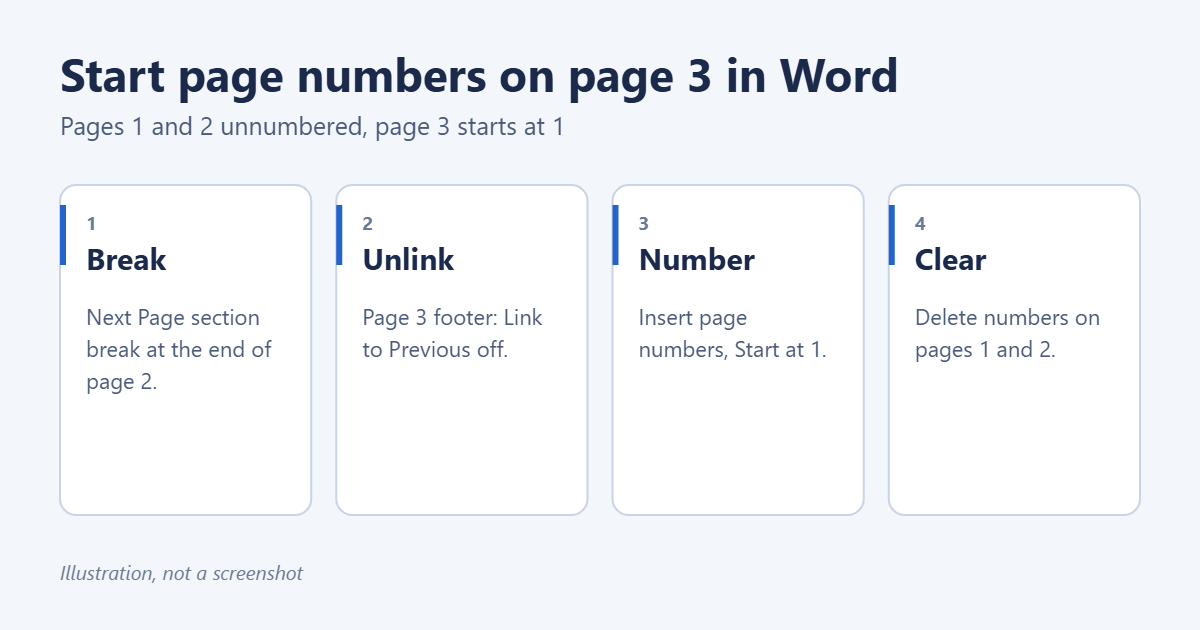
To start page numbers on page 3 in Word, put a section break between page 2 and page 3, unlink page 3’s footer from the section before it, and add page numbers starting at 1 in the new section only. Click at the top of page 3, select Layout > Breaks > Next Page, double-click the footer on page 3 and turn off Link to Previous, then select Page Number > Format Page Numbers > Start at 1. Finally, delete any numbers left on pages 1 and 2.
Applies to: Word for Microsoft 365, Word 2024, 2021, 2019 and 2016 on Windows and Mac. Last reviewed October 7, 2026.
Why you need a section break
Word applies page numbering to a whole section at a time. A new document is a single section, so any page number you add appears on every page. Splitting the document into two sections, pages 1 and 2 in the first and everything from page 3 in the second, lets each part have its own footer and numbering.
Step 1: Add a section break before page 3
- Select Home > Show/Hide (¶) so you can see breaks.
- If there’s a Page Break at the end of page 2, click just before it and press Delete. The text that was on page 3 moves up for now.
- Click at the very start of the line that should begin page 3.
- Select Layout > Breaks > Next Page.
You should see Section Break (Next Page) at the end of page 2, and page 3 still starts in the same place. If a blank page appears, delete the extra paragraph mark before the break.
- Double-click the footer area at the bottom of page 3. The label says Footer -Section 2-.
- On the Header & Footer tab, select Link to Previous so it’s no longer highlighted.
- If your page numbers will go in the header instead, do the same in the header.
Step 3: Add page numbers starting at 1
- With the cursor still in page 3’s footer, select Page Number > Bottom of Page and choose a style, such as Plain Number 2 for the center.
- Select Page Number > Format Page Numbers.
- Under Page numbering, choose Start at and enter 1. Select OK.
Page 3 now shows 1, page 4 shows 2, and so on.
Step 4: Remove numbers from pages 1 and 2
- Scroll up and double-click the footer on page 1 or 2.
- Select the page number and press Delete.
- Double-click the body of the page to close the footer.
Because the sections are unlinked, deleting these numbers doesn’t affect page 3 onward.
Number pages 1 and 2 with Roman numerals instead
Instead of leaving the first pages blank, many reports number them i and ii. In the first section’s footer, add a page number, select Format Page Numbers and choose i, ii, iii. To leave the cover page without a number, also tick Different First Page on the Header & Footer tab. See how to remove the page number from the first page in Word.
For documents printed on both sides
If you print double-sided and page 3 must start on a right-hand page, use Layout > Breaks > Odd Page instead of Next Page in Step 1. Word inserts a blank page if needed so the numbered section always starts on the front of a sheet.
Start on page 2, 4 or any other page
The method is the same: put the section break at the start of whichever page should be number 1. For more ways to control numbering across a document, see how to restart page numbering in Word.
Troubleshooting
Page 3 still shows 3
The Start at setting wasn’t applied to the second section. Click in page 3’s footer and open Format Page Numbers again.
Deleting the number on page 1 deleted it everywhere
Link to Previous is still on in section 2. Press Ctrl + Z, turn it off in page 3’s footer, and try again.
Page numbers in the table of contents are wrong
Update the table: click in it, select Update Table > Update page numbers only. See how to add a table of contents in Word.
There are now more sections than you expected
Extra section breaks can cause odd numbering. Show formatting marks and delete any you don’t need. For more about sections, see how to create sections in Word.
Related: how to number pages in Word.
Related: How to Auto Number in Word.
Related: how to add a page number and header in Word.
Related: how to stop page numbering in Word.
Related: how to change the font of page numbers in Word.

Matt Jacobs has been working as an IT consultant for small businesses since receiving his Master’s degree in 2003. While he still does some consulting work, his primary focus now is on creating technology support content for SupportYourTech.com.
His work can be found on many websites and focuses on topics such as Microsoft Office, Apple devices, Android devices, Photoshop, and more.