The quickest way to open Control Panel in Windows 11 is to select Start, type control panel, and press Enter. You can also press Windows + R, type control, and press Enter.
Control Panel isn’t on the Start menu or the Windows + X menu anymore, but it’s still part of Windows 11. Below are eight ways to open it, plus how to pin it so it’s one click away.
Applies to: Windows 11. Checked on September 24, 2026.
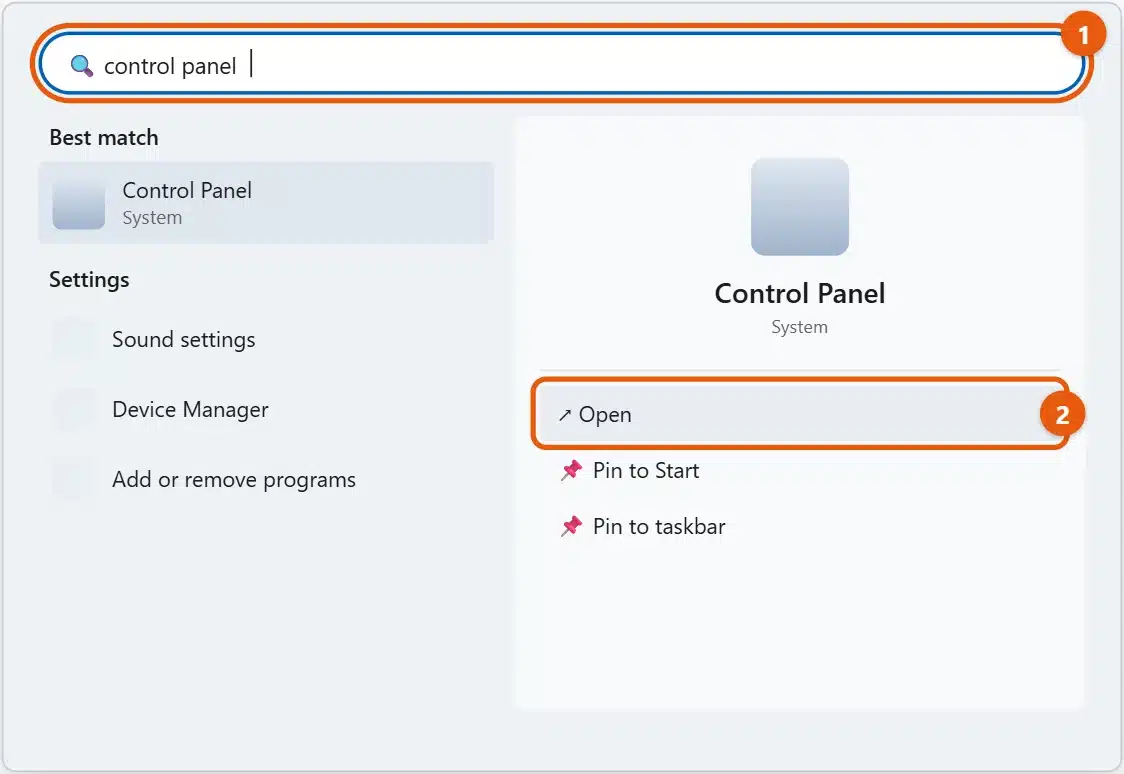
1. Search for it
- Select Start or the search icon on the taskbar.
- Type
control panel. - Select Open, or press Enter.
2. Use the Run box
- Press Windows + R.
- Type
controland select OK.
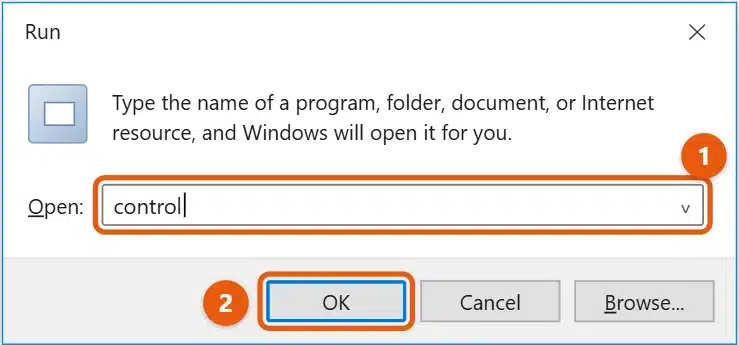
This is the fastest method if you use the keyboard a lot.
3. Open it from Windows Tools
- Select Start > All (or All apps).
- Scroll to Windows Tools and open it.
- Double-click Control Panel.
4. Type it in File Explorer
Press Windows + E, click in the address bar, type Control Panel, and press Enter.
5. Use Terminal or Command Prompt
Open Terminal or Command Prompt, type control, and press Enter.
6. Use Task Manager
Press Ctrl + Shift + Esc, select Run new task, type control, and select OK. This works even when the Start menu isn’t responding.
7. Add a desktop icon
- Go to Settings > Personalization > Themes.
- Select Desktop icon settings.
- Check Control Panel and select OK.
8. Pin it to the taskbar or Start
Search for control panel, then select Pin to taskbar or Pin to Start on the right side of the search results. After that, it’s always one click away.
Switch to the classic icon view
Control Panel opens in Category view. To see every tool in one list, select View by at the top right and choose Large icons or Small icons. You can also type in the search box at the top right of Control Panel to find a tool, such as mouse or power.
Open a specific tool directly
These commands go straight to a Control Panel tool. Type them in the Run box (Windows + R):
appwiz.cpl: Programs and Features, to uninstall or repair older programs.ncpa.cpl: Network Connections, to see your network adapters.mmsys.cpl: the classic Sound settings, for playback and recording devices.powercfg.cpl: Power Options, including what the power button does.sysdm.cpl: System Properties, for the computer name, restore points, and advanced settings.control printers: Devices and Printers.timedate.cpl: the classic Date and Time window.
Why some links open Settings instead
Microsoft keeps moving tools from Control Panel into the Settings app. Some Control Panel links, such as Personalization, open the matching page in Settings instead. That’s expected, and the setting you change is the same. To open Settings directly, press Windows + I, or see how to open Settings in Windows 11.
If Control Panel won’t open
- Restart your PC, then try the Run box method.
- Check for a work or school block. Your IT team can turn off Control Panel. If you see a message that the operation was canceled because of restrictions, ask them.
- Repair system files: open Terminal (Admin), run
sfc /scannow, and restart when it finishes.
Frequently asked questions
Is Control Panel going away in Windows 11?
For one-click access, see how to put a Control Panel icon on the desktop in Windows 11.
Microsoft has been moving its tools into Settings for years, but Control Panel is still included in Windows 11. Most everyday settings are now in Settings.
Do I need to be an administrator to open Control Panel?
No. Anyone can open it. Some tools, marked with a shield icon, ask for an administrator’s permission before making changes.
Where is Control Panel on the Windows + X menu?
It was removed from that menu in earlier versions of Windows 10, and Windows 11 doesn’t have it either. Use search or the Run box instead.
More ways to get around Windows 11: how to open the Run command, how to get to Device Manager, and how to get to the Sound Control Panel. Using Windows 10? See how to get to Control Panel on Windows 10. More help is on our Windows 11 Help & Guides page.

Matt Jacobs has been working as an IT consultant for small businesses since receiving his Master’s degree in 2003. While he still does some consulting work, his primary focus now is on creating technology support content for SupportYourTech.com.
His work can be found on many websites and focuses on topics such as Microsoft Office, Apple devices, Android devices, Photoshop, and more.