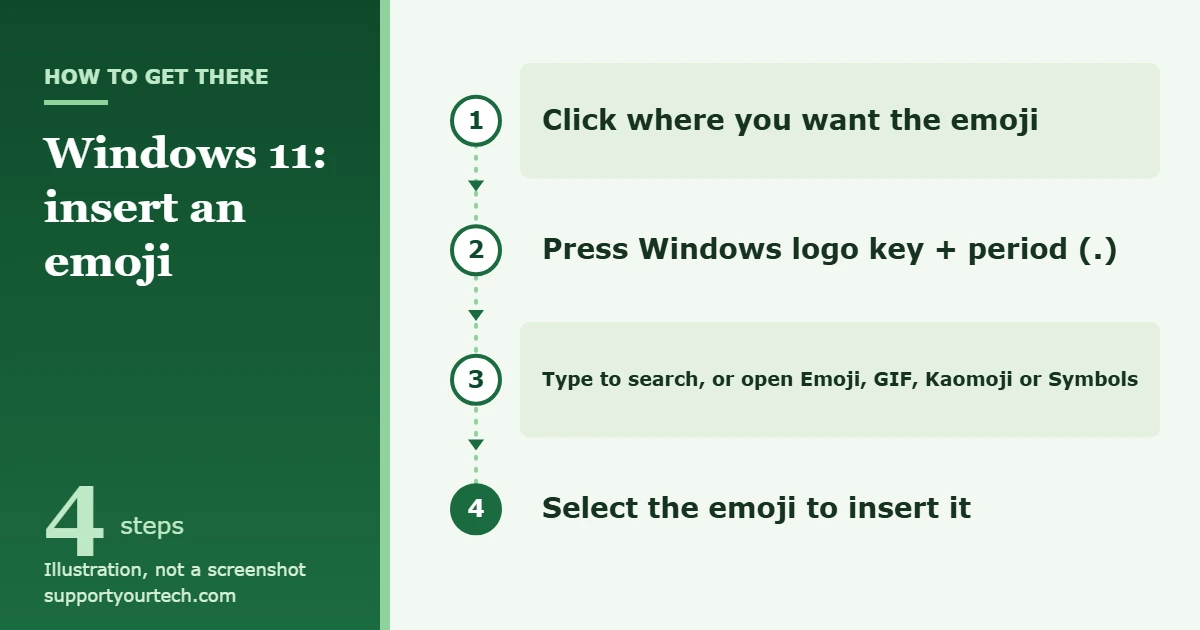
To use emojis in Windows 11, click where you want to type and press Windows logo key + period (.). The emoji panel opens. Type a word such as “smile” to search, then select the emoji you want and it is inserted where you were typing.
Applies to: Windows 11.
What you need
- A Windows 11 PC with a keyboard. No download or setup is required, because the emoji panel is built into Windows.
- A place to type. The shortcut works during text entry, so click in a document, message box, search field or address bar first.
Insert an emoji with the keyboard shortcut
- Click where you want the emoji to go, so the blinking text cursor is in that spot.
- Press Windows logo key + period (.). The emoji panel appears. Windows logo key + semicolon (;) opens the same panel, which is handy if one of those keys is awkward to reach on your keyboard.
- Keep typing to search. For example, type “heart” or “pizza” and the panel shows matching emojis.
- Select an emoji with the mouse. It is added at the text cursor.
- Press Esc when you are finished to leave the panel and go back to typing.
What else is in the emoji panel
The panel holds more than smiley faces. It has these sections, and you can switch between them at any time:
| Section | What it gives you |
|---|---|
| Most recently used | The items you picked lately, so favorites are quick to reuse. |
| Emoji | The full set of picture characters, such as faces, food and flags. |
| GIF | Short animated pictures, mainly useful in chat and email apps. |
| Kaomoji | Faces built from ordinary text characters, such as (^_^). |
| Symbols | Characters that are not on your keyboard, including punctuation marks and accented letters. |
| Clipboard history | Things you copied earlier, ready to paste again. |
An emoji, kaomoji or symbol is inserted as text, so it works almost anywhere you can type. A GIF is a picture, so it may not appear in apps that accept only plain text.
Use the emoji panel without a mouse
You can do everything from the keyboard, which is faster once you know the keys:
- Press Windows logo key + period (.) to open the emoji panel.
- Press Tab until the Most recently used row of sections is selected.
- Press the Left or Right arrow key to move to Emoji, GIF, Kaomoji, Symbols or Clipboard history, then press Enter to open that list.
- Use the arrow keys to highlight an item and press Enter to insert it.
To search instead, press Tab to reach the search field, type the name of what you want, and press Enter.
Insert a symbol such as ©, € or an em dash
- Click where the symbol should go.
- Press Windows logo key + period (.).
- Select Symbols in the emoji panel.
- Scroll through the list and select the symbol to insert it.
If your keyboard has a numeric keypad, Alt codes are another option. Hold down Alt, type the four-digit code on the numeric keypad (including the leading 0), then release Alt. These codes do not work with the row of numbers at the top of the keyboard.
| Symbol | Name | Alt code |
|---|---|---|
| © | Copyright | Alt + 0169 |
| ® | Registered | Alt + 0174 |
| ™ | Trademark | Alt + 0153 |
| — | Em dash | Alt + 0151 |
| € | Euro | Alt + 0128 |
On a Windows 10 PC, typing symbols and special characters works slightly differently.
Use emojis on a touchscreen
On a tablet or a 2-in-1 with no keyboard attached, use the touch keyboard, which has its own emoji button.
- Right-click an empty part of the taskbar and select Taskbar settings.
- Under System tray icons, turn on Touch keyboard. The touch keyboard icon now appears in the system tray on the taskbar.
- Tap in a text box, then tap the touch keyboard icon to open the touch keyboard.
- Tap the emoji button on the touch keyboard and choose an emoji.
Confirm it worked, or undo it
The emoji shows up at the text cursor as soon as you select it, and the same emoji is listed under Most recently used the next time you open the panel. An inserted emoji behaves like any other character: press Backspace to delete it, or press Ctrl + Z to undo in apps that support that shortcut.
If the emoji panel does not open
- Nothing happens when you press the shortcut. Click inside a text box first so the text cursor is blinking, then press the keys again. Hold the Windows logo key down and tap the period key once.
- The period key is the problem. Try Windows logo key + semicolon (;), which opens the same emoji panel.
- The emoji button is missing from the touch keyboard. On a work or school device, an administrator can turn that button off with a policy on Windows Pro, Enterprise and Education editions. If the device is managed, ask your IT department.
- Clipboard history is empty. Clipboard history is not on by default and has to be turned on before it saves anything. Its shortcut is Windows logo key + V, and you can set up clipboard history in Windows 11 from there.
- An Alt code types nothing or the wrong character. Use the numeric keypad rather than the top row of numbers, and include the leading 0.
Frequently asked questions
What is the emoji shortcut in Windows 11?
Press Windows logo key + period (.) or Windows logo key + semicolon (;). Both open the emoji panel wherever you are typing.
Can I search for an emoji by name?
Yes. With the panel open, keep typing a word that describes the emoji, such as “thumbs” or “cake”, and the list narrows to matching results.
Where do I find emojis I have used before?
They appear under Most recently used when the panel opens, so you usually do not need to search for the same emoji twice.
Does the emoji panel work in every app?
It is meant for anywhere you enter text. Common shortcuts work most of the time but might not work in every single app, so if one program ignores the keys, type the emoji in another app and copy it across.
Is the shortcut the same in Windows 10?
Yes, the same keys work in both versions, so emojis on Windows 10 open the same way.
For more built-in typing shortcuts, including the full Alt code list, open Windows keyboard tips and tricks. Word has its own options too if you want to put emojis in Word.

Matt Jacobs has been working as an IT consultant for small businesses since receiving his Master’s degree in 2003. While he still does some consulting work, his primary focus now is on creating technology support content for SupportYourTech.com.
His work can be found on many websites and focuses on topics such as Microsoft Office, Apple devices, Android devices, Photoshop, and more.