To use emojis on Windows 10, click where you want to type and press Windows logo key + period (.) or Windows logo key + semicolon (;). The emoji panel opens. Select an emoji to add it, or start typing a word like “smile” to search. It works in most apps, including Notepad, Word, email, and web browsers.
Applies to: Windows 10. Windows 10 reached end of support on October 14, 2025, and only PCs enrolled in Extended Security Updates still get security fixes, through October 12, 2027.
Open the emoji panel
- Click in a text box or document so the cursor is blinking.
- Press Windows logo key + period (.).
- Select the smiley tab, then select an emoji. The panel stays open, so you can add more.
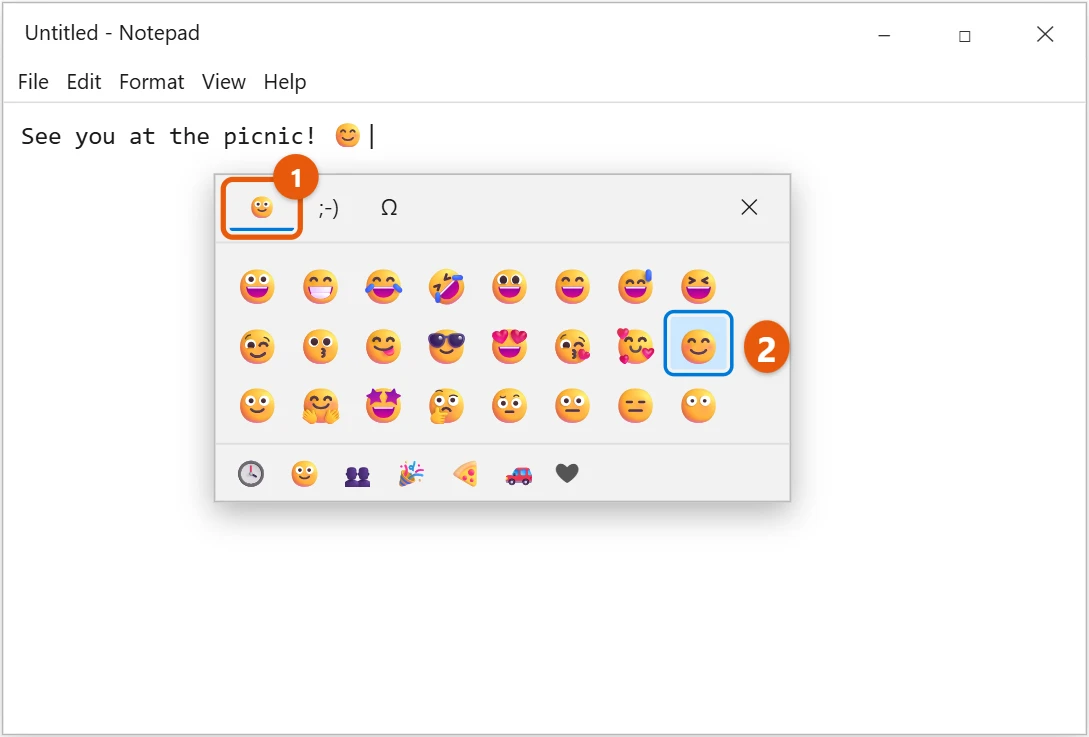
To search, type right after opening the panel, for example heart or thumbs. Use the icons along the bottom to jump between categories, like people, food, and travel. Select the clock icon to see emojis you’ve used recently.
Add kaomoji and symbols
The emoji panel has two more tabs:
- 😉 holds kaomoji, text faces like ¯\_(ツ)_/¯.
- Ω holds symbols such as °, ©, €, and accented letters.
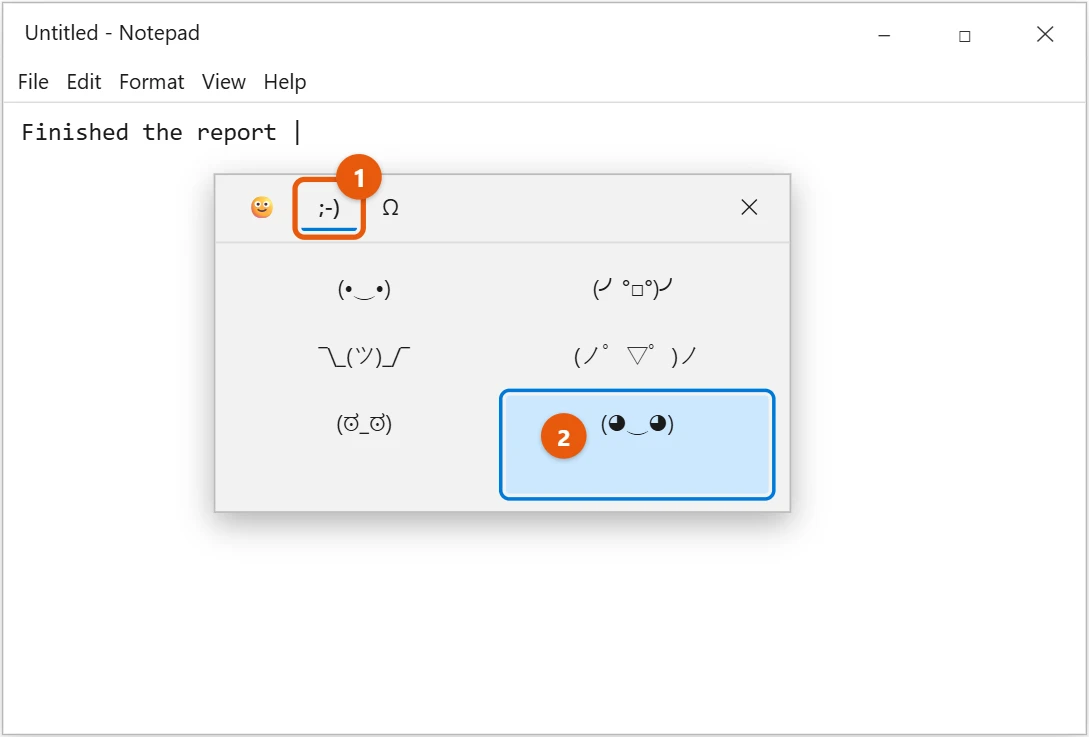
There are other ways to get symbols and accents too, such as typing special characters from the keyboard.
Use the emoji panel with only the keyboard
You don’t need the mouse. After pressing Windows logo key + period, type a word to search, use the arrow keys to move between emojis, and press Enter to insert one. Press Tab to move to the category icons, and Esc to close the panel.
Pick a skin tone
In the people category, a skin tone button appears at the top of the panel. Select it and choose a tone. Windows remembers your choice for people and hand emojis the next time you open the panel.
Use emojis on a touch screen
Select the keyboard icon on the taskbar to open the touch keyboard, then select the smiley key. If you don’t see the keyboard icon, right-click the taskbar and select Show touch keyboard button. The on-screen keyboard in Windows 10 is another option.
If the emoji panel won’t open
- Click inside a text box first. The panel only opens where you can type.
- Some older desktop apps don’t support it. Try the same shortcut in Notepad to check.
- Make sure Windows is up to date. The kaomoji and symbols tabs arrived in the May 2019 update.
- Restart the PC.
- Emojis appear as empty boxes or in black and white. The app or its font doesn’t support color emoji. Try the same emoji in Word, Edge or Notepad, which use the Segoe UI Emoji font.
- The panel never opens in any app. Press Windows logo key + R, type
ctfmonand press Enter. This restarts the text input service the panel relies on. - It stopped after you added another keyboard language. Switch to English (United States) with Windows logo key + Spacebar and try again, since some layouts use the period key differently.
Frequently asked questions
Why do emojis look different in some apps?
Emojis are drawn by each app or website. The same emoji can look slightly different in Windows, a browser, or an email app.
Can I type emojis without the panel?
Yes. Some apps turn text like :) into an emoji automatically, but that depends on the app, not Windows.
Does the emoji panel work in any language?
It works with most keyboard languages in current Windows 10 versions, so it keeps working after you change the keyboard language.
How do I type symbols like © or ° without the panel?
Hold Alt and type a code on the number pad with Num Lock on, then release Alt. For example, Alt + 0169 gives ©, Alt + 0176 gives ° and Alt + 0128 gives €.
Can I add emojis to file names?
Yes. Rename a file, press Windows logo key + period, and pick an emoji. Some older programs and backup tools may not handle these names well, so keep important files to plain text.
Related: put emojis in Word or use emojis in Windows 11. More shortcuts are listed in Microsoft’s Keyboard shortcuts in Windows.

Matt Jacobs has been working as an IT consultant for small businesses since receiving his Master’s degree in 2003. While he still does some consulting work, his primary focus now is on creating technology support content for SupportYourTech.com.
His work can be found on many websites and focuses on topics such as Microsoft Office, Apple devices, Android devices, Photoshop, and more.