To change the keyboard language in Windows 10, press Windows logo key + Spacebar to switch between the keyboards you’ve added. To add one, select Start > Settings > Time & Language > Language > Add a language, or select a language > Options > Add a keyboard.
Applies to: Windows 10. Checked against Microsoft Support on September 25, 2026.
Add a language
- Select Start > Settings > Time & Language > Language.
- Under Preferred languages, select Add a language.
- Search for the language, select it, and select Next.
- Clear Set as my Windows display language if you only want to type in it. Then select Install.
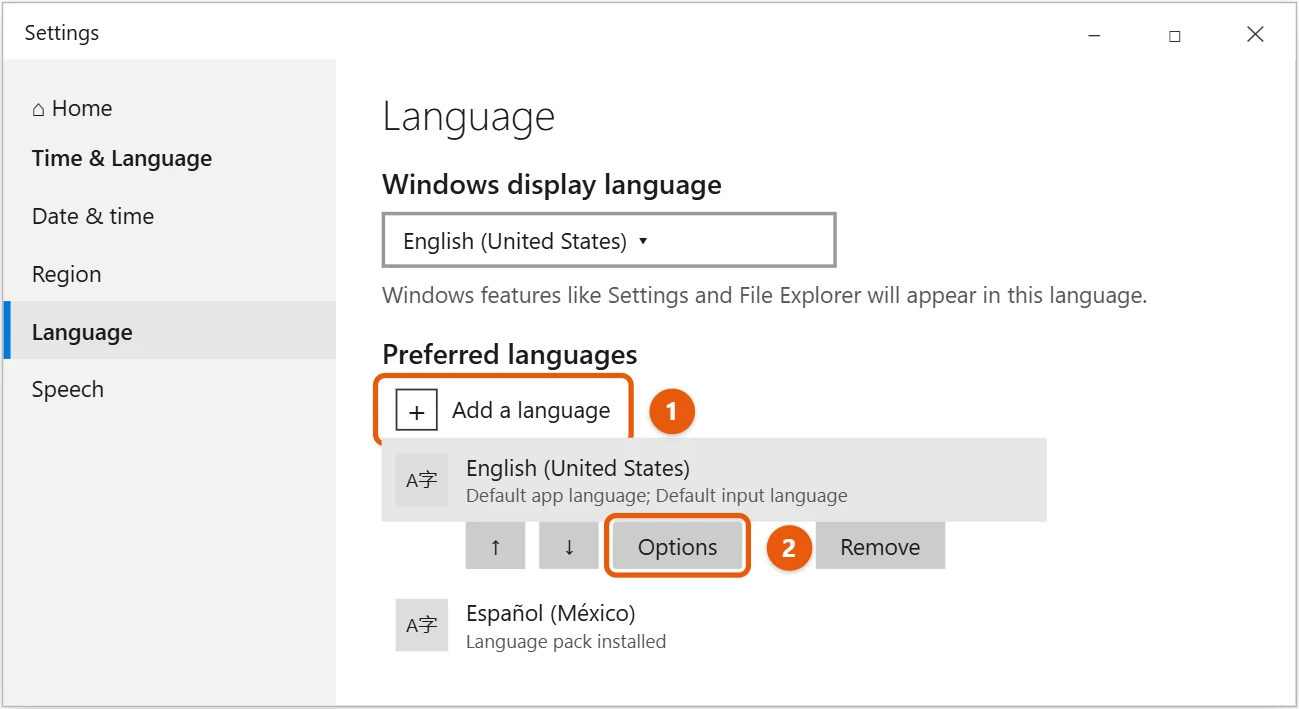
The language’s keyboard is added automatically. Some languages need one more step before you can type in them; for example, see how to type in Japanese on Windows 10.
Add a keyboard layout to a language
Use this for layouts such as United States-International, which lets you type accents on a US keyboard. The United Kingdom layout is added the same way; our guide on changing a keyboard from US to UK shows which keys change.
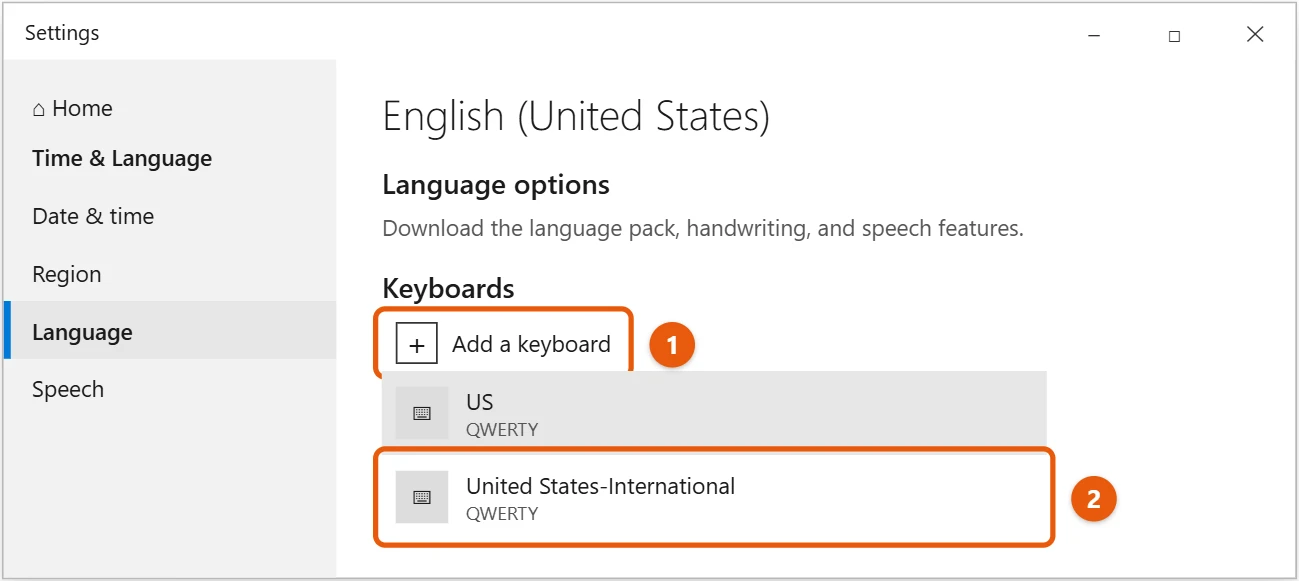
- On the Language page, select the language, then select Options.
- Under Keyboards, select Add a keyboard.
- Pick the layout.
Switch keyboards
- Press Windows logo key + Spacebar to cycle through your keyboards.
- Or press Left Alt + Shift to switch between languages.
- Or select the language abbreviation, such as ENG, in the taskbar notification area and pick a keyboard.
Change the Windows display language
- On the Language page, add the language if it isn’t listed. Make sure Install language pack is checked.
- Under Windows display language, choose the language.
- Sign out and sign back in.
Remove a keyboard or language
On the Language page, select the language and select Remove. To remove only a layout, select the language > Options, select the keyboard, and select Remove.
Frequently asked questions
My keyboard types the wrong characters. Why?
You’ve probably switched layouts by accident with Windows logo key + Spacebar or Alt + Shift. Switch back, or remove the layouts you don’t use.
Can I type in another language without a physical keyboard?
Yes. Add the language, then use the touch keyboard or the on-screen keyboard.
To change what a key does, see how to remap keys in Windows 10.
To add emojis as you type, see how to use emojis on Windows 10.
To type symbols like the degree sign or accented letters, see how to type symbols and special characters in Windows 10.
If you only need an occasional ñ, you may not need a new keyboard. See how to type ñ on Windows 10.
On Windows 11, see how to stop your keyboard from typing é.
On Windows 11, see how to add a Korean keyboard in Windows 11.
Microsoft’s guide is Manage the language and keyboard/input layout settings in Windows. More help is on our Windows Help & Guides page.

Matt Jacobs has been working as an IT consultant for small businesses since receiving his Master’s degree in 2003. While he still does some consulting work, his primary focus now is on creating technology support content for SupportYourTech.com.
His work can be found on many websites and focuses on topics such as Microsoft Office, Apple devices, Android devices, Photoshop, and more.