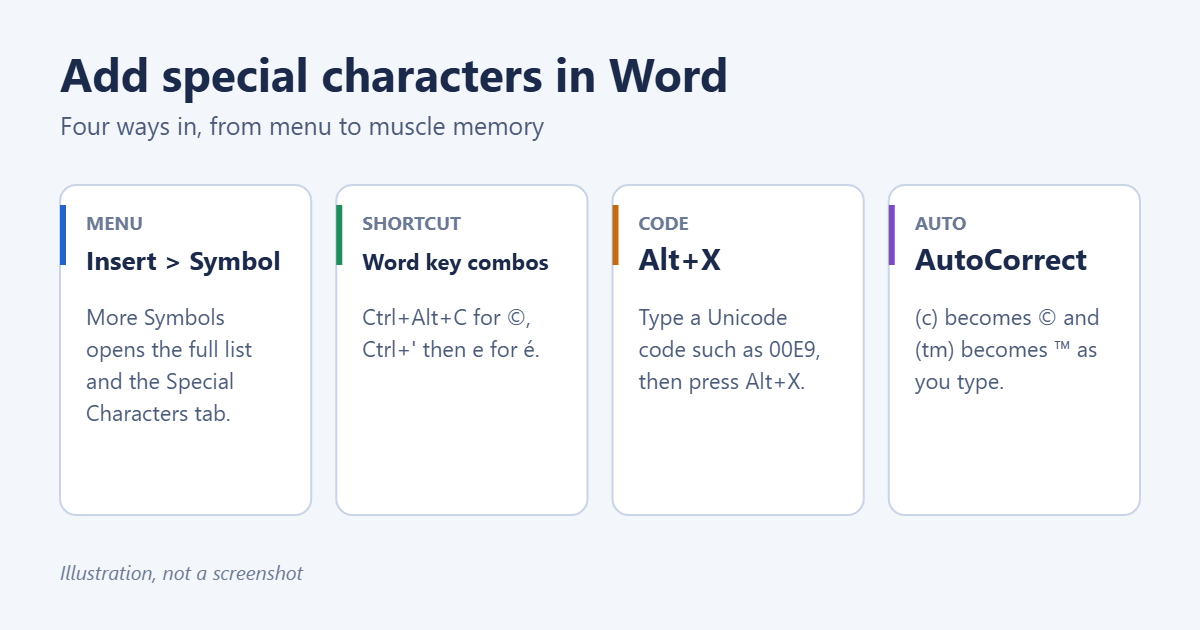
To add a special character in Word, go to Insert > Symbol and click the character you want, or choose More Symbols to see the full list. For characters you use often, keyboard shortcuts are faster: Ctrl + Alt + C types ©, and Ctrl + ‘ followed by e types é. This guide covers the Symbol menu, the built-in shortcuts, Unicode codes, AutoCorrect and the Mac versions.
- Click where you want the character.
- Go to Insert > Symbol (at the far right of the Insert tab).
- Pick a character from the recent list, or click More Symbols.
- In the Symbols tab, set Font to (normal text) and use the Subset drop-down to jump to groups like Latin-1 Supplement (accented letters), Currency Symbols, Arrows or Mathematical Operators.
- Select the character and click Insert. The dialog stays open so you can add more.
The Special Characters tab in the same dialog lists punctuation and typographic marks with their shortcuts: em dash, en dash, nonbreaking space, nonbreaking hyphen, ©, ®, ™, section § and paragraph ¶ marks, and the ellipsis.
The Character code box at the bottom shows each character’s Unicode code, and the Shortcut Key button lets you assign your own key combination.
Method 2: Word’s built-in shortcuts
| Character | Shortcut |
|---|---|
| © copyright | Ctrl + Alt + C |
| ® registered | Ctrl + Alt + R |
| ™ trademark | Ctrl + Alt + T |
| — em dash | Ctrl + Alt + Minus (on the number pad) |
| – en dash | Ctrl + Minus (on the number pad) |
| … ellipsis | Ctrl + Alt + . (period) |
| Nonbreaking space | Ctrl + Shift + Space |
| € euro | Ctrl + Alt + E |
Accented letters
Word uses a two-step shortcut: press the combination, release it, then type the letter.
| Accent | Shortcut, then letter | Example |
|---|---|---|
| Acute | Ctrl + ‘ (apostrophe) | é, á, ó |
| Grave | Ctrl + ` (backtick) | è, à |
| Circumflex | Ctrl + Shift + ^ | ê, ô |
| Tilde | Ctrl + Shift + ~ | ñ, õ |
| Umlaut | Ctrl + Shift + : | ü, ö |
| Cedilla | Ctrl + , (comma) | ç |
| Ligature | Ctrl + Shift + & | æ, œ |
Hold Shift on the final letter for a capital, such as É. These shortcuts only work in Word and Outlook. For other apps, see how to type symbols and special characters in Windows 10 or, for French in particular, how to type French accents.
Method 3: Unicode code and Alt + X
Every character has a Unicode code. Type the code, then press Alt + X, and Word converts it. For example:
00E9then Alt + X gives é2192then Alt + X gives →2713then Alt + X gives ✓00B0then Alt + X gives °
If the code follows other letters or numbers, put a space before it, or Word may read the characters before it as part of the code. Pressing Alt + X on a character does the reverse and shows its code.
Alt codes
On a keyboard with a number pad, hold Alt and type a four-digit code on the pad: Alt + 0169 for ©, Alt + 0176 for °, Alt + 0233 for é. Num Lock must be on, and the number keys above the letters don’t work for this.
Method 4: AutoCorrect
Word replaces some text as you type. (c) becomes ©, (r) becomes ®, (tm) becomes ™, and --> becomes →. Two hyphens between words turn into a dash.
You can add your own: go to File > Options > Proofing > AutoCorrect Options, type a shortcut such as degf in Replace and the character in With, then click Add. If AutoCorrect changes things you don’t want, you can switch individual rules off in the same place (see how to turn off auto-capitalization in Word).
Math symbols and equations
For more than a single symbol, use Insert > Equation or press Alt + =. Inside the equation box you can type commands such as \alpha, \sum or \pm and press Space to convert them, or pick symbols from the Equation tab.
Emoji
Press Windows key + . (period) to open the emoji panel. It also has tabs for symbols and kaomoji. Color emoji may print in black and white, depending on the font. More in how to put emojis in Word and how to use emojis on Windows 11.
Word for Mac
- Insert > Advanced Symbol opens the same Symbols and Special Characters tabs.
- Press and hold a letter key, such as e, to see accent options, then press the number shown.
- Option key shortcuts work in every app: Option + G for ©, Option + R for ®, Option + 2 for ™, Option + Shift + Hyphen for an em dash.
- Control + Command + Space opens the Character Viewer with emoji and symbols.
Word for the web
Go to Insert > Symbol for a shorter list of common characters. For anything else, copy the character from Windows’ emoji panel or another document and paste it in.
Troubleshooting
The character shows as a box
The font doesn’t include that character. Select it and change the font to one with wide coverage, such as Segoe UI Symbol or Arial.
Ctrl + Alt shortcuts don’t work
Some keyboard layouts and utilities use Ctrl + Alt combinations for other things. Use Insert > Symbol, or assign a different shortcut with the Shortcut Key button.
Summary
- Find any character: Insert > Symbol > More Symbols.
- Common marks: Ctrl + Alt + C, R or T.
- Accents: Ctrl + ‘ then the letter.
- Any Unicode character: type the code, then Alt + X.
Related: strikethrough shortcut in Word.
Related: type ñ in Word.

Matt Jacobs has been working as an IT consultant for small businesses since receiving his Master’s degree in 2003. While he still does some consulting work, his primary focus now is on creating technology support content for SupportYourTech.com.
His work can be found on many websites and focuses on topics such as Microsoft Office, Apple devices, Android devices, Photoshop, and more.