Windows 10 has no setting that turns an HDMI port on or off. If the port is connected, Windows uses it automatically. When a TV or monitor stays blank, set it to the same HDMI input you plugged the cable into, then press Windows + P on your PC and choose Duplicate or Extend.
If that doesn’t work, the steps below check the cable, the display settings, and the graphics driver, in that order.
Applies to: Windows 10 PCs and laptops with an HDMI port. Checked against Microsoft Support on September 24, 2026.
Show your screen on the HDMI display
- Connect the HDMI cable to your PC and to the TV or monitor, and turn the display on.
- Use the TV or monitor remote or buttons to choose the matching input, such as HDMI 2.
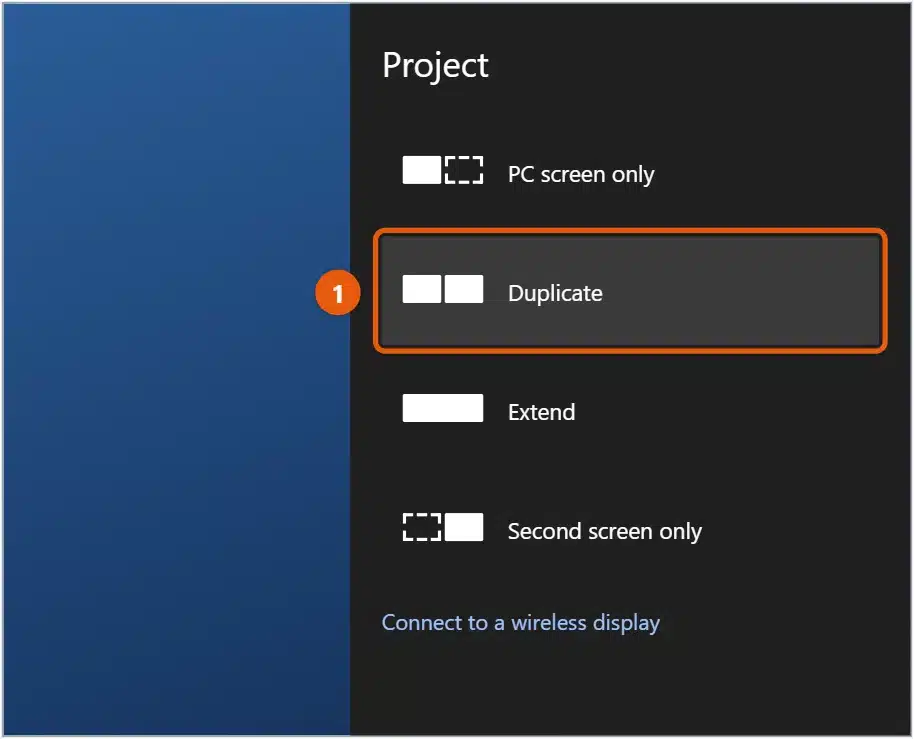
- On your PC, press Windows + P to open Project.
- Select Duplicate to show the same picture on both screens, Extend to use the second screen as extra space, or Second screen only to turn off the laptop screen.
If the TV or monitor says No signal
Work through these in order and test after each one.
- Check the connection. Unplug the HDMI cable at both ends and plug it back in firmly. Try another HDMI port on the TV, and a different HDMI cable if you have one.
- Use the right port on a desktop PC. If your PC has a separate graphics card, plug the cable into the HDMI port on the card, not the one on the motherboard near the USB ports. The motherboard port usually doesn’t work while a graphics card is installed.
- Detect the display. Select Start > Settings > System > Display, scroll to Multiple displays, and select Detect.
- Restart the graphics driver. Press Windows + Ctrl + Shift + B. The screen goes black for a moment and you hear a beep.
- Restart the PC with the display plugged in and turned on.
- Remove adapters and docks. Connect the cable straight to the PC to rule out a faulty adapter.
- Test the display with another device, such as a games console or another laptop. If that doesn’t work either, the problem is the TV, monitor, or cable.
Update, roll back, or reinstall the graphics driver
A graphics driver problem is a common reason HDMI stops working, especially after an update.
- Right-click Start and select Device Manager.
- Expand Display adapters. If your graphics card shows a down-arrow icon, right-click it and select Enable device.
- Right-click your graphics card and select Update driver > Search automatically for drivers.
- If HDMI stopped working after a recent update, right-click the card, select Properties, open the Driver tab, and select Roll Back Driver if it’s available.
- Still stuck? Right-click the card, select Uninstall device, check the box to delete or remove the driver (the wording varies), select Uninstall, and restart. Windows installs a fresh driver.
If Windows doesn’t find a newer driver, download one from your PC maker’s support site, or from Intel, AMD, or NVIDIA for your exact graphics card. See how to update all drivers on Windows 10.
Fix the picture size or resolution
If the picture is cut off at the edges or looks blurry:
- Go to Settings > System > Display and select the TV or monitor at the top.
- Under Display resolution, choose the option marked (Recommended).
- If the edges are still cut off, turn off Overscan, Just Scan, or Screen Fit (the name varies) in the TV’s picture settings.
Get sound through HDMI
A picture on the TV doesn’t mean sound goes there too. Select the speaker icon on the taskbar, select the name of the current device above the volume slider, and choose your TV or monitor. You can also go to Settings > System > Sound and pick it under Choose your output device. See how to get sound through HDMI on Windows 10.
Using a USB-C adapter or dock
Not every USB-C port can send video. Look for a DisplayPort or Thunderbolt symbol next to the port, or check your laptop’s specifications, before buying an adapter. See how to use USB-C to HDMI on Windows 10.
Frequently asked questions
Can I use my laptop’s HDMI port to show a games console on the laptop screen?
Almost never. Laptop HDMI ports send a picture out, not in. See how to view HDMI input on a PC or laptop for the options that do work.
Is there a BIOS setting for HDMI?
Some desktop PCs have a BIOS or UEFI setting that turns the motherboard’s built-in graphics on or off. If you want to use the motherboard’s HDMI port with a graphics card installed, check your motherboard maker’s manual for this setting before changing it.
How do I use two monitors?
Connect both, press Windows + P, and select Extend. See how to set up dual monitors in Windows 10.
For step-by-step TV setup, see how to connect a laptop to a TV with HDMI on Windows 10. Microsoft’s guide is Troubleshoot external monitor connections in Windows. More help is on our Devices & Drivers Help & Guides page.

Matt Jacobs has been working as an IT consultant for small businesses since receiving his Master’s degree in 2003. While he still does some consulting work, his primary focus now is on creating technology support content for SupportYourTech.com.
His work can be found on many websites and focuses on topics such as Microsoft Office, Apple devices, Android devices, Photoshop, and more.