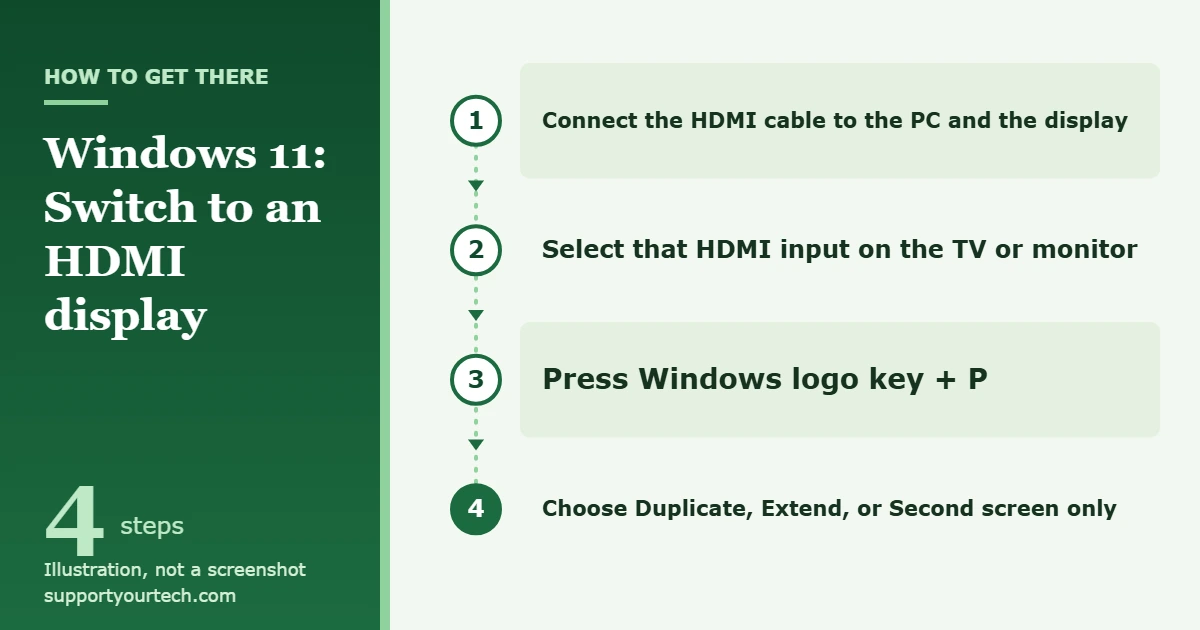
To switch to HDMI on Windows 11, connect the HDMI cable, set the TV or monitor to that HDMI input, then press Windows logo key + P and choose Duplicate, Extend, or Second screen only. Windows has no “HDMI input” setting of its own: the PC sends the picture out through HDMI, and the display chooses which input to show.
Applies to: Windows 11 PCs and laptops with an HDMI output.
What you need
- An HDMI output on the PC. If the computer has no full-size HDMI port, a USB-C or DisplayPort adapter or a dock may provide one. Not every USB-C port carries video, so check the computer’s specifications first.
- An HDMI cable that reaches the TV, monitor, or projector.
- The display’s remote or buttons, so you can pick the input.
Switch the picture to HDMI with Windows logo key + P
- Connect the HDMI cable. Plug one end into the PC’s HDMI port and the other into the TV or monitor. Note the label next to the port on the display, such as HDMI 1 or HDMI 2.
- Select that input on the display. Use the Input or Source button on the remote or on the monitor itself and choose the port you used. Many displays then show the Windows desktop right away.
- Press Windows logo key + P on the PC. A list of display options opens.
- Choose how to use the HDMI display. Pick Duplicate to see the same thing on both screens, Extend to spread the desktop across both, or Second screen only to see everything on the HDMI display and turn the PC’s own screen off.
Which display option to choose
| Option | What you see | Good for |
|---|---|---|
| PC screen only | Things on one display only (the PC’s own screen) | Leaving the cable in but not using the HDMI display |
| Duplicate | The same thing on all your displays | Presentations, showing your screen on a TV |
| Extend | Your desktop across multiple screens | Working with a second monitor |
| Second screen only | Everything on the second display only | Movies on a TV, or a laptop used with one big monitor |
If you can’t see the list because the wrong screen is active, press Windows + P, tap P again, and press Enter to move to the next mode. Repeat until the picture appears where you want it.
Switch to HDMI from Settings
Settings shows every connected display and lets you arrange them.
- Select Start, then open Settings > System > Display.
- Select Identify. A number appears on each screen so you can tell which one is the HDMI display.
- If you use Extend, drag the numbered displays so they match how the screens sit on your desk, then select Apply.
- If the picture looks soft or too large, open the list in the Display resolution row and choose the option marked (Recommended), or change Scale under Scale & layout.
Arranging three or more screens works the same way when you set up multiple monitors in Windows 11. When the desktop spills past the edges of a TV, you can fit your PC screen to a TV in Windows 11.
Send sound through HDMI
HDMI carries audio as well as video. If the picture is on the TV but the sound still comes from the PC, change the output device:
- Select the Speakers icon on the taskbar.
- Select the arrow whose tooltip reads Select a sound output to open the list of devices.
- Choose the TV or monitor. Sound now plays through the HDMI display.
You can also go to Start > Settings > System > Sound and pick the device in the Output section. Check that the TV isn’t muted. A monitor without built-in speakers will not play sound, so choose the PC’s speakers or headphones instead.
Switch back or stop using the HDMI display
Press Windows logo key + P again and choose PC screen only. The HDMI display goes blank while the cable stays connected. Other ways to disable a second monitor in Windows 11 work here too.
If the HDMI display shows nothing
- Check the input again. A TV with several HDMI ports must be set to the exact port the cable is in.
- Reseat or swap the cable. Make sure it is firmly connected at both ends, then try a different cable, a different port on the display, or a different display to rule out hardware.
- Ask Windows to look for the display. Go to Start > Settings > System > Display, select Multiple displays to expand that section, and select Detect.
- Cycle the display mode. The PC may be set to PC screen only. Press Windows logo key + P and choose another option.
- Reset the graphics driver. Press Windows + Ctrl + Shift + B. You should hear a beep or see the screen flicker if it worked.
- Install updates. Go to Settings > Windows Update and select Check for updates.
- Update or roll back the graphics driver. In Device Manager, expand Display adapters, right-click your graphics adapter, and choose Update driver. If the trouble started after a driver update, use Roll back driver instead.
- Check the adapter or dock. If you connect through USB-C, confirm that the port and the adapter both support video. On a work or school PC, display and driver settings may be managed by your organization, so contact your IT team if a control is unavailable.
For more help, read Microsoft’s How to use multiple monitors in Windows and Troubleshooting blank screens in Windows.
Frequently asked questions
Can I use my laptop’s HDMI port as an input for a game console?
Usually not. The HDMI port on most laptops is an output only, so plugging in a console or another computer will not show that device on the laptop’s screen. You would need capture hardware made for that purpose or a device built with a dedicated HDMI input.
Why is there no HDMI option in Windows 11 settings?
Windows doesn’t treat HDMI as a mode you turn on. It lists the connected display itself in Settings > System > Display, and the display options under Windows logo key + P decide which screens are used.
What is the shortcut to switch to the HDMI screen?
Windows logo key + P. Choose Second screen only to use just the HDMI display, or Duplicate or Extend to use both.
Can I connect without an HDMI cable?
Yes, if the TV or a wireless display adapter supports it. Press Windows logo key + K to open Cast and select the display. The full process is in casting Windows 11 to a TV.
Can I close my laptop while using the HDMI display?
Yes, after you change what the lid does so you can close your laptop and keep using a monitor in Windows 11.
Once the picture and sound are on the HDMI display, open Settings > System > Display to fine-tune the resolution and layout for that screen.

Matt Jacobs has been working as an IT consultant for small businesses since receiving his Master’s degree in 2003. While he still does some consulting work, his primary focus now is on creating technology support content for SupportYourTech.com.
His work can be found on many websites and focuses on topics such as Microsoft Office, Apple devices, Android devices, Photoshop, and more.