How to Fit PC Screen to TV Windows 11: A Step-by-Step Guide

Connecting your PC screen to your TV can be a great way to enjoy your favorite content on a bigger screen. But if you’re using Windows 11 and things aren’t looking quite right, you may need to adjust some settings. Don’t worry, it’s a pretty straightforward process that can enhance your viewing experience in no time.

Step by Step Tutorial: Fitting PC Screen to TV on Windows 11

Before we jump into the steps, let’s understand what we’re trying to accomplish. By following these steps, we’ll make sure that the display from your PC fits perfectly on your TV screen without any cut-off edges or distortion.

Step 1: Connect your PC to your TV

Start by connecting your PC to your TV using an HDMI cable.

When you connect your PC to your TV, make sure that the HDMI cable is properly plugged in at both ends. Sometimes, a loose connection can cause display issues.

Step 2: Open Display Settings

Right-click on the desktop and select "Display settings" from the drop-down menu.

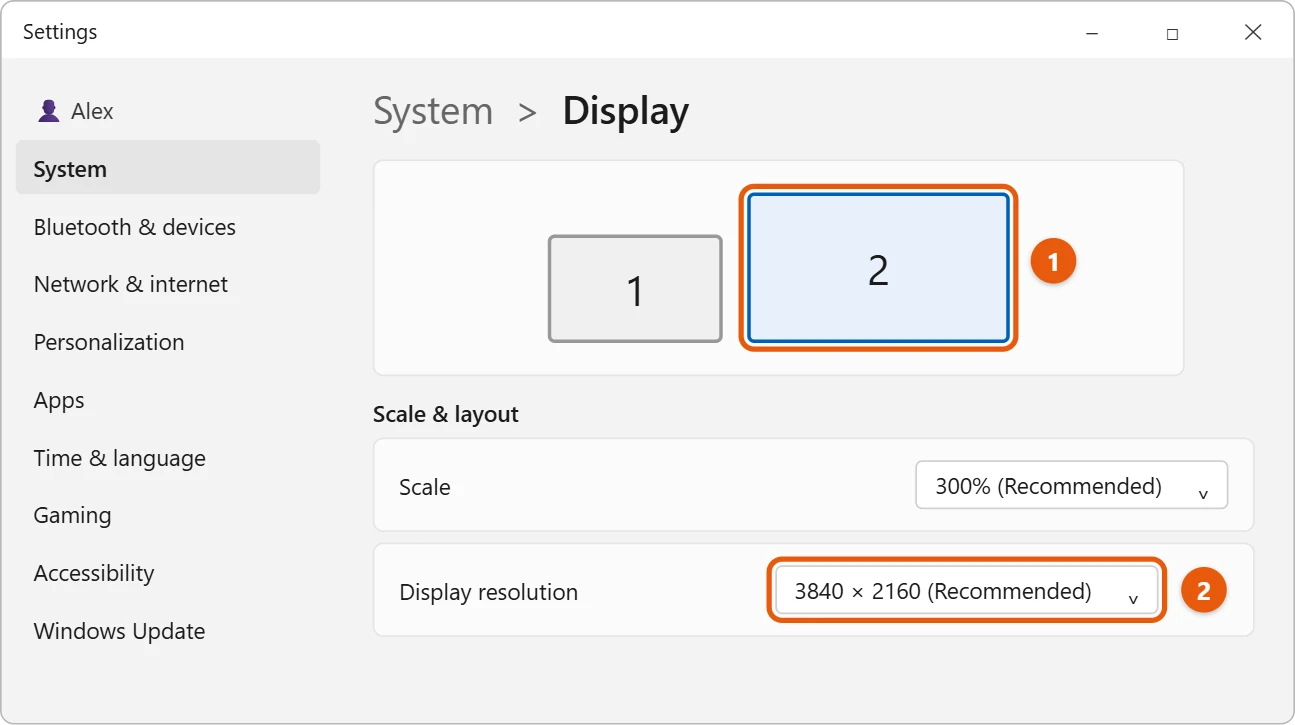
Once you’re in the Display settings, you’ll see various options related to the screen resolution, orientation, and layout of your displays.

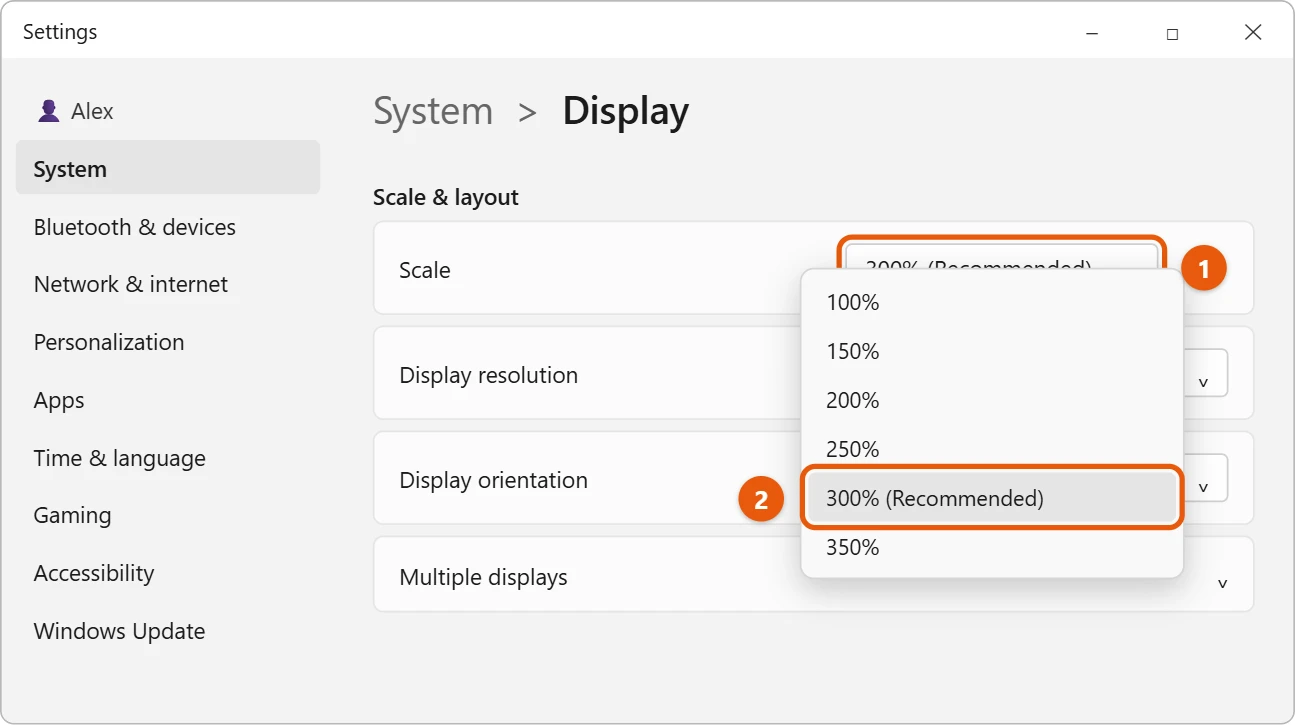
Step 3: Adjust the Scale and Layout

Under Scale and Layout, adjust the size of text, apps, and other items to fit your TV screen.

This step is crucial because sometimes the default scaling settings may not fit your TV screen properly. You might need to experiment with different scaling percentages to find the perfect fit.

Step 4: Change the Display Resolution

Select the recommended resolution for your TV or adjust it according to your preference.

The resolution you choose will depend on your TV’s capabilities. If you’re unsure, the recommended resolution is usually a safe bet.

Step 5: Apply the Changes

After making adjustments, click on "Apply" to save the changes.

Once you apply the changes, your PC screen should now fit perfectly on your TV. If it doesn’t, go back and tweak the settings until you find the right combination.

After completing these steps, your PC’s display should now be perfectly mirrored on your TV screen, giving you a larger canvas to work with, whether you’re gaming, streaming, or just browsing the web.

Tips for Fitting PC Screen to TV on Windows 11

  • Check your TV’s manual for the recommended resolution and input settings.
  • If the screen is still not fitting properly, try adjusting the TV’s aspect ratio or zoom settings.
  • Make sure that your graphics drivers are up to date for the best performance.
  • If you encounter lag, consider changing the refresh rate in the display settings.
  • Remember that some apps and games have their own display settings that can override the system settings.

Frequently Asked Questions

What if the PC screen doesn’t fit the TV after adjusting the settings?

Try resetting the display settings to default and then readjusting them according to your TV’s specifications.

Can I extend my PC screen to the TV instead of mirroring it?

Yes, in the display settings, you can choose to extend the display to use both screens independently.

What should I do if there’s a delay between my PC and TV display?

Check the refresh rate settings and consider using a higher-quality HDMI cable.

Why does the text look blurry on the TV screen?

The scaling settings may not be optimal. Try adjusting the scale and layout settings to a different percentage.

Can I connect wirelessly instead of using an HDMI cable?

Yes, if your TV supports wireless display technology like Miracast, you can connect without a cable.

Summary

  1. Connect your PC to your TV using an HDMI cable.
  2. Open Display settings by right-clicking on the desktop.
  3. Adjust the Scale and Layout until it fits your TV screen.
  4. Change the Display Resolution to match your TV’s capabilities.
  5. Apply the changes and enjoy your perfectly fitted PC screen on your TV.

Conclusion

Fitting your PC screen to your TV on Windows 11 can seem daunting at first, but with a few simple steps, you’ll be enjoying your content on the big screen before you know it. It’s all about finding the right balance between the scale, layout, and resolution settings. And remember, your TV’s manual can be a valuable resource when figuring out the best settings for your specific model.

Once you have everything set up, the possibilities are endless. You can kick back and watch movies with a cinema-like experience, immerse yourself in a gaming session with a massive display, or even make your work from home setup more productive with an extra-large screen. Just imagine the convenience and enjoyment that awaits once you’ve got your PC screen fitting perfectly on your TV.

So, give it a try and see how it transforms your entertainment and productivity. And if you ever get stuck, just refer back to the tips and FAQs in this guide. Happy viewing!

Get Our Free Newsletter

How-to guides and tech deals

You may opt out at any time.
Read our Privacy Policy