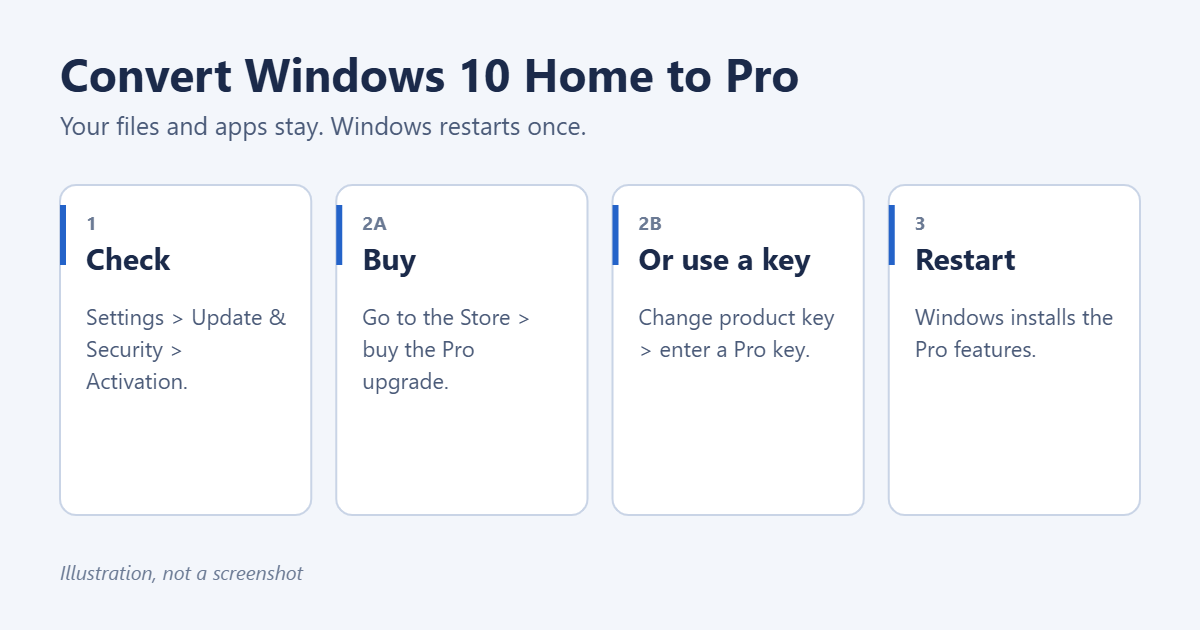
To convert Windows 10 Home to Pro, open Settings > Update & Security > Activation. If you have a Windows 10 Pro or Windows 11 Pro product key, select Change product key and enter it. If you don’t, select Go to the Store and buy the Pro upgrade. Windows installs the Pro features and restarts, and your files, apps and settings stay where they are.
Applies to: Windows 10 Home, version 22H2. Last reviewed October 7, 2026.
Before you pay for Pro: Windows 10 reached end of support on October 14, 2025, and the consumer Extended Security Updates program ends on October 12, 2027. If your PC can run Windows 11, upgrade to Windows 11 first (it’s free), then move to Windows 11 Pro the same way. A Pro license you buy works for both versions. See how to upgrade Windows 10 to Windows 11.
What you get with Windows 10 Pro
- BitLocker drive encryption, including for USB drives.
- Remote Desktop, so you can connect to this PC from another computer. Home can connect out but can’t be connected to. See how to set up Remote Desktop on Windows 10.
- Group Policy Editor (gpedit.msc) for detailed settings.
- Hyper-V for running virtual machines.
- Joining a work domain or Microsoft Entra ID for business networks.
If you don’t need any of these, Home does everything else Pro does.
Step 1: Check your edition and activation
- Press Windows key + I to open Settings.
- Select Update & Security > Activation.
- Check that Edition says Windows 10 Home and Activation says Windows is activated.
If Windows isn’t activated, fix that first; the upgrade works only from an activated copy of Home. Also sign in with an administrator account.
Step 2, option A: Buy the upgrade from the Microsoft Store
- On the Activation page, select Go to the Store.
- The Store opens on the Windows 10 Pro upgrade. Select the price button (it was $99 in the US at the time of writing; prices vary by country).
- Sign in with your Microsoft account if asked, and complete the purchase.
- Select Install and follow the prompts. Save your work, because the PC restarts.
The upgrade becomes a digital license linked to your Microsoft account, so it reactivates automatically if you reinstall Windows on the same PC. If Go to the Store doesn’t appear or the Store says the upgrade isn’t available, Microsoft may have stopped offering it in your region. Buy a Windows 11 Pro key from Microsoft or an authorized retailer and use option B.
Step 2, option B: Enter a Pro product key
- On the Activation page, select Change product key.
- Type the 25-character Windows 10 Pro or Windows 11 Pro product key and select Next.
- Select Start to begin the upgrade.
- Wait while Windows prepares the upgrade. The PC restarts, possibly more than once.
- Go back to Activation and check that it says Windows 10 Pro and Windows is activated.
Pro keys come with new PCs, from the Microsoft Store and from retailers. Be wary of very cheap keys sold online. Many are resold volume license keys that Microsoft can deactivate later.
If the key isn’t accepted
Sometimes Windows rejects a valid Pro key with an error such as 0xC004F050. A common fix is to switch the edition first with Microsoft’s generic Pro key, which installs Pro without activating it, then enter your own key.
- Disconnect from the internet.
- In Activation, select Change product key and enter
VK7JG-NPHTM-C97JM-9MPGT-3V66T. - Let the upgrade finish and restart.
- Reconnect to the internet, return to Activation, select Change product key again and enter your own Pro key.
The generic key alone doesn’t activate Windows. Without your own key, Windows shows that it isn’t activated and some personalization settings are locked.
After the upgrade
- Check Windows Update for any pending updates.
- Turn on the features you upgraded for, for example Settings > System > Remote Desktop, or search Start for Manage BitLocker.
- If you stay on Windows 10, make sure the PC is enrolled in Extended Security Updates until it ends. See how to enroll in Windows 10 Extended Security Updates.
Troubleshooting
“We can’t upgrade your edition”
Home must be activated and up to date. Install pending updates, restart and try again. Also check that you’re using a Pro key, not one for Education or Enterprise.
The PC is stuck on “Preparing to upgrade”
Leave it for at least 30 minutes. If it doesn’t move, restart and try again; the upgrade restarts safely.
Windows says it isn’t activated after the upgrade
Select Troubleshoot on the Activation page, and sign in with the Microsoft account you bought the upgrade with.
Frequently asked questions
Will I lose my files when I upgrade to Pro?
No. Converting Home to Pro keeps your files, apps and settings. Backing up first is still a good habit.
Can I go back to Home?
Not with a simple setting. Going back to Home requires reinstalling Windows.
Can I use a Windows 7 or 8 Pro key?
Microsoft no longer supports upgrading with Windows 7 or 8 keys, so they may not be accepted. Use a Windows 10 or 11 Pro key.
Related: How to download Windows 11 Pro.
Related: how to go from Windows 10 Pro to Home.
Related: how to check your Windows 10 product key.

Matt Jacobs has been working as an IT consultant for small businesses since receiving his Master’s degree in 2003. While he still does some consulting work, his primary focus now is on creating technology support content for SupportYourTech.com.
His work can be found on many websites and focuses on topics such as Microsoft Office, Apple devices, Android devices, Photoshop, and more.