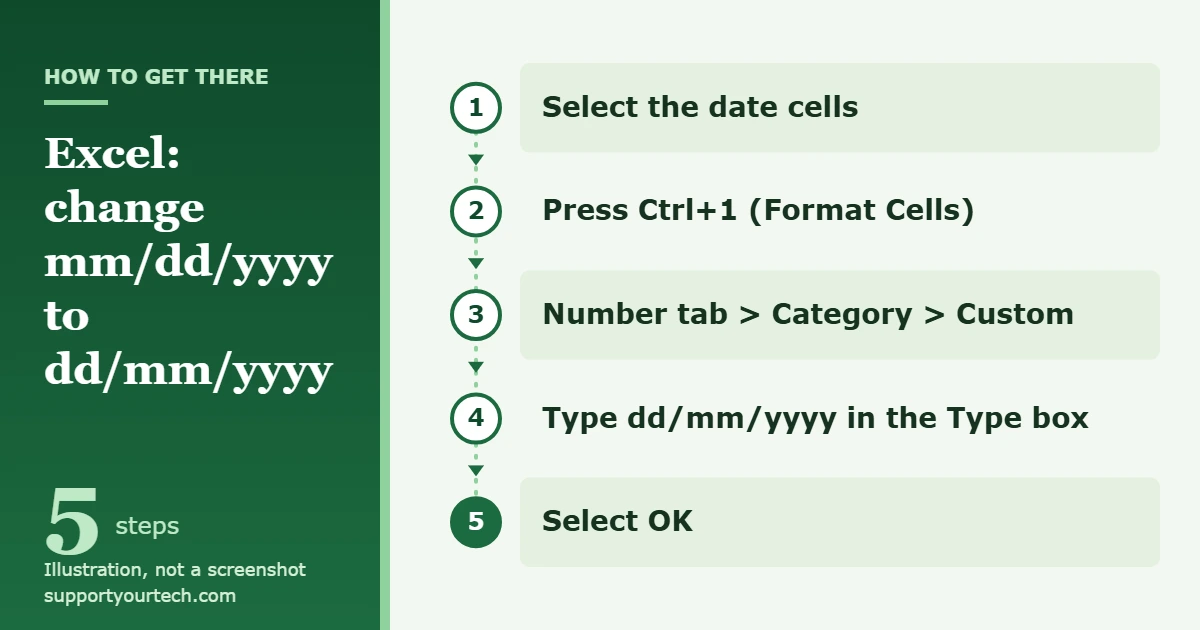
To change mm/dd/yyyy to dd/mm/yyyy in Excel, select the date cells, press Ctrl+1 to open Format Cells, select Custom in the Category list on the Number tab, type dd/mm/yyyy in the Type box, and select OK. This changes only how the dates look; the dates themselves stay the same.
Applies to: Excel for Microsoft 365, Excel 2024 and Excel 2021 on Windows. Checked against Microsoft Support on October 7, 2026.
Before you start: check that the cells hold real dates
Excel stores a date as a serial number, which is a running count of days. By default, January 1, 1900 is serial number 1, and January 1, 2008 is serial number 39448. A date format such as mm/dd/yyyy or dd/mm/yyyy is only a display style placed on top of that number. That is why changing the format is safe: March 14, 2026 remains March 14, 2026 whether the cell shows 03/14/2026 or 14/03/2026.
The format change only works on cells that Excel recognizes as dates. Dates that were imported, pasted from another program, or typed into cells formatted as text can be stored as plain text instead. Microsoft notes two signs of this:
- Text dates sit on the left side of the cell, while real dates are right-aligned.
- When Error Checking is on, text dates with two-digit years can show a small error indicator in the upper-left corner of the cell.
If your dates are right-aligned, use the main method below. If they are left-aligned, go to the section on dates stored as text first.
Change mm/dd/yyyy to dd/mm/yyyy with Format Cells
- Select the cells that contain the dates. You can select a few cells, a whole column, or a larger range.
- Press Ctrl+1. The Format Cells dialog box opens.
- Select the Number tab. This tab holds the Category list.
- In the Category list, select Date, and pick any format in the Type list. Microsoft recommends this as a starting point, because it loads a date format code that you can then edit.
- Go back to the Category list and select Custom. The code for the format you picked appears in the Type box.
- Replace the code in the Type box with dd/mm/yyyy. The code means a two-digit day, a two-digit month, and a four-digit year, separated by slashes.
- Select OK. The selected cells now show the day first, for example 14/03/2026 instead of 03/14/2026.
On a Mac, the Format Cells dialog box opens with Command+1 instead of Ctrl+1.
Date format codes you can use
The custom format is built from short codes. These are the codes Microsoft documents for days, months and years:
| To display | Use this code |
|---|---|
| Days as 1–31 | d |
| Days as 01–31 | dd |
| Days as Sun–Sat | ddd |
| Days as Sunday–Saturday | dddd |
| Months as 1–12 | m |
| Months as 01–12 | mm |
| Months as Jan–Dec | mmm |
| Months as January–December | mmmm |
| Years as 00–99 | yy |
| Years as 1900–9999 | yyyy |
You can combine the codes in the same way to build other day-first styles. For example, d/m/yy drops the leading zeros and shortens the year, and dd mmmm yyyy spells out the month name.
One warning from Microsoft applies if your format also includes a time: when m comes immediately after h or hh, or immediately before ss, Excel displays minutes instead of the month.
Pick a built-in date format instead
If you do not need an exact code, you can choose a ready-made format from the list.
- Select the date cells and press Ctrl+1.
- On the Number tab, select Date in the Category list.
- Under Type, select a format. The Sample box shows a preview of the format.
- Select OK.
Some formats in the Type list begin with an asterisk (*). According to Microsoft, those formats change when the regional date and time settings in Control Panel change, while formats without an asterisk do not. The custom dd/mm/yyyy code from the main method has no asterisk, so it keeps the same display order when those settings change.
Show dd/mm/yyyy in another cell with the TEXT function
The TEXT function builds a formatted copy of a date in a different cell. Its syntax is TEXT(value, format_text). If the date is in cell A2, enter this formula in an empty cell:
=TEXT(A2,”dd/mm/yyyy”)
The format codes are the same ones used in the Type box, and they are not case-sensitive. The important difference is that TEXT converts the value to text, which Microsoft warns can make it difficult to reference in later calculations. Keep the original date in its own cell and point other formulas at that cell, not at the TEXT result. Use this method for labels, headings and joined text; use Format Cells when the dates still need to be sorted, filtered or used in math.
Fix dates that are stored as text
A number format has no effect on a text entry, so a left-aligned 03/14/2026 keeps showing the month first. Convert the text to a real date, then apply the dd/mm/yyyy format.
Convert text dates with DATEVALUE
This is the method Microsoft documents. It works when the text matches the date order your computer is set to use, because DATEVALUE results depend on the computer’s system date setting.
- Select a blank cell and check that its number format is General.
- Type =DATEVALUE(, select the cell with the text date, type ) and press Enter. The cell shows the date’s serial number.
- Drag the fill handle down so the formula covers a range the same size as your list of text dates.
- Select the cells with the serial numbers, and on the Home tab, in the Clipboard group, select Copy.
- Select the cells with the text dates, select the arrow below Paste, and select Paste Special.
- In the Paste Special dialog box, under Paste, select Values, and then select OK.
- With those cells still selected, apply the dd/mm/yyyy format using the main method above.
- Select the helper cells that held the formulas and press Delete.
Rebuild the date with the DATE function
If the text is in a different order from your computer’s setting, tell Excel which characters are the month, day and year. The DATE function takes them in the order DATE(year,month,day). For text in the exact pattern mm/dd/yyyy, with two digits for the month and day, in cell A2:
=DATE(RIGHT(A2,4),LEFT(A2,2),MID(A2,4,2))
RIGHT takes the four-digit year, LEFT takes the two-digit month, and MID takes the two digits that start at the fourth character, which are the day. The result is a real date, so you can format it as dd/mm/yyyy. Check a few rows where the day is greater than 12, such as 03/14/2026, to confirm the result is March 14 and not an error.
Text dates with two-digit years
If the cells show an error indicator, select them, select the error button that appears, and choose Convert XX to 20XX or Convert XX to 19XX. If no indicator appears, go to File > Options > Formulas and check Enable background error checking and Cells containing years represented as 2 digits.
Set the date order while importing data
A value such as 04/05/2026 can mean April 5 or May 4. Excel cannot tell which from the characters alone, so it is safer to state the order during the import than to repair swapped dates afterward. If you are bringing in a file from scratch, see our guide on how to import a CSV file into Excel.
Power Query: Change Type using a locale
Power Query takes its locale, including whether dates are read as mm/dd/yyyy or dd/mm/yyyy, from the operating system’s regional settings unless you say otherwise.
- Select a cell in the imported data and select Query > Edit. The Power Query Editor opens.
- Right-click the header of the date column and select Change Type > Using Locale.
- In the Change Type with Locale dialog box, select the data type (Date) and the locale the file came from. For month-first dates, pick a locale that uses mm/dd/yyyy.
- Select OK.
Microsoft lists the priority when settings conflict: the Change Type setting wins, then the Power Query setting, then the operating system setting. Once the dates load to the worksheet as real dates, format them as dd/mm/yyyy with the main method.
Text Import Wizard: choose MDY in step 3
The Text Import Wizard is a legacy feature that Microsoft still supports for compatibility. In Step 3 of 3, select the date column in the preview, select Date under Column data format, and choose the order the file uses, such as MDY for month-first data. If the order you choose does not match the data, Excel converts the column to General format instead of dates.
Change the default date order for the whole computer
If every workbook should show day-first dates, change the Windows regional format instead of formatting each sheet. This affects the asterisk (*) date formats in Excel and other programs that follow Windows settings, so use it only if you want the change everywhere.
- Open Settings (press the Windows key + I).
- Select Time & language, then Language & region.
- Under Regional format, choose a country or region that uses day-first dates.
These steps are for Windows 11. On a work or school computer, regional settings may be managed by your organization, in which case the custom format in a single workbook is the practical choice.
Confirm the change or reverse it
To confirm the result, find a date whose day is greater than 12. It should now start with that number, as in 25/12/2026. Dates such as 04/05/2026 look valid in both orders, so they are not a reliable check.
To go back, select the cells, press Ctrl+1, and choose a month-first format under Date, or type mm/dd/yyyy in the Type box under Custom. You can also press Ctrl+Shift+# to apply the default date format. Because only the display changes, switching back and forth does not alter the stored dates.
Troubleshooting
The cells show #####
The column is too narrow for the new format. Double-click the right border of the column heading to fit the contents, or drag the border to the width you want.
Nothing changes after you select OK
The cells most likely contain text. Check the alignment as described at the top of this article, then convert the entries with DATEVALUE or the DATE formula. If Excel keeps turning your entries into something you did not intend, our guide on how to stop Excel from changing date formats covers that problem.
Some rows changed and others did not
This usually points to a mixed column. When day-first and month-first entries do not match the computer’s date order, entries whose first number is 12 or lower can be read as dates with the day and month swapped, while the rest stay as text. Formatting cannot repair this. Go back to the source file and import it again with the correct locale or MDY/DMY choice.
The format shows minutes instead of the month
In a format that includes a time, m directly after h or hh, or directly before ss, means minutes. Keep the date part and the time part separate, as in dd/mm/yyyy hh:mm.
The dates look different on another computer
The cells probably use a format that begins with an asterisk, which follows each computer’s regional settings. Apply the custom dd/mm/yyyy code so the order stays fixed.
Frequently asked questions
Does changing the format change the actual date?
No. Excel keeps the same serial number and only changes how it is displayed, so formulas, sorting and filters keep working as before.
Can I use dashes instead of slashes?
Yes. Type the separator you want in the Type box, for example dd-mm-yyyy. For other styles, see our general guide on how to convert the date format in Excel.
What is the difference between Format Cells and the TEXT function?
Format Cells changes the appearance of the original cell and keeps it a date. TEXT produces a separate text value in another cell, which is useful for labels but harder to use in calculations.
How do I apply dd/mm/yyyy to a whole column?
Select the entire column before you press Ctrl+1, then apply the custom format. The format is applied to every cell in the selection, including empty ones.
How do I enter today’s date so I can test the format?
Select an empty cell, press Ctrl+; (semicolon), and press Enter. For a date that updates each day, type =TODAY() and press Enter.
Once your dates display as dd/mm/yyyy, the full list of format codes is in Microsoft’s article on formatting a date the way you want, and text entries that will not convert are covered in converting dates stored as text to dates.

Matt Jacobs has been working as an IT consultant for small businesses since receiving his Master’s degree in 2003. While he still does some consulting work, his primary focus now is on creating technology support content for SupportYourTech.com.
His work can be found on many websites and focuses on topics such as Microsoft Office, Apple devices, Android devices, Photoshop, and more.