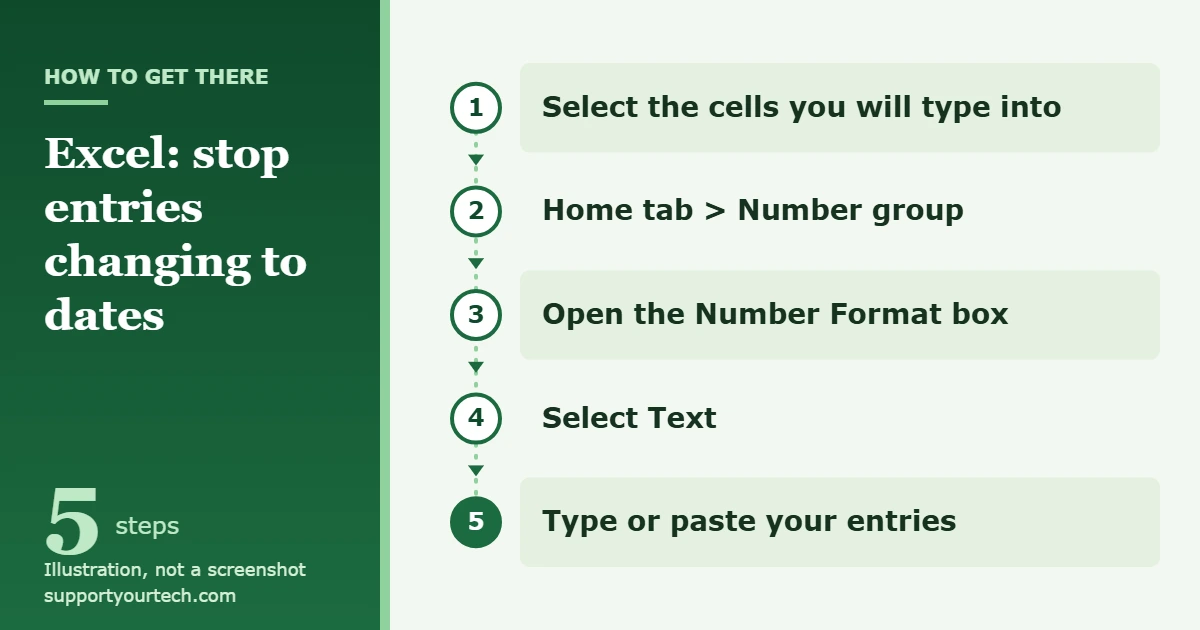
To stop Excel from turning entries such as 1-2 or 12/2 into dates, format the cells as text before you type: select the cells, then on the Home tab, in the Number group, open the Number Format box and select Text. For a single entry, type an apostrophe first, as in ‘1-2.
Applies to: Excel for Microsoft 365, Excel 2024, Excel 2021, Excel 2019 and Excel 2016 on Windows.
Why Excel changes what you type
Excel is built to make date entry quick, so it treats anything that looks like a date as one. A typical example is 12/2, which becomes 2-Dec as soon as you press Enter. The same thing happens to part numbers, scores, ranges and fractions that happen to contain a slash or a hyphen.
Two different problems get described as “Excel changing the date format,” and they have different fixes:
- The entry was never meant to be a date. A code such as 11-53 or a fraction such as 1/2 becomes a date. Fix this by storing the entry as text, as shown in the next three sections.
- The entry is a real date, but it displays in a layout you do not want. Keep it as a date and choose the display format yourself. See “Keep real dates in the format you choose” below. Real dates can also be used in calculations, for example to add 7 days to a date in Excel with a simple =A2+7 formula.
The order matters. The Text format has to be in place before the entry is typed or pasted. Once Excel has stored an entry as a date, switching the cell to Text does not bring back the characters you typed.
Format the cells as Text before you type
This is the standard fix, and it is the best choice when you have a whole column or block of entries to protect.
- Select the cells you are going to type or paste into. Empty cells are fine, and you can select an entire column by clicking its letter.
- On the Home tab, in the Number group, select the arrow next to the Number Format box. A list of formats opens.
- Select Text. If you do not see it, scroll to the end of the list.
- Type or paste your entries. They stay exactly as entered and sit against the left edge of the cell, which is how Excel shows text.
You can reach the same setting from the keyboard. Select the cells, press Ctrl + 1 (the 1 in the number row above the letter keys) to open Format Cells, select Text, and then select OK.
Type an apostrophe, a space, or a zero for a few entries
When only a handful of cells are affected, you do not need to change any formatting. Instead, type one of three things in front of the entry:
- An apostrophe (‘). Type ’11-53 or ‘1/47. The apostrophe is not displayed in the cell after you press Enter, and the entry is kept as text.
- A space. A leading space also blocks the conversion, but the space stays in the cell after you press Enter.
- A zero and a space, for fractions. Type 0 1/2 or 0 3/4 so they do not turn into 2-Jan or 4-Mar. The zero does not remain in the cell, and the cell becomes the Fraction number type, so the value still works as a number.
Choose the apostrophe over the space if other formulas will look these entries up. Functions such as MATCH and VLOOKUP overlook the apostrophe when they calculate results, while a leading space becomes part of the entry.
Turn off the automatic date conversion in Excel Options
Newer versions of Excel have a group of settings called Automatic Data Conversion, available in Excel for Microsoft 365, Excel 2024 and Excel 2021.
- Select File > Options. The Excel Options window opens.
- Select Data and find the Automatic Data Conversion section.
- Clear the Convert continuous letters and numbers to a date check box.
- Confirm the change to close the window, then enter your data again.
The same section has check boxes for the other automatic conversions: Remove leading zeros and convert to a number, Keep first 15 digits of long numbers and display in scientific notation, and Convert digits surrounding the letter “E” into a number in scientific notation. One master check box, Enable all default data conversions below when entering, pasting, or loading text into Excel, controls them all together.
Do not treat this as a universal off switch. The check box label refers to continuous letters and numbers, and Microsoft’s support page for entries such as 12/2 still describes that conversion as one that cannot be turned off. If slash or hyphen entries keep changing after you clear the box, use the Text format or an apostrophe instead. Each setting is described on the data import and analysis options page.
Stop the conversion when you import a CSV or text file
Opening a CSV file directly gives Excel the chance to convert every column as it loads. Importing the file gives you a preview first.
- On the Data tab, in the Get & Transform Data group, select From Text/CSV, and then choose your file. A preview window opens.
- Select Transform Data instead of Load. The file opens in the Power Query Editor, where you can change it before it reaches the worksheet.
- Select the column that must stay as typed. On the Home tab of the editor, in the Transform group, open the Data type menu and choose the text type. You can also right-click the column heading and use Change Type.
- Load the query to the worksheet. The column arrives as text, so codes and date-like strings are left alone.
Power Query detects column types automatically from the first 200 rows, which is why a column of codes can arrive as dates if you load without checking it. The rest of the process is covered in importing a CSV file into Excel.
In the Automatic Data Conversion settings described above, there is also a check box named When loading a .csv file or similar file, notify me of any automatic data conversions. Leave it selected if you want Excel to warn you when it is about to convert data in a file you open.
Keep real dates in the format you choose
If your entries are real dates, do not use Text, because text entries will not behave as dates. Set the display format instead:
- Select the cells that contain the dates.
- Press Ctrl + 1 to open the Format Cells box, and select the Number tab.
- In the Category list, select Date.
- Under Type, pick a format. The Sample box previews it with the first date in your selection.
- Select OK.
Pay attention to the asterisk. Date formats that begin with an asterisk (*) change if the regional date and time settings in Control Panel change, and formats without an asterisk do not. That is the usual reason a date looks different on a colleague’s computer. Pick a type without an asterisk, or choose Custom in the Category list and enter your own code in the Type box.
| To display | Use this code |
|---|---|
| Months as 01 to 12 | mm |
| Months as Jan to Dec | mmm |
| Days as 01 to 31 | dd |
| Years as 00 to 99 | yy |
| Years as 1900 to 9999 | yyyy |
For example, the code dd/mm/yyyy shows the day first with a four-digit year. Converting a whole column that way is explained in changing mm/dd/yyyy to dd/mm/yyyy in Excel, and Microsoft’s date formatting page has the full list of codes.
Confirm that it worked, and fix entries that already changed
A protected entry looks exactly as you typed it and is left-aligned in its cell. A left-aligned number usually means it is not formatted as a number, so alignment is a quick visual check.
If an entry has already turned into a date, undo it immediately if you can. Otherwise, apply the Text format to the cell first and then retype the original value, or go back to the source file and import it again with that column set to text. Changing the format alone is not enough, because Excel has already replaced what you typed with a date value.
To reverse the change later, select the cells, open the Number Format box again, and pick a different format for new entries.
Troubleshooting
- A small green triangle appears in the corner of the cell. Excel is flagging a number stored as text, which it treats as a possible error. You can ignore it. To clear it, select the cell, select the box that appears beside it, and then select Ignore Error.
- Text is missing from the Number Format list. It is at the bottom, so scroll to the end of the list, or press Ctrl + 1 and select Text in Format Cells.
- There is no Automatic Data Conversion section. Those settings exist only in Excel for Microsoft 365, Excel 2024 and Excel 2021. In Excel 2019 and Excel 2016, use the Text format or the apostrophe.
- You looked in AutoCorrect Options and found nothing about dates. That is expected. The way numbers and dates appear is set on the Home tab in the Number group and is not part of automatic formatting.
- An entry with the letter e turned into something like 1.00E+09. Excel read it as scientific notation. Type an apostrophe first, as in ‘1e9.
- A long number lost its last digits. Excel keeps 15 digits of precision and changes any digits after the fifteenth to zero. Codes of 16 digits or more, such as credit card numbers, must use the Text format.
- A date shows ##### instead of a date. The column is too narrow. Double-click the right border of the column heading to widen it.
- The setting keeps coming back on a work or school computer. Your organization may manage Excel’s options. Ask your IT team, and use the Text format in the meantime, because it is stored in the workbook itself.
Frequently asked questions
Can I turn off automatic date conversion in Excel completely?
Not completely. For entries such as 12/2, the behavior cannot be switched off, so you work around it with the Text format, an apostrophe, a space, or a zero and a space. Excel for Microsoft 365, Excel 2024 and Excel 2021 add the Automatic Data Conversion check boxes, which stop some conversions but not every one.
Will the apostrophe show in the cell or cause problems in formulas?
No. The apostrophe is not displayed in the cell after you press Enter, and lookup functions such as MATCH and VLOOKUP overlook it.
How do I type a fraction like 1/2 without getting a date?
Type a zero and a space first: 0 1/2. The zero disappears, and the cell is set to the Fraction number type, so you can still calculate with it.
Why does Excel remove the zeros at the start of my numbers?
It is another automatic conversion: Excel treats the entry as a number and drops leading zeros. The Text format prevents it. Other options are in stopping Excel from removing leading zeros.
Why do my dates look different on another computer?
The cells probably use a date format that begins with an asterisk, which follows each computer’s regional settings. Apply a date type without an asterisk or a custom code to keep one layout everywhere.
Next step: format the column as Text before your next paste. The original reference is Microsoft’s support page Stop automatically changing numbers to dates.
For dates that are real but stored in the wrong layout, you can convert the date format in Excel.

Matt Jacobs has been working as an IT consultant for small businesses since receiving his Master’s degree in 2003. While he still does some consulting work, his primary focus now is on creating technology support content for SupportYourTech.com.
His work can be found on many websites and focuses on topics such as Microsoft Office, Apple devices, Android devices, Photoshop, and more.