To lock cells and protect a sheet in Excel, first unlock the cells people should still be able to type in: select them, press Ctrl+1, open the Protection tab, clear Locked, and select OK. Then select Review > Protect Sheet, choose what everyone can still do, add a password if you want one, and select OK. Every cell that is still marked Locked, which is every cell by default, can no longer be changed until the sheet is unprotected.
Applies to: Excel for Microsoft 365 (Windows, Mac and the web), Excel 2024, Excel 2021, Excel 2019 and Excel 2016. Steps and screenshots show Excel for Microsoft 365 on Windows unless a section states otherwise. They follow Microsoft’s Protect a worksheet page.
How locking and sheet protection work together
Excel splits this job into two separate settings, and most confusion comes from mixing them up.
- Locked is a cell setting. It lives in Format Cells > Protection, next to Hidden. In a new workbook, every cell is already marked Locked.
- Protect Sheet is the switch that makes Locked count. Until you turn it on, the Locked setting does nothing, which is why you can type anywhere in a new workbook even though every cell is “locked.”
That leads to two rules worth remembering:
- If you protect a sheet without changing anything first, the whole sheet becomes read-only.
- If you mark cells as Locked but never protect the sheet, nothing is locked at all.
| Cell setting | Sheet not protected | Sheet protected |
|---|---|---|
| Locked (the default) | Anyone can edit the cell | The cell can’t be changed |
| Locked cleared (unlocked) | Anyone can edit the cell | Anyone can still edit the cell |
| Hidden | No effect | The cell’s formula doesn’t show in the formula bar |
So the real job is deciding which cells should stay editable, clearing Locked on just those cells, and then protecting the sheet.
Not the same thing: putting a $ in a formula, as in =$B$1*C2, is often called “locking a cell,” but it only stops a reference from shifting when you copy the formula. It doesn’t stop anyone from editing anything. That kind of locking is covered in using absolute cell references in Excel.
Sheet, workbook or file: which protection do you need?
Excel has three protection features with similar names. They do different things, and you can use more than one at the same time.
| Feature | Where to find it | What it stops | What it doesn’t stop |
|---|---|---|---|
| Protect Sheet | Review > Protect Sheet | Changes to locked cells, plus any actions you don’t allow (formatting, inserting rows, sorting and so on) on that one sheet | Opening, reading or copying the file; adding or deleting whole sheets |
| Protect Workbook | Review > Protect Workbook | Adding, deleting, renaming, moving, hiding or unhiding sheets, and viewing hidden sheets | Editing cells inside the sheets |
| Encrypt with Password | File > Info > Protect Workbook > Encrypt with Password | Opening the file at all without the password | Anything inside the file once someone has opened it |
This guide covers the first one. If you want Excel to ask for a password before anyone can open the workbook, require a password to open the Excel file instead.
Important: Microsoft is clear that worksheet protection is not intended as a security feature. It prevents accidental or casual changes to locked cells, but it isn’t a safe way to hide confidential data from someone determined to see it. Don’t keep sensitive information on a sheet just because the sheet is protected.
Before you start
- Finish building the sheet first. Add your formulas, drop-down lists, conditional formatting and filter buttons while the sheet is unprotected. Several of these can’t be added or changed once protection is on.
- Decide which cells are inputs. The examples below use a small order sheet with Item, Qty, Unit Price and Total in A1:D1. People type into A2:C20. Column D holds formulas such as
=B2*C2, and D21 holds the grand total=SUM(D2:D20). Columns A to C should stay editable; column D and the headers should not. - Give input cells a fill color. A light fill on the unlocked cells shows people where they’re allowed to type, and makes it easier for you to spot a cell you forgot to unlock.
- Keep an unprotected copy. If you plan to use a password, save a copy of the workbook before you add it. Microsoft can’t recover a forgotten sheet password.
Method 1: Lock everything except the cells people fill in
This is the fastest route for most forms, trackers and templates. Because every cell starts out locked, you only need to unlock the input cells and then protect the sheet.
- Select the cells people should be able to edit. In the sample sheet, drag across A2:C20. To add cells that aren’t next to each other, hold Ctrl while you click or drag. To select whole columns, click the column letters.
- Open Format Cells. Right-click the selection and choose Format Cells, or press Ctrl+1. Ctrl+Shift+F also works, opening the same dialog box on a different tab.
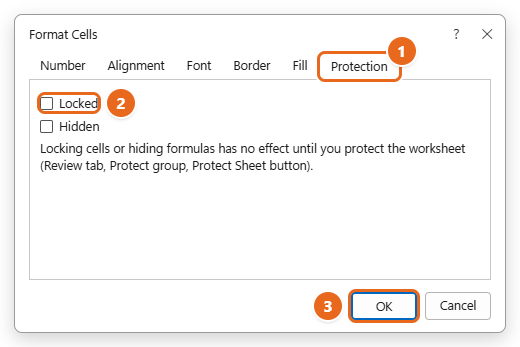
- Clear Locked. Select the Protection tab, clear the Locked check box, and select OK. Nothing visible changes on the sheet; you’ve only marked these cells as the ones that stay editable later.

On the Protection tab (1), clear Locked (2), then select OK (3). - Repeat for any other input cells. If drop-down lists, check boxes or date cells elsewhere on the sheet need to stay usable, unlock those too. A drop-down in a locked cell can’t be changed after the sheet is protected.
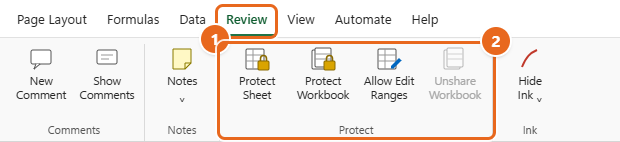
- Open Protect Sheet. Select the Review tab, then select Protect Sheet in the Protect group. You can also right-click the sheet tab at the bottom of the window and choose Protect Sheet.

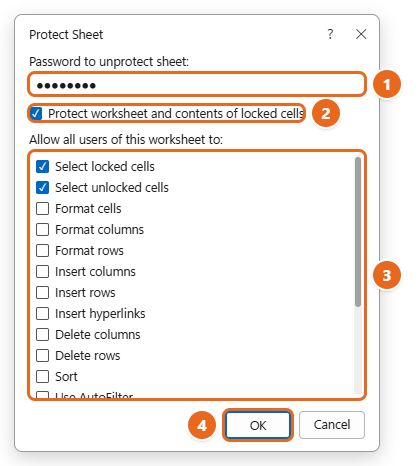
Select the Review tab (1). Protect Sheet, Protect Workbook and Allow Edit Ranges are in the Protect group (2). - Add a password (optional). In the Protect Sheet dialog box, type a password in Password to unprotect sheet. Without a password, anyone can turn protection off with one click, which is fine when you only want to prevent accidents. Passwords are case-sensitive.
- Leave the main check box on. Make sure Protect worksheet and contents of locked cells is checked.
- Choose what everyone can still do. Under Allow all users of this worksheet to, Select locked cells and Select unlocked cells are checked by default. Check anything else people need, such as Format columns so they can widen a column, or Use AutoFilter for a filtered list. The options table below explains each choice.

Type an optional password (1), leave Protect worksheet and contents of locked cells checked (2), choose what everyone can still do (3), then select OK (4). - Select OK. If you typed a password, the Confirm Password box opens. Type the same password again and select OK.
- Test the sheet. Type something in an input cell such as B2; it should work. Then try typing in D2. Excel shows a message that the cell is on a protected sheet and doesn’t make the change. On the Review tab, the Protect Sheet button now reads Unprotect Sheet, which is the quickest way to tell that a sheet is protected.
Tip: On a protected sheet, people can press Tab to jump from one unlocked cell to the next, which makes a form quicker to fill in.
Shortcut: the Format menu on the Home tab
If you prefer the Home tab, select the input cells and choose Home > Format (in the Cells group). Under Protection, Lock Cell turns the Locked setting on or off for the selection, and Protect Sheet opens the same dialog box as the Review tab. It’s the same setting as the check box in Format Cells, just one click closer.
A full worked example that combines unlocked cells with drop-down lists and input rules is in making a fillable form in Excel.
Method 2: Lock only formulas or other specific cells
Sometimes it’s easier to think the other way around: almost everything should be editable, and only a few cells, such as formulas or a header row, need to be locked. In that case, unlock the whole sheet first and then lock just the cells you choose.
- Select the whole sheet. Click the Select All button, the triangle where the row numbers and column letters meet, or press Ctrl+A (press it twice if the active cell is inside a block of data).
- Unlock every cell. Press Ctrl+1, select the Protection tab, clear Locked, and select OK.
- Select the cells to lock. Pick them by hand, or let Excel find every formula for you: select Home > Find & Select > Go To Special, choose Formulas, and select OK. You can also press F5, then select Special. Excel selects every cell on the sheet that contains a formula, such as D2:D21 in the sample sheet.
- Lock the selection. With those cells still selected, press Ctrl+1, check Locked on the Protection tab, and select OK. Also check Hidden if you don’t want the formulas visible (see Hide formulas).
- Protect the sheet. Select Review > Protect Sheet and finish with steps 6 to 10 of Method 1.
Watch out: With this method, any formula you add later starts out unlocked, because the cell it lands in was unlocked in step 2. When you add new formulas, unprotect the sheet, lock the new cells, and protect it again.
How to check which cells are locked
Format Cells only shows the setting for the cells you’ve selected, so it’s easy to lose track. On Windows and Mac, the CELL function can tell you: in an empty cell, type =CELL("protect",B2). It returns 1 if B2 is locked and 0 if it isn’t. This option doesn’t work in Excel for the web.
To see at a glance which cells are unlocked, select the range, choose Home > Conditional Formatting > New Rule > Use a formula to determine which cells to format, and enter =CELL("protect",A1)=0 (with A1 replaced by the top-left cell of your selection) to shade the unlocked cells. Do this before you protect the sheet, because new conditional formatting rules can’t be added to a protected sheet.
Choose what people can still do on a protected sheet
The list in the Protect Sheet dialog box is where you fine-tune protection. A checked item is allowed for everyone; a cleared item is blocked. These are Microsoft’s descriptions, put in plain terms:
| Option | When checked, people can | Good to know |
|---|---|---|
| Select locked cells | Click on locked cells (to read or copy them) | On by default. Clear it to keep the cursor on input cells only. |
| Select unlocked cells | Click on unlocked cells and type in them | On by default. If you clear it, nobody can reach the input cells. |
| Format cells | Change number formats, fonts, fills and other Format Cells options | Pasting now respects this setting; older versions pasted formatting regardless. |
| Format columns / Format rows | Change column width or row height, and hide or unhide them | Handy when long entries get cut off. |
| Insert columns / Insert rows | Add columns or rows | If you allow inserting but not deleting, people can add rows they can’t remove again. |
| Insert hyperlinks | Add links | Applies even to unlocked cells. |
| Delete columns / Delete rows | Remove columns or rows | A row that contains locked cells still can’t be deleted. |
| Sort | Use the sort commands | Ranges that include locked cells can’t be sorted, whatever you choose here. |
| Use AutoFilter | Use filter buttons that are already on the sheet | Nobody can add or remove filter buttons while the sheet is protected, so turn on the filter first. |
| Use PivotTable and PivotChart | Change, refresh or create PivotTables | Microsoft’s pages call this “Use PivotTable reports.” |
| Edit objects | Change shapes, charts, text boxes and controls you didn’t unlock, and add or edit notes | A macro button still runs when this is cleared; people just can’t move or delete it. |
| Edit scenarios | View hidden scenarios and change or delete protected ones | Only matters if you use What-If Analysis scenarios. |
Two more points: conditional formatting you added before protecting the sheet keeps working as values change, and charts keep updating when their source data changes.
Hide formulas on a protected sheet
Locking a formula stops people from changing it, but they can still click the cell and read the formula in the formula bar. To hide it as well:
- Unprotect the sheet if it’s protected (Review > Unprotect Sheet).
- Select the formula cells, for example D2:D21.
- Press Ctrl+1, select the Protection tab, check Hidden (and keep Locked checked), and select OK.
- Select Review > Protect Sheet, make sure Protect worksheet and contents of locked cells is checked, and select OK.
The cells still show their results, but the formula bar stays empty when someone selects them. To show the formulas again, unprotect the sheet. To stop hiding them for good, clear Hidden in Format Cells.
Let some people edit a locked range with a password
On Windows, Allow Edit Ranges lets you keep a range locked for most people while anyone who knows a separate range password can still edit it. For example, the order lines in B2:D20 could be open to the person who processes orders, while everyone else can only read them.
This command only works while the sheet is unprotected, so unprotect it first if needed.
- Select Review > Allow Edit Ranges.
- In the Allow Users to Edit Ranges dialog box, select New.
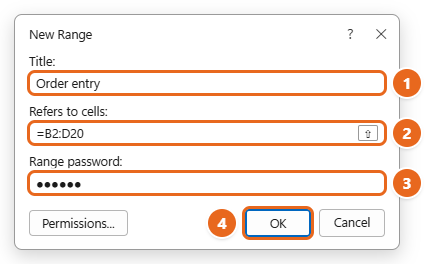
- In Title, type a name you’ll recognize, such as Order entry.
- In Refers to cells, type an equal sign and the range, such as
=B2:D20, or select the cells on the sheet. - In Range password, type the password that will unlock this range, then select OK and retype it to confirm.

Name the range (1), enter the cells it covers (2), type a range password (3), then select OK (4). - Add more ranges the same way if you need them. To change or remove one later, select it in the list and choose Modify or Delete.
- Select Protect Sheet at the bottom of the dialog box, choose the allowed actions, and give the sheet its own password. Use a different password from the range password, or anyone with the range password could also remove protection from the whole sheet.
When someone tries to type in that range, Excel asks for the range password and then lets them edit those cells. If a cell belongs to more than one range, anyone allowed to edit any of those ranges can edit the cell.
The Permissions button in the New Range dialog box lets named people edit the range without a password, but this needs a computer that’s joined to a domain, which is usually only the case on a work network.
Lock cells in Excel for Mac
The process is the same on a Mac; only a few labels and shortcuts differ.
- Select the cells people should be able to edit.
- Press Command+1, or choose Format > Cells from the menu bar.
- Select the Protection tab, clear Locked, and select OK.
- On the Review tab, select Protect Sheet.
- Type an optional password, then retype it under Verify.
- Under Allow users of this sheet to, check what people may still do. On a Mac, the filtering option is labeled Filter.
- Select OK.
Excel for Mac passwords are limited to 15 characters. If a workbook was protected in Excel for Windows with a longer password, ask the author to shorten it so you can work with it on a Mac.
Lock cells in Excel for the web
Excel for the web uses a task pane instead of the Format Cells and Protect Sheet dialog boxes. The whole sheet is locked by default, and you list the ranges that should stay editable.
- Select Review > Manage Protection.
- In the Manage Protection pane, turn on Protect sheet.
- To keep some cells editable, open Unlocked ranges, add a range name and the cells, such as A2:C20, and add more ranges if needed.
- Optional: open Range password to require a password for a range, or Sheet protection password to require one before anyone can change the protection settings. Enter and confirm the password, then select Save.
- Optional: open Options to allow actions such as sorting or formatting columns.
A protected sheet shows a lock icon on its sheet tab. Excel for the web also has Review > Pause Protection, which turns protection off for your own editing session only, while it stays on for everyone else. Select Resume Protection when you’re done. If the sheet has a protection password, you need it to pause.
How to unprotect a sheet or change what is locked
- Go to the protected sheet.
- Select Review > Unprotect Sheet, or right-click the sheet tab and choose Unprotect Sheet.
- If the sheet has a password, type it and select OK. Without a password, protection turns off immediately.
- Change the Locked or Hidden setting of any cells, or edit the locked cells themselves.
- Select Review > Protect Sheet again. Check the allowed actions in the list and type the password again if you want one.
Unprotecting a sheet doesn’t change any cell’s Locked setting. The settings have no effect until you protect the sheet again.
Forgot the password? Microsoft can’t retrieve it. If the workbook is stored in OneDrive or SharePoint, you can restore a version saved before the password was added from version history in Excel. Otherwise, go back to the unprotected copy you saved before you started.
Troubleshooting
People can still change cells I locked
The sheet isn’t protected. Check the Review tab: if the button shows Protect Sheet rather than Unprotect Sheet, protection is off. Also check that Protect worksheet and contents of locked cells was checked, and that the cells really are locked (select one, press Ctrl+1 and look at the Protection tab).
Nobody can type anywhere on the sheet
Every cell was still locked when you protected the sheet. Unprotect it, unlock the input cells as in Method 1, and protect it again. If the input cells are unlocked but still can’t be reached, make sure Select unlocked cells is checked in the Protect Sheet list.
Protect Sheet is grayed out
- Several sheets are selected. If the title bar shows Group, right-click a sheet tab and choose Ungroup Sheets. Protection is applied one sheet at a time.
- You’re still editing a cell. Press Enter or Esc to leave the cell, and the ribbon buttons come back.
- The sheet is already protected. The button shows Unprotect Sheet instead.
Allow Edit Ranges is grayed out
The sheet is protected. Select Unprotect Sheet first, set up the ranges, and then protect the sheet from the Allow Users to Edit Ranges dialog box.
Sorting or filtering doesn’t work after protecting
Checking Sort isn’t enough if the range includes any locked cells, such as a formula column; those ranges can’t be sorted on a protected sheet. Either unlock the whole range you need to sort, or unprotect the sheet while you sort. For filters, the filter buttons must already be on the sheet before you protect it, and Use AutoFilter must be checked.
A drop-down list or check box stopped working
The cell that holds it is locked. Unprotect the sheet, unlock that cell, and protect the sheet again. Data validation rules themselves can’t be edited while the sheet is protected.
People can insert rows but can’t delete them
That happens when Insert rows is allowed and Delete rows isn’t. Check both, or neither. Also remember that a row containing locked cells can’t be deleted even when Delete rows is allowed.
Pasted data changed the formatting
Check whether Format cells was allowed. Pasting follows that setting, so leave Format cells cleared if you want the formatting to stay as you designed it.
FAQ
Can I lock cells without a password?
Yes. Leave Password to unprotect sheet blank and select OK. The locked cells are protected against accidental changes, but anyone can select Unprotect Sheet to turn protection off.
Can I lock cells without protecting the sheet?
No. The Locked setting only takes effect when the sheet is protected. If you want to protect a few cells and leave everything else alone, unlock the rest of the sheet as in Method 2 and then protect it.
Can I protect all sheets in a workbook at once?
Not from the ribbon. Protect Sheet works on one sheet at a time and isn’t available while sheets are grouped, so repeat the steps on each sheet. Protect Workbook protects the sheet structure, not the cells, so it isn’t a substitute.
Does a protected sheet stop people from copying my data?
Not really. With Select locked cells checked, people can select and copy locked cells. Clearing it keeps them out of locked cells, but they can still save a copy of the workbook or read the file in other ways. For confidential data, require a password to open the file and keep the data out of the shared copy.
Why does my locked cell’s formula result still change?
Locking stops people from editing the cell, not Excel from recalculating it. When someone changes an unlocked input cell, every formula that depends on it updates as normal, which is usually exactly what you want.
Can people with edit access in OneDrive or SharePoint still change locked cells?
No. Sheet protection applies to everyone who opens the file, including people you shared it with for editing. If others need to edit everything, unprotect the sheet, or use Unlocked ranges or Allow Edit Ranges to open just the cells they need. Sharing itself is set up separately, as covered in sharing an Excel spreadsheet for editing.
Once your sheet is protected, test it the way someone else would use it: type in every input cell, try to change a formula, and try any sorting or filtering they’ll need. Fixing a missed cell now takes a few seconds; finding out after you’ve sent the file takes a lot longer.

Matt Jacobs has been working as an IT consultant for small businesses since receiving his Master’s degree in 2003. While he still does some consulting work, his primary focus now is on creating technology support content for SupportYourTech.com.
His work can be found on many websites and focuses on topics such as Microsoft Office, Apple devices, Android devices, Photoshop, and more.