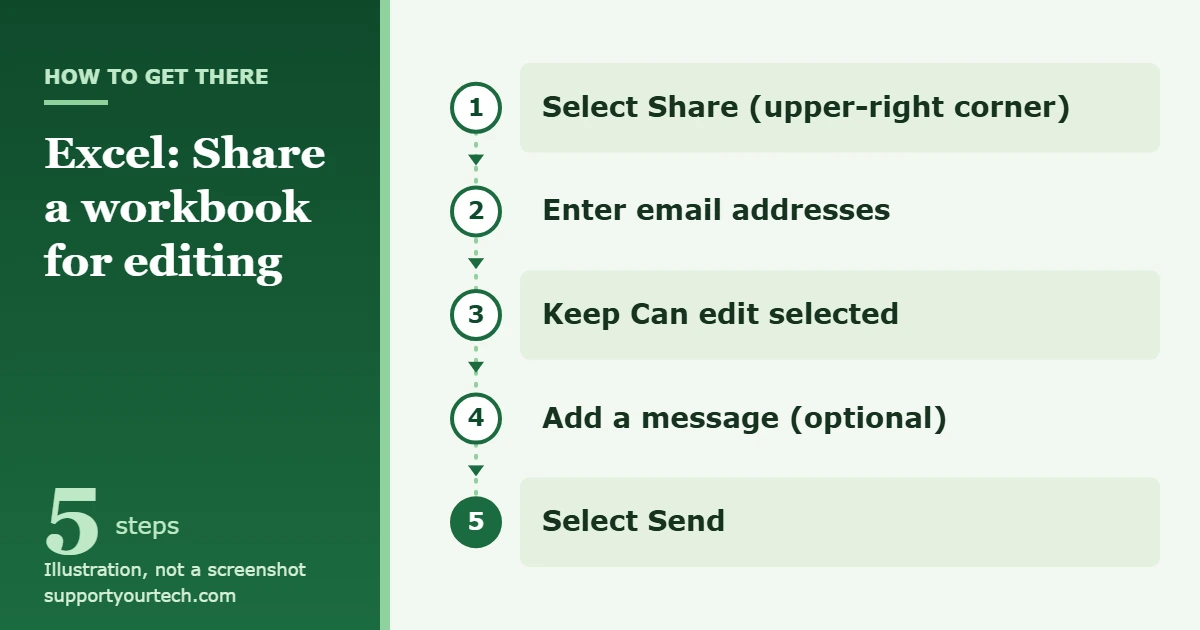
To share an Excel spreadsheet so other people can edit it, save the workbook to OneDrive or SharePoint, select Share in the upper-right corner of Excel, enter the email addresses of the people you want, leave the permission set to Can edit, and select Send. Everyone you invite gets a link that opens the same workbook, and you can all work in it at the same time.
Applies to: Excel for Microsoft 365 for Windows and Mac, and Excel for the web, with files stored in OneDrive or SharePoint in Microsoft 365.
Real-time shared editing in Excel is called co-authoring: several people work in one copy of the workbook, and each person’s changes appear for the others within seconds. A few requirements apply, and most sharing problems trace back to one of them.
- The file must live in the cloud. Store it in OneDrive, OneDrive for Business or a SharePoint in Microsoft 365 library. Files on a local drive, a server path, Dropbox, Box, Google Drive or a SharePoint On-Premises library don’t support co-authoring.
- Use a supported file format. The workbook must be an .xlsx, .xlsm or .xlsb file. The older .xls format and the Strict Open XML Spreadsheet format won’t co-author. To convert a file in Excel for Windows, use File > Save As > Browse and pick the format in the Save as type list.
- Use a version of Excel that supports co-authoring. Supported versions are Excel for Microsoft 365 (Windows and Mac, signed in with a subscription account), Excel for the web, Excel for Android, Excel for iOS and Excel Mobile. Excel 2016, 2019 and 2021 LTSC aren’t on that list. If you use one of them, you can still share the file, but you can’t edit at the same time as others in the desktop app.
- Remove features that block co-authoring. The legacy Shared Workbook feature, password encryption, restricted access, data refresh on open and certain add-ins can all make a file lock instead of opening for shared editing.
Your collaborators don’t need to buy Excel. Anyone you share with can open the workbook in a web browser with Excel for the web, though they need to be signed in with a Microsoft account to edit through an edit link.
These steps use the Share button in Excel for Microsoft 365. The steps are the same for Windows and Mac.
- Save the workbook to OneDrive or SharePoint. Use Save As and choose a OneDrive or SharePoint location, or upload the file at onedrive.com. If the file is already in your OneDrive folder on your computer, it’s already in the right place. Once the file is in the cloud, the AutoSave switch in the upper-left corner of Excel can be turned on.
- Select Share. The Share button sits in the upper-right corner of the Excel window. A sharing panel opens.
- Add the people you want to share with. Type their email addresses in the address box. Separate several addresses with a semicolon, or pick names from the list that appears as you type.
- Check the permission. People you invite can edit by default, shown as Can edit. Leave it that way for shared editing. Select Can edit only if you want to change the permission, for example to view-only.
- Add a message if you like. A short note explaining what you need from each person saves follow-up emails.
- Send the invitation. Select Send. Some versions label this button Add, so use whichever your version shows. Each person receives an email with a link to the workbook.
Prefer to send the link yourself through Teams, Slack or a text message? Instead of sending the invitation, select Share > Copy link and paste the link wherever you like. The link works for the people and permission set in the panel.
If you work in a browser, or your desktop version of Excel doesn’t support co-authoring, share from Excel for the web instead.
- Open the workbook in Excel for the web from OneDrive or SharePoint.
- Select Share in the top right, or go to File > Share > Share with People.
- In the Enter a name or email address box, type each address. Select a suggested contact if one appears, or press Enter after typing the address.
- Check the link setting. When editing is allowed it reads Anyone with the link can edit. If it shows the link can only view, select it, check Allow editing, and select Apply.
- Select Send. Excel for the web emails the link to everyone you added. To get a link instead, select Copy link > Copy.
Sharing from OneDrive gives you the full set of link options, which is handy when you want an expiration date or want to share several files at once with a personal account.
- Sign in at onedrive.com with your Microsoft account or your work or school account.
- Select the circle icon on the workbook. In List view it’s on the left of the item; in Tiles view it’s in the top-right corner.
- Select Share at the top of the page, then Copy link.
- Select the settings gear icon to choose who the link works for and whether Allow editing is checked, then select Apply.
- Select Copy and paste the link into an email or message.
On Windows 10, Windows 11 or a Mac, you can also right-click the workbook in your OneDrive folder and select Share a OneDrive link. This copies a link with edit permission by default.
Choose who can open the link
The settings gear in the OneDrive sharing panel controls the audience for a link. There are four choices:
- Anyone: anyone who has the link, including people outside your organization. Convenient, but the link works for whoever it’s forwarded to.
- People in your organization with the link: only coworkers in your work or school organization.
- People with existing access: doesn’t grant new permissions. Use it to resend the link to someone who can already open the file.
- Specific people: only the people you name. If someone forwards the invitation, only people who already have access can use it. This is the safest choice for sensitive data.
Under Other settings you can also turn on Block download, Set expiration date and Set password. The expiration date and password options are for Microsoft 365 subscribers, and your organization’s admins can grey out options such as Anyone links.
If you only want people to read the workbook, clear Allow editing. Keep in mind that view-only sharing doesn’t stop someone from downloading a copy and editing that copy; it only keeps your original unchanged.
When all you need is a link to paste into a chat or a web page, sharing an Excel file as a link covers that route.
What your collaborators see and do
Recipients open the link from the invitation email, and the workbook opens in their browser in Excel for the web, where they can start editing right away. If they’d rather use the desktop app and have a version that supports co-authoring, they can use the Editing menu in Excel for the web to open the file in desktop Excel. People using current Excel, Word or PowerPoint can also find the file under File > Open > Shared with Me.
While several people are in the workbook, you’ll see their pictures or initials in the upper-right corner. A “G” means a guest. In supported versions, other people’s selected cells show in different colors, and your own selection is always green. Hover over a colored selection to see whose it is.
Ask everyone to keep AutoSave turned on. In Excel for Android and iOS it’s under File > AutoSave. Without it, edits aren’t uploaded as people make them, and others won’t see them promptly.
Confirm sharing worked, change access or stop sharing
Check that sharing is set up the way you want, and remove access when a project ends. On OneDrive.com:
- Select the workbook (only one item).
- Select Details in the upper-right of the command bar. Under Has access, you’ll see who can open the file.
- Select Manage access.
- To end all sharing, select Stop sharing. To delete a single link, open the Links tab, select the Remove Link icon next to it, and confirm with Remove. To change a person’s direct access between view and edit, select their name, choose the option under Direct Access, and select Apply.
Two rules catch people out. First, only the file’s owner can stop or change sharing. Second, you can’t switch an existing link from edit to view or back; delete the link and create a new one with the permission you want. To review everything you’ve shared, select Shared in the left pane of OneDrive.com and open the By me tab.
Limit what editors can change
Sharing for editing gives people access to the whole workbook. To keep formulas and headings safe while others type data, lock everything except the input cells:
- Select the cells others should be able to edit.
- Press Ctrl+1 (Command+1 on a Mac) to open Format Cells, go to the Protection tab, and clear the Locked check box.
- On the Review tab, select Protect Sheet, choose what users are allowed to do, add a password if you want one, and select OK.
Worksheet protection isn’t intended as a security feature. It prevents accidental changes to locked cells, nothing more. Don’t encrypt the workbook with a password to open it if you plan to co-author, because password encryption is one of the features that block co-authoring. The trade-off is explained in requiring a password to open an Excel file. Use sharing permissions to control who gets in.
If something goes wrong, File > Info > Version History lets you open and restore earlier versions. Wait until no one else is co-authoring before you restore one. To find out who changed what, view the edit history in Excel.
Older Excel versions had a Share Workbook button on the Review tab. Those buttons are gone from current Excel for Microsoft 365. Co-authoring replaces them and is the recommended option, because the old feature has many limitations. You can still add Share Workbook (Legacy) through File > Options > Quick Access Toolbar by choosing All Commands, but a workbook using it can’t be co-authored. If an older workflow depends on it, the setup is in enabling Share Workbook in Excel.
“The file is locked for editing”
There are several possible causes: someone else has the file open in a version that doesn’t support co-authoring (which locks it for everyone), you have it open on another device, the file is in an unsupported location or format, or it uses a feature such as the legacy Shared Workbook or password encryption. Close the file everywhere and wait a few minutes for the lock to clear, ask people on older versions to close it or switch to Excel for the web, and move the file to OneDrive or SharePoint in .xlsx, .xlsm or .xlsb format. Microsoft’s Excel file is locked for editing page lists the full set of fixes.
People can open the file but can’t type in it
The link was probably created without Allow editing, or the person only has view access. Because an existing link can’t be switched to edit, create a new link with editing allowed, or change that person’s direct access in Manage access. A read-only notice can also have other causes, which changing read-only mode in Excel walks through.
Others’ changes don’t appear
Wait a minute or two, select Enable Editing if a Protected View bar appears, confirm AutoSave is on, make sure OneDrive syncing isn’t paused, and check that the file isn’t read-only. In Excel for Windows, File > Info shows any errors.
“Refresh recommended” or “Upload failed”
These appear when someone used a feature co-authoring doesn’t fully support. Select Refresh if you have no unsaved changes, or Discard changes if you don’t need them. To keep your edits, use Save a Copy, copy what you need, reopen the original from the cloud, and paste your changes back in.
Sharing options are greyed out at work or school
Your organization’s admins control which sharing options you can use, and they may only let you share with people inside your organization. If you need to share with someone outside, ask your IT department.
Two people changed the same cell
Generally, the last change saved wins. Avoid clashes by giving each person their own sheet or range, for example by putting names in heading cells or naming sheets after the people responsible for them.
Frequently asked questions
Can I share the spreadsheet so people can view it but not edit it?
Yes. Clear Allow editing in the link settings, or change Can edit to view-only when you invite people. They can still download a copy, but they can’t change your original.
Can I put a password or an expiration date on the link?
Yes, with a Microsoft 365 subscription. In the link settings, use Set password or Set expiration date. Share the password separately from the link.
Why don’t I get live co-authoring in Excel 2019 or 2021?
Live co-authoring works in Excel for Microsoft 365, Excel for the web and the mobile apps, but not in Excel 2016, 2019 or 2021 LTSC. Use Excel for the web to edit alongside others.
Next, ask one collaborator to open the link and make a small test edit, so you know editing works before everyone starts. Microsoft’s co-authoring guide and OneDrive sharing instructions have more detail.
Related: giving edit access to an Excel sheet, and the same sharing process for a Word document.

Matt Jacobs has been working as an IT consultant for small businesses since receiving his Master’s degree in 2003. While he still does some consulting work, his primary focus now is on creating technology support content for SupportYourTech.com.
His work can be found on many websites and focuses on topics such as Microsoft Office, Apple devices, Android devices, Photoshop, and more.