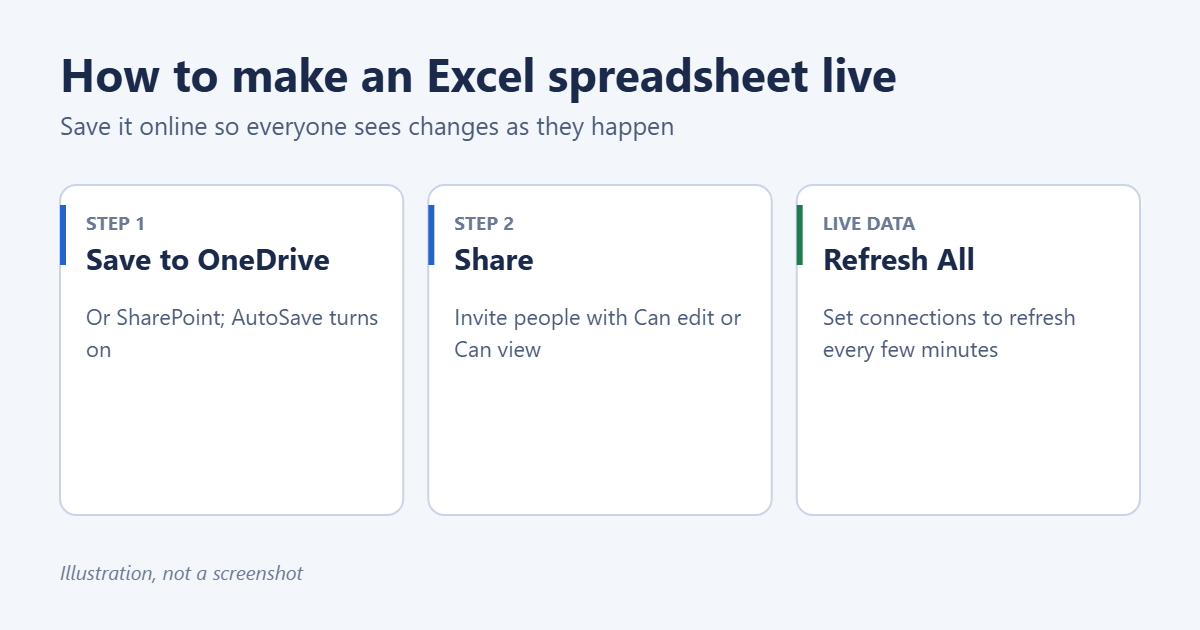
To make an Excel spreadsheet live, save it to OneDrive or SharePoint and share it. Select File > Save As > OneDrive, then select Share in the top-right corner and invite people or copy a link. Everyone who opens it, in the Excel app or a web browser, sees each other’s changes within seconds, with colored cursors showing who’s working where. If “live” means data that updates by itself, such as stock prices or a connection to another file, use Data > Refresh All and set the connection to refresh automatically.
Applies to: Excel for Microsoft 365 on Windows and Mac, Excel for the web, and Excel for iPhone, iPad and Android.
What you need
- A Microsoft account or work account with OneDrive or SharePoint storage. A free Microsoft account works.
- A modern file format: .xlsx, .xlsm or .xlsb. Older .xls files must be saved as .xlsx first.
- A current version of Excel. Real-time co-authoring works in Excel for Microsoft 365, Excel for the web and the mobile apps. Older one-time-purchase versions can open shared files but don’t show others’ changes live.
- Open the workbook in Excel.
- Select File > Save As.
- Choose OneDrive (personal), your organization’s OneDrive, or a SharePoint site, and pick a folder.
- Select Save.
The AutoSave switch in the top-left corner turns on. From now on, every change saves automatically, which is what makes live collaboration work.
- Select Share in the top-right corner.
- Type the names or email addresses of the people you want to work with.
- Select the permission setting and choose Can edit or Can view.
- Add a message if you want, then select Send. Or select Copy link to paste the link into an email or chat.
Each person gets a link that opens the workbook in Excel for the web, or in their Excel app if they choose Open in Desktop App.
Step 3: Work on it together
Once people open the shared workbook, Excel co-authoring takes over. Microsoft’s guide to collaborating with co-authoring covers it in detail. In short:
- See who’s there: pictures or initials of other editors appear at the top of the window.
- See where they’re working: each person’s selected cell has a colored outline. Hover over it to see their name.
- See changes as they happen: edits appear within a few seconds. You don’t need to refresh.
- Talk in the file: select a cell and choose Review > New Comment. Type @ and a name to notify someone.
Filter and sort without disrupting others
Sorting or filtering a shared sheet changes the view for everyone. In Excel for Microsoft 365 work and school accounts, select View > Sheet View > New to create a personal view; your sorts and filters then affect only you.
Make the data itself live
Sometimes “live” means numbers that update on their own. Excel has several ways to do that.
Stock prices and exchange rates
- Type company names or ticker symbols, such as MSFT, in a column.
- Select the cells and choose Data > Stocks (or Currencies for currency pairs like USD/EUR).
- Select the Insert Data button that appears and add fields such as Price or Change.
- Select Data > Refresh All to update them. Stock data is delayed and is for information only.
Data from another workbook, a database or a website
- Bring the data in with Data > Get Data, choosing a source such as From Workbook, From Web or a database.
- After loading, select Data > Queries & Connections.
- Right-click the query and select Properties.
- Select Refresh every and enter a number of minutes, and select Refresh data when opening the file.
- Select OK.
Automatic refresh runs while the workbook is open in the desktop app. Some data sources can’t refresh in Excel for the web.
Formulas that change over time
Functions such as =TODAY() and =NOW() update every time the workbook recalculates. Press F9 to recalculate on demand.
Show a live spreadsheet on a website or screen
- On a website: open the workbook in Excel for the web, select File > Share > Embed, choose what to show, and copy the embed code into your site. The embedded view updates when the workbook changes. This option is available for personal OneDrive accounts and may be blocked in work accounts.
- In a meeting: share the workbook in a Teams meeting, or open it in Excel for the web on the display. Viewers see updates as people edit.
- In PowerPoint: paste a linked chart or table so the slide updates from Excel. The steps are in linking an Excel chart to PowerPoint.
- Use version history. Select File > Info > Version History to see and restore earlier versions if someone makes a mistake.
- Protect key sheets. Select Review > Protect Sheet to lock formulas while still allowing data entry in unlocked cells.
- Give view-only access to people who only need to read the numbers.
- Use tables. Format data as a table with Ctrl + T so new rows added by others are included in formulas and charts. More on that in creating a table in Excel.
Troubleshooting
“The file is locked for editing by another user”
The workbook is on a local or network drive, not OneDrive or SharePoint, or it’s an old .xls file. Save it to OneDrive as .xlsx and share the new file.
Others’ changes don’t appear
Check that AutoSave is on and that everyone opened the shared link, not a downloaded copy. If someone uses an older version of Excel, ask them to use Excel for the web.
Co-authoring is turned off
The workbook may use the legacy Shared Workbook feature, which blocks co-authoring. Select Review > Share Workbook (Legacy) (add it to the ribbon if needed) and clear the sharing option, then save.
Some features are grayed out
A few older features, such as some macros and ActiveX controls, don’t work in shared workbooks or Excel for the web. Use the desktop app for those tasks, or redesign them with newer features.
Frequently asked questions
Is live collaboration free?
Yes, with a free Microsoft account and Excel for the web. Using the desktop app to co-author requires a Microsoft 365 subscription.
How many people can edit at once?
Many people can edit simultaneously, and large teams can work in one workbook. Very large or complex workbooks may slow down with many editors.
Can I use Google Sheets instead?
Yes. Google Sheets also supports real-time editing, and you can open an Excel file in Google Sheets to get started.
How do I stop sharing the workbook?
Select Share > Manage access, then remove people or delete the sharing link.
Once several people are editing, it helps to know how to view version history in Excel and view edit history to see who changed what.

Matt Jacobs has been working as an IT consultant for small businesses since receiving his Master’s degree in 2003. While he still does some consulting work, his primary focus now is on creating technology support content for SupportYourTech.com.
His work can be found on many websites and focuses on topics such as Microsoft Office, Apple devices, Android devices, Photoshop, and more.