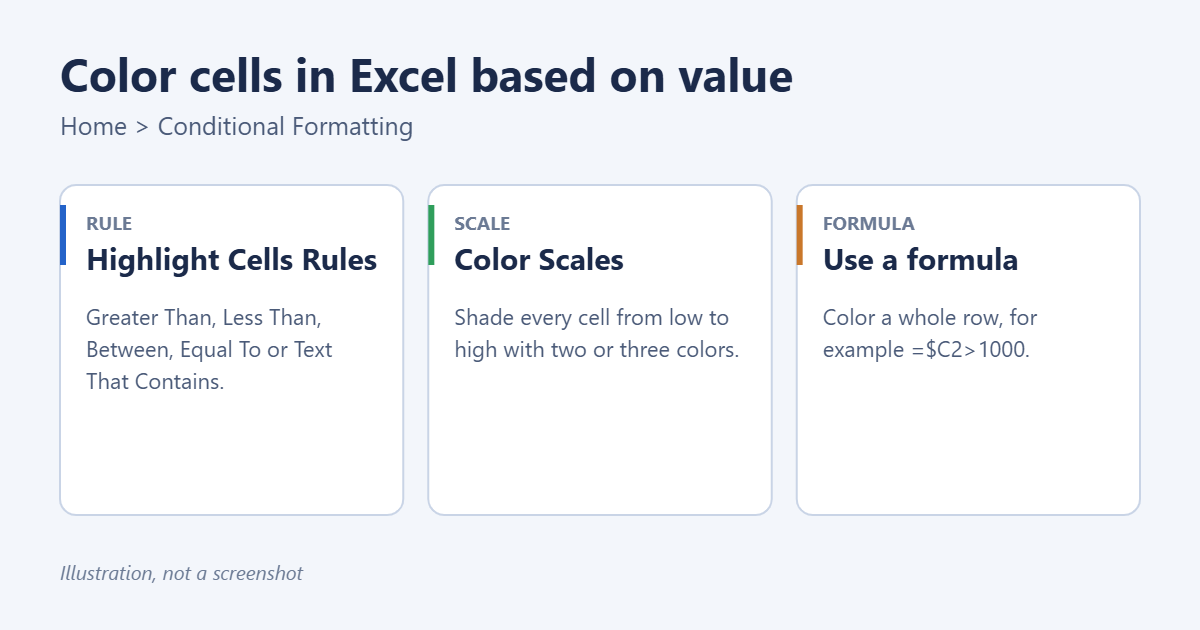
To color cells in Excel based on their value, select the cells, go to Home > Conditional Formatting > Highlight Cells Rules, pick a rule such as Greater Than, type the value, and choose a color. Excel recolors the cells automatically whenever the values change. For a gradient across a whole range, use Color Scales. To color an entire row based on one column, use a formula rule.
Applies to: Excel for Microsoft 365, Excel 2024, 2021, 2019 and 2016 on Windows, and Excel for Mac. Excel for the web has the same Conditional Formatting menu with fewer options. Last reviewed October 8, 2026.
Method 1: Use a Highlight Cells Rule
This is the quickest way to color cells that meet one condition, such as sales over 1,000 or scores under 50.
- Select the cells you want to color, for example C2:C50. Don’t include the header.
- On the Home tab, select Conditional Formatting > Highlight Cells Rules.
- Choose a rule: Greater Than, Less Than, Between, Equal To, Text that Contains, A Date Occurring or Duplicate Values.
- Type the value in the box on the left. You can also click a cell to use its value, so you can change the threshold later without editing the rule.
- Pick a preset color from the drop-down on the right, or choose Custom Format and set your own fill color on the Fill tab.
- Select OK.
To use more than one color, add another rule to the same cells. For example, add a Greater Than 1000 rule with green fill, then a Less Than 500 rule with red fill. Cells between 500 and 1000 stay uncolored.
Method 2: Use Top/Bottom Rules
If you care about the highest or lowest values rather than a fixed number, go to Conditional Formatting > Top/Bottom Rules. You can color the Top 10 Items, Bottom 10%, or values Above Average and Below Average. You can change 10 to any number in the dialog box.
Method 3: Shade cells with a Color Scale
A color scale colors every cell in the range on a gradient, so you can spot highs and lows at a glance. It works well for heat maps of sales by month or test scores.
- Select the range.
- Go to Home > Conditional Formatting > Color Scales.
- Pick a scale. Green-Yellow-Red makes high values green and low values red. Red-Yellow-Green does the opposite.
To control where the colors change, select Conditional Formatting > Manage Rules, double-click the color scale rule, and set the minimum, midpoint and maximum to a number, percent or percentile.
Data Bars and Icon Sets sit in the same menu. Data bars draw a bar inside each cell sized to its value. Icon sets add arrows, traffic lights or flags. They’re useful when you’d rather not change the fill color.
Method 4: Color a whole row with a formula
Highlight Cells Rules only color the cells that hold the value. To color the entire row, for example every order over 1,000 in column C, use a formula rule.
- Select the whole data range starting from the first data row, for example A2:F50.
- Go to Home > Conditional Formatting > New Rule.
- Choose Use a formula to determine which cells to format.
- Type =$C2>1000. The dollar sign locks the column so every cell in the row checks column C. Leaving the 2 without a dollar sign lets the row number move as the rule is applied down the range.
- Select Format, choose a fill color on the Fill tab, and select OK twice.
The formula must be written for the top-left cell of your selection. If your selection starts at row 5, use =$C5>1000 instead.
A few other useful formulas:
- =$D2=”Late” colors rows where column D says Late. For partial matches, see how to highlight cells based on text in Excel.
- =AND($C2>=500,$C2<=1000) colors rows where the value is between 500 and 1,000.
- =$E2<TODAY() colors rows with a past due date. There are more date examples in how to color cells in Excel based on date.
Edit, reorder or remove the colors
- Edit a rule: select the cells, then Conditional Formatting > Manage Rules. Double-click a rule to change it.
- Change the order: in Manage Rules, rules higher in the list take priority. Use the arrow buttons to move them. Tick Stop If True to stop lower rules from applying when a rule matches.
- Remove colors: select Conditional Formatting > Clear Rules > Clear Rules from Selected Cells or Clear Rules from Entire Sheet.
Troubleshooting
The color doesn’t appear
The numbers may be stored as text. Look for a small green triangle in the corner of the cells. Select them, click the warning icon and choose Convert to Number.
The wrong rows are colored
The formula probably refers to the wrong row. Make sure it uses the first row of your selection and that only the column has a dollar sign.
Some cells are colored by two rules
When two rules set a fill color, the one higher in Manage Rules wins. Reorder them or tick Stop If True.
The rule doesn’t cover new rows
Format your data as a table with Ctrl+T before adding the rule. Conditional formatting then extends automatically as you add rows.
Frequently asked questions
Can I color a cell with an IF formula?
No. A formula in a cell can only return a value, not a color. Use conditional formatting with a formula rule instead. To color a cell based on a formula’s result, see how to make a cell turn a color in Excel based on a formula.
Can I color a cell based on another cell’s value?
Yes. Select the cell, choose New Rule > Use a formula to determine which cells to format, and refer to the other cell, for example =$B$1>100.
Can I count or sum cells by color?
Not with a built-in function. Filter the column by color using the filter arrow and Filter by Color, and use SUBTOTAL to total only the visible cells. It’s usually simpler to count by the same condition with COUNTIF or SUMIF.
Does conditional formatting slow down Excel?
Only with many rules on very large ranges. Apply rules to the exact range you need rather than whole columns, and delete duplicate rules in Manage Rules.
Related: how to highlight the active cell in Excel.

Matt Jacobs has been working as an IT consultant for small businesses since receiving his Master’s degree in 2003. While he still does some consulting work, his primary focus now is on creating technology support content for SupportYourTech.com.
His work can be found on many websites and focuses on topics such as Microsoft Office, Apple devices, Android devices, Photoshop, and more.