To make Excel cells change color automatically based on a date, use conditional formatting with the TODAY() function. Select the dates, choose Home > Conditional Formatting > New Rule > Use a formula to determine which cells to format, enter a formula such as =A2<TODAY() for overdue dates, pick a fill color, and select OK. Because TODAY() updates every time the workbook opens, the colors change by themselves as dates pass.
Applies to: Excel for Microsoft 365, Excel 2024, 2021 and 2019 on Windows and Mac, and Excel for the web. Last reviewed October 7, 2026.
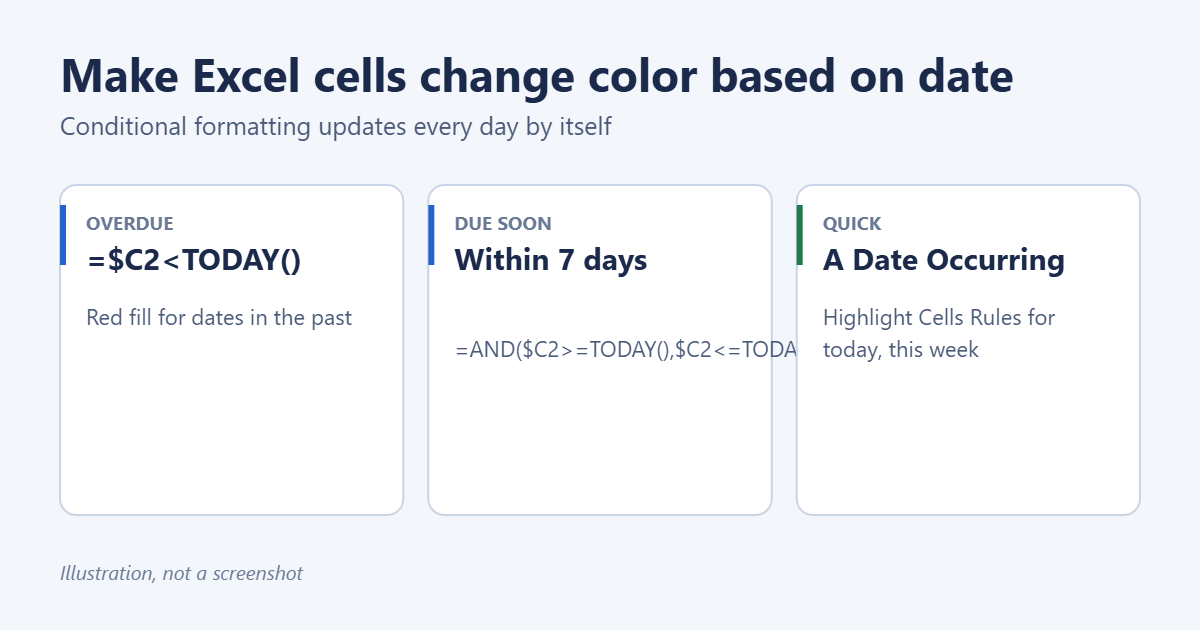
Quick option: A Date Occurring
For common periods, Excel has a built-in rule that needs no formula.
- Select the cells that contain dates.
- Select Home > Conditional Formatting > Highlight Cells Rules > A Date Occurring.
- Choose a period: Yesterday, Today, Tomorrow, In the last 7 days, Last week, This week, Next week, Last month, This month or Next month.
- Choose a color from the second list and select OK.
For anything else, such as “overdue” or “due in the next 30 days”, use a formula rule.
Color dates with a formula rule
These steps assume your dates are in cells A2 to A100. Change the cell references to match your sheet.
- Select A2:A100, starting with A2.
- Select Home > Conditional Formatting > New Rule.
- Select Use a formula to determine which cells to format.
- Type a formula from the list below in the box. It should refer to the first selected cell (A2).
- Select Format, choose a color on the Fill tab, and select OK twice.
Formulas for common date rules
- Overdue (before today):
=A2<TODAY() - Due today:
=A2=TODAY() - Due in the next 7 days:
=AND(A2>=TODAY(),A2<=TODAY()+7) - More than 30 days away:
=A2>TODAY()+30 - Older than 90 days:
=A2<TODAY()-90 - Due within 3 working days:
=AND(A2>=TODAY(),NETWORKDAYS(TODAY(),A2)<=3)
Build a traffic-light system
Add several rules to the same cells for a red, yellow and green status:
- Red, overdue:
=AND(A2<>"",A2<TODAY()) - Yellow, due within 7 days:
=AND(A2>=TODAY(),A2<=TODAY()+7) - Green, more than 7 days away:
=A2>TODAY()+7
The A2<>"" part stops empty cells from turning red, because Excel treats a blank cell as an old date.
Color the whole row based on a date
To highlight an entire task or invoice row when its due date passes:
- Select the whole table, for example A2:F100, starting from the top-left cell.
- Create a new formula rule as above.
- Use a dollar sign before the date column’s letter, such as
=$C2<TODAY()if the due dates are in column C. - Choose a fill color and select OK.
The $ keeps every cell in the row checking column C, while the row number changes for each row.
Stop coloring when a task is done
If column D says “Done” for finished tasks, include it in the formula so completed rows don’t stay red:
=AND($C2<TODAY(),$D2<>"Done")
Manage and edit your rules
- Select Home > Conditional Formatting > Manage Rules.
- Set Show formatting rules for to This Worksheet to see every rule.
- Select a rule to edit it, delete it, or change its Applies to range.
- Use the arrows to change the order. Rules at the top take priority when two rules color the same cell.
To use the same rules on another sheet, see how to copy conditional formatting rules in Excel.
Example: a bill-payment tracker
Suppose column A lists bills, column B the due date, and column C says “Paid” once a bill is paid. To see at a glance what needs attention:
- Select A2:C50.
- Add a red rule with
=AND($B2<TODAY(),$C2<>"Paid")for unpaid bills that are overdue. - Add a yellow rule with
=AND($B2>=TODAY(),$B2<=TODAY()+5,$C2<>"Paid")for unpaid bills due in the next five days. - Add a gray rule with
=$C2="Paid"so paid bills fade into the background. - In Manage Rules, put the gray rule at the top so it wins over the others once a bill is paid.
Each morning when you open the file, overdue and upcoming bills are already colored, with no manual updates.
Use Excel Tables so new rows are colored too
If you keep adding rows, convert your range to a table first: click inside it and press Ctrl + T. Conditional formatting applied to a table column extends automatically to new rows, so you don’t need to edit the rule’s range each time.
Troubleshooting
Nothing changes color
The dates may be stored as text. Select a date and look at the alignment: text is left-aligned by default, dates are right-aligned. Convert them with Data > Text to Columns > Finish, or re-enter them.
The wrong cells are colored
The formula refers to a different row from the first selected cell. Edit the rule in Manage Rules and make sure the formula uses the top-left cell of the Applies to range.
Blank cells turn red
Add a blank check, such as =AND(A2<>"",A2<TODAY()).
Colors didn’t update today
TODAY() recalculates when the workbook opens or changes. Press F9 to recalculate. If calculation is set to manual, select Formulas > Calculation Options > Automatic.
Frequently asked questions
Can a cell change color based on another cell’s date?
Yes. Select the cell you want to color and use a formula that refers to the date cell, such as =$B2<TODAY().
Does this work in Excel for the web?
Yes. Excel for the web supports A Date Occurring and formula rules under Home > Conditional Formatting.
Can I color cells based on text instead?
Yes. See how to highlight cells in Excel based on text.
Where can I learn more about conditional formatting?
Microsoft’s guide to using conditional formatting in Excel covers every rule type.
Related: how to color cells in Excel based on value.
Related: how to make a cell turn a color with a formula in Excel.
Related: add 6 months to a date in Excel.

Matt Jacobs has been working as an IT consultant for small businesses since receiving his Master’s degree in 2003. While he still does some consulting work, his primary focus now is on creating technology support content for SupportYourTech.com.
His work can be found on many websites and focuses on topics such as Microsoft Office, Apple devices, Android devices, Photoshop, and more.