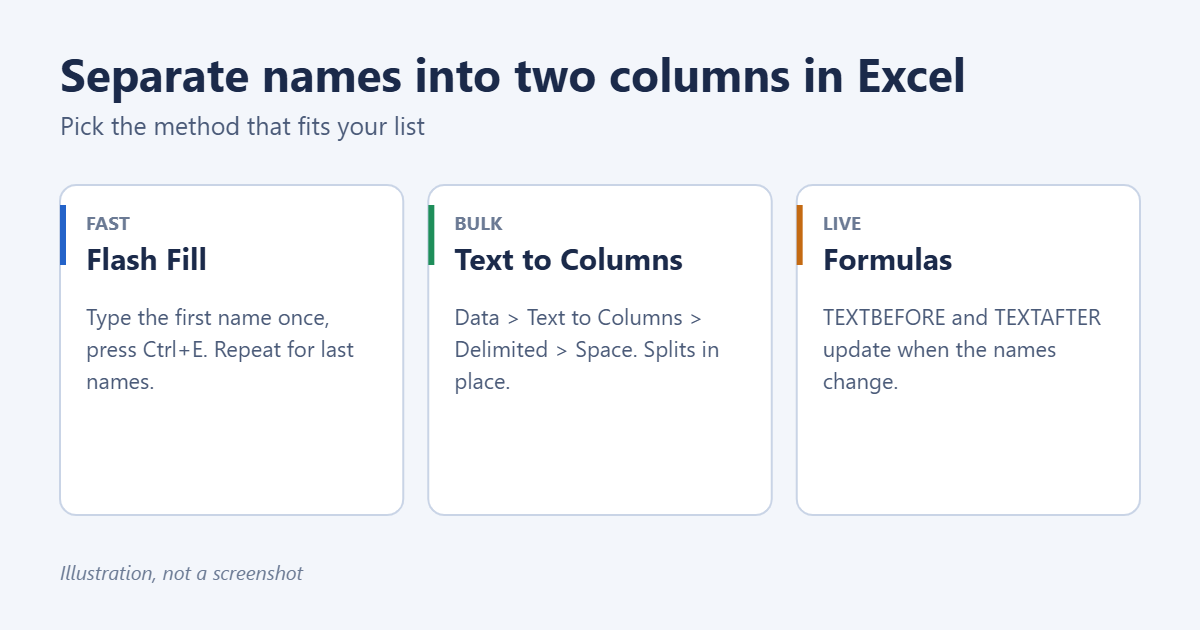
To separate names into two columns in Excel, select the column of full names, go to Data > Text to Columns, choose Delimited, check Space and click Finish. Excel puts first names in one column and last names in the next. For lists with middle names, or when you want the original column left alone, Flash Fill or a formula works better. All three are below.
Before you start
- Insert two empty columns to the right of the names (right-click the column letter, then Insert). Text to Columns overwrites whatever is in the next columns.
- Clean up extra spaces. Double spaces create empty columns. Use
=TRIM(A2)in a helper column if your list came from another system. - Check the format. “Jane Smith”, “Smith, Jane” and “Jane A. Smith” each need slightly different handling.
Method 1: Text to Columns
Best for a one-time split of a long list. It changes the data in place.
- Select the cells with the full names (not the header).
- Go to Data > Text to Columns.
- Choose Delimited and click Next.
- Check Space and uncheck the others. For “Smith, Jane” check Comma and Space, and check Treat consecutive delimiters as one.
- Click Next. In Destination, pick the first empty column, such as
$B$2, if you want to keep the original names. - Click Finish.
Names with a middle name or initial split into three columns. Merge or delete the middle column afterward. Splitting on other delimiters, or at a fixed width, is covered in splitting columns in Excel.
Method 2: Flash Fill
Flash Fill copies a pattern you type. It’s built into Excel 2013 and later.
- In B2, type the first name exactly as it appears in A2.
- Click B3 and press Ctrl + E (or Data > Flash Fill). Excel fills the rest of the column.
- In C2, type the last name from A2 and press Ctrl + E in C3.
Check the results, especially for names with prefixes like “van” or “de”, or suffixes like “Jr.” If Flash Fill guesses wrong, type one or two more examples and press Ctrl + E again. Flash Fill doesn’t update when the source names change.
Method 3: Formulas
Formulas keep the split live, so new or edited names update automatically.
Excel for Microsoft 365, Excel 2024 and Excel for the web
| Result | Formula | Notes |
|---|---|---|
| First name | =TEXTBEFORE(A2," ") | Everything before the first space |
| Last name | =TEXTAFTER(A2," ",-1) | Everything after the last space, so middle names are skipped |
| All parts | =TEXTSPLIT(A2," ") | Spills each part into its own column |
Older versions (Excel 2019 and earlier)
| Result | Formula |
|---|---|
| First name | =LEFT(A2,FIND(" ",A2)-1) |
| Last name (one space only) | =RIGHT(A2,LEN(A2)-FIND(" ",A2)) |
| Last word (handles middle names) | =TRIM(RIGHT(SUBSTITUTE(A2," ",REPT(" ",100)),100)) |
Type the formula in B2 or C2, then double-click the fill handle (the small square at the bottom-right of the cell) to copy it down the column. If a cell holds a single name with no space, FIND returns #VALUE!. Wrap the formula in IFERROR(...,A2) to show the name instead.
“Last, First” format
For names like “Smith, Jane”, use =TEXTAFTER(A2,", ") for the first name and =TEXTBEFORE(A2,",") for the last name.
Turn formulas into plain text
If you want to delete the original column later, convert the formula results first. Select them, press Ctrl + C, then right-click and choose Paste Values. Otherwise the formulas break when the source column goes away.
Which method should you use?
| Situation | Best method |
|---|---|
| Simple “First Last” list, one-time job | Text to Columns |
| Mixed formats, a few hundred rows | Flash Fill |
| List that keeps changing | Formulas |
| Need to keep the original column | Flash Fill or formulas |
Frequently asked questions
Why is Flash Fill greyed out or not working?
It may be turned off. Go to File > Options > Advanced and check Automatically Flash Fill. It also needs the example column right next to the source data with no blank column in between.
How do I put the names back together?
Use =B2&" "&C2 or =TEXTJOIN(" ",TRUE,B2:C2). More options are in merging first and last names in Excel.
Can I sort by last name after splitting?
Yes. Click a cell in the last-name column and use Data > Sort A to Z. More in how to put Excel in alphabetical order.
Related guides
- How to separate numbers in a cell in Excel
- How to separate city, state and ZIP in Excel
- How to remove characters from a cell in Excel
Summary
- Insert two empty columns next to the names.
- Use Data > Text to Columns with Space for a quick split.
- Use Ctrl + E (Flash Fill) for mixed formats.
- Use TEXTBEFORE and TEXTAFTER for a split that updates itself.

Matt Jacobs has been working as an IT consultant for small businesses since receiving his Master’s degree in 2003. While he still does some consulting work, his primary focus now is on creating technology support content for SupportYourTech.com.
His work can be found on many websites and focuses on topics such as Microsoft Office, Apple devices, Android devices, Photoshop, and more.