To install GCC on Windows 11, install MSYS2, run pacman -S mingw-w64-ucrt-x86_64-gcc in the UCRT64 terminal that opens, and then add C:\msys64\ucrt64\bin to your Path variable so that gcc works in any Command Prompt window. If you want the Linux version of GCC instead, install Ubuntu with wsl --install and add the build-essential package.
Applies to: Windows 11 on 64-bit (x64) PCs; the MSYS2 steps also work on 64-bit Windows 10 version 1809 or newer. Checked against MSYS2, GCC, Microsoft Learn and Visual Studio Code documentation on October 7, 2026.
What GCC is and which version to choose
GCC stands for the GNU Compiler Collection. It is free software that turns source code written in C, C++ and several other languages into programs your computer can run. The gcc command compiles C files, and the g++ command compiles C++ files.
The GCC project does not make its own Windows installer. Its page of ready-made GCC binaries points Windows users to outside projects such as mingw-w64 and says the GCC team did not build those packages and does not support them. On Windows 11 that leaves two practical routes:
| Route | What you get | Choose it when |
|---|---|---|
| MSYS2 (mingw-w64 GCC) | A Windows build of GCC that creates programs that run on Windows | You are learning C or C++ and want gcc in Command Prompt, PowerShell or Visual Studio Code |
| WSL with Ubuntu | The Linux build of GCC running inside Windows Subsystem for Linux | Your class, project or server uses Linux and you want the same tools and commands |
The two toolchains are separate. A program built in WSL is a Linux program, and the packages and libraries from one route cannot be used by the other. Pick one route for a project and stay with it.
Before you start
- 64-bit Windows. MSYS2 requires 64-bit Windows 10 version 1809 or newer, so every Windows 11 x64 PC qualifies.
- An internet connection. The installer is a download, and the compiler packages are downloaded afterward by MSYS2’s package manager,
pacman. - A simple install folder. MSYS2 recommends keeping the default folder,
C:\msys64. If you change it, use a short path with plain English letters only, no spaces and no accents, on a normal NTFS drive rather than a network drive. - An editor. Notepad is enough for a first program. Visual Studio Code is covered later in this guide.
Install GCC on Windows 11 with MSYS2
MSYS2 is a software distribution for Windows that includes a terminal and the pacman package manager. These steps follow the installation instructions on the MSYS2 website.
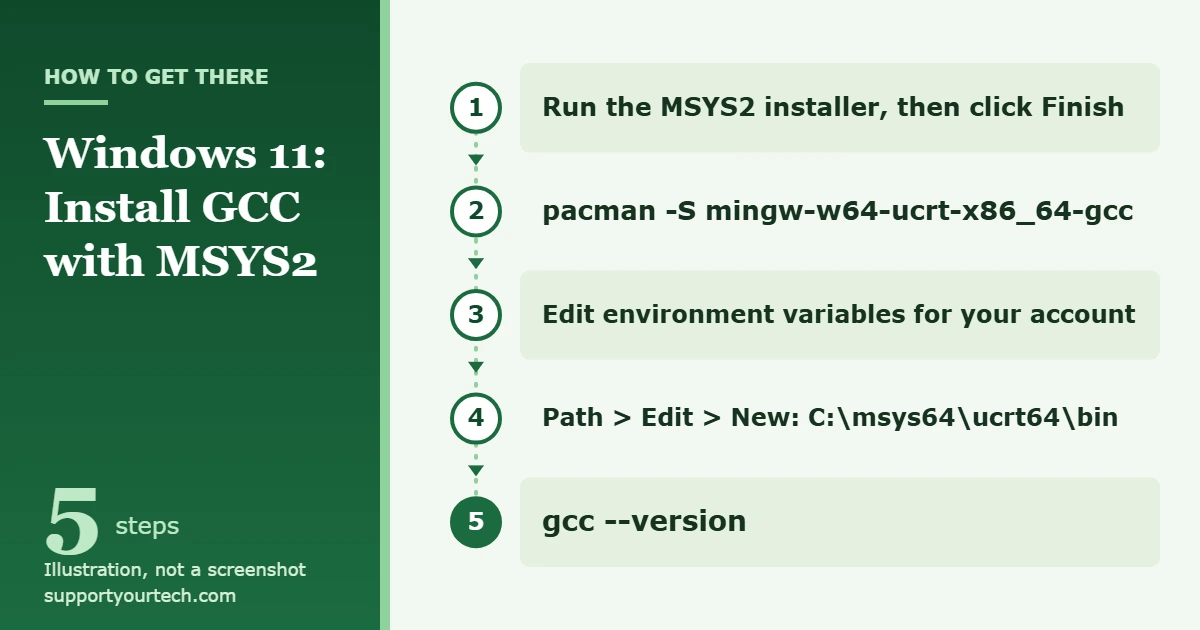
- Download the installer. Open msys2.org and download the x86_64 installer listed in the Installation section. The file name starts with
msys2-x86_64-followed by a date. - Run the installer. Open the downloaded file. When it asks for the Installation Folder, keep the default unless you have a reason to change it, and write the folder down because you need it for the Path step.
- Finish and open the terminal. Leave Run MSYS2 now checked and click Finish. A terminal window for the UCRT64 environment opens. UCRT64 is the environment MSYS2 recommends if you are unsure which one to use.
- Install GCC. In that terminal, type
pacman -S mingw-w64-ucrt-x86_64-gccand press Enter. Pacman lists the packages it will download and asks Proceed with installation? [Y/n]. TypeYand press Enter, then wait for the downloads to finish. - Check the compiler. In the same terminal, type
gcc --versionand press Enter. You should see the GCC version number and a copyright notice. GCC now works inside the MSYS2 UCRT64 terminal. - Open the environment variables window. To use GCC outside the MSYS2 terminal, open Windows Settings, search for Edit environment variables for your account, and open that result.
- Add the GCC folder to Path. Under User variables, select Path and then select Edit. Select New and type
C:\msys64\ucrt64\bin(adjust the first part if you changed the install folder). Select OK twice to save. - Test in a new window. Close any open Command Prompt or PowerShell windows, open a new one, and run
gcc --versionagain. Windows only reads the changed Path in consoles opened after the change.
Add g++ and the GDB debugger
If you plan to write C++ or use a debugger, Microsoft’s Visual Studio Code documentation installs the whole mingw-w64 toolchain group instead of the single GCC package. In the MSYS2 terminal, run pacman -S --needed base-devel mingw-w64-ucrt-x86_64-toolchain, press Enter to accept the default set of packages in the toolchain group, and then type Y to proceed. Afterward, a new Command Prompt window should answer all three of these commands with version information: gcc --version, g++ --version and gdb --version.
Keep MSYS2 and GCC up to date
MSYS2 is a rolling release, which means packages are updated often and all of them are updated together. To update, open the MSYS2 terminal and run pacman -Suy. If core packages are updated, pacman warns that all MSYS2 processes, including the terminal, will be closed. Confirm, open a new terminal, and run pacman -Suy once more to update the remaining packages. The steps are in the MSYS2 update guide.
Compile and run a test program
Seeing a version number proves that Windows can find the compiler. Building a small program proves that it can also find its headers and libraries.
- Create a folder and a file. Make a folder such as
C:\projects\hello. In Notepad, save a file there namedhello.cwith the content shown below these steps. - Open a terminal in that folder. Open Command Prompt and type
cd C:\projects\hello. - Compile. Type
gcc hello.c -o hello.exeand press Enter. The-ooption tells GCC what to name the output file. If the command prints nothing, the build succeeded. - Run. Type
hello.exein Command Prompt, or.\hello.exein PowerShell. The window should print Hello from GCC.
#include <stdio.h>

int main(void)
{
    printf("Hello from GCC\n");
    return 0;
}
For a C++ file, use g++ in the same way, for example g++ hello.cpp -o hello.exe. GCC treats files ending in .c as C and files ending in .cpp, .cc or .cxx as C++. While you are learning, add -Wall to the command, as in gcc -Wall hello.c -o hello.exe. It turns on warnings about code that is questionable and easy to fix, which catches many beginner mistakes before the program runs.
Install the Linux version of GCC with WSL
Windows Subsystem for Linux (WSL) runs a real Linux distribution inside Windows 11. This route gives you the same GCC that Linux users have. Our guide on how to install WSL on Windows 11 covers the WSL setup in more detail.
- Open PowerShell as an administrator. Right-click PowerShell and select Run as administrator.
- Install WSL. Type
wsl --installand press Enter. According to Microsoft’s WSL installation instructions, this command turns on the features WSL needs and installs the Ubuntu distribution by default. - Restart your PC. The installation is completed after a restart.
- Create your Linux account. The first time Ubuntu starts, it asks you to create a user name and password. Nothing appears on screen while you type the password; that is normal.
- Refresh the package list. In the Ubuntu terminal, run
sudo apt-get updateand enter your Linux password when asked. - Install the compiler tools. Run
sudo apt-get install build-essential gdb. This installs the GNU compiler tools and the GDB debugger. - Confirm the result. Run
gcc --version, or runwhereis g++andwhereis gdbto see where the tools were installed.
Microsoft recommends keeping project files inside the Linux file system when you build them with Linux tools, because working across the two file systems is noticeably slower. If you only need Ubuntu itself, see how to install Ubuntu on Windows 11.
Use GCC in Visual Studio Code
Visual Studio Code does not include a compiler. It uses the one you installed. For the MSYS2 route, Microsoft’s guide to using GCC with MinGW in VS Code describes this setup:
- Install the C/C++ extension. Press Ctrl+Shift+X to open the Extensions view, search for C++, and install Microsoft’s C/C++ extension.
- Install the full toolchain. Make sure you ran the toolchain command from the section above, so that
g++andgdbare present, and thatC:\msys64\ucrt64\binis in your Path. - Open your project folder. In Command Prompt, go to the folder and type
code .to open it in VS Code. If you are asked whether you trust the folder, select Yes, I trust the authors. - Build and run. Open your
.cppfile, select the play button in the top-right corner of the editor, and choose C/C++: g++.exe build and debug active file. The program’s output appears in the integrated Terminal.
The first run creates a tasks.json file in the project that stores the compiler path and build options. For the WSL route, Microsoft has a separate guide to using C++ and WSL in VS Code, which uses the WSL extension and opens the folder from the Ubuntu terminal with code ..
How to confirm it worked, or remove GCC
The installation is working when a newly opened Command Prompt answers gcc --version with a version number and the test program above compiles and runs. Inside WSL, the same command in the Ubuntu terminal is the check.
To undo the MSYS2 route, remove the C:\msys64\ucrt64\bin entry from Path in the same Edit environment variables for your account window, and then uninstall MSYS2. The installer registers an uninstaller with Windows, and the MSYS2 installer guide also gives a command-line option: C:\msys64\uninstall.exe pr --confirm-command. Copy any projects you saved inside the MSYS2 folder before you uninstall.
Troubleshooting
“gcc is not recognized” in Command Prompt or PowerShell
Windows cannot find the compiler through Path. Check three things in order. First, confirm that GCC is installed by opening the MSYS2 UCRT64 terminal and running gcc --version there. Second, reopen the Path entry and compare it letter by letter with C:\msys64\ucrt64\bin, including the drive and install folder you actually used. Third, close every console window and open a new one, because windows that were already open keep the old Path.
GCC is installed, but g++ or gdb is missing
Microsoft’s VS Code documentation gives the cause: the full mingw-w64 toolchain was not installed. Run pacman -S --needed base-devel mingw-w64-ucrt-x86_64-toolchain in the MSYS2 terminal.
An older tutorial uses a different folder or package name
Many older instructions install mingw-w64-x86_64-gcc and add C:\msys64\mingw64\bin to Path. Those belong to MSYS2’s MINGW64 environment, which MSYS2 now lists as a legacy environment; its environments page says to use UCRT64 if you are unsure. The package name and the Path folder must come from the same environment. A UCRT64 package with the mingw64 folder in Path leads straight back to the “not recognized” error. Avoid adding the folders of two different compiler distributions to Path at once, because Windows runs whichever gcc.exe it finds first.
Pacman asks to close the terminal
This happens when an update replaces MSYS2’s core packages. Confirm the prompt, open a new MSYS2 terminal, and run pacman -Suy again before installing anything else.
A VS Code build task with *.cpp stops working
Microsoft notes that as of November 3, 2024, MSYS2 turned off wildcard support for mingw-w64 by default. A build task that passes a pattern such as "${workspaceFolder}/*.cpp" no longer expands to your files. List the source files by name in the task, or use a build system such as Make or CMake.
The wsl –install command shows help text or stalls
If the command prints the WSL help text, WSL is already installed. Run wsl --list --online to see the available distributions and wsl --install -d followed by a distribution name to add one. If the installation stays at 0.0%, Microsoft suggests wsl --install --web-download -d followed by the distribution name.
Work or school PCs
The Path step in this guide changes only the variables for your own Windows account. Installing WSL needs an administrator PowerShell window, and an organization can block installers or downloads entirely. If the MSYS2 installer or pacman downloads are blocked on a managed PC, ask your IT department rather than looking for a workaround.
Windows on ARM PCs
MSYS2 offers a separate ARM64 installer, but its native ARM environment, CLANGARM64, uses the LLVM toolchain rather than GCC. The MSYS2 steps in this guide are written for x64 PCs.
Frequently asked questions
Is GCC free?
Yes. GCC is free software from the GNU project, and nothing in this guide requires paid software.
Can I download GCC for Windows from gcc.gnu.org?
Not as a ready-to-run installer. The GCC site provides source code and links to outside projects that build it for Windows, such as mingw-w64 and Cygwin. MSYS2 is a convenient way to install the mingw-w64 build.
Which GCC version will I get?
You get whatever version the MSYS2 or Ubuntu package repository currently provides, which is why gcc --version is the reliable way to find out. For reference, the newest release listed on gcc.gnu.org on the date this article was checked was GCC 16.2, released August 7, 2026.
What is the difference between gcc and g++?
Both are part of GCC. Use gcc for C source files and g++ for C++ source files. On the MSYS2 route, installing the toolchain group gives you both along with the GDB debugger.
Do these steps work on Windows 10?
The MSYS2 steps work on 64-bit Windows 10 version 1809 or newer. The wsl --install command requires Windows 10 version 2004 (build 19041) or newer, or Windows 11.
Should I verify the MSYS2 installer?
It is optional but sensible. MSYS2 publishes a .sha256 checksum file and a signature file with each installer, and its installer guide explains how to compare them with your download.
Once gcc --version works in a new Command Prompt window, compile the test program above, and then set up the C/C++ extension in Visual Studio Code so you can build and debug from the editor.

Matt Jacobs has been working as an IT consultant for small businesses since receiving his Master’s degree in 2003. While he still does some consulting work, his primary focus now is on creating technology support content for SupportYourTech.com.
His work can be found on many websites and focuses on topics such as Microsoft Office, Apple devices, Android devices, Photoshop, and more.