Install Microsoft’s free Build Tools for Visual Studio with the Desktop development with C++ workload. Then open the Developer Command Prompt, compile your file with cl hello.c, and run it by typing hello.
Applies to: Windows 10. Checked against Microsoft Learn on September 28, 2026.
Install the compiler
- Download Build Tools for Visual Studio from Microsoft’s Visual Studio downloads page. If you already have Visual Studio, you can use it instead.
- Run the installer. On the Workloads tab, check Desktop development with C++.
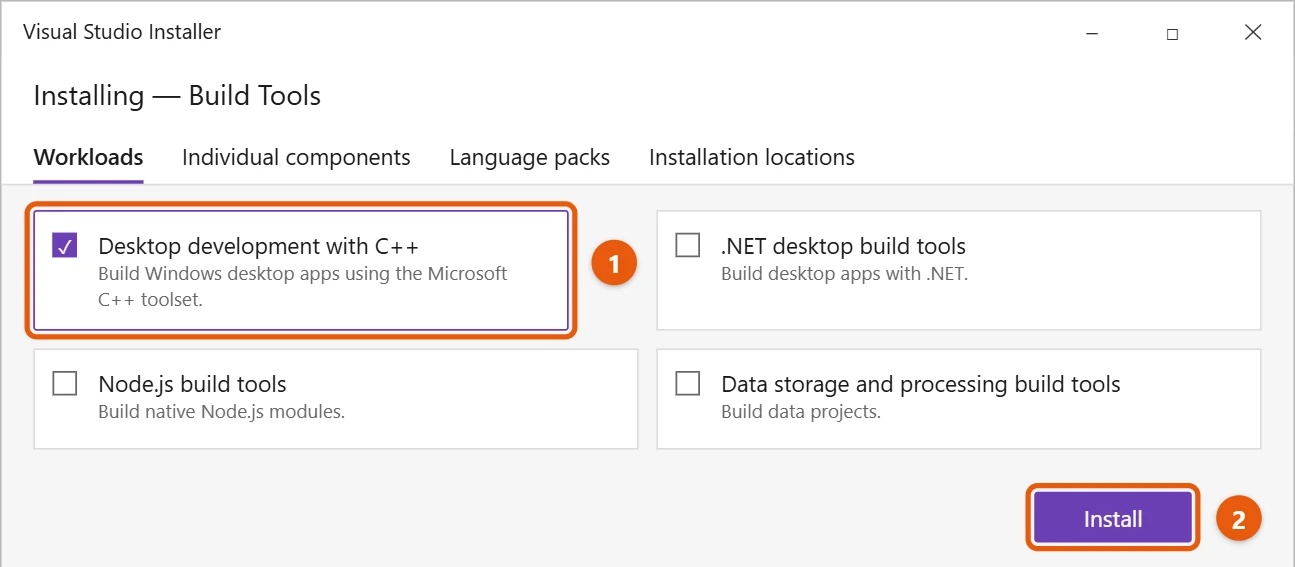
- Select Install and wait for it to finish. It’s a large download.
Write your program
- Open the Developer Command Prompt: select Start, open the Visual Studio folder, and select Developer Command Prompt for VS. The name includes your version number.
- Make a folder and open a new file in Notepad:
md C:\hello
cd C:\hello
notepad hello.c- When Notepad asks to create the file, select Yes. Type this code and save it:
#include <stdio.h>

int main(void)
{
    printf("Hello from Windows 10!\n");
    return 0;
}
Make sure the file is saved as hello.c, not hello.c.txt. See how to show file extensions in Windows 10 to check.
Compile and run it
- Back in the Developer Command Prompt, type
cl hello.cand press Enter. This makeshello.exe. - Type
helloand press Enter to run it.
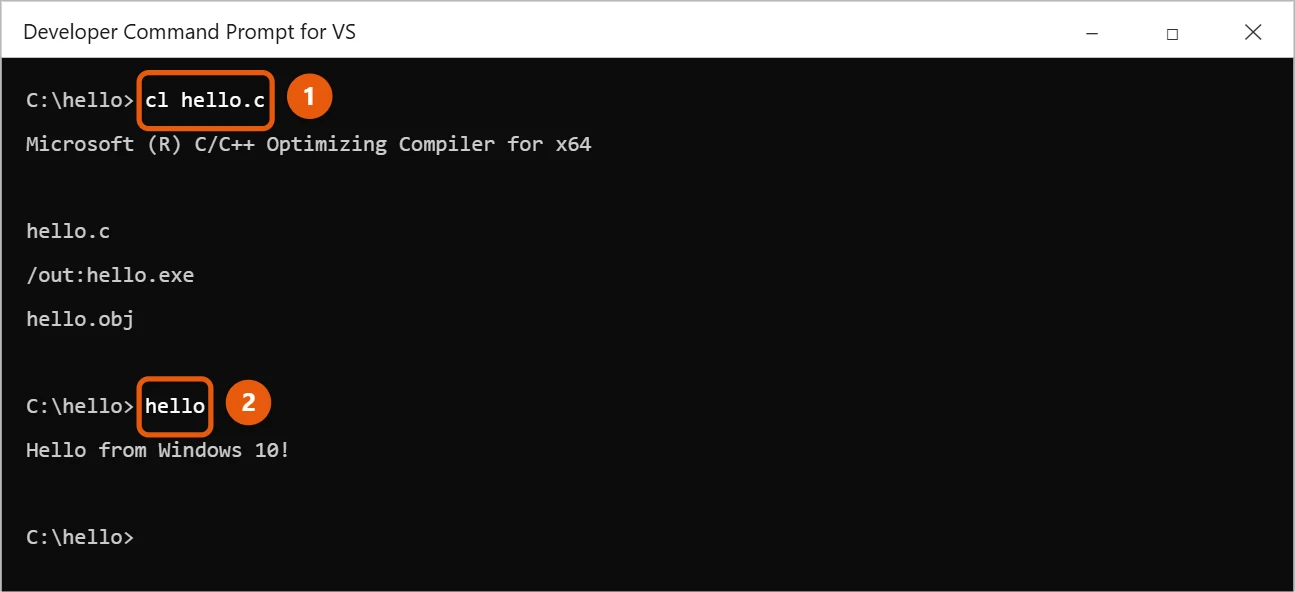
If you see ‘cl’ is not recognized, you’re in the regular Command Prompt. Close it and open the Developer Command Prompt instead, which sets up the compiler paths for you. To learn more about the regular window, see how to open Command Prompt in Windows 10.
Useful compiler options
/Fe:myapp.exenames the program, for examplecl hello.c /Fe:myapp.exe./std:c17or/std:c11compiles to a specific C standard, which some classes require./Ziadds debugging information so you can step through the program in a debugger./O2makes the finished program run faster.
Write code in an editor
Notepad works, but a code editor helps with colors and errors. Visual Studio Code is free from Microsoft. To make sure it finds the compiler, open the Developer Command Prompt, go to your project folder, and type code . to start it from there.
Some courses use the GCC compiler instead. It’s available for Windows through projects such as MSYS2, and the commands are different, so follow your course’s setup steps.
If it won’t compile or run
- fatal error C1034: no include path set: you’re not in the Developer Command Prompt. Open it from the Start menu and try again.
- LNK1104: cannot open file hello.exe: the program is still running. Close its window and compile again.
- A warning says printf isn’t defined: add
#include <stdio.h>at the top of your file. - The program window closes right away: that happens when you double-click hello.exe. Run it from the Developer Command Prompt instead, so you can read the output.
Frequently asked questions
How do I compile more than one file?
List them all, for example cl main.c tools.c. The program is named after the first file.
Can I see more warnings?
Yes. Add /W4, for example cl /W4 hello.c.
Is the compiler free?
Build Tools for Visual Studio is a free download from Microsoft. It’s fine for learning and personal projects; check its license terms if you’re using it at a company.
Can I compile C++ the same way?
Yes. Save the file with a .cpp ending and compile it with cl /EHsc hello.cpp. The /EHsc option turns on standard C++ error handling.
Do I need to open the Developer Command Prompt every time?
Yes, or open it from Windows Terminal, where Visual Studio adds its own Developer Command Prompt profile. It sets up the paths the compiler needs, which the regular Command Prompt doesn’t have.
Can I run my program on another PC?
Usually, yes. Copy the .exe file to the other PC and run it. Small console programs work on most Windows 10 and 11 PCs. If one says a DLL file is missing, install the Microsoft Visual C++ Redistributable on that PC.
If you want to make iPhone apps instead, see can you install Xcode on Windows 10?
Microsoft’s reference is Compile a C program on the command line. More help is on our Windows Help & Guides page.

Matt Jacobs has been working as an IT consultant for small businesses since receiving his Master’s degree in 2003. While he still does some consulting work, his primary focus now is on creating technology support content for SupportYourTech.com.
His work can be found on many websites and focuses on topics such as Microsoft Office, Apple devices, Android devices, Photoshop, and more.