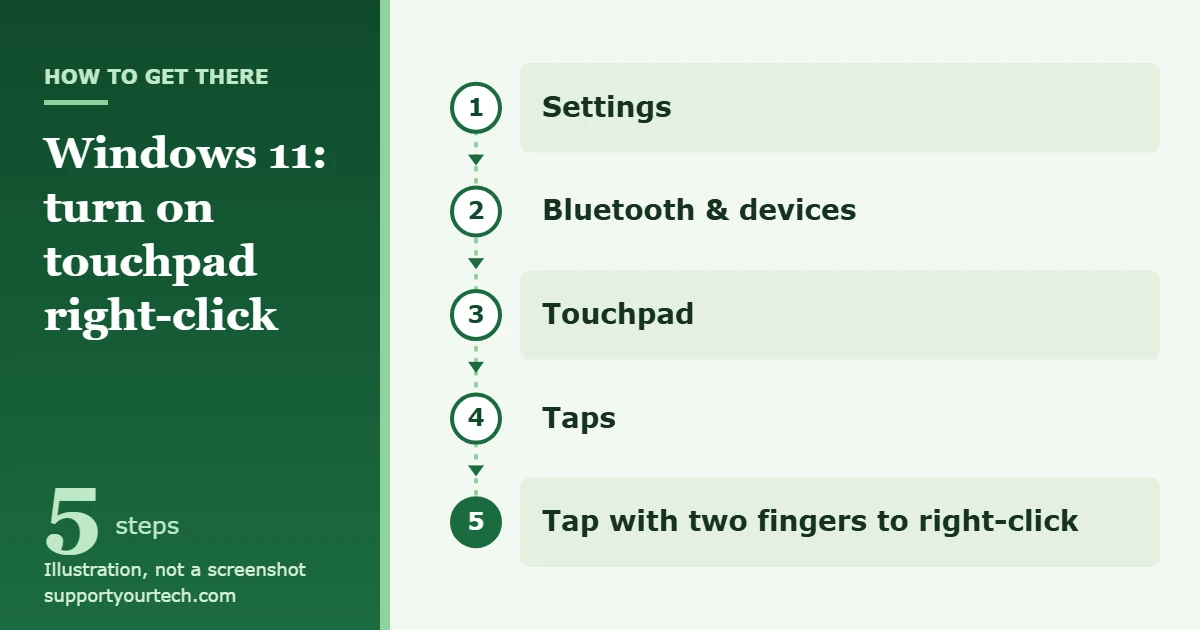
To right-click on a Windows 11 laptop, point to the item and tap the touchpad with two fingers, or press down in the lower-right corner of the touchpad. If neither works, turn the gestures on in Start > Settings > Bluetooth & devices > Touchpad > Taps, or press Shift + F10 on the keyboard.
Applies to: Windows 11 laptops with a touchpad. Checked against Microsoft Support on October 7, 2026.
What you need to know first
A right-click opens a context menu (Microsoft also calls it a shortcut menu): a short list of commands for whatever you pointed at, such as a file, a link, or an empty part of the desktop. On a laptop there is usually no separate right mouse button, so Windows 11 gives you several ways to do the same thing:
- Touchpad gestures: a two-finger tap or a press in the lower-right corner. This is the quickest method and the one most people want.
- Keyboard: Shift + F10, or the menu key if your keyboard has one.
- Touch screen: press and hold the item.
- External mouse: press the right button.
Microsoft notes that some touchpad gestures only work with precision touchpads, which are touchpads that let Windows handle gestures itself. If your laptop has a different kind of touchpad, the gestures and settings you see may be fewer, and the keyboard method is the dependable fallback.
Right-click with the touchpad
- Slide one finger on the touchpad to move the pointer over the item you want to right-click, for example a file on the desktop.
- Tap the touchpad once with two fingers at the same time. You do not need to press hard; a light tap is enough. A menu opens next to the pointer.
- If the two-finger tap does nothing, press down in the lower-right corner of the touchpad instead. The same menu opens.
- Tap a command in the menu with one finger to choose it, or tap an empty area to close the menu without choosing anything.
Microsoft lists both gestures in its touch gestures for Windows article. If your touchpad has separate physical buttons, use the right-hand one.
Turn on the touchpad right-click settings
Both gestures are switched on by default, but they can be turned off. Check them here if a gesture does not respond:
- Select Start, then Settings. You can also press Windows logo key + I. The Settings window opens.
- Select Bluetooth & devices.
- Select Touchpad. The touchpad options appear.
- Find the Taps section and open it if its options are hidden.
- Turn on Tap with two fingers to right-click.
- Turn on Press the lower right corner of the touchpad to right-click.
- Go back to the desktop and try a two-finger tap on an empty area. A menu should open beside the pointer.
The same Taps section also contains Tap with a single finger to single-click and Tap twice and drag to multi-select, plus a touchpad sensitivity setting. Microsoft describes each option in its Windows 11 touchpad gestures overview.
Right-click with the keyboard
The keyboard works even when the touchpad is switched off or broken.
- Select the item you want to right-click, for example a file in File Explorer.
- Press Shift + F10. Microsoft’s shortcut list describes this as displaying the shortcut menu for the selected item.
- Choose the command you want from the menu that opens.
Some keyboards also have a dedicated menu key that does the same job as Shift + F10. Many compact laptop keyboards leave it out, so do not worry if you cannot find one. For more keyboard-only options, see our guide on how to right-click without a mouse in Windows 11.
Right-click on a touch screen
If your laptop has a touch screen, press and hold the item with one finger, then lift your finger. Microsoft lists this gesture as the touch-screen way to show more commands, which is the same menu a right-click opens.
Right-click with Mouse keys
Mouse keys is a Windows accessibility feature that lets the numeric keypad move the pointer and click. It only helps if your laptop keyboard has a numeric keypad.
- Select Start > Settings > Accessibility.
- Under Interaction, select Mouse.
- Turn on the Mouse keys toggle.
- Move the pointer over the item with the keypad: 8 moves up, 2 down, 4 left and 6 right.
- Press the minus sign (–) on the keypad to make the right button the active button.
- Press 5 on the keypad. This right-clicks the item under the pointer.
- Press the forward slash (/) to switch back to the left button, so that 5 gives a normal click again.
To stop using it, return to the same page and turn the Mouse keys toggle off. Microsoft’s Mouse keys instructions list every keypad key.
Check that it worked, and how to undo a change
Point to an empty part of the desktop and two-finger tap. If a menu appears beside the pointer, right-click is working. Then try the lower-right corner press to confirm the second gesture.
To undo anything you changed, go back to Settings > Bluetooth & devices > Touchpad > Taps and turn the option off again. To stop using Mouse keys, turn its toggle off.
If right-click doesn’t work on your laptop
The two-finger tap does nothing
Open the Taps section as described above and make sure Tap with two fingers to right-click is turned on. Tap with both fingertips at the same moment and lift them quickly; resting the fingers and sliding them scrolls instead.
The Taps options are missing
Microsoft says some touchpad gestures only work with precision touchpads. If the options are not on your Touchpad page, select More touchpad options on that page, which opens the Mouse Properties window, and check there for any other touchpad settings your laptop provides. Use the lower-right corner, a physical right button, or Shift + F10 in the meantime.
The corner press right-clicks on the wrong side
Go to Settings > Bluetooth & devices > Mouse and look at Primary mouse button. If it is set to Right, the buttons are swapped for left-handed use, and Microsoft’s touchpad documentation says the right-click zone then moves to the lower-left corner. Set it to Left to put the zone back in the lower-right corner.
The touchpad doesn’t respond at all
First make sure the touchpad is turned on at Settings > Bluetooth & devices > Touchpad. On Windows 10 the page is at Start > Settings > Devices > Touchpad, and our guide on turning the touchpad on or off in Windows 10 covers it in detail.
If the touchpad is on but still dead, Microsoft’s touchpad troubleshooting article recommends updating the driver, then reinstalling it if the update does not help:
- Press Windows logo key + X to open the Quick Link menu (the same menu you get by right-clicking Start) and select Device Manager. A USB mouse makes the next steps easier; without one, select a device and press Shift + F10 wherever a step says right-click.
- Expand Human Interface Devices or Mice and other pointing devices and find the touchpad.
- Right-click the touchpad and select Update driver, then select Search automatically for updated driver software.
- If that changes nothing, right-click the touchpad again, select Uninstall device, confirm with Uninstall, and restart the laptop. Windows attempts to reinstall the driver after the restart.
If the touchpad still does not work after that, Microsoft’s advice is to contact the laptop’s manufacturer.
Settings are unavailable on a work or school laptop
Laptops managed by an employer or school can have settings controlled by the organization. If a touchpad option cannot be changed, ask your IT support team rather than trying to work around it. Shift + F10 still opens the menu in the meantime.
Frequently asked questions
Why does the Windows 11 right-click menu look so short?
Windows 11 shows the most common commands first. Select Show more options in the menu to open the full, older-style list. Holding Shift while you right-click opens that fuller menu directly, and Microsoft says Shift + F10 and the keyboard menu key open it as well. Our guide on opening the full right-click menu in Windows 11 has the steps.
How do I stop accidental right-clicks on the touchpad?
Accidental right-clicks can come from pressing the lower-right corner without meaning to. In the Taps section, turn off Press the lower right corner of the touchpad to right-click and leave Tap with two fingers to right-click on. After that, only a two-finger tap right-clicks.
Can I right-click by pressing and holding on the touchpad?
Microsoft lists press and hold as a touch-screen gesture, not a touchpad one. On the touchpad, use the two-finger tap or the lower-right corner.
Does the touchpad still right-click when a mouse is plugged in?
Yes, as long as the touchpad stays on. The Touchpad page has a Leave touchpad on when a mouse is connected option; if it is turned off, the touchpad and its gestures switch off whenever a mouse is attached.
Do these steps work in Windows 10?
The two-finger tap and lower-right corner press are the same. The settings page is in a different place: Start > Settings > Devices > Touchpad.
Can I change which corner right-clicks?
Windows has no separate setting for the corner. It follows the Primary mouse button choice at Settings > Bluetooth & devices > Mouse, as described in Microsoft’s mouse settings article: with Left selected the zone is the lower-right corner, and with Right selected it is the lower-left.
Once right-click works, a good next step is learning the rest of the built-in gestures on the same Touchpad settings page, such as two-finger scrolling and pinch to zoom, so you can get around Windows 11 without reaching for a mouse.

Matt Jacobs has been working as an IT consultant for small businesses since receiving his Master’s degree in 2003. While he still does some consulting work, his primary focus now is on creating technology support content for SupportYourTech.com.
His work can be found on many websites and focuses on topics such as Microsoft Office, Apple devices, Android devices, Photoshop, and more.