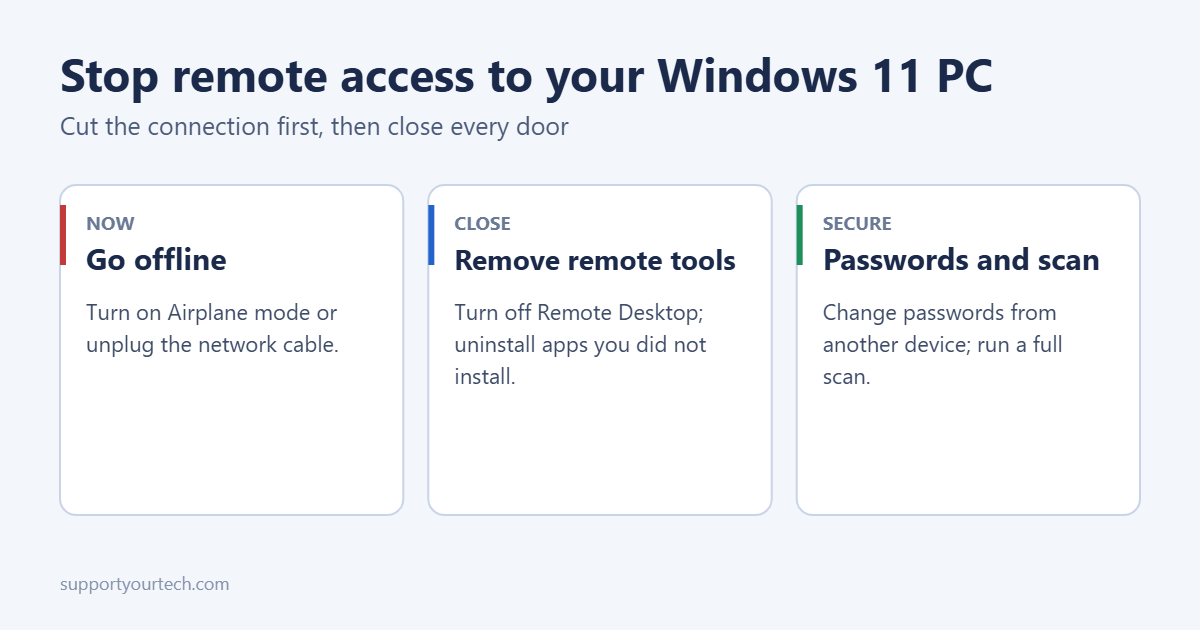
If you think someone is controlling or accessing your Windows 11 PC right now, disconnect it from the internet first: turn on Airplane mode from Quick Settings (Windows key + A) or unplug the network cable. Then turn off Remote Desktop in Settings > System > Remote Desktop, uninstall any remote-access apps you didn’t install yourself, such as AnyDesk or TeamViewer, change your passwords from a different device, and run a full virus scan. The steps below go through each one.
Signs someone has remote access
- The mouse moves or windows open on their own.
- You see a remote-control app running, or an icon in the system tray you don’t recognize.
- You recently let a “support” caller or website connect to your PC.
- Passwords changed, or emails and messages were sent that you didn’t write.
- A new user account appears on the sign-in screen.
Step 1: Disconnect from the internet
Press Windows key + A and click Airplane mode, or unplug the Ethernet cable. This ends any live remote session. Keep the PC offline until you’ve finished Steps 2 to 4.
Step 2: Turn off Remote Desktop and Remote Assistance
- Open Settings > System > Remote Desktop and make sure it’s Off. (Windows 11 Home can’t accept Remote Desktop connections, so on Home this page only says the feature isn’t available.)
- Press Windows key + R, type
sysdm.cpl, and open the Remote tab. - Untick Allow Remote Assistance connections to this computer, and click OK.
If you use Remote Desktop yourself, you can turn it back on later with a strong password. See how to set up Remote Desktop on Windows 11.
Step 3: Remove remote-access apps
- Open Settings > Apps > Installed apps.
- Look for remote-control apps such as AnyDesk, TeamViewer, UltraViewer, ScreenConnect, LogMeIn, Splashtop, RustDesk or Chrome Remote Desktop.
- Click the three dots next to any you didn’t install, or no longer need, and choose Uninstall.
Also check Task Manager > Startup apps (Ctrl + Shift + Esc) for unfamiliar items, and disable them. Scammers often use legitimate tools, so a well-known name doesn’t mean it’s safe if you didn’t put it there. Quick Assist, Microsoft’s own support tool, can also be uninstalled from Installed apps if you never use it.
Step 4: Check for new user accounts
Go to Settings > Accounts > Other users. Remove any account you don’t recognize. See how to remove an account from Windows 11.
Step 5: Scan for malware
- Open Windows Security > Virus & threat protection.
- Click Scan options, choose Full scan, and click Scan now.
- When it’s done, run a Microsoft Defender Antivirus (offline scan) from the same page. It restarts the PC and checks for hidden threats.
Step 6: Change passwords from another device
Use a phone or a different computer, in case the PC is still compromised:
- Your Microsoft account first, then email, banking and any accounts saved in your browser.
- Turn on two-step verification wherever it’s offered.
- In your Microsoft account’s security page, review recent activity and sign out of all sessions.
- If you shared card or bank details, or let a caller see your banking, contact your bank right away.
Back on the PC, change your Windows PIN and password in Settings > Accounts > Sign-in options. See how to set a PIN in Windows 11.
Step 7: Lock things down
- Keep Windows Security firewall on for all networks.
- Install all updates in Settings > Windows Update.
- Use a standard (non-admin) account for daily use if others share the PC.
- Never let anyone who contacts you unexpectedly connect to your PC. Microsoft doesn’t make unsolicited support calls.
When to reset Windows
If you still see strange behavior after these steps, or you’re not confident everything was removed, back up your personal files (not programs) and use Settings > System > Recovery > Reset this PC with Remove everything. A clean reinstall removes anything a remote attacker left behind.
Frequently asked questions
Can someone access my PC if Remote Desktop is off?
Yes, through a remote-control app or malware, which is why Steps 3 and 5 matter. Turning off Remote Desktop only closes one door.
How do I check for remote access on Windows 10?
The steps are the same, with Remote Desktop under Settings > System. See how to set up Remote Desktop on Windows 10 for where the setting lives.
Summary
- Disconnect from the internet right away.
- Turn off Remote Desktop and Remote Assistance.
- Uninstall remote-access apps you didn’t install.
- Remove unknown accounts and run full and offline scans.
- Change passwords from another device and turn on two-step verification.

Matt Jacobs has been working as an IT consultant for small businesses since receiving his Master’s degree in 2003. While he still does some consulting work, his primary focus now is on creating technology support content for SupportYourTech.com.
His work can be found on many websites and focuses on topics such as Microsoft Office, Apple devices, Android devices, Photoshop, and more.