To create a batch file in Windows 10, open Notepad and type the commands you want to run, one per line. Select File > Save As, set Save as type to All Files (*.*), and give the file a name that ends in .bat, such as open-contoso.bat. Double-click the file to run it.
Applies to: Windows 10. Checked against Microsoft Learn on September 27, 2026.
A batch file (.bat) is a text file with Command Prompt commands. Windows runs them in order, which saves you typing the same commands again and again.
1. Write the commands in Notepad
- Select Start, type Notepad, and open it.
- Type your commands. This example opens a folder and waits for a key press:
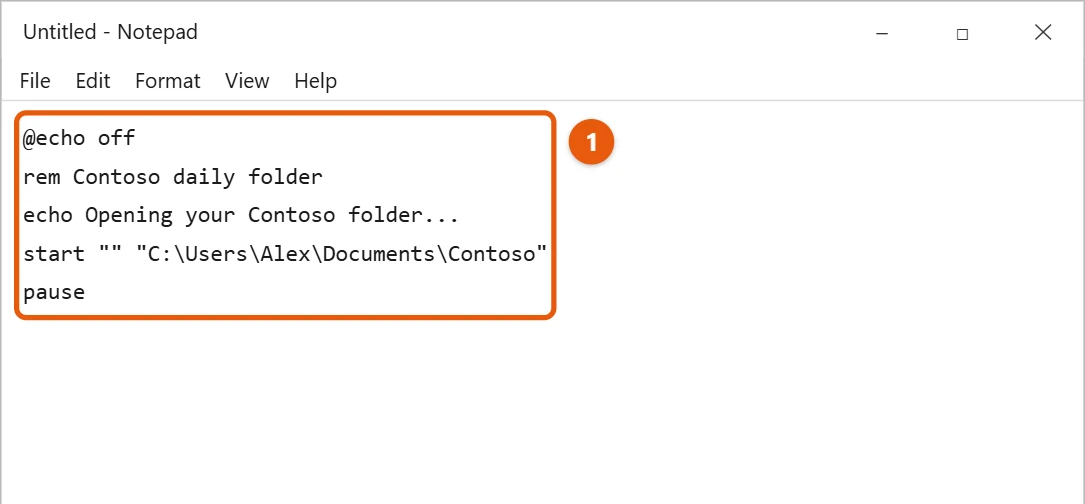
What each line does:
@echo offstops the commands themselves from showing, so only the messages appear.remadds a note that Windows ignores.echoshows a message.start "" "C:\Users\Alex\Documents\Contoso"opens the folder. Change the path to one of your own.pausewaits for you to press a key before the window closes.
2. Save it as a .bat file
- Select File > Save As.
- In File name, type a name ending in .bat, for example open-contoso.bat.
- Set Save as type to All Files (*.*). If you skip this, Notepad saves it as a .txt file.
- Select Save.
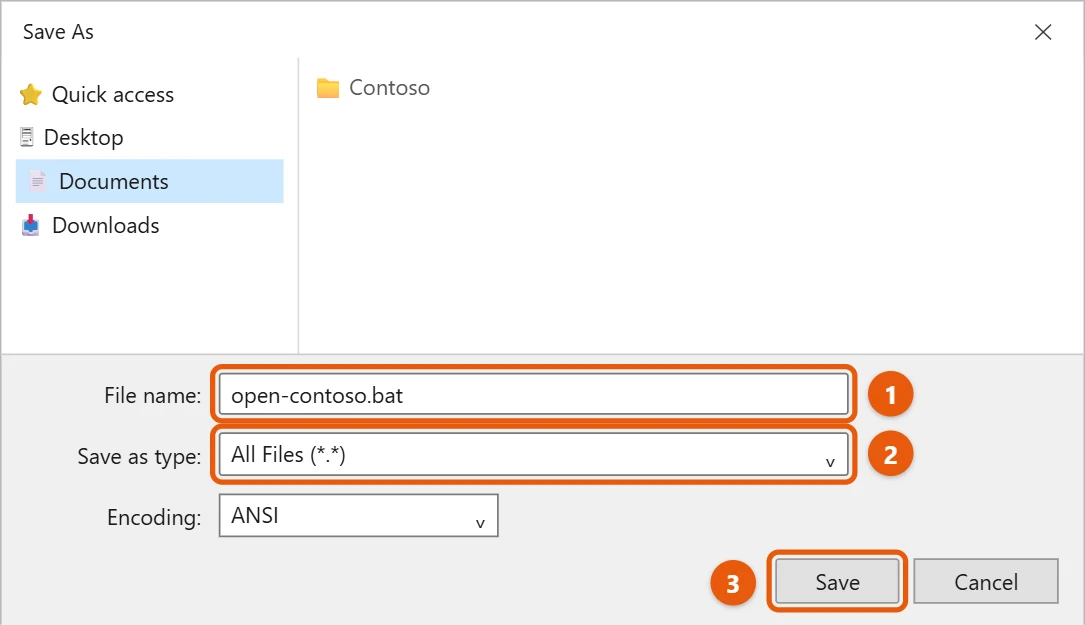
To check the extension, turn on file name extensions in File Explorer. See how to show file extensions in Windows 10.
3. Run or edit the batch file
- Run it: double-click the file.
- Run it as administrator: right-click it and select Run as administrator. Only do this for commands that need it.
- Edit it: right-click the file and select Edit. It opens in Notepad.
- Run it on a schedule: use Task Scheduler to start it at a set time.
Stay safe with batch files
- Only run batch files you wrote yourself or that come from someone you trust. A batch file can delete files or change settings.
- Test new commands in Command Prompt first. See how to open Command Prompt in Windows 10.
Frequently asked questions
What’s the difference between .bat and .cmd?
Both work the same way for everyday use in Windows 10. Most people use .bat.
Why does the window close right away?
The batch file finished. Add pause as the last line to keep the window open.
Can a batch file shut down my PC?
Yes, with the shutdown command. See how to schedule a shutdown in Windows 10.
To make a plain text settings file instead of a script, see how to create an INI file in Windows 10.
Microsoft’s references are echo, rem, and pause, which describe these batch file commands. More help is on our Windows Help & Guides page.

Matt Jacobs has been working as an IT consultant for small businesses since receiving his Master’s degree in 2003. While he still does some consulting work, his primary focus now is on creating technology support content for SupportYourTech.com.
His work can be found on many websites and focuses on topics such as Microsoft Office, Apple devices, Android devices, Photoshop, and more.