Open Device Manager, right-click your NVIDIA graphics card under Display adapters, select Properties, and on the Driver tab select Roll Back Driver. If that button is greyed out, uninstall the current driver and install an older version from NVIDIA’s driver download page.
Applies to: Windows 10. Windows 10 reached end of support on October 14, 2025, and only PCs enrolled in Extended Security Updates still get security fixes, through October 12, 2027.
Before you start
- Check the graphics driver version you have now, so you know what you are going back from.
- Save your work. The screen may flicker or go black for a moment while the driver changes.
Roll back the driver
- Right-click Start and select Device Manager.
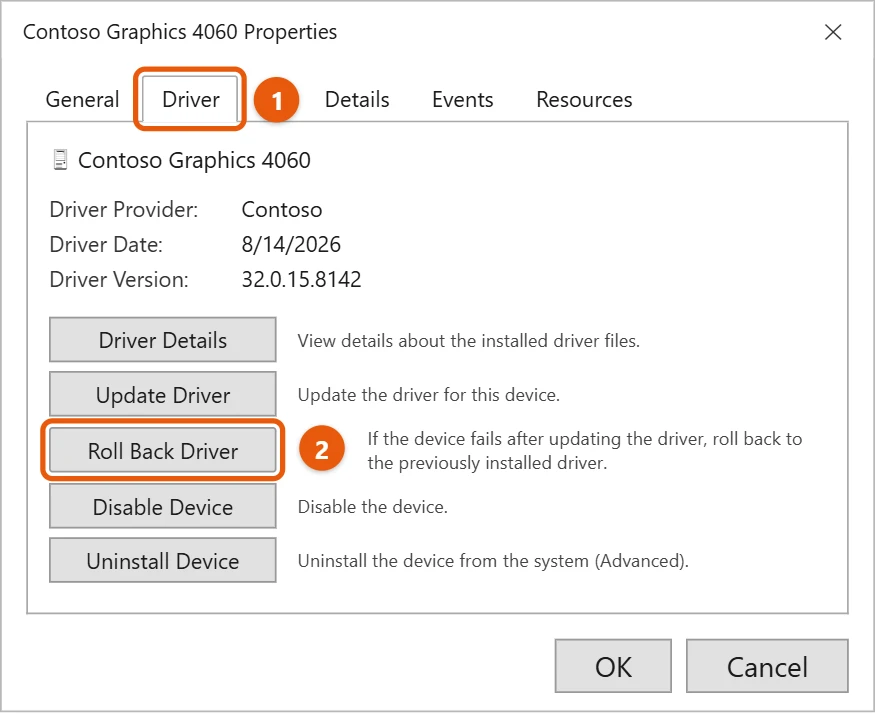
- Open Display adapters, right-click your NVIDIA card, and select Properties.
- Select the Driver tab, then select Roll Back Driver.
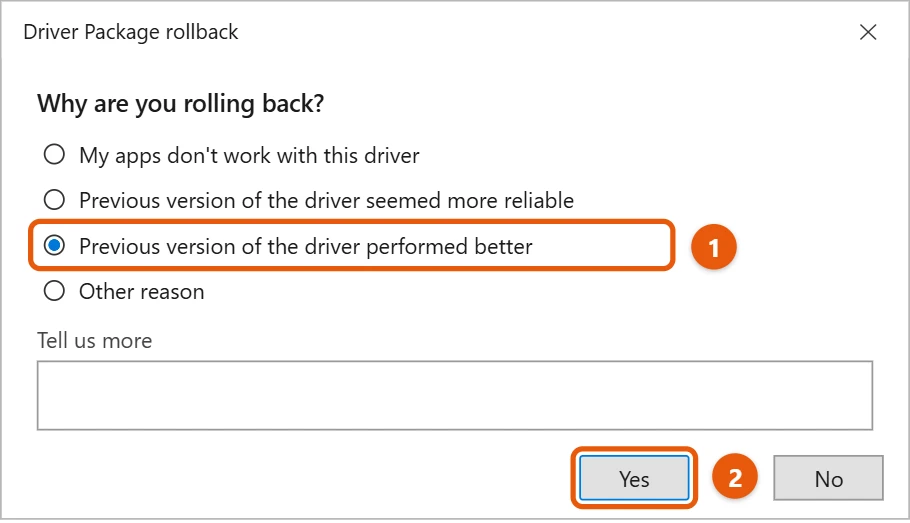
- Choose a reason, then select Yes.
- Restart your PC if Windows asks you to.
If Roll Back Driver is greyed out
Windows only keeps the one driver you had before. If there isn’t one, install an older driver yourself:
- Download the older driver you want from NVIDIA’s official driver download page. Pick the version for your card and Windows 10.
- In Device Manager, right-click the card and select Uninstall device. Check Delete the driver software for this device, then select Uninstall.
- Restart, then run the older driver’s installer. If it offers a Custom or clean install option, choose it.
Stop Windows from updating it again
Windows Update may install a newer driver later. To give yourself time, open Settings > Update & Security > Windows Update and select Pause updates for 7 days. When you’re ready for the newest driver again, you can update graphics drivers in Windows 10.
If the rollback causes problems
- “This NVIDIA graphics driver is not compatible with this version of Windows.” You downloaded a driver for a different Windows version or card. Check that you picked Windows 10 64-bit and the right GPU series on NVIDIA’s page.
- “NVIDIA Installer failed.” Close other apps, restart the PC, and run the installer again with the clean install option.
- The screen goes black after installing. Wait a minute, then restart. If it stays black, start in safe mode, uninstall the driver in Device Manager, and try a different version.
- You can’t find the version you want. NVIDIA keeps older releases on its driver download site, often on a page for beta and older drivers.
Frequently asked questions
Will rolling back delete my game settings?
No. It only changes the driver. Settings saved in your games stay the same.
Should I use an old driver for good?
Only until the problem is fixed. Newer drivers include fixes, so try the latest one again later.
Will NVIDIA keep making drivers for Windows 10?
Not for long. NVIDIA’s plan is for the final Game Ready driver that supports Windows 10 to arrive in October 2026. After that, it plans quarterly security updates for Windows 10 through October 2029, without new game optimizations. GeForce GTX 900 and 10 series cards already get only security updates.
How do I know which driver version caused the problem?
Note your current version in NVIDIA Control Panel or Device Manager before you change anything. If the problem started after an update, the version before it is usually the one to go back to.
Can I roll back with the NVIDIA App?
Not to a specific older version. The NVIDIA App installs the latest driver and can reinstall it, but to go back further, download the older driver from NVIDIA’s website as shown above.
Does rolling back affect G-SYNC, DLSS, or other features?
It can. Newer features and game fixes may need a newer driver. If a game asks for a newer version, update again once NVIDIA fixes the problem you rolled back for.
Is it safe to use a beta driver?
Beta drivers can fix a problem sooner, but they’re less tested. Use them only if NVIDIA or a game’s maker suggests one for your issue.
The Device Manager driver options are explained in Update drivers through Device Manager in Windows.
If you have since moved to Windows 11, you can open NVIDIA Control Panel on Windows 11 to review your settings, or uninstall and reinstall NVIDIA drivers on Windows 11.

Matt Jacobs has been working as an IT consultant for small businesses since receiving his Master’s degree in 2003. While he still does some consulting work, his primary focus now is on creating technology support content for SupportYourTech.com.
His work can be found on many websites and focuses on topics such as Microsoft Office, Apple devices, Android devices, Photoshop, and more.