Have you ever just yanked your external hard drive out of your computer, maybe in a hurry, and then worried about losing your precious files? We’ve all been there, but there’s a super simple way to avoid that headache. To safely eject an external hard drive in Windows 10, just find the “Safely Remove Hardware” icon in your system tray, click it, and select your drive. Windows will tell you when it’s safe to unplug, making sure all your data stays intact and happy. It’s a small step that prevents big problems, trust me on this one.
Tutorial – How to Eject Your External Hard Drive in Windows 10
Safely removing your external hard drive is like properly shutting down a computer, it just keeps everything running smoothly and prevents any nasty surprises. Following these steps ensures your data remains safe and sound, avoiding potential corruption or loss that can happen when you just pull the plug.
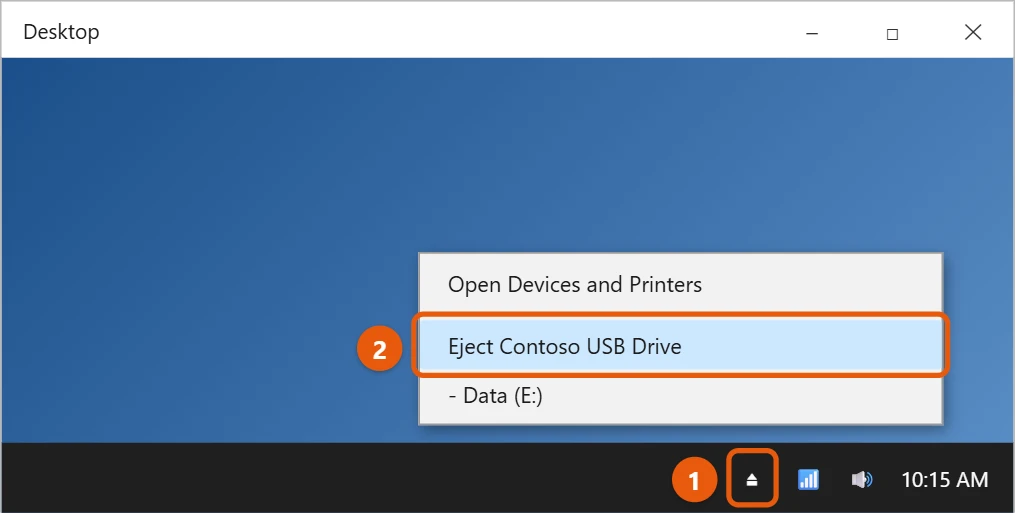
Step 1: Locate the Safely Remove Hardware and Eject Media icon.
Look in the bottom-right corner of your screen, near the clock, for a small icon that looks like a USB plug with a small checkmark or arrow over it. Sometimes it might be hidden, so you may need to click the small upward-pointing arrow, kind of like a tiny upside-down caret, to reveal all the hidden icons in your system tray.
This little icon is your best friend when it comes to external devices, it’s the gateway to disconnecting them properly. Think of it as the polite way to say goodbye to your drive, rather than just walking away mid-conversation. If you don’t see it, double-check that your external drive is actually plugged in and recognized by your computer.
Step 2: Click the icon.
Once you spot that friendly little icon, go ahead and click it. A small menu will pop up, showing you all external devices currently connected to your computer that are eligible for safe removal.
This menu is crucial because it lists all the devices you can safely eject, so take a moment to look at what’s there. Don’t worry, clicking it won’t immediately eject anything; it just opens up your options for safe removal.
Step 3: Select the external hard drive you want to eject.
From the menu that appears, you’ll see a list of devices, often by their brand name or drive letter, such as “Eject Seagate Portable Drive” or “Eject USB Disk (D:)”. Make sure you choose the correct hard drive you intend to remove.
Picking the right drive is super important because you don’t want to accidentally eject something else, like a USB flash drive you’re still using. If you’re unsure which one it is, you can usually match it by its name or the drive letter you see in File Explorer.
Step 4: Wait for the “Safe to Remove Hardware” notification.
After you click your chosen drive, Windows will do its thing to prepare it for removal. You should then see a notification pop up, usually near the clock, saying “Safe to Remove Hardware” or “It is safe to remove Hardware”.
This message is your green light, your all-clear, telling you that all operations involving the drive have finished and it’s now perfectly safe to physically unplug it from your computer. If you get a message saying the drive is still in use, don’t worry, we’ll cover that in the tips section.
Once you receive the “Safe to Remove Hardware” message, your external hard drive is no longer actively communicating with your Windows 10 computer. This means all pending writes to the drive are complete, and the operating system has released its hold on the device. You can now physically disconnect the hard drive from your USB port without any risk of data corruption or loss. The drive might even power down or spin down, depending on its design, indicating it’s ready for removal.
Tips for Ejecting Your External Hard Drive in Windows 10
- Always close all programs and files that are accessing the external hard drive before attempting to eject it. This is often why you get the “device is in use” message, as Windows won’t eject a drive if something is still actively using its files.
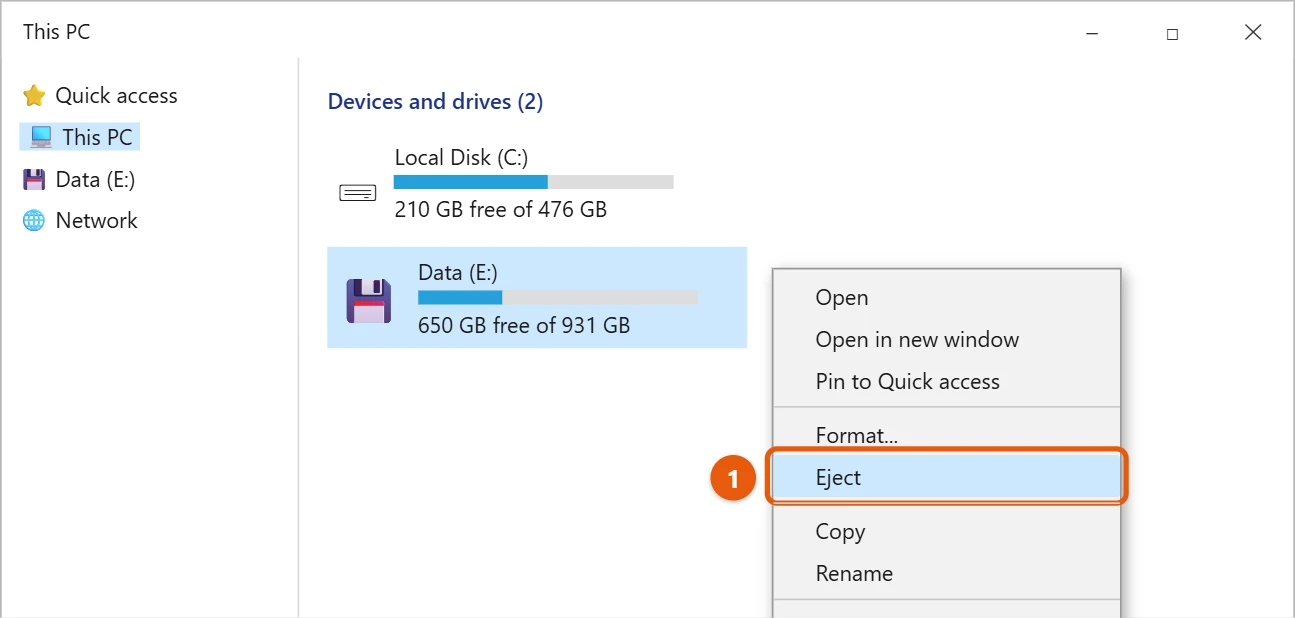
- If the “Safely Remove Hardware” icon isn’t visible, open File Explorer, right-click on your external hard drive, and select “Eject” from the context menu. This provides an alternative way to initiate the safe removal process.
- Should you encounter a “device is currently in use” error and can’t find the culprit program, try closing all open applications, checking Task Manager for any processes related to the drive, or as a last resort, restarting your computer to clear any lingering connections.
- Understand the difference between the “Quick Removal” and “Better Performance” settings for your drive in Device Manager: “Quick Removal” allows you to pull the drive without ejecting (though still not recommended), while “Better Performance” requires safe ejection for optimal data integrity.
- Never remove an external hard drive while files are being transferred to or from it, as this is a surefire way to corrupt your data and potentially damage the drive.
Frequently Asked Questions About Ejecting External Hard Drives
Why do I need to eject my external hard drive safely?
Safely ejecting your external hard drive is super important because it ensures that all data transfers are complete and that Windows has finished any background operations on the drive. If you just yank it out, you risk corrupting your files, losing data, or even damaging the drive’s file system, which can lead to a really bad day. Think of it as saving your work before turning off your computer; you wouldn’t want to lose all your progress, right?
What happens if I just unplug my external hard drive without ejecting it?
If you just unplug your drive without safely ejecting it, you’re playing a bit of a risky game. You might get away with it sometimes, but you could interrupt data being written to the drive, which can lead to corrupted files, unreadable sectors, or even render the entire drive inaccessible. It’s like pulling the plug on a life support machine; you just don’t know what critical process you might be stopping mid-flow.
What should I do if the eject option isn’t available or the drive isn’t listed?
If the eject option isn’t showing up or your drive isn’t listed, first, double-check that the drive is properly connected and powered on. Sometimes a loose cable is the culprit. If it’s connected, it might mean Windows hasn’t fully recognized it, or, less commonly, a driver issue. Try restarting your computer, and if the issue persists, check Device Manager to see whether the drive is visible and its drivers are up to date.
Can I eject an internal hard drive in Windows 10?
No, you cannot eject an internal hard drive in the same way you would an external one. Internal hard drives are essential components of your computer’s operation and are meant to stay connected at all times. The “Safely Remove Hardware” option is specifically for external, removable storage devices. Trying to “eject” an internal drive would be like trying to eject the engine from a car while it’s still running; it just doesn’t work that way.
What if Windows says the device is currently in use, but I’ve closed everything?
This can be a frustrating situation! If Windows insists the device is in use even after you’ve closed all visible programs, it’s possible a background process or a hidden application is still accessing the drive. Try checking Task Manager by pressing Ctrl + Shift + Esc to look for any processes related to the drive. Sometimes simply waiting a minute or two can help, or as a last resort, saving all your work and restarting your computer will usually clear any lingering connections and allow for safe removal.
Summary
- Locate “Safely Remove Hardware” icon.
- Click the icon to open the menu.
- Select your external hard drive.
- Wait for “Safe to Remove Hardware” message.
- Physically unplug the drive.
Conclusion
So there you have it, the straightforward, no-nonsense guide to safely removing your external hard drive in Windows 10. It might seem like a small detail, a tiny step in your daily computer routine, but trust me, it carries a lot of weight when it comes to keeping your data secure and your devices healthy. Think of it as a courtesy call to your hard drive, letting it know you’re about to disconnect, rather than just pulling the rug out from under it.
Ignoring this simple process is like playing Russian roulette with your precious photos, important documents, or that massive game library you spent ages downloading. One wrong yank, one interrupted write cycle, and poof, you could be looking at corrupted files or even a completely unreadable drive. And nobody wants that kind of stress, right? Especially when the solution is literally just a couple of clicks away.
By taking those few extra seconds to properly eject your drive, you’re not just being careful, you’re being smart. You’re safeguarding your digital life, ensuring that your external storage devices remain reliable and that your files are always there when you need them. It’s a habit worth forming, a simple discipline that pays huge dividends in peace of mind. So, next time you’re done with your external hard drive, remember to follow these steps. It’s a crucial part of responsible computing and a vital skill for anyone using Windows 10. Understanding how to eject an external hard drive in Windows 10 correctly will save you from potential headaches and data loss, allowing you to focus on what truly matters: your digital content. Make it a routine, and you’ll never have to worry about that dreaded “corrupted drive” message again.

Matt Jacobs has been working as an IT consultant for small businesses since receiving his Master’s degree in 2003. While he still does some consulting work, his primary focus now is on creating technology support content for SupportYourTech.com.
His work can be found on many websites and focuses on topics such as Microsoft Office, Apple devices, Android devices, Photoshop, and more.