Drag a window to the left or right edge of the screen and let go. It fills that half, and Windows shows your other open windows so you can pick one for the other half. You can also press Windows logo key + Left arrow or Right arrow.
Applies to: Windows 11. Checked against Microsoft Support on September 29, 2026.
Split the screen with Snap layouts
- Point to the Maximize button in the top-right corner of a window, or press Windows logo key + Z.
- Choose a spot in one of the layouts. The window moves there.
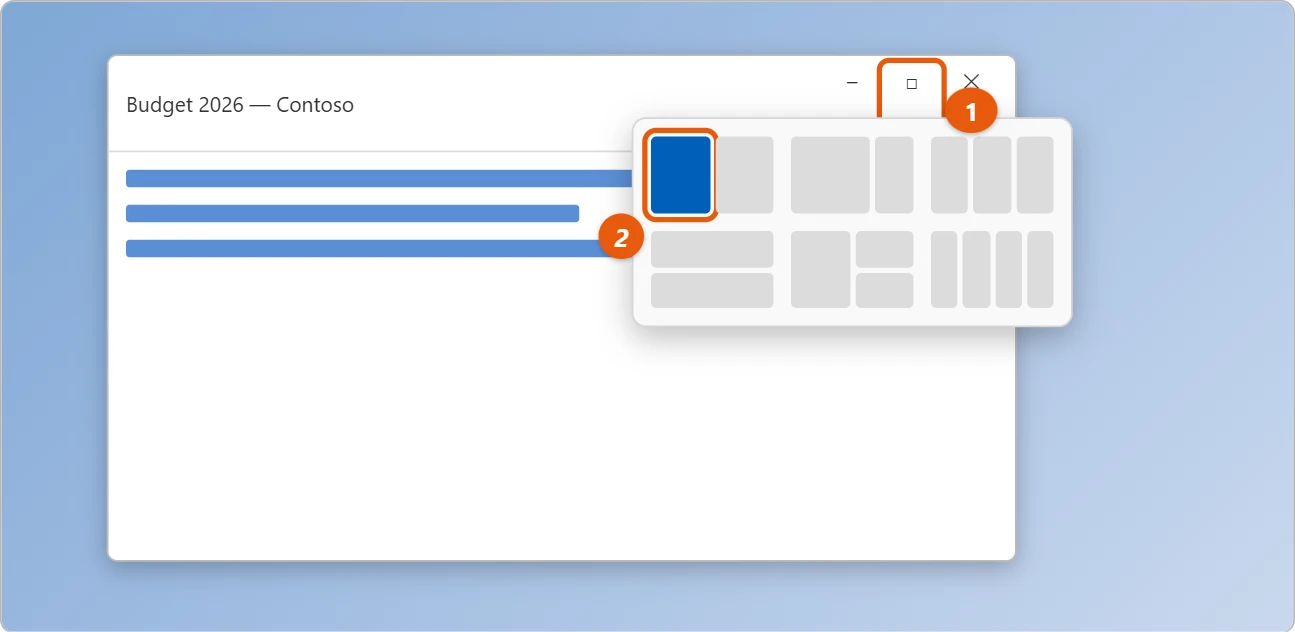
- Windows shows your other open windows. Select one to fill the next spot.
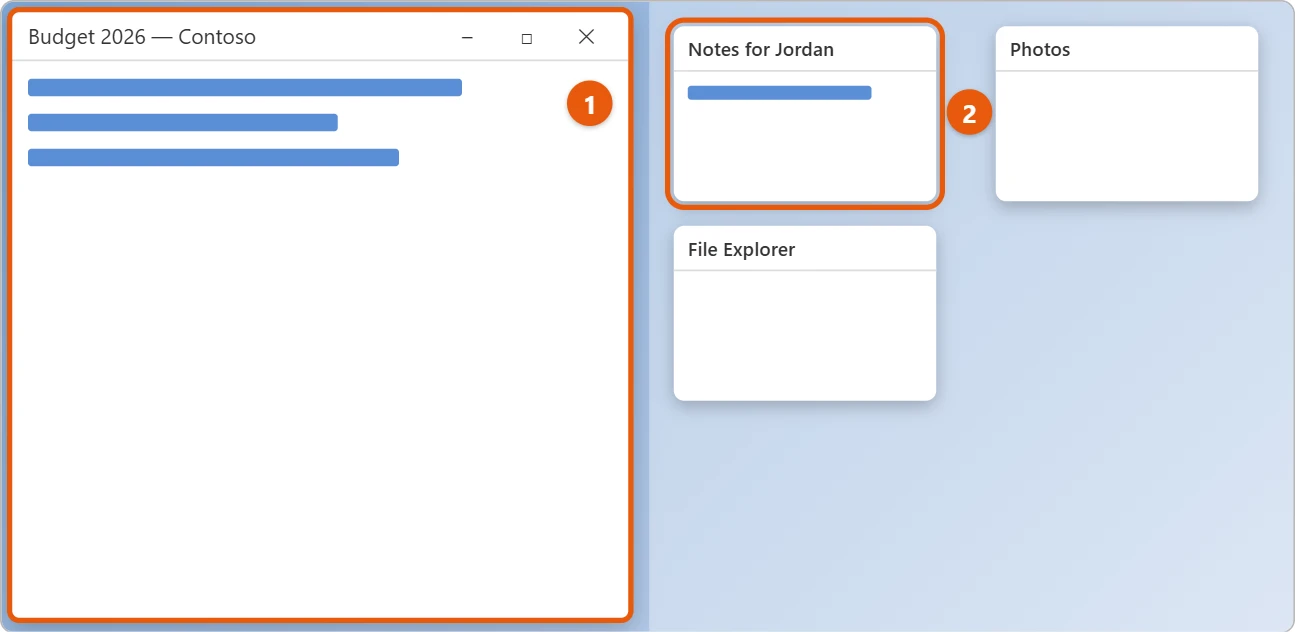
You can also drag a window to the top of the screen to see the same layouts.
Split the screen with the keyboard
- Select the window you want.
- Press Windows logo key + Left arrow or Right arrow.
- Pick a window for the other side from the ones Windows shows.
For four windows, press Windows logo key + Up arrow or Down arrow after snapping a window to a side. It moves into a corner.
Change the size of each side
Drag the line between two snapped windows. The windows on both sides resize to fit.
Turn Snap on or off
Select Start > Settings > System > Multitasking. Switch Snap windows on or off, or expand it to choose which Snap options you want.
Get a snapped set back with Snap groups
Windows remembers windows you snapped together as a group. If you minimize them or switch to another app, point at one of the apps on the taskbar and select the group in the preview. All the windows come back in the same layout. You can also see groups in Alt + Tab and Task View.
Which layouts you’ll get
The layouts depend on your screen. Most laptops show two-, three-, and four-window layouts. Wide and ultrawide monitors also offer three columns side by side. If your screen is set to a large scale, such as 175% or more, Windows may offer fewer layouts because windows wouldn’t fit.
If a window won’t snap or fill its spot
- The window is too small or too big. Some apps have a minimum width and can’t shrink to a third or a quarter of the screen. Pick a layout with bigger spaces.
- Nothing happens when you drag to the edge. Check Settings > System > Multitasking and make sure Snap windows is on, with the options under it checked.
- The layouts don’t appear when you drag to the top. Expand Snap windows and turn on Show snap layouts when I drag a window to the top of my screen.
- A game or video won’t snap. Full-screen apps can’t be snapped. Press Esc or F11 to leave full screen first.
Frequently asked questions
Why don’t I see Snap layouts?
Check that Snap windows is on in Settings > System > Multitasking. On small screens, Windows shows fewer layouts.
Can I split across two monitors?
Each screen has its own layouts. For more, see how to set up multiple monitors in Windows 11.
What if I need more room?
Add another desktop for a different set of apps. See how to switch desktops in Windows 11.
How do I undo split screen?
Drag a snapped window away from its spot, or select it and press Windows + Up arrow to maximize it. The other windows stay where they are.
Does split screen work on a tablet?
Yes. Drag an app’s title bar to the left or right edge with your finger.
To make one app fill the whole screen instead, see how to go full screen in Windows 11.
Looking for the old Cascade option? See how to cascade windows in Windows 11 and what to use instead.
If a window is stuck off the edge of the screen, see how to move a window that’s off screen.
If you only need one small window, like a calculator or a video call, to stay visible over another app, see how to pin a window on top in Windows 11.
Microsoft’s reference is Snap your windows. More help is on our Windows Help & Guides page.

Matt Jacobs has been working as an IT consultant for small businesses since receiving his Master’s degree in 2003. While he still does some consulting work, his primary focus now is on creating technology support content for SupportYourTech.com.
His work can be found on many websites and focuses on topics such as Microsoft Office, Apple devices, Android devices, Photoshop, and more.