A stacked bar chart is a horizontal bar chart where each bar is split into colored segments. The full length of a bar shows a total, and each segment shows how much one part contributes to it. Think sales by region split into quarters, survey answers by department, or a budget split by spending category.
The quick version: select your data including the headers, go to Insert > Insert Column or Bar Chart, and under 2-D Bar pick Stacked Bar (or 100% Stacked Bar if you care about percentages more than totals). The rest of this guide covers how to lay out the data so the chart comes out right the first time, plus the fixes most people need next: categories listed upside down, thin bars, segments in the wrong order and missing totals.
Applies to: Excel for Microsoft 365 (Windows and Mac), Excel 2024, Excel 2021, Excel 2019 and Excel 2016. Menu names below match Microsoft’s current support pages for charts; older versions call the Chart Design tab simply Design under Chart Tools.
Stacked bar, 100% stacked bar or stacked column?
Microsoft’s list of available chart types in Office puts three bar types side by side: clustered, stacked and 100% stacked, each with a 3-D twin. Pick the one that answers your question:
- Stacked Bar shows real values. Bars have different lengths, so you can compare totals (which region sold the most) and see the parts inside each one.
- 100% Stacked Bar stretches every bar to the same length and shows each segment as a share of its bar. Use it when the mix matters more than the size, such as survey responses or market share.
- Clustered Bar puts the segments next to each other instead of end to end. It’s the better choice when readers need to compare individual segments precisely, because only the first segment of a stacked bar starts from a common baseline.
Bars run horizontally, which leaves room on the left for long category names. Microsoft recommends bar charts when axis labels are long or the values are durations. If your categories are months or years, a vertical layout usually reads better, and you can build a stacked column chart in Excel with almost the same clicks.
Skip the 3-D versions for anything people need to read accurately. They look the same as the 2-D charts underneath, but the perspective makes segment lengths harder to judge.
Set up your data first
Excel builds the chart from the shape of your table, so a minute spent here saves most of the fixing later. Put the items you want as bars in the first column, and each part (segment) in its own column to the right, with one header row on top:
| Region | Q1 | Q2 | Q3 | Q4 |
|---|---|---|---|---|
| North | 120 | 135 | 150 | 160 |
| South | 90 | 110 | 105 | 130 |
| East | 75 | 80 | 95 | 100 |
| West | 140 | 125 | 155 | 170 |
With this layout, each region becomes one bar and Q1 to Q4 become the colored segments, with the quarter names in the legend.
- Leave the top-left cell blank or give it a label. Either works, but don’t put a number there.
- Keep the range solid. Blank rows or columns inside the table can split the chart or add empty bars.
- Leave totals out. If you select a Total column, Excel stacks it as one more segment and every bar doubles in length. You can add totals as labels later.
- Use real numbers. Values stored as text don’t plot. A small green triangle in the corner of a cell is the usual sign.
- Consider an Excel table. Select the data and press Ctrl + T before you insert the chart. Rows you add to the table later are picked up by the chart automatically.
How to create a stacked bar chart in Excel
- Select the data. Click the top-left cell of the table and drag to the bottom-right cell, headers included. In the example that’s the block from Region to the West Q4 value.
- Open the bar chart menu. Go to the Insert tab. In the Charts group, click Insert Column or Bar Chart (the icon with small bars). A gallery opens with Column and Bar sections.
- Pick Stacked Bar. Under 2-D Bar, hover over the second icon to see its name and a live preview, then click Stacked Bar. For percentages, choose the third icon, 100% Stacked Bar. The chart appears on the sheet and the Chart Design and Format tabs show up on the ribbon.
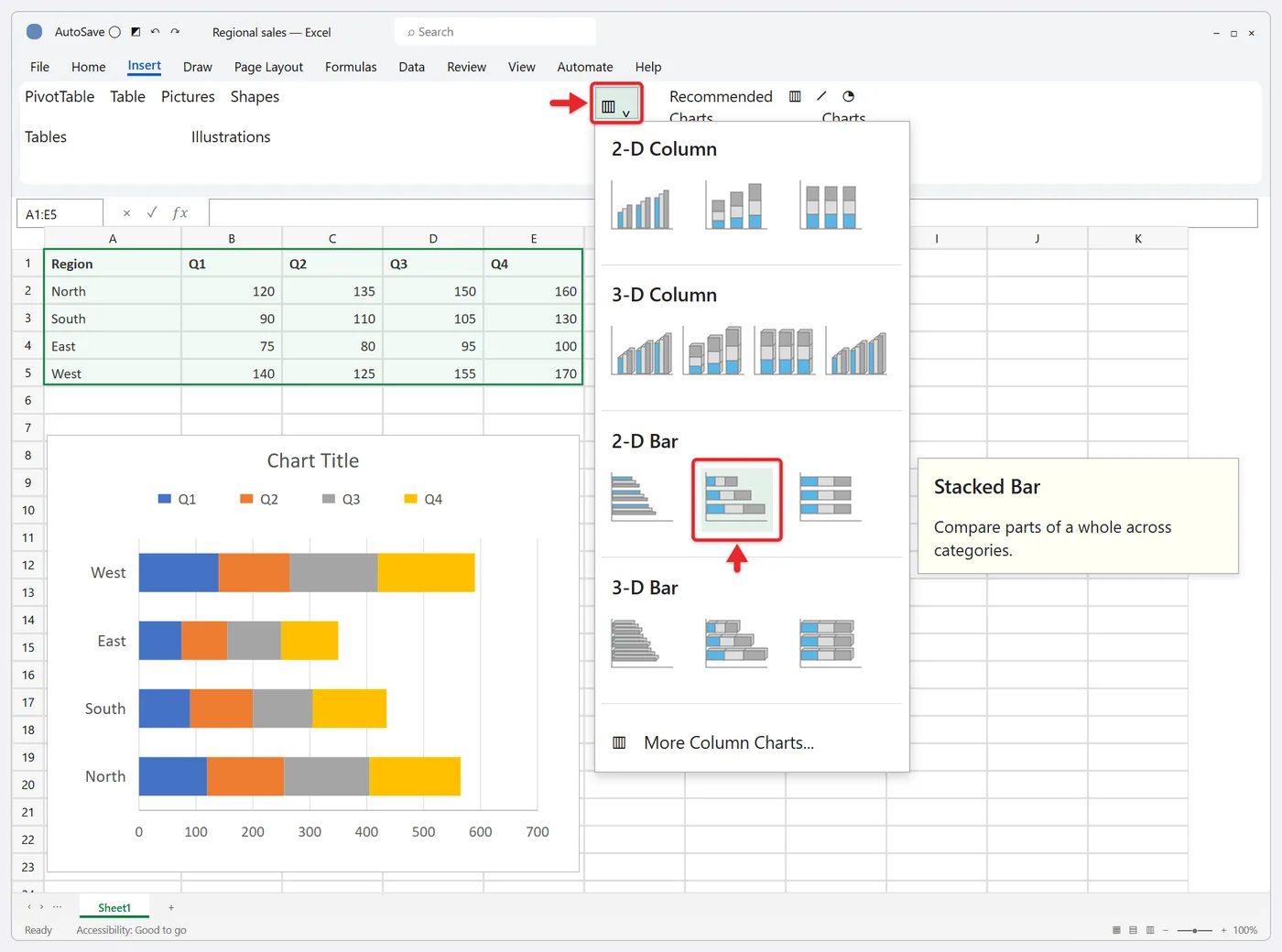
- Check what became the bars. You should see one bar per region, each split into four colors. If you got four bars named Q1 to Q4 with regions as segments, select the chart and click Chart Design > Switch Row/Column. Microsoft’s page on changing how rows and columns are plotted explains why: by default, Excel puts whichever dimension has more items along the category axis, which isn’t always the one you meant.
- Give it a title. Click Chart Title on the chart and type something specific, such as “2026 Sales by Region and Quarter.”
- Move or resize the chart. Drag the chart border to move it and drag a corner handle to resize it. Taller charts give each bar more room.
You’ll know it worked when the bar lengths match the row totals (in the example, West is the longest at 590 and East the shortest at 350) and the legend lists your segment names.
Other ways to insert the same chart
- Recommended Charts: Select the data, click Insert > Recommended Charts, open the All Charts tab, choose Bar and select Stacked Bar, then click OK. The dialog shows a bigger preview, which helps when you’re unsure about rows versus columns. Microsoft documents this route in Create a chart with Recommended Charts.
- Quick Analysis: After selecting the data, a small button appears at the bottom-right corner of the selection. Its Charts tab offers a few suggestions, and More opens the same All Charts list.
- Convert an existing chart: If you already made a clustered bar or column chart, select it and use Chart Design > Change Chart Type. Your titles and colors carry over.
Fix the order of bars and segments
Categories appear upside down
This trips up almost everyone. Bar charts plot the first row of your table at the bottom, so North ends up at the bottom and West at the top. To make the chart match your table:
- Right-click the category labels on the left (the vertical axis) and choose Format Axis.
- Under Axis Options, check Categories in reverse order. The list flips, but the value axis jumps to the top of the chart.
- In the same pane, under the axis crosses setting, choose At maximum category. The value axis moves back to the bottom.
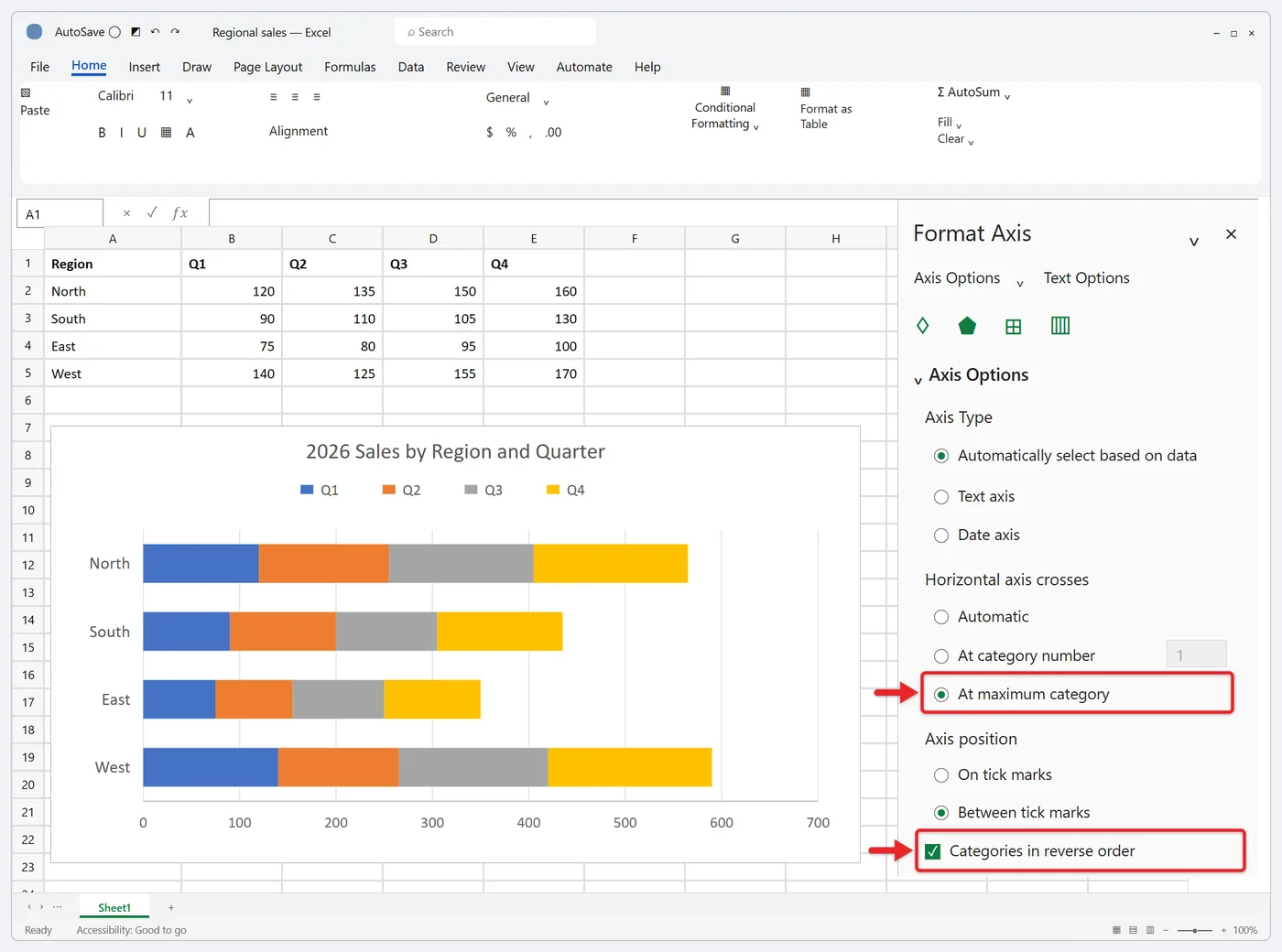
Microsoft covers both settings in Change the plotting order of categories, values, or data series. If you’d rather have the longest bar at the top, sort the table by its totals instead; the chart follows the sort order.
Segments are in the wrong order
- Select the chart and click Chart Design > Select Data.
- In Legend Entries (Series), click a series, such as Q4.
- Use the Move Up or Move Down arrows, then click OK.
The first series in the list sits against the axis. Put the segment readers compare most often there, since it’s the only one that starts from the same line on every bar. To rename what the legend shows, see how to edit the legend in Excel.
Make the chart easier to read
Make the bars thicker
Right-click any segment and choose Format Data Series. Under Series Options, lower Gap Width; it sets the space between bars on a scale from 0 to 500, and a value around 50% to 80% gives solid-looking bars. Leave Series Overlap at 100% so the segments stay end to end.
Add data labels
Click the chart, click the Chart Elements button (the plus sign beside the top-right corner) and check Data Labels. Click the arrow next to it to choose a position. If a segment is too narrow for its number, click that one label and delete it, or drag it outside the bar.
Labels can also show text from cells instead of the plotted value. Right-click a label, choose Format Data Labels, and under Label Contains check Value From Cells, then select the cells. Microsoft describes this in Add or remove data labels in a chart. It’s the cleanest way to show percentages on a regular stacked bar: calculate them in helper columns (for example =B2/SUM($B2:$E2) formatted as a percentage) and point each series’ labels at its helper column.
Show a total at the end of each bar
Excel has no built-in total label for stacked bars. A hidden helper series does the job:
- Add a Total column next to your data with a formula such as =SUM(B2:E2), filled down. Don’t include it in the original selection.
- Click Chart Design > Select Data > Add. Name the series “Total,” select the Total values as Series values, and click OK twice. A long extra segment appears on every bar.
- Click that new segment, add data labels to it only, and set the label position to Inside Base so each number sits just past the end of the real bar.
- With the Total segment selected, go to Format > Shape Fill > No Fill. Then click the Total legend entry once, click it again so it’s the only one selected, and press Delete.
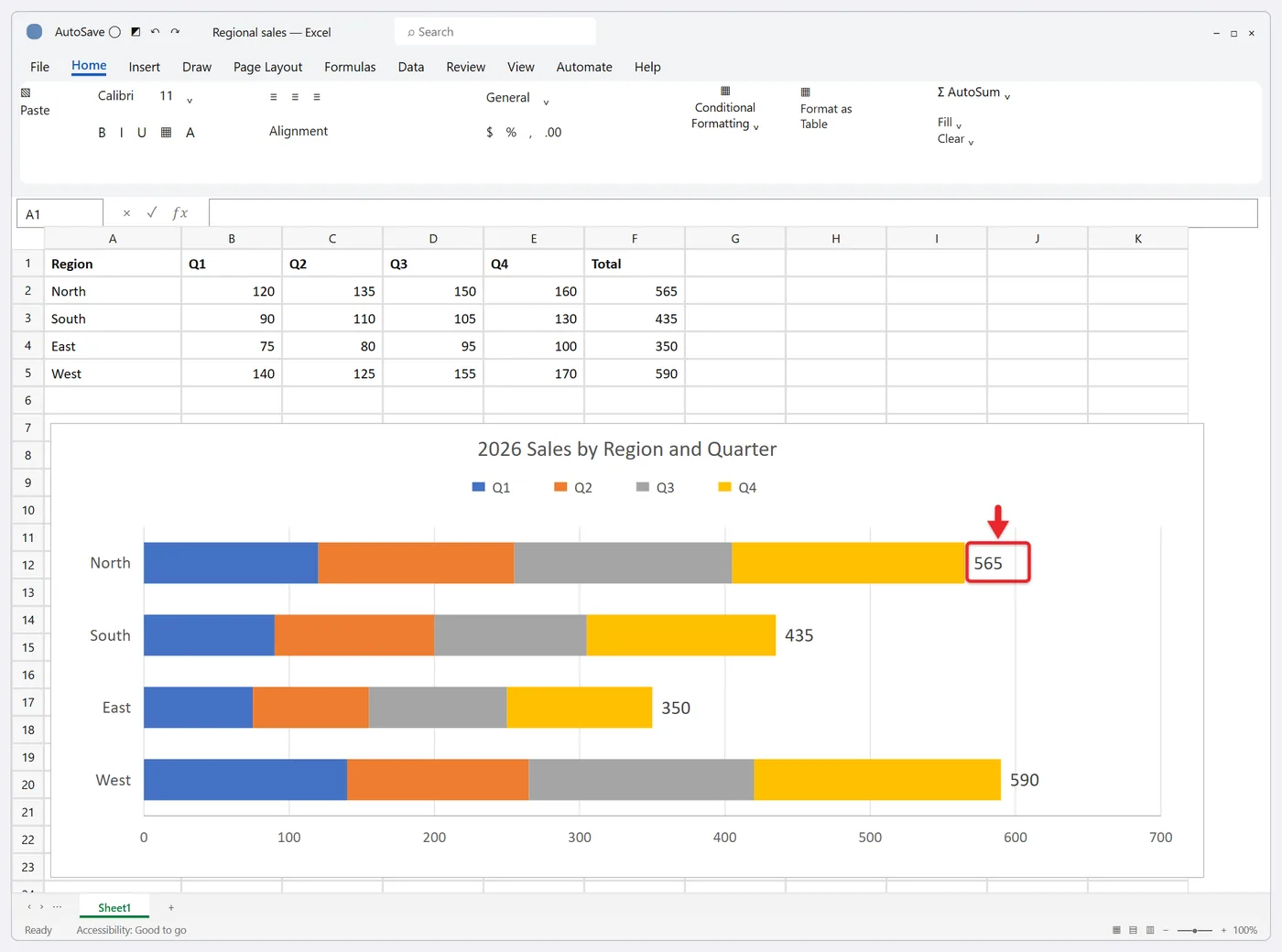
The invisible segment makes the value axis about twice as long as needed. Right-click the value axis, choose Format Axis and type a fixed Maximum a little above your largest total (for the example, 700).
Format the value axis and numbers
In Format Axis for the horizontal (value) axis, set Minimum to 0 under Bounds, and under Number pick Currency, Number or Percentage with the decimals you want. For large figures, Display units set to Thousands or Millions keeps the axis tidy.
Colors and legend
- Click a segment once to select its whole series, then use Format > Shape Fill to recolor it. Chart Design > Change Colors swaps the whole palette at once.
- For a bar chart, a legend at the top often reads better than one on the right. Choose Chart Elements > Legend > Top.
- The Chart Filters button (the funnel) hides a region or a quarter from the chart without deleting anything from the sheet.
- Fonts, gridlines and other styling work the same as in any chart; the walkthrough on how to edit a graph in Excel covers them.
Stick to five segments or fewer where you can, with clearly different colors. Beyond that, the colors get hard to tell apart and the middle segments are hard to compare.
Variations you might need
100% stacked bar from raw numbers
You don’t need to convert anything to percentages first. Insert a 100% Stacked Bar from the same menu, or change an existing chart with Chart Design > Change Chart Type. Excel scales each bar to 100% and the axis reads 0% to 100%. The data labels still show your raw numbers, though, so use the helper-column and Value From Cells approach above if you want percent labels on the segments.
Clustered stacked bars (groups of stacked bars)
Excel has no clustered stacked type, so comparing, say, 2025 and 2026 for each region in stacked form takes a layout trick. Put two label columns on the left (region, then year), with each region’s years on consecutive rows and a blank row between regions. Select the whole block and insert a Stacked Bar; Excel uses the two label columns as grouped category labels. Then set Gap Width to 0 so the bars in each group touch, and the blank rows keep the groups apart. Expect to adjust the label range with Select Data if Excel picks it up incorrectly.
Gantt-style timeline
A basic Gantt chart is a stacked bar with two series: start dates and durations. You hide the start-date segment with No Fill, reverse the categories so the first task is on top, and usually set the axis minimum to your project’s start date. Excel doesn’t have a built-in Gantt type, and Microsoft points to its templates instead; the full walkthrough is in this guide to making a Gantt chart in Excel.
Troubleshooting
- The bars sit side by side. You chose Clustered Bar. Select the chart, click Chart Design > Change Chart Type, and pick Stacked Bar.
- The bars and segments are swapped. Click Chart Design > Switch Row/Column.
- Every bar is twice as long as expected, or there’s a “Total” bar. A Total row or column made it into the range. Open Select Data and remove that series, or drag the colored range outline on the sheet so it excludes the totals.
- A series is missing or flat. Its values are probably stored as text. Convert the cells to numbers and the chart updates.
- New rows don’t show up. Drag the range outline to include them, use Select Data, or convert the data to a table so the chart grows with it.
- Segments go left of zero. Negative values stack in the opposite direction from positives, which is hard to read. A clustered bar usually works better for data with negatives.
- The colors changed after reusing a template. Right-click the chart area and choose Reset to Match Style to switch to the workbook’s theme colors.
To reuse your formatting, right-click the finished chart and choose Save as Template, give it a name and click Save. Next time, open Insert > Recommended Charts (or Change Chart Type), go to All Charts and pick it from the Templates folder. Microsoft’s steps are in Save a custom chart as a template.
To use the chart in a presentation, copy it with Ctrl + C and paste it into your slide. If the numbers will keep changing, link the Excel chart to PowerPoint so the slide updates with the workbook.
FAQs
Why does my stacked bar chart list the categories in reverse?
Bar charts start plotting from the bottom of the vertical axis, so the first row of data ends up lowest. Check Categories in reverse order in Format Axis and set the crossing point to At maximum category to fix both the order and the axis position.
Can a stacked bar chart show more than one value per segment?
Each segment plots one number. You can still show extra information in its label, such as “120 (21%),” by building the text in a helper column with a formula and using Value From Cells.
How do I add another category or segment later?
For a new bar, add a row; for a new segment, add a column. If the data is an Excel table, the chart updates on its own. Otherwise, click the chart and drag the colored range outlines on the sheet, or use Select Data > Add. Adding several separate ranges is covered in adding multiple data sets to a graph in Excel.
When is a stacked bar the wrong choice?
When readers need to compare the middle segments across bars, or follow a trend over many periods. Segments other than the first don’t share a starting line, so small differences are hard to see. A clustered bar or a line chart answers those questions more clearly.
Does Excel for the web support stacked bar charts?
Microsoft’s Recommended Charts instructions apply to Windows, macOS and the web, and stacked bar is one of the standard bar types. Microsoft doesn’t list every formatting option for the web version, and some may be simpler there, so if an option in this guide is missing in the browser, open the workbook in the Excel desktop app to finish the formatting.
Next step
Once the chart reads well, sort the data by total, reverse the category order so the biggest bar is on top, and save it as a template. Your next stacked bar chart will then take one click instead of ten.

Matt Jacobs has been working as an IT consultant for small businesses since receiving his Master’s degree in 2003. While he still does some consulting work, his primary focus now is on creating technology support content for SupportYourTech.com.
His work can be found on many websites and focuses on topics such as Microsoft Office, Apple devices, Android devices, Photoshop, and more.