To freeze multiple columns in Excel, select the column just to the right of the last one you want to keep visible, then go to View > Freeze Panes > Freeze Panes. To keep columns A through C in place, for example, select column D. Excel freezes everything to the left of your selection, so those columns stay on screen while you scroll right. To freeze rows and columns together, select a single cell instead.
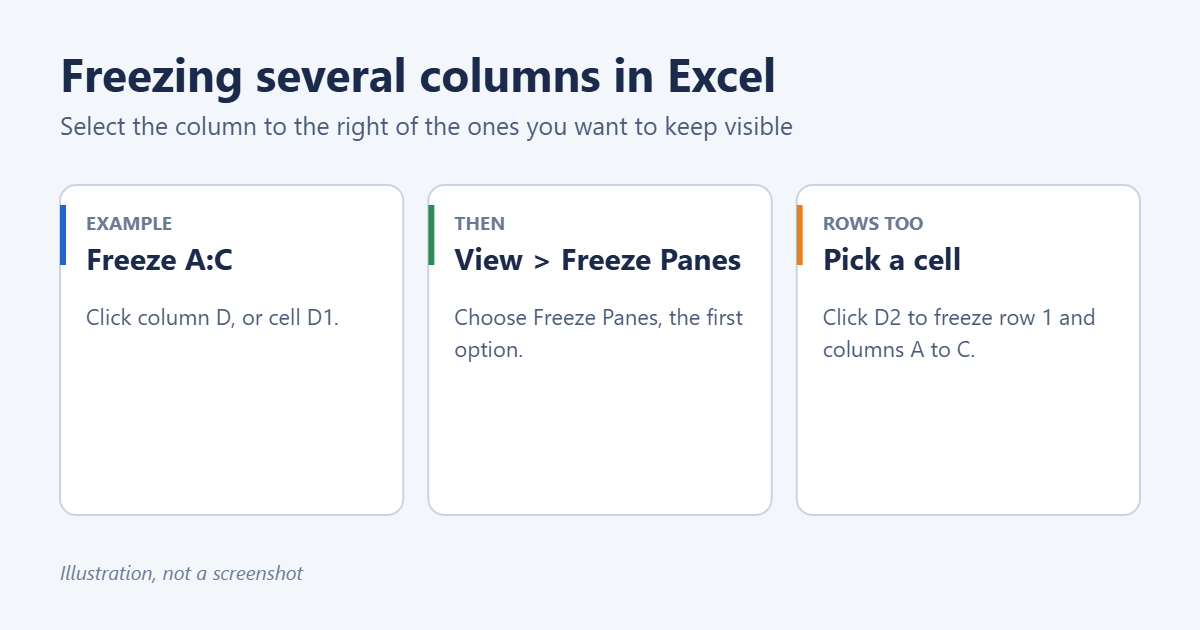 Freeze Panes; click a cell to freeze rows as well” width=”1200″ height=”630″ />
Freeze multiple columns
- Decide how many columns to keep visible. Say columns A, B, and C.
- Click the header of the next column, D, to select it. Selecting cell D1 works the same way.
- Go to the View tab.
- Click Freeze Panes, then choose Freeze Panes from the menu.
A thin line appears to the right of column C. Scroll right and columns A to C stay put.
Freeze columns and rows at the same time
Excel freezes everything above and to the left of the cell you select.
- Freeze row 1 and columns A to C: select D2.
- Freeze rows 1 to 3 and columns A and B: select C4.
Then use View > Freeze Panes > Freeze Panes. Only need the header row and first column? Freezing the top row and first column covers that common case.
Unfreeze
Go to View > Freeze Panes > Unfreeze Panes. You need to unfreeze before you can freeze a different set of columns.
Freeze only the first column or top row
The Freeze Panes menu also has Freeze First Column and Freeze Top Row. These don’t need a selection, but they only freeze one column or one row. The row version is shown in freezing the top row in Excel.
Tips
- Scroll to the top-left first. Freeze Panes freezes what’s currently visible above and left of the selection. If you’ve scrolled so that column A is off screen, those hidden columns won’t come back into view while frozen. Press Ctrl + Home before freezing.
- Keep it to a few columns. If frozen columns take up most of the screen, there’s little room left to scroll.
- Each sheet is separate. Freezing applies to the current worksheet only and is saved with the workbook.
- Printing is different. Frozen columns don’t repeat on printed pages. Use Page Layout > Print Titles > Columns to repeat at left instead.
Split panes as an alternative
View > Split divides the window into panes that scroll independently, so you can compare two distant parts of a sheet. Unlike freezing, every pane scrolls. Click Split again to remove it.
Troubleshooting
Freeze Panes is greyed out
You’re editing a cell (press Esc), the sheet is protected, or you’re in Page Layout view. Switch to View > Normal.
The wrong columns froze
Unfreeze, check which column or cell you selected, and try again. Remember that the selected column itself is not frozen.
Columns disappear when I freeze
They were scrolled out of view at the moment you froze. Unfreeze, press Ctrl + Home, and freeze again.
Frequently asked questions
Can I freeze columns in the middle of a sheet?
No. Freeze Panes always works from the left edge. To keep middle columns visible, move them to the left or use Split.
Does this work on Mac and Excel for the web?
Yes. On a Mac it’s View > Freeze Panes. In Excel for the web, it’s View > Freeze Panes as well.
Can I hide columns instead?
Yes, if you don’t need to see them. When you want them back, unhiding all rows and columns brings them back.
Summary
Select the column to the right of the ones you want to keep, or the cell below and to the right for rows and columns, then choose View > Freeze Panes > Freeze Panes. Use Unfreeze Panes to undo it.

Matt Jacobs has been working as an IT consultant for small businesses since receiving his Master’s degree in 2003. While he still does some consulting work, his primary focus now is on creating technology support content for SupportYourTech.com.
His work can be found on many websites and focuses on topics such as Microsoft Office, Apple devices, Android devices, Photoshop, and more.