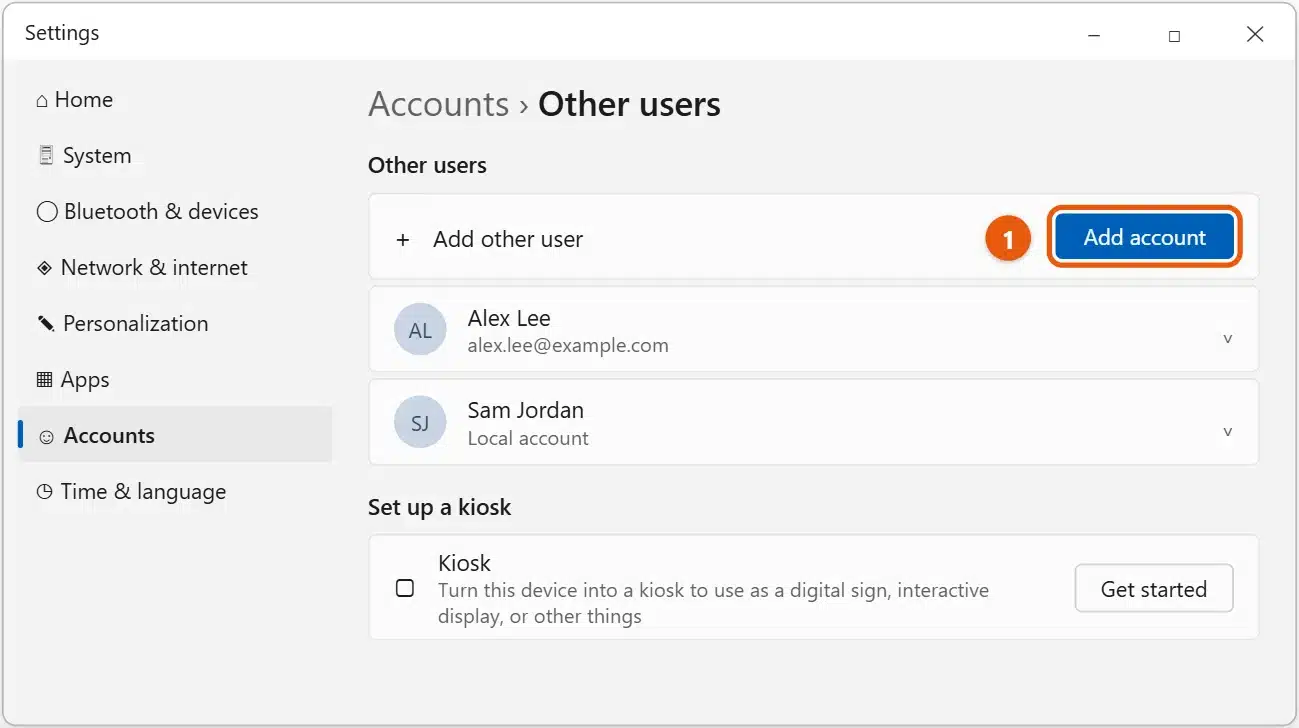
To add another user in Windows 11, go to Settings > Accounts > Other users and select Add account next to Add other user. Enter the person’s Microsoft account email address, or choose I don’t have this person’s sign-in information to create a local account instead. You need to be signed in as an administrator.
Each user gets their own desktop, files, and settings, so other people can’t see your documents or change your apps’ settings.
Applies to: Windows 11 Home and Pro. Checked against Microsoft Support on September 24, 2026.
Add a user with a Microsoft account
Use this if the person already has an Outlook.com, Hotmail, Xbox, or other Microsoft account. They get their OneDrive files and synced settings on this PC.
- Select Start > Settings, or press Windows + I.
- Select Accounts, then Other users. On older versions of Windows 11, it’s called Family & other users.
- Next to Add other user, select Add account.
- Enter the person’s email address or phone number and select Next.
- Select Finish. The person signs in with their own Microsoft account password the first time they use the PC. The PC needs an internet connection for that first sign-in.
Add a user without a Microsoft account (local account)
A local account only works on this PC. It doesn’t need an email address or internet connection, but it doesn’t include OneDrive or sync settings to other devices.
- Go to Settings > Accounts > Other users and select Add account.
- Select I don’t have this person’s sign-in information.
- Select Add a user without a Microsoft account.
- Enter a user name, such as
Alex Lee. - Enter a password twice, then choose three security questions and answers. These let the person reset a forgotten password. You can leave the password blank, but anyone could then sign in to the account.
- Select Next. The account appears under Other users.
Make the new user an administrator
New accounts are Standard users. They can use apps and change their own settings, but can’t install some apps or change settings for everyone. Only give administrator rights to people you trust with the whole PC.
- Go to Settings > Accounts > Other users.
- Select the account, then select Change account type.
- Choose Administrator and select OK.
Add a child to your family group
For a child, go to Settings > Accounts > Family and select Add someone instead. Adding them to your Microsoft family group lets you set screen time limits, filter websites, and see activity reports in the Microsoft Family Safety app.
Other ways to add a user
Use the User Accounts window
- Press Windows + R, type
netplwiz, and press Enter. - Select Add, then follow the prompts. Select Sign in without a Microsoft account (not recommended) at the bottom to create a local account.
Use Terminal
- Right-click Start and select Terminal (Admin).
- Type
net user "Alex Lee" * /add, replacing the name in quotes, and press Enter. - Type a password when asked (it won’t show as you type), then type it again.
To make that account an administrator, type net localgroup Administrators "Alex Lee" /add and press Enter.
Switch to the new user
Select Start, select your account picture at the bottom left, and choose the new user. Or press Ctrl + Alt + Delete and select Switch user. The first sign-in takes a minute or two while Windows sets up the account.
If you can’t add a user
- There’s no Add account button, or it’s grayed out: you’re signed in as a standard user. Sign in with an administrator account. To check, go to Settings > Accounts > Your info. It says Administrator under your name if you are one.
- Work or school PC: your organization may control who can sign in. Ask your IT support team.
- The Microsoft account email isn’t accepted: check the spelling, or create the local account instead and connect a Microsoft account later from Accounts > Your info.
Frequently asked questions
Can the new user see my files?
No. Files in your Desktop, Documents, Pictures, and other personal folders are private to your account. Administrators can open other users’ folders if they choose to, so only make trusted people administrators.
Should I use a Microsoft account or a local account?
Microsoft recommends a Microsoft account because it adds OneDrive, password recovery online, and settings sync. A local account suits someone who only uses this PC and doesn’t want to sign in with an email address.
Can I add a guest account?
Windows 11 doesn’t have a built-in Guest account, but you can create a limited local account for visitors. See how to create a guest account in Windows 11.
To take someone off the PC later, see how to remove an account from Windows 11. To rename an account, see how to change a local account name in Windows 11. Microsoft’s guide is Manage user accounts in Windows. More help is on our Windows 11 Help & Guides page.

Matt Jacobs has been working as an IT consultant for small businesses since receiving his Master’s degree in 2003. While he still does some consulting work, his primary focus now is on creating technology support content for SupportYourTech.com.
His work can be found on many websites and focuses on topics such as Microsoft Office, Apple devices, Android devices, Photoshop, and more.