Open Terminal from the Start menu and type Get-CimInstance Win32_BIOS | Select-Object SerialNumber, then press Enter. Your laptop’s serial number appears under SerialNumber. You can also find it on a sticker on the bottom of the laptop or on the box it came in.
Applies to: Windows 11 laptops and desktops. Checked on September 29, 2026.
Find it with Terminal
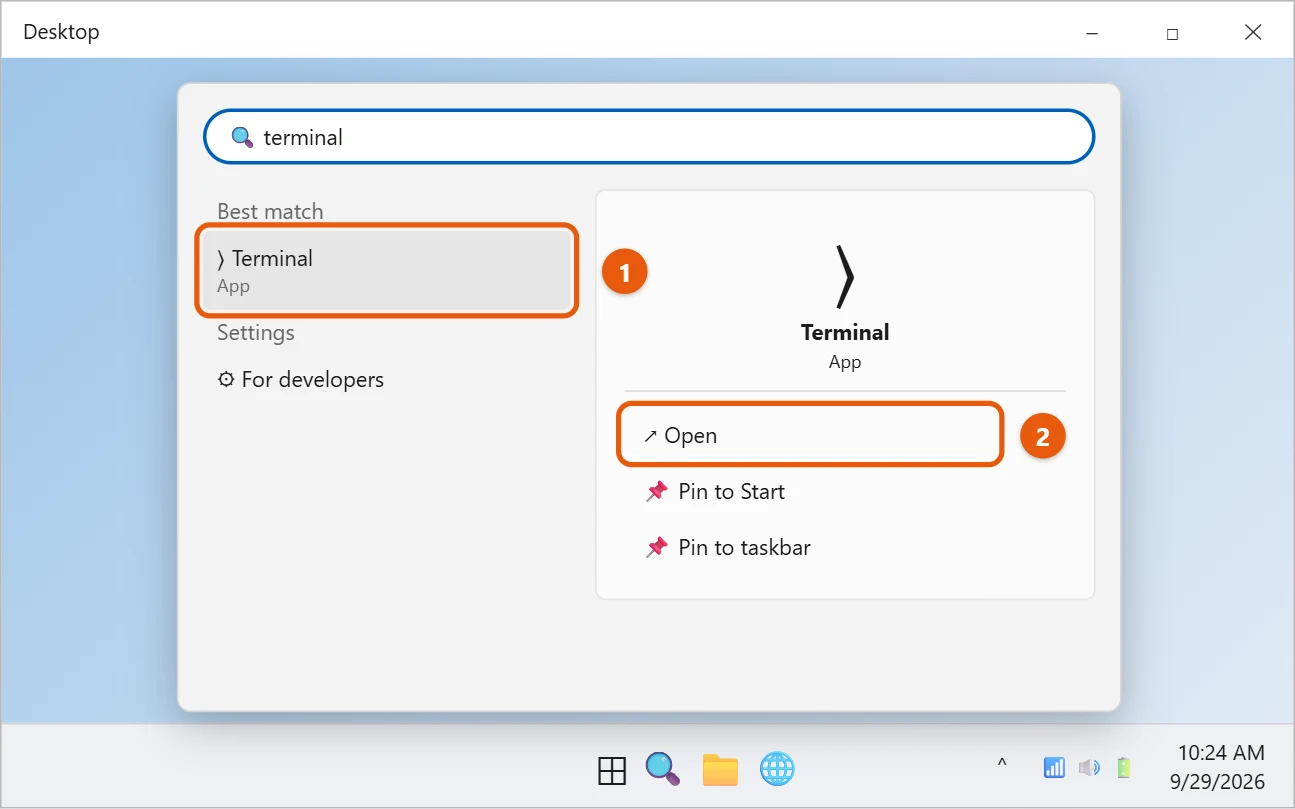
- Select Start, type terminal, and select Terminal. You don’t need to run it as an administrator.
- Type or paste this command and press Enter:
Get-CimInstance Win32_BIOS | Select-Object SerialNumber- The serial number appears on the line under SerialNumber.
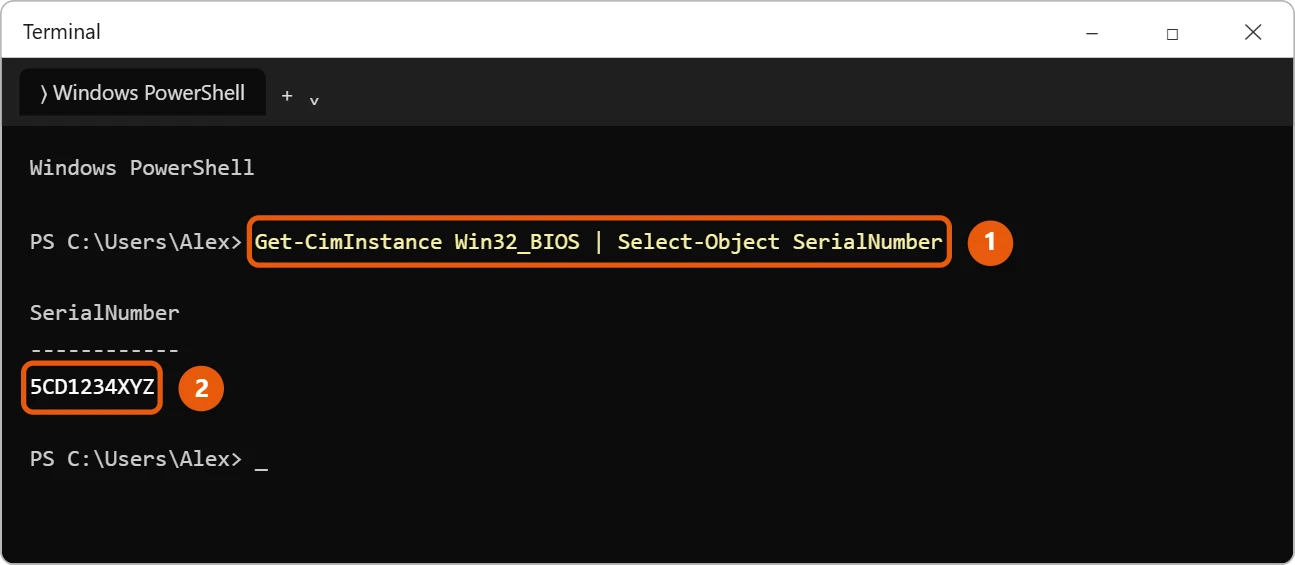
- To copy it, select the number with your mouse and press Ctrl + C.
If the result is blank or says something like “To be filled by O.E.M.”, the maker didn’t store the number in the PC’s firmware. Use the sticker or the box instead.
Other places to look
- The bottom of the laptop: Look for a sticker marked S/N or Serial. On some laptops it’s under the battery or on the edge.
- The box or receipt: The serial number is usually printed next to the barcode.
- The maker’s app: Many laptops come with a support app from the maker that shows the serial number.
- Command Prompt: On many PCs, wmic bios get serialnumber also works. Microsoft is removing the WMIC tool from newer versions of Windows 11, so the Terminal command above is the safer choice.
Find it in the BIOS or UEFI
If Windows won’t start, the serial number is also in the PC’s firmware settings. Restart and press the setup key as the maker’s logo appears, often F2, F10, Del, or Esc. The serial number is usually on the first Main or Information screen. Exit without saving changes.
What the serial number is called by each maker
| Maker | What to look for |
|---|---|
| Dell | Service Tag (7 characters) |
| HP | Serial number (S/N), plus a separate Product number |
| Lenovo | Serial number (S/N), plus Machine Type Model (MTM) |
| Microsoft Surface | Serial number in the Surface app or on the kickstand |
| Apple running Windows | Serial number on the bottom case |
When a support site asks for it, use the serial number or service tag, not the model name.
If the command shows nothing useful
- It says “To be filled by O.E.M.” or “Default string”. The maker didn’t store a serial number in the firmware. This is common on custom-built desktops. Check the sticker or the box instead.
- The sticker has worn off. Sign in to the maker’s support site. Many register the serial number automatically when you set up the PC, and some apps, such as HP Support Assistant or Lenovo Vantage, show it on their home page.
- The command gives an error. Make sure you’re in PowerShell or Terminal, not Command Prompt, and that you copied the whole line.
Frequently asked questions
Is the serial number the same as the model number?
No. The model number is shared by every laptop of the same type. The serial number is unique to your laptop, which is why warranty and support teams ask for it.
How do I find my laptop’s model too?
See how to check your PC specs in Windows 11. For more about the command line, see how to open Command Prompt in Windows 11.
Why would I need my serial number?
Support teams use it to check your warranty, find the exact drivers for your model, and confirm the PC is yours when you register it or report it stolen. Keep a copy somewhere other than the laptop itself.
Is it safe to share my serial number?
Share it only with the maker’s support or a repair shop you trust. On its own it doesn’t give access to your PC, but scammers sometimes ask for it to sound official. Microsoft and PC makers won’t call you out of the blue asking for it.
Can I find the serial number of a desktop the same way?
Yes. The command works on any Windows PC that stores one in its firmware, including desktops and all-in-ones.
Is the serial number the same as the Windows product key?
No. The product key activates Windows. The serial number identifies the hardware.
Microsoft documents the Get-CimInstance command on Microsoft Learn. More help is on our Windows Help & Guides page.

Matt Jacobs has been working as an IT consultant for small businesses since receiving his Master’s degree in 2003. While he still does some consulting work, his primary focus now is on creating technology support content for SupportYourTech.com.
His work can be found on many websites and focuses on topics such as Microsoft Office, Apple devices, Android devices, Photoshop, and more.