To find the serial number on Windows 10, open Command Prompt and run wmic bios get serialnumber. The number under SerialNumber is your PC’s serial. You can also run Get-CimInstance -ClassName Win32_BIOS | Select-Object SerialNumber in PowerShell. If the result is blank, check the label on the PC or its box.
Applies to: Windows 10. Checked against Microsoft Learn on September 25, 2026.
The serial number is set by the PC maker and stored in the firmware. Windows reads it from there, so it’s the same number printed on the sticker. It is not the same as a device ID or hardware ID; see how to find a device ID in Windows 10 if that is what you were asked for.
Find the serial number with Command Prompt
- Type cmd in the search box on the taskbar and open Command Prompt.
- Type the command below and press Enter.
wmic bios get serialnumber
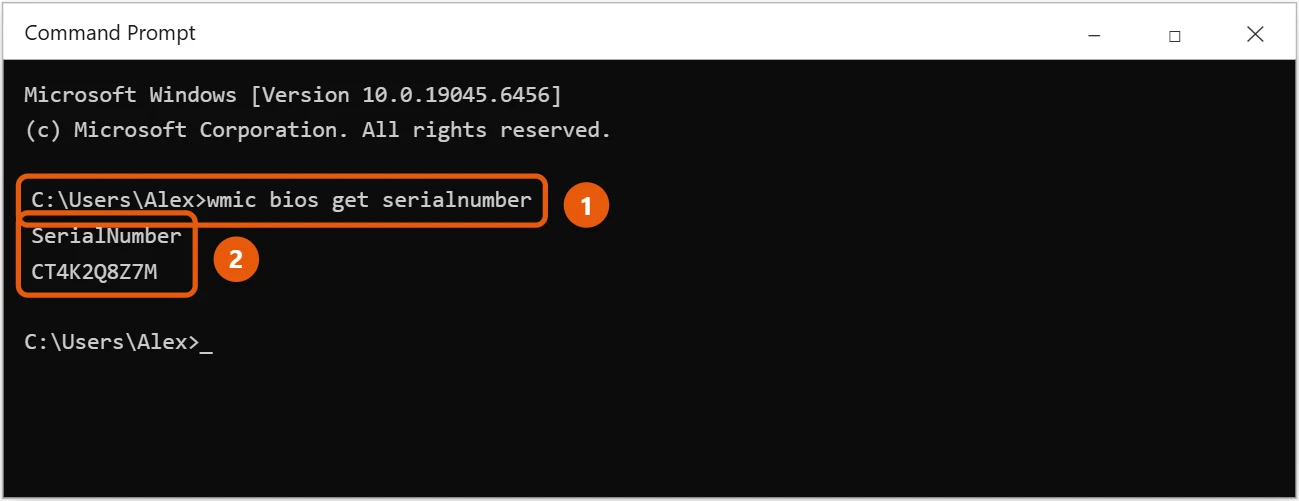
Microsoft has deprecated WMIC, and some newer builds don’t include it. If you see “wmic is not recognized,” use PowerShell instead.
Find the serial number with PowerShell
- Right-click Start and select Windows PowerShell.
- Type the command below and press Enter.
Get-CimInstance -ClassName Win32_BIOS | Select-Object SerialNumber
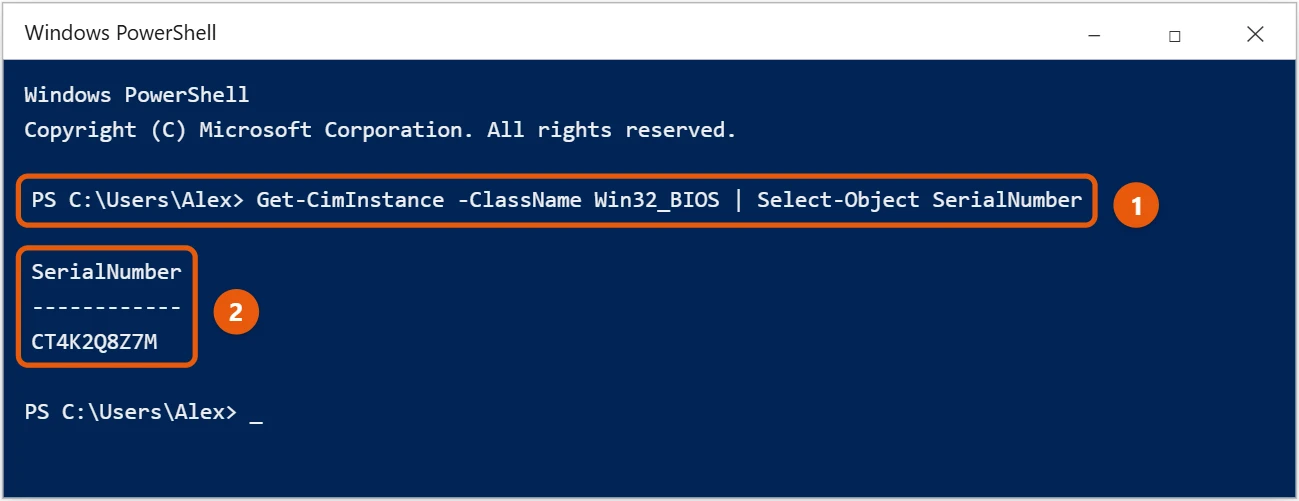
Check the label or the maker’s app
- Laptops: look on the bottom, under the battery, or on the lid hinge.
- Desktops: look on the back or side of the case.
- Maker apps: most PC makers have a support app or website that shows the serial number and warranty status.
- Box or receipt: the serial number is often printed there too.
Find serial numbers of other parts
Sometimes you need the serial number of a drive or monitor rather than the whole PC.
- Drives: in PowerShell, run
Get-PhysicalDisk | Select-Object FriendlyName, SerialNumber. - Monitors: check the label on the back of the monitor or its on-screen menu, usually under Information.
- Surface devices: open the Surface app, or check your devices list at account.microsoft.com/devices.
Check the BIOS or UEFI screen
If Windows won’t start, the serial number is often on the first page of the BIOS or UEFI setup, under Main or System Information. Press the setup key while the PC starts, often F2, F10, Del or Esc depending on the maker.
Troubleshooting
- The result says “Default string” or “System Serial Number”. The maker didn’t store a serial. This is common on custom-built desktops. Use the motherboard or case label instead.
- The serial differs from the one on the box. The motherboard may have been replaced under repair. Use the number Windows shows for warranty checks, or ask the maker.
- PowerShell shows an error. Copy the command exactly, including the spaces, and try it again in a new window.
Frequently asked questions
The command shows “To be filled by O.E.M.” or nothing. Why?
The maker didn’t store a serial number in the firmware. This is common on custom-built desktops. Use the label on the case or the motherboard box. If you need to identify the board itself, see how to find your motherboard model on Windows 10.
How do I open Command Prompt?
See how to open Command Prompt in Windows 10.
To find your laptop’s model as well, see how to check your laptop model in Windows 10.
Using Windows 11? See how to find the serial number on a Windows 11 laptop.
Microsoft’s reference is Win32_BIOS class. More help is on our Windows Help & Guides page.
Is it safe to share my serial number?
With your PC maker’s support team, yes. Avoid posting it publicly, since it can be used to look up warranty details or to make false claims about your device.
Is the serial number the same as the product key?
No. The serial number identifies the hardware. The Windows product key activates Windows and is stored separately in the firmware on most PCs.
How do I check my warranty with the serial number?
Go to your PC maker’s support website and enter the serial number or service tag. It shows the model, warranty dates and the right drivers for your PC.
Does reinstalling Windows change the serial number?
No. It’s stored in the PC’s firmware, so reinstalling or resetting Windows doesn’t affect it.
Can I find the serial number of a stolen laptop?
Check the original box, receipt, warranty registration or your account on the maker’s website. Give the number to the police and the maker.

Matt Jacobs has been working as an IT consultant for small businesses since receiving his Master’s degree in 2003. While he still does some consulting work, his primary focus now is on creating technology support content for SupportYourTech.com.
His work can be found on many websites and focuses on topics such as Microsoft Office, Apple devices, Android devices, Photoshop, and more.