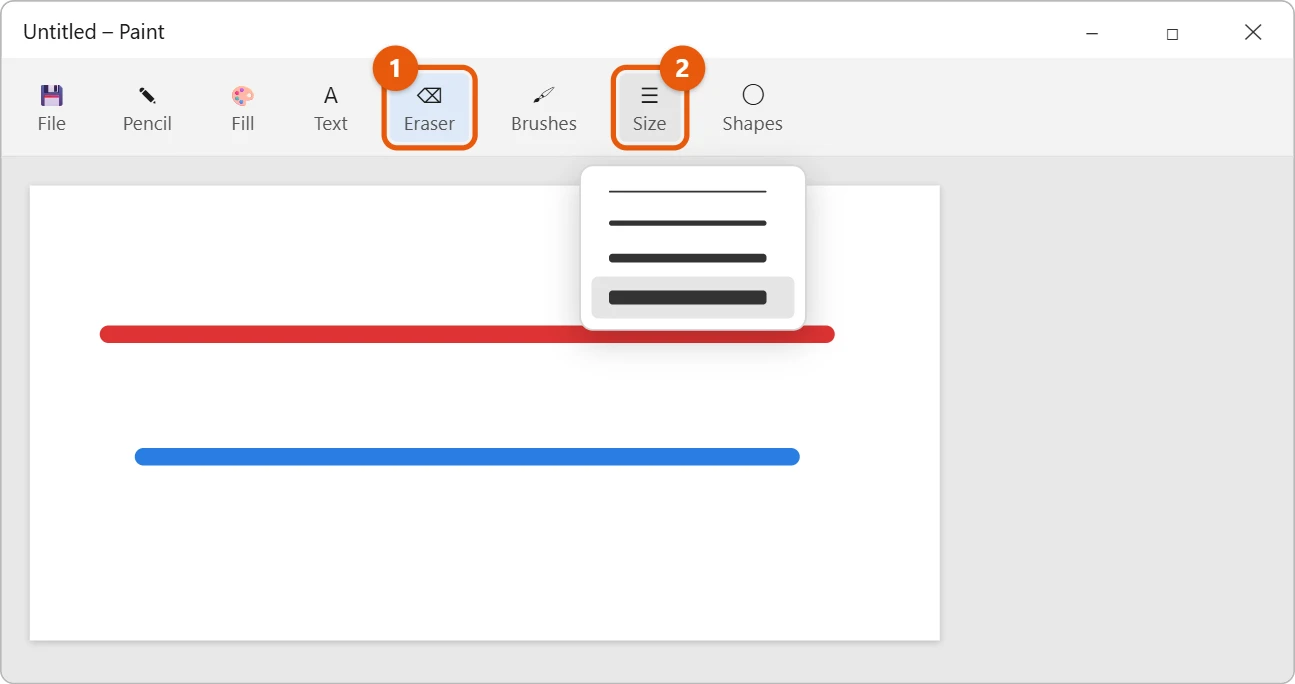
Open Paint, select the Eraser on the toolbar, then drag the size slider on the left side of the canvas up. On older versions of Paint, select Size and pick one of the thicker lines instead. The square under your pointer gets bigger right away. You can also press Ctrl + Plus on the number pad to grow the eraser one step at a time.
Applies to: Paint in Windows 11. Checked on September 29, 2026.
Change the eraser size from the toolbar
- Open Start, type Paint, and open the app.
- Select Eraser on the toolbar.
- Drag the size slider that appears on the left side of the canvas. The preview on the canvas shows the new size as you drag. On older versions of Paint, select Size next to the brushes instead.
- On older versions, pick a thicker line. The bottom line is the largest size in the list.
- Move the pointer over your picture and drag to erase. The square outline shows how much you will erase.
Change the size with the keyboard
With the Eraser selected, press Ctrl + Plus to make it bigger or Ctrl + Minus to make it smaller. Use the + and – keys on the number pad. Each press changes the size by one step, so you can go past the sizes in the menu.
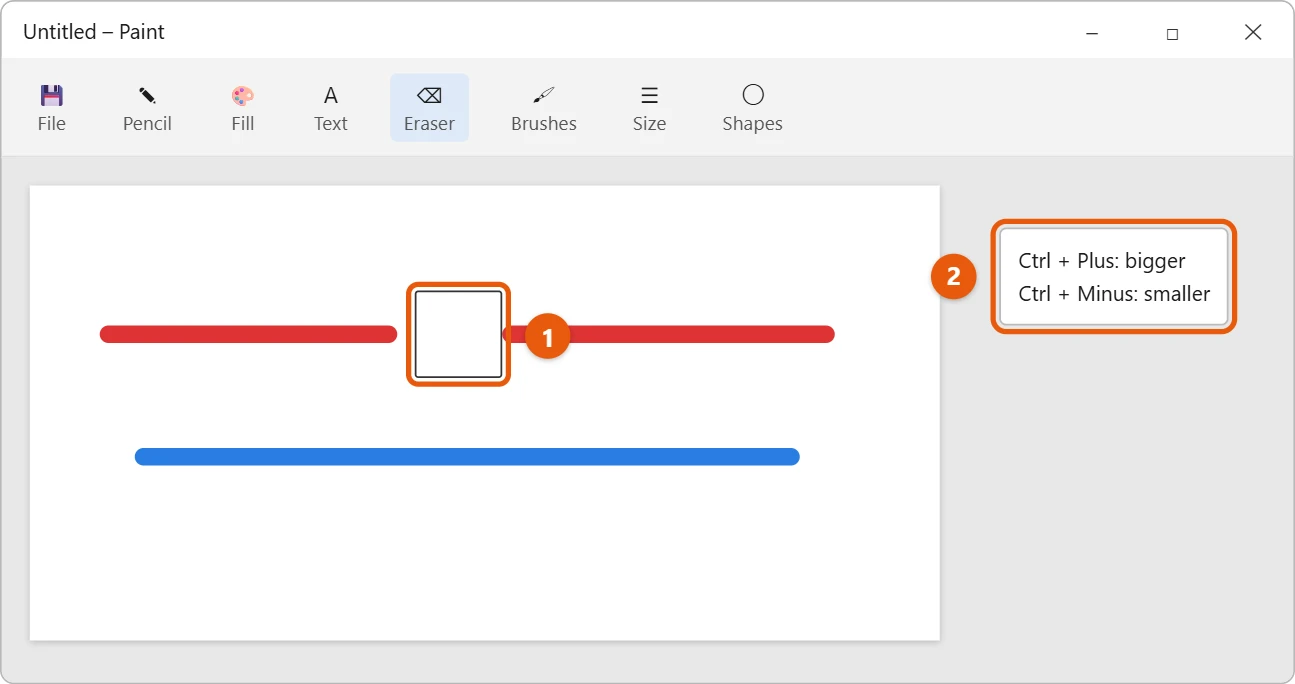
If your keyboard has no number pad, use the size slider or the Size menu instead.
Tips for erasing
- The eraser paints with the background color, which is white unless you changed it.
- Made a mistake? Press Ctrl + Z to undo.
- To remove a large area, use Select, drag a box around it, and press Delete.
If the eraser doesn’t work as expected
- You don’t see the size slider. Update Paint from the Microsoft Store. Open Microsoft Store, select Library, and select Get updates.
- The eraser doesn’t remove anything. If you’re using layers, check that the layer you want is selected in the Layers panel. The eraser only works on the selected layer.
- Erasing leaves a checkered pattern. That pattern means the area is now transparent. Save as PNG to keep it see-through, or fill it with a color.
- Ctrl + Plus doesn’t change the size. Use the plus key on the number pad. The plus key next to Backspace zooms instead on some keyboards.
Frequently asked questions
Why does the eraser leave color behind?
The eraser uses the second (background) color. If that color isn’t white, the eraser paints with it. Set the background color back to white and try again.
Can I erase part of a screenshot?
Yes. Paste the screenshot into Paint with Ctrl + V, then use the eraser. See how to take a screenshot in Windows 11, or mark up a picture with the Snipping Tool.
Paint won’t open. What can I do?
Microsoft’s page Uninstall and reinstall Paint and Snipping Tool shows how to get it back from Microsoft Store. More help is on our Windows Help & Guides page.
How do I erase small details precisely?
Zoom in first. Hold Ctrl and scroll up with the mouse wheel, or use the zoom slider at the bottom right. Then make the eraser small and work slowly. Zoom back out with Ctrl and scroll down.
Can I remove a whole background instead of erasing it?
Yes. In current versions of Paint, select Remove background in the Image section of the toolbar. Paint cuts out the main subject and makes the background transparent.
How do I undo several erasing steps?
Press Ctrl + Z once for each step you want to undo. If you go back too far, press Ctrl + Y to redo.
Does a bigger eraser work the same way in Windows 10?
Mostly. Paint in Windows 10 uses the Size menu with four line thicknesses, and Ctrl + Plus on the number pad works there too.
Why is the eraser square?
Paint’s eraser has always been a square block. To erase along a curve, use a smaller size and several short strokes, or paint over the area with a round brush in the background color.

Matt Jacobs has been working as an IT consultant for small businesses since receiving his Master’s degree in 2003. While he still does some consulting work, his primary focus now is on creating technology support content for SupportYourTech.com.
His work can be found on many websites and focuses on topics such as Microsoft Office, Apple devices, Android devices, Photoshop, and more.